Scan Hosts and Network Devices
What does the Host Scan do?
The Host Scan logs in to your servers, workstations and network devices with the credentials you provide, reads their configuration and installed software, and reports what is out of date or unsafe. Use it to find missing security updates and unsafe settings that a scan from the outside cannot see.
The scan only reads and never modifies anything on the target. It installs nothing on the target, and it uses read-only commands and queries only. It needs no agent on the host.
What does it find?
The scan reports four kinds of findings:
| Finding | Examples |
|---|---|
| Missing security updates | Missing security update: openssl on Linux, Missing Windows security update on Windows, firmware vulnerabilities on network devices. The risk is the highest severity among the vulnerabilities of the package. A vulnerability that is on the CISA Known Exploited Vulnerabilities (KEV) catalog raises the risk to at least High. |
| End-of-life software | End-of-life software: Ubuntu. The operating system or firmware release no longer receives security updates. The risk is High. |
| Insecure configuration | SSH that permits root login, no host firewall, SMBv1 enabled, administrative access over Telnet or HTTP on a firewall, SNMP v1 or v2c communities. The risk is Hardening or Medium, and High for accounts with an empty password and, on Cisco, NX-OS, RouterOS and Junos, for an SNMP community with a default name or write access. |
| Indicators of compromise | A library preloaded through /etc/ld.so.preload, a second account with UID 0, a persistence entry that downloads and runs code, an encoded PowerShell command in a startup entry, a WMI permanent event subscription. These are rated Potentially. A file that matches a known-malicious hash is rated Critical. |
The scan also checks for a small set of critical, actively exploited vulnerabilities in specific products, such as the backdoored XZ release (CVE-2024-3094). Those findings are rated Critical or High.
Each finding lists the host, the installed version, the version that fixes it, the vulnerabilities involved and the date of the vulnerability data used. Findings are grouped by host and package, so one package with many vulnerabilities is one finding. A finding closes after you patch the host and scan it again.
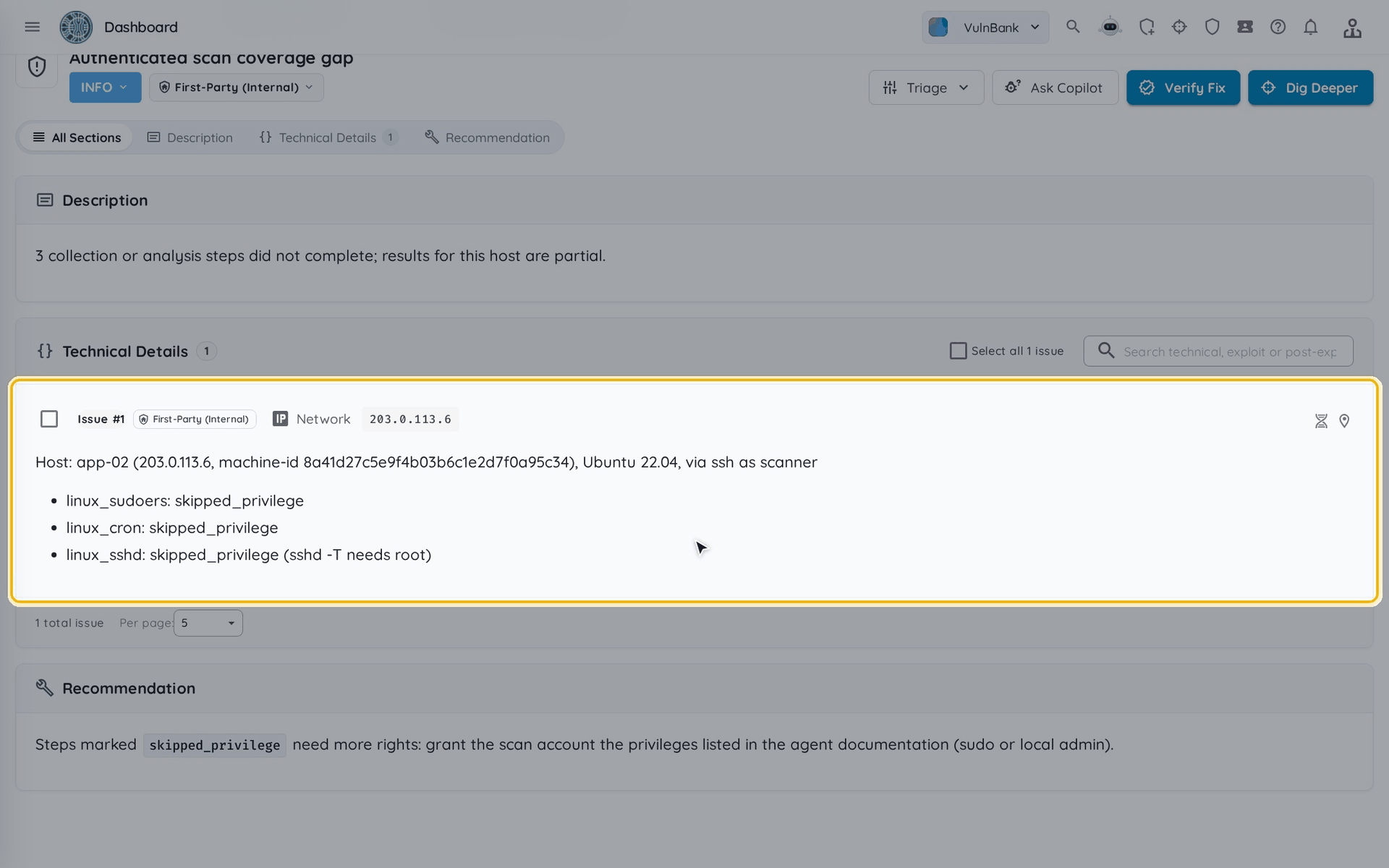
When a host cannot be fully reviewed, the scan says so with an Info finding: Authenticated scan could not log in or Authenticated scan coverage gap. The coverage gap finding lists each step that did not complete and why, for example a check that needs administrator rights.
Which hosts and devices are supported?
The Host Scan supports the systems below. A system that has vulnerability data gets missing update findings. A system without it still gets the configuration and indicator of compromise checks.
| Target | Access | Notes |
|---|---|---|
| Linux: Debian, Ubuntu, Red Hat Enterprise Linux, AlmaLinux, Rocky Linux, Oracle Linux, SUSE Linux Enterprise Server, openSUSE Leap, Amazon Linux 2 and 2023, Alpine | SSH | Missing updates are matched against the vendor's own advisories. End-of-life checks cover these systems. SUSE covers SLES 15 service packs and openSUSE Leap 15. |
| Other Linux, such as Arch Linux | SSH | The scan collects the installed packages and runs the configuration and indicator of compromise checks. It reports no missing updates, because it has no advisory data for these systems. |
| macOS | SSH | Missing updates are matched against Apple security releases. Applications installed with Homebrew are checked too. End-of-life checks cover macOS. |
| Windows 10, Windows 11 and Windows Server 2008 to 2025 | WinRM, then SMB with WMI | Missing updates are matched against Microsoft security updates by build number. Common installed applications such as browsers are checked against known vulnerabilities. End-of-life checks cover Windows. |
| Fortinet FortiGate (FortiOS) | SSH, or SNMPv3 | Firmware vulnerabilities, end-of-life branches and configuration checks over SSH. |
| Cisco IOS, IOS XE, ASA and NX-OS | SSH, or SNMPv3 | Firmware vulnerabilities and configuration checks over SSH. End-of-life checks cover IOS XE. |
| MikroTik RouterOS | SSH, or SNMPv3 | Firmware vulnerabilities, end-of-life release cycles and configuration checks over SSH. |
| Juniper Junos | SSH, or SNMPv3 | Firmware vulnerabilities and configuration checks over SSH. Junos OS Evolved is not supported, and Junos has no end-of-life check. |
A device that you scan over SNMPv3 only gets an inventory: firmware vulnerabilities, known exploited vulnerabilities and end-of-life checks. It gets no configuration findings, because the configuration is not readable over SNMP. If a device accepts both SSH and SNMPv3, the scan uses SSH.
What access does it need?
The scan logs in with a credential you create in Ostorlab. Use a dedicated account with the lowest rights that still gives full results. The scan does not need write access anywhere.
| Target | Credential | What the account needs |
|---|---|---|
| Linux and macOS | SSH | A user that can log in over SSH, with a password or a private key. Some checks read files only root can read, such as the sudoers files, other users' scheduled jobs and the effective SSH daemon configuration. Set the escalation method to sudo (the default) and give the account sudo rights, with the password in Privilege escalation password if sudo asks for one. Without them, those checks are skipped and the scan lists them in a coverage gap finding. On macOS, Remote Login must be enabled. |
| Windows | Windows | A local or domain account in the local Administrators group. Without it, the checks that need administrator rights are skipped and listed in a coverage gap finding. The host must allow WinRM (ports 5986 for HTTPS or 5985 for HTTP), or SMB (port 445) and WMI (port 135 and the dynamic RPC port range). Over SMB, the Remote Registry service must be running: the scan does not start it. |
| FortiGate | SSH, escalation method None | An administrator whose access profile can run get system status and show full-configuration. A FortiGate has no shell to escalate into. |
| Cisco IOS, IOS XE and ASA | SSH | Reading the running configuration needs privileged EXEC. Use an account with privilege level 15, or set the escalation method to Enable (Cisco) and enter the enable secret in Privilege escalation password. |
| Cisco NX-OS | SSH, escalation method None | NX-OS has no enable. The account needs the network-admin role, or a custom role with rule 1 permit read and rule 2 permit command show running-config *. The network-operator role cannot run show running-config. |
| MikroTik RouterOS | SSH, escalation method None | A user in the full or read group, which can run /export. |
| Juniper Junos | SSH, escalation method None | A named, non-root account whose login class can run show commands and has the view-configuration permission. Do not use root: a root login lands in the FreeBSD shell, the scan takes the device for a Unix host and runs no Junos check. |
| Network devices over SNMPv3 | SNMPv3 | An SNMPv3 user at the authPriv security level that can read the system objects and the vendor MIBs of the device: ENTITY-MIB for Cisco, ENTITY-MIB and FORTINET-FORTIGATE-MIB for FortiGate, ENTITY-MIB and JUNIPER-MIB for Junos, MIKROTIK-MIB for MikroTik. |
The scanner must reach the targets on these ports: 22 (TCP) for SSH, 5986 and 5985 (TCP) for WinRM, 445 and 135 (TCP) for SMB and WMI, the dynamic RPC port range for WMI, and 161 (UDP) for SNMPv3. If the targets are on an internal network, deploy an on-prem scanner first.
Is it safe to run in production?
The scan is read-only by design:
- It runs only a fixed list of read-only commands and queries. Anything else is refused before it reaches the host.
- On network devices, it sends only read commands and never enters a configuration mode:
getandshow,printandexporton RouterOS, and on Ciscoenable(only when you set the escalation method to Enable (Cisco)) andterminal length 0orterminal pager 0. Over SNMPv3 it only reads. - Over SMB, it never runs a command or writes to a share. It does not read the Windows credential stores (the
SAMandSECURITYregistry hives). - It does not keep passwords, password hashes or SNMP community names found in a configuration as evidence.
- It installs nothing, starts no service and changes no setting.
The scan also protects your accounts from lockout:
- Each credential is tried once per host. If a login is rejected, the scan does not try the same credential again on another protocol of that host.
- A credential is switched off for the rest of the scan after a lockout error on any host. It is also switched off if 3 different hosts reject it before it has logged in anywhere (timeouts and refused connections do not count), so a wrong password cannot lock an account across your fleet.
- For WinRM over HTTPS, the scan checks the server certificate by default and does not send the credential to a host whose certificate fails the check.
Each host has a time budget of 15 minutes, and up to 10 hosts are scanned at the same time. Tell the team that monitors your systems before the first scan: the logins, the sudo commands and the WinRM or SSH sessions appear in your logs.
How do I prepare credentials?
Create the credentials before the scan or while you create it. To create them in advance, open Scanning > Test Credentials, click New Credential, choose the type and fill in the fields. See Manage test credentials.
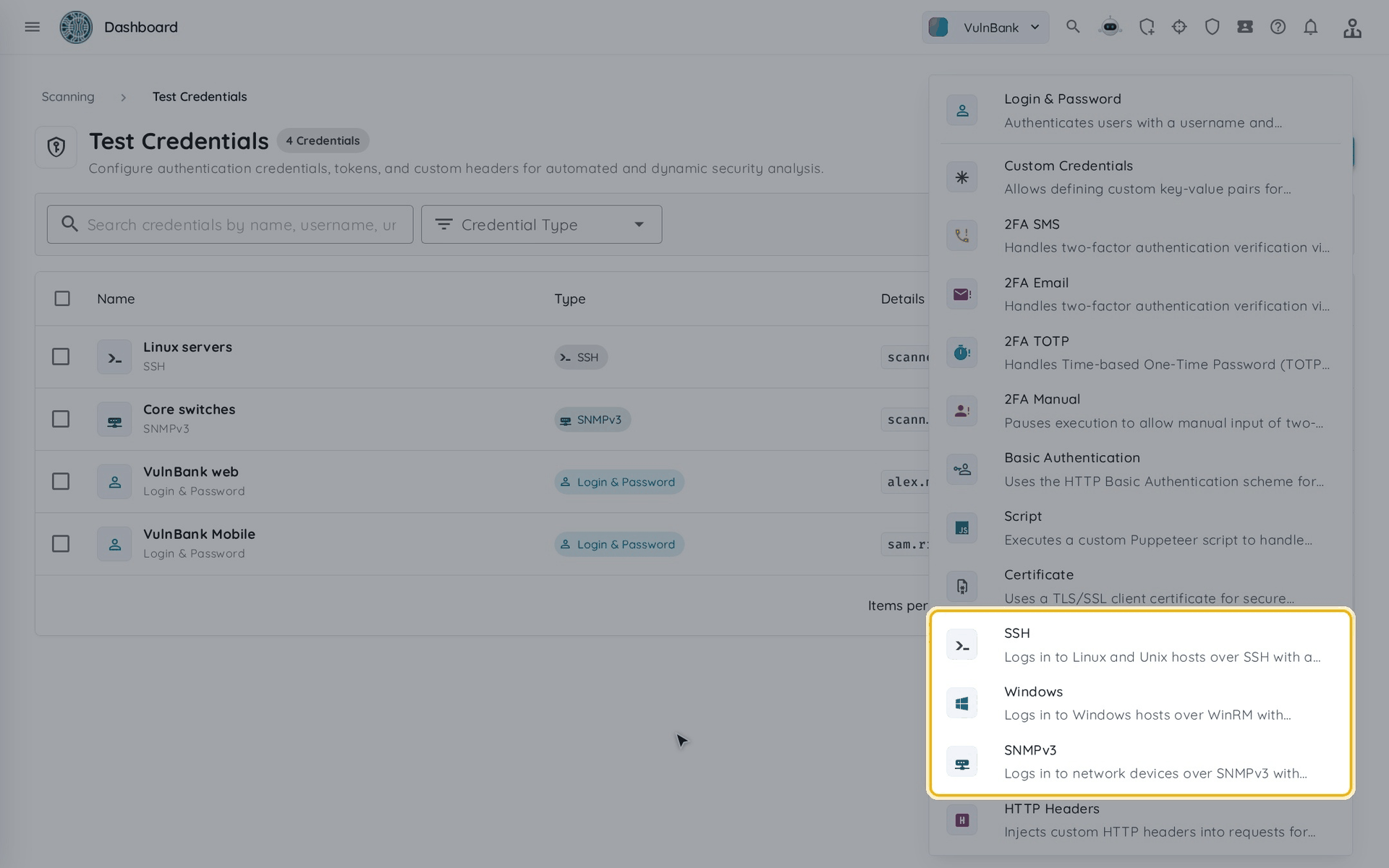
A Host Scan accepts at most one SSH, one Windows and one SNMPv3 credential, and needs at least one.
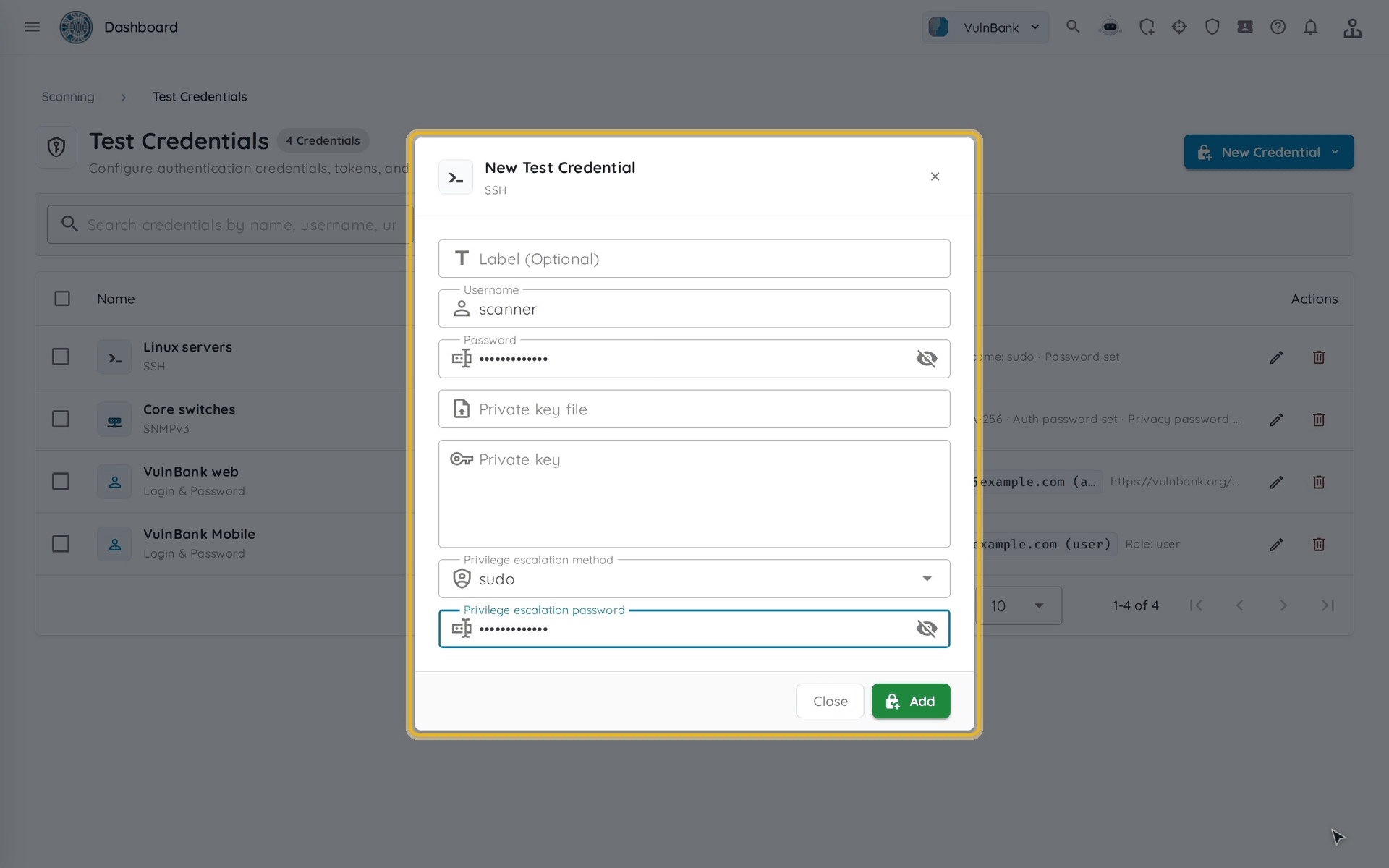
SSH
| Field | What to enter |
|---|---|
| Username | The account name. Required. |
| Password | The account password. Used only when you give no private key. |
| Private key file or Private key | A PEM private key (RSA, ECDSA or Ed25519). Upload a file or paste the key. When you give a key and a password, the key is used. |
| Private key passphrase | The passphrase of the key. It appears once you enter a key. |
| Privilege escalation method | sudo (default), su, doas, pbrun, dzdo, Enable (Cisco) or None. Use None for FortiGate, Cisco NX-OS, MikroTik and Junos. |
| Privilege escalation password | The password the method asks for. For Cisco devices, the enable secret. |
You must enter a password or a private key.
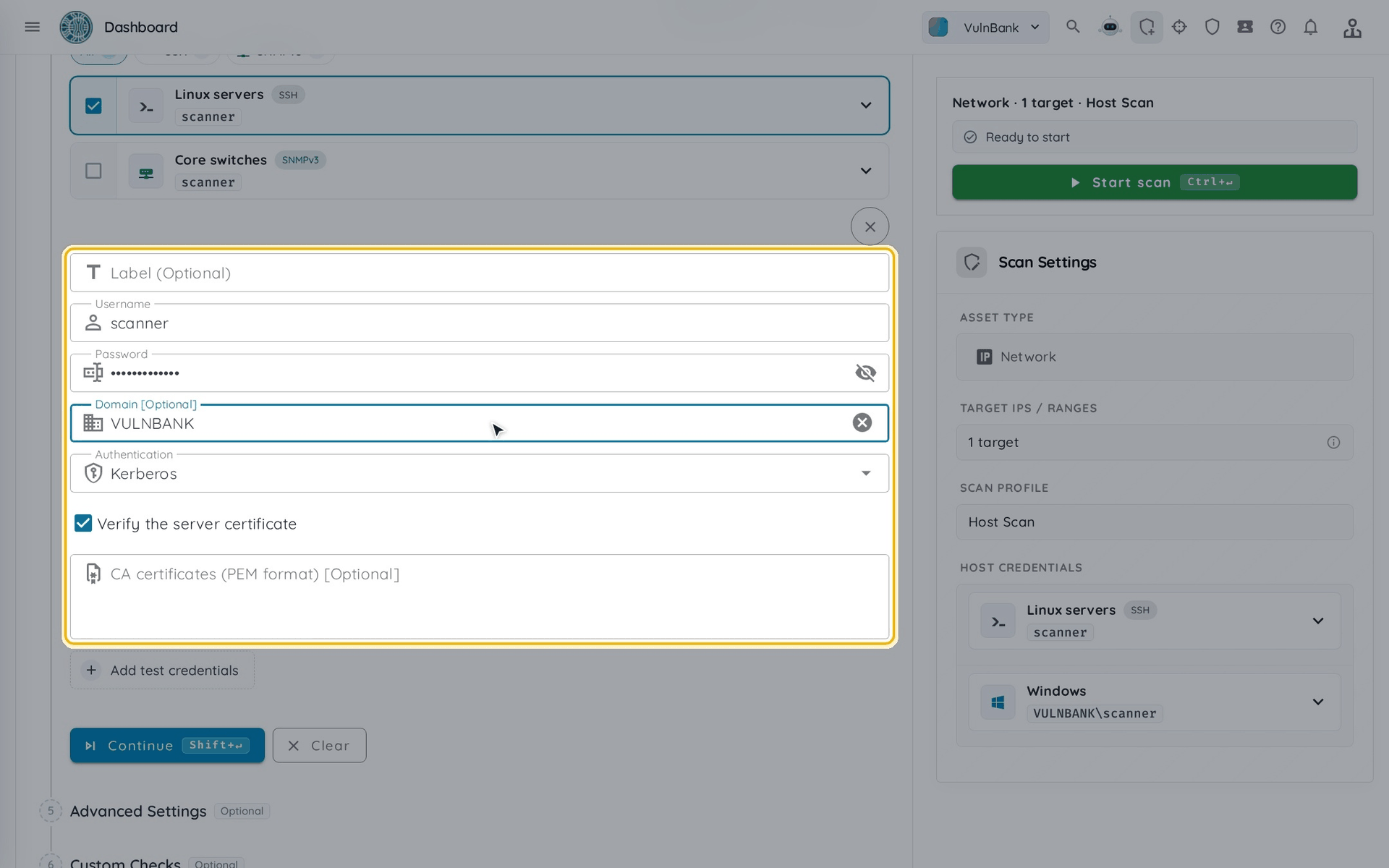
Windows
| Field | What to enter |
|---|---|
| Username | The account name. Required. |
| Password | The account password. Required. |
| Domain [Optional] | The domain of the account. Leave it empty for a local account. Kerberos needs it. |
| Authentication | Kerberos (default) or NTLM. Use NTLM for local accounts. |
| Verify the server certificate | Selected by default. For WinRM over HTTPS, the certificate must be trusted and must name the scanned host, by DNS name or IP address. Clear it only for a lab or a listener with a self-signed certificate: the scan then records that it did not verify the host. |
| CA certificates (PEM format) [Optional] | The certificate authorities to trust for WinRM HTTPS, such as your internal root, instead of the public ones. |
SNMPv3
| Field | What to enter |
|---|---|
| Username | The SNMPv3 user. Required. |
| Authentication protocol | SHA-1, SHA-224, SHA-256 (default), SHA-384 or SHA-512. |
| Authentication password | At least 8 characters. |
| Privacy protocol | AES-128 (default), AES-192 or AES-256. |
| Privacy password | At least 8 characters. |
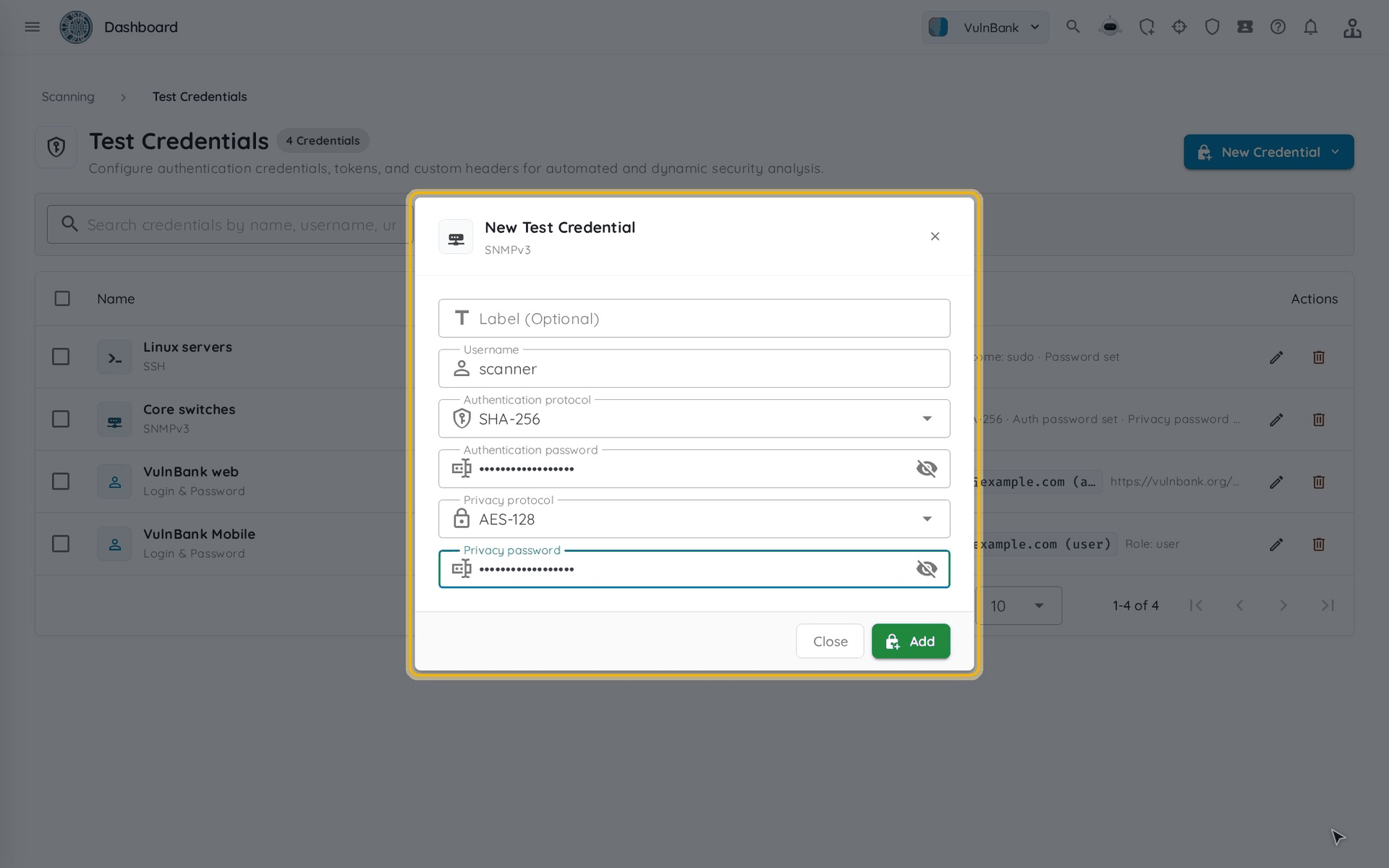
The scan uses SNMPv3 at the authPriv level only. MD5 and DES are not offered. The protocols must match the ones configured on the device. The default SHA-256 fails against a device that is configured with SHA-1: choose SHA-1 for it. A wrong protocol or password shows up as a login failure in the results.
Secrets are never shown again once saved. When you edit a credential, leave a secret field empty to keep the stored value.
How do I choose which credentials to attach?
For each host, the scan tries the access methods in this order: SSH, then WinRM, then SMB with WMI, then SNMPv3. The first one that logs in is the one used, and the others are not tried on that host.
This has three consequences:
- You can attach the three credentials to one scan to cover a mixed network. Each host is reviewed with the first credential that works on it: Linux hosts with the SSH credential, Windows hosts with the Windows credential, and network devices with SSH or, if that fails, SNMPv3.
- A credential applies to every target of the scan. If your hosts use different accounts, run one scan per group of hosts.
- The SSH credential is tried first on every host that has port 22 open, including Windows hosts that run an SSH server. Make sure the account exists on them, or scan them in a separate scan with only the Windows credential. When a credential is rejected on 3 different hosts before it has logged in anywhere, the scan stops using it.
How do I start a Host Scan?
-
Click New Scan in the top bar.
-
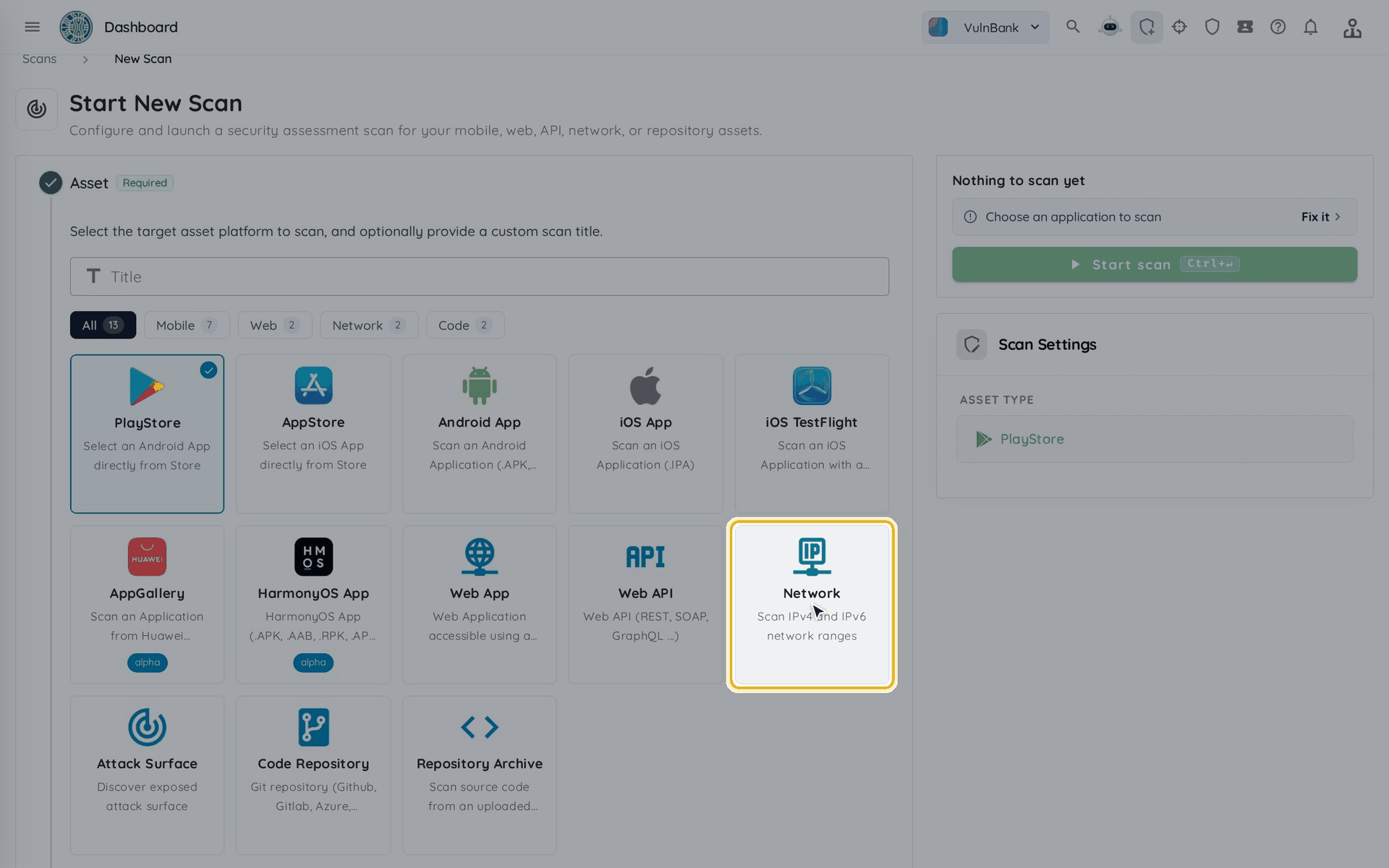
Choose Network.
-
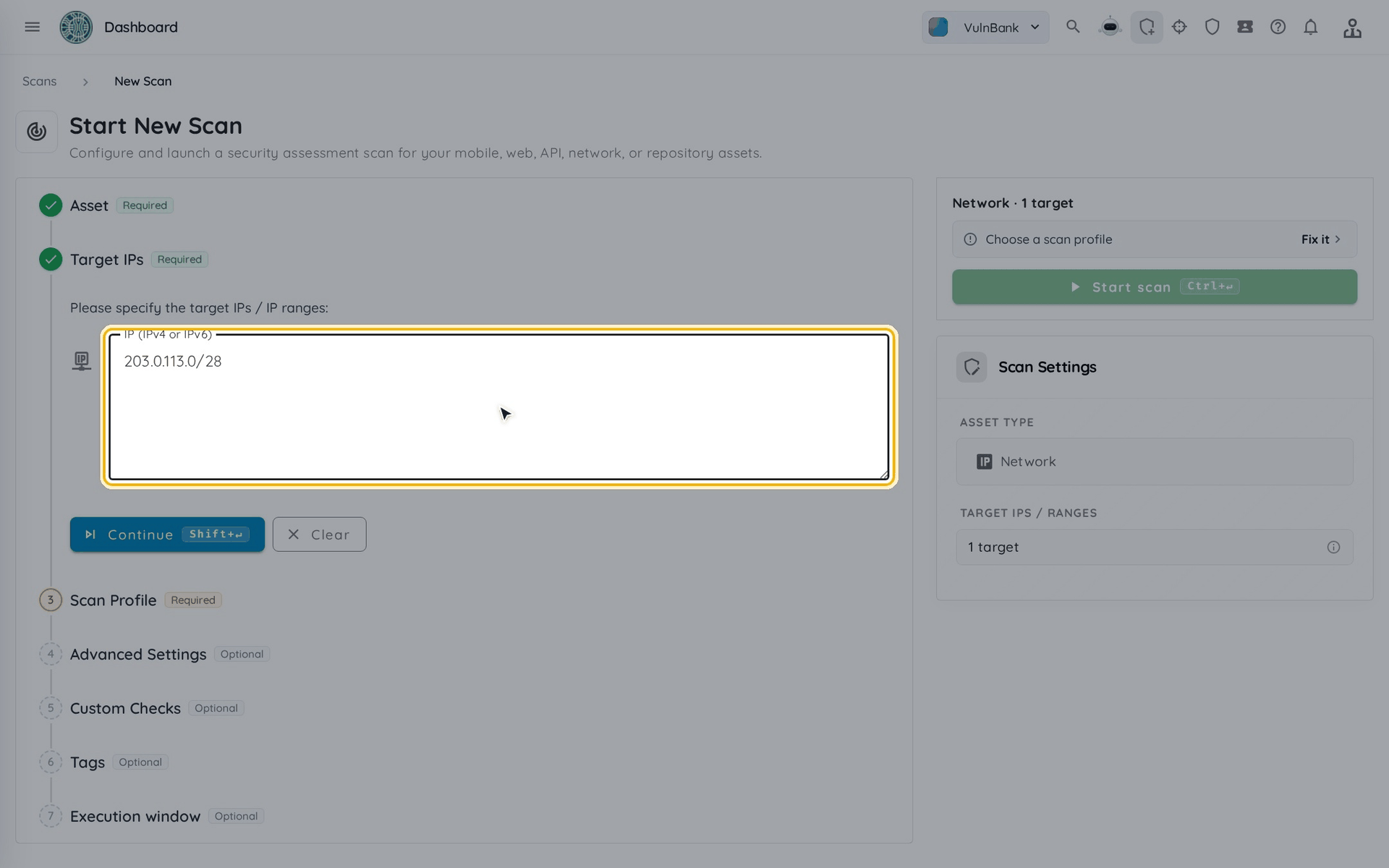
Under Target IPs, enter the IPv4 or IPv6 address or range of each host or device, one per line, then click Continue.
-
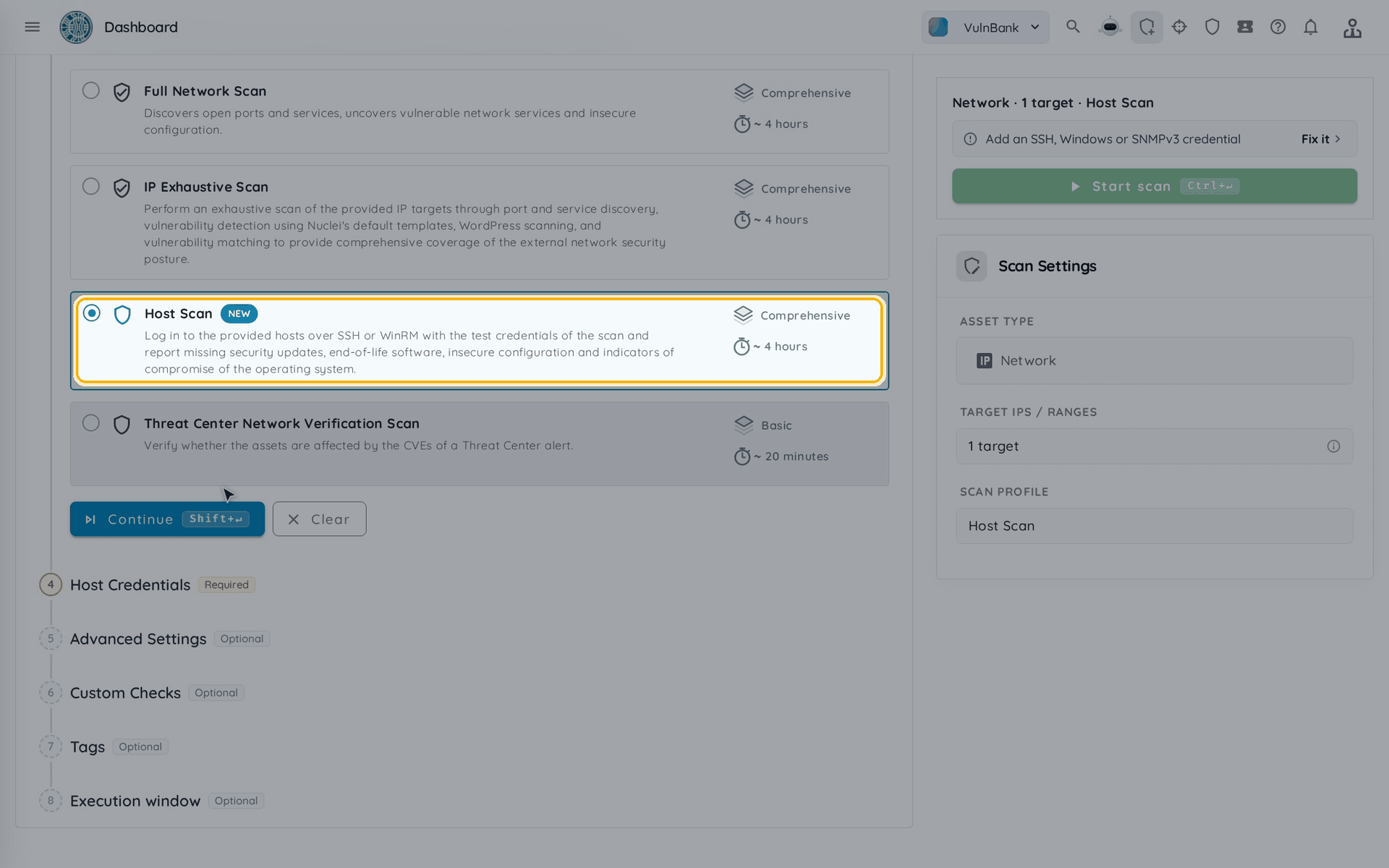
Select the Host Scan profile, then click Continue. A profile with a lock and an Unlock Profile button is not included in your organization's plan.
-
When your organization has a scanner, choose it in the Scanner step. Choose an on-prem scanner for targets on an internal network.
-
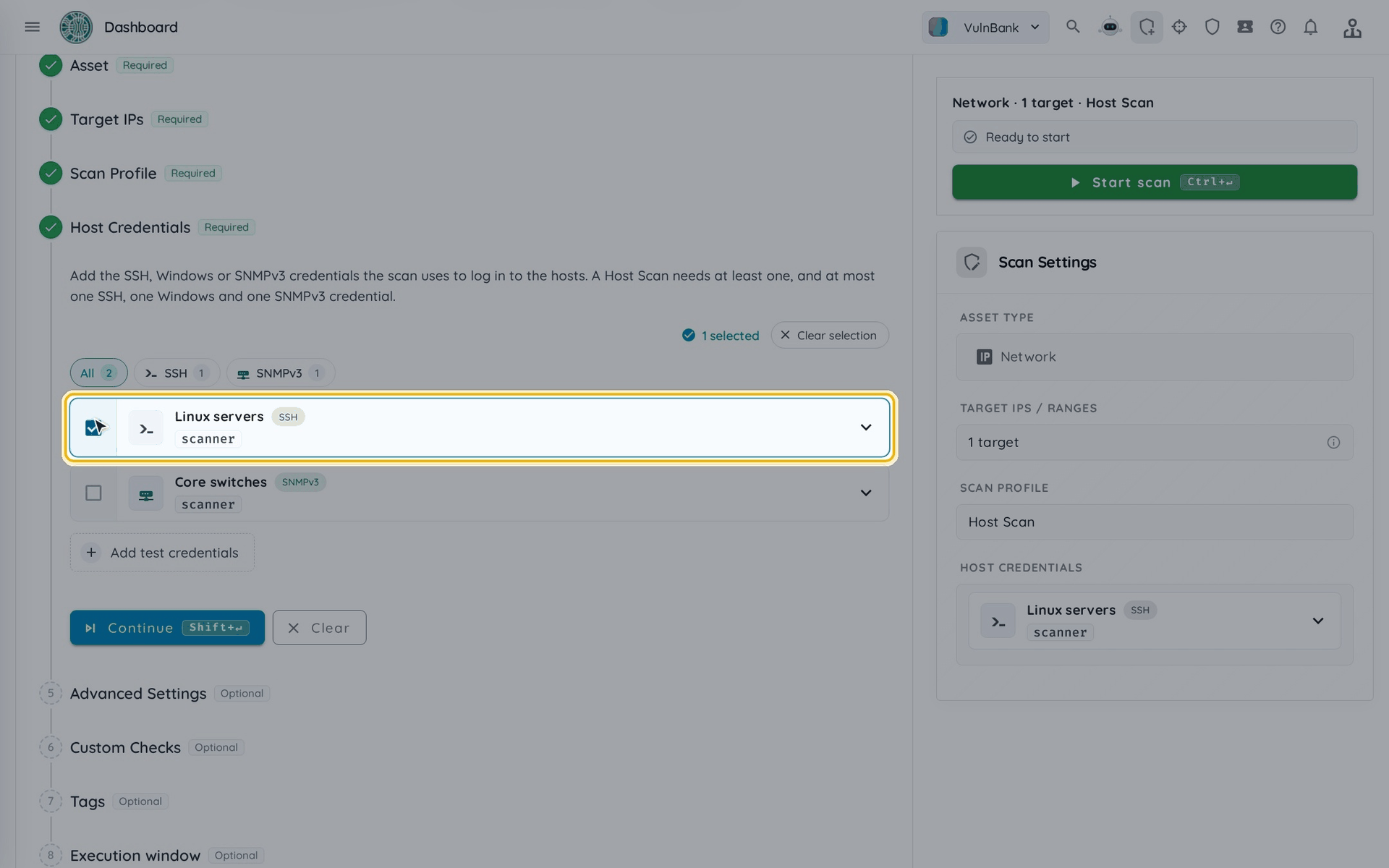
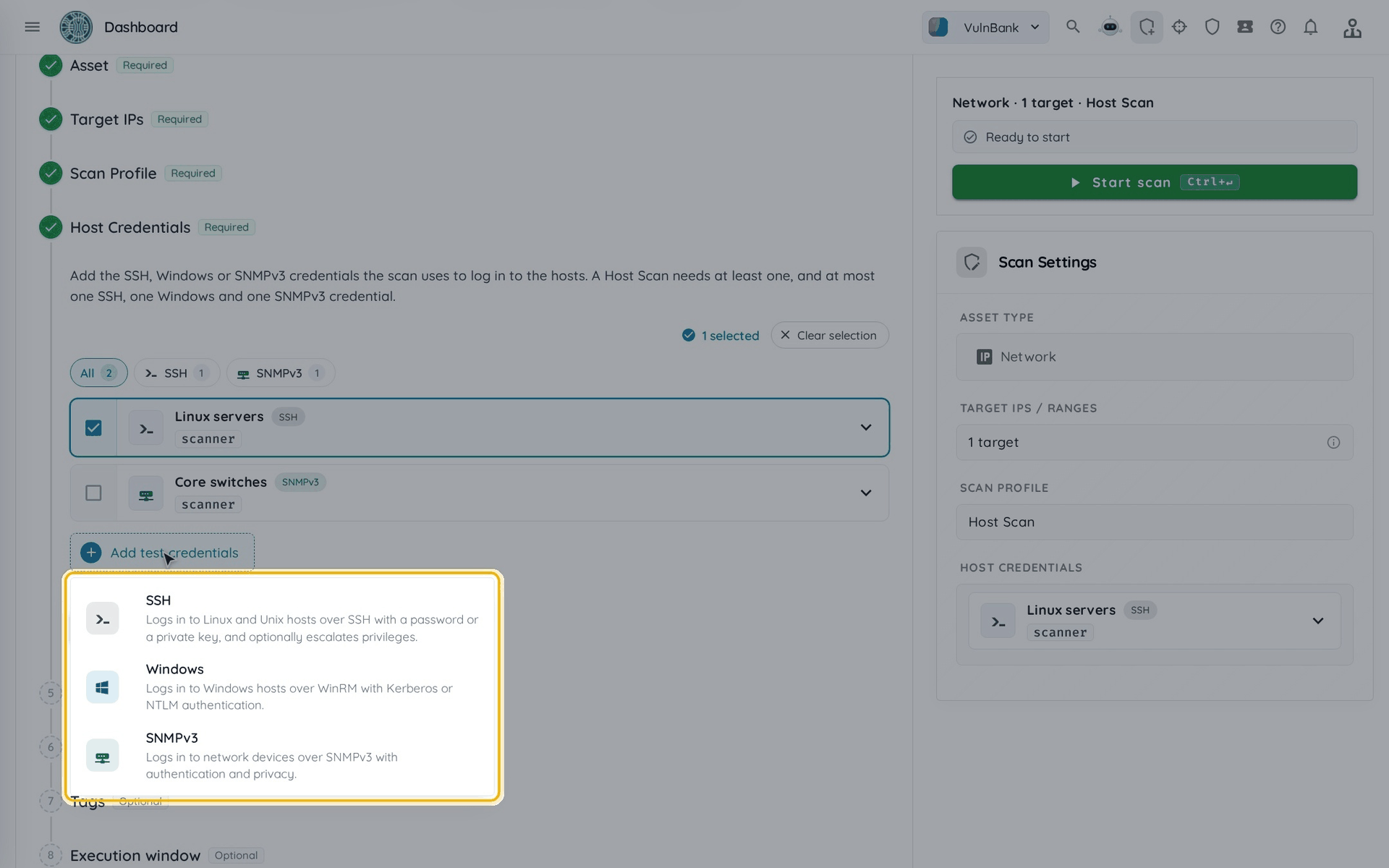
In the Host Credentials step, select the credentials you created, or click Add test credentials and choose SSH, Windows or SNMPv3 to create one now. A credential created here is saved when you start the scan. Start scan stays unavailable until you add at least one credential, and the step reports an error if you add more than one of the same type.
-
Advanced Settings, Custom Checks, Tags and Execution window are optional. Use Execution window to choose when the scan is allowed to run. See Choose when a scan runs.
-
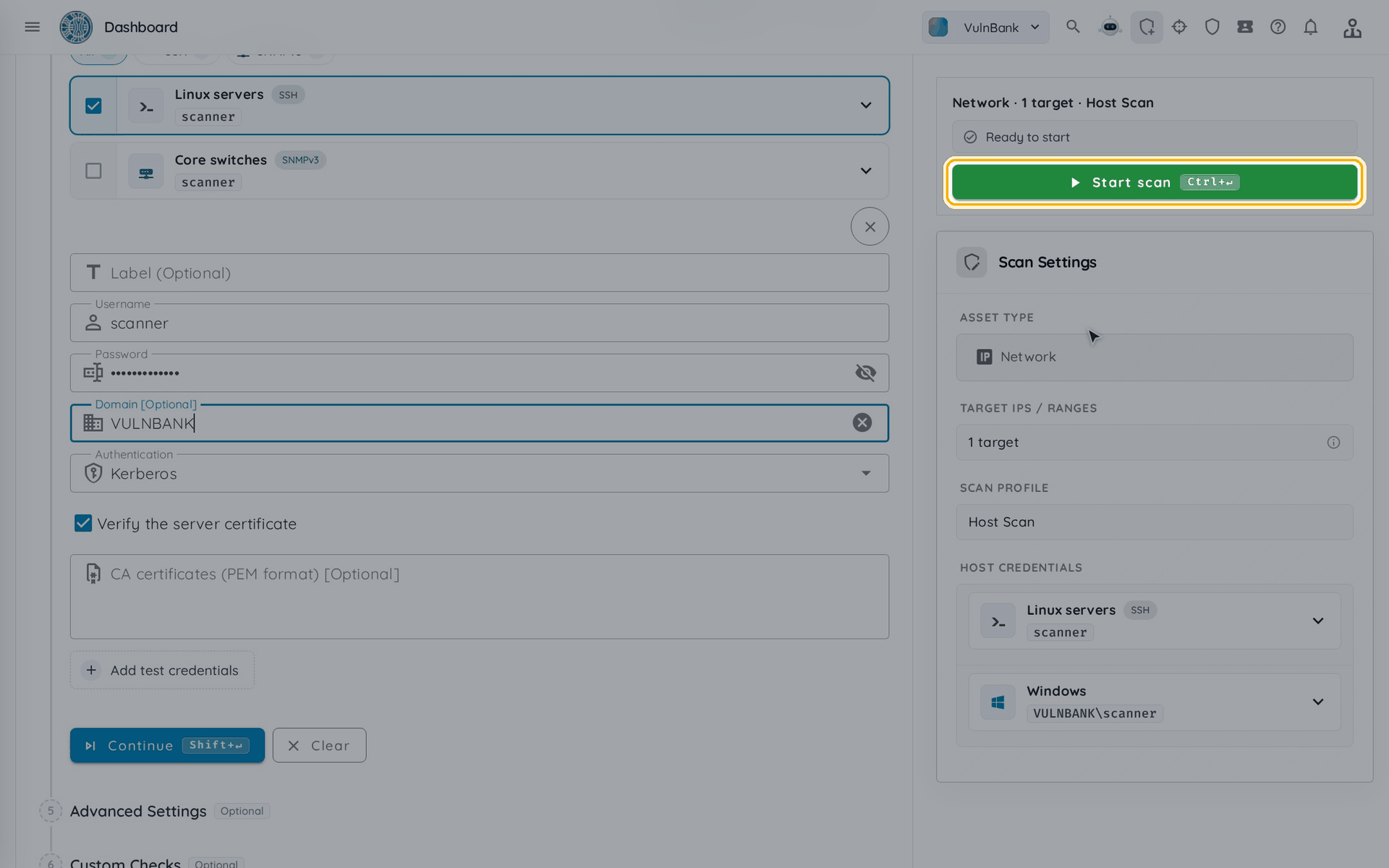
Check the summary on the right, then click Start scan.
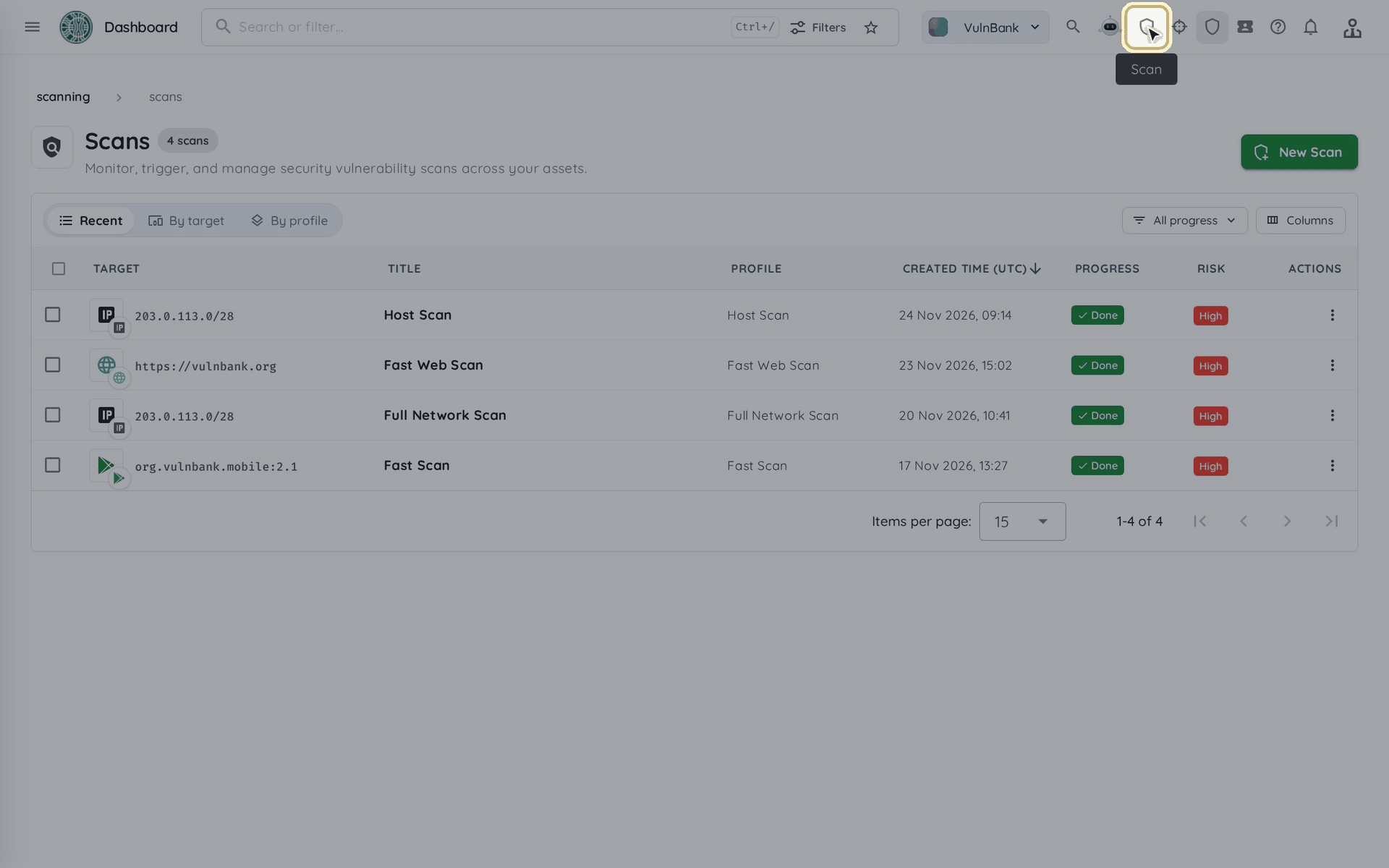
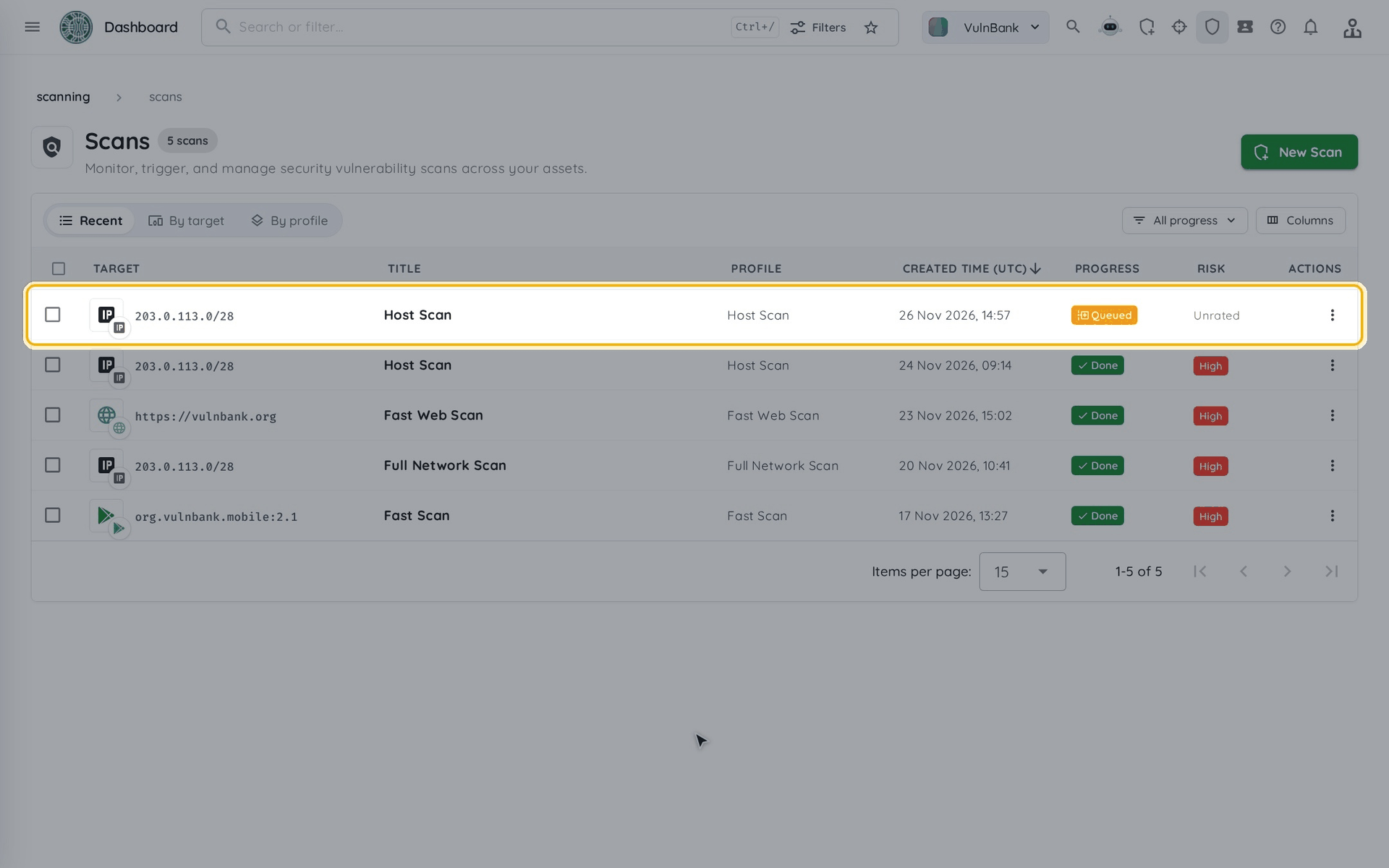
The scan's page opens with a Scan created message. To follow the scan, click the Scans icon in the top bar: the scan is queued first, then runs.
How do I read the results?
Open the scan, then Vulnerabilities. Start with the findings rated Critical, High and Medium, then the Hardening ones. For the meaning of each rating, see Understand the scan results.
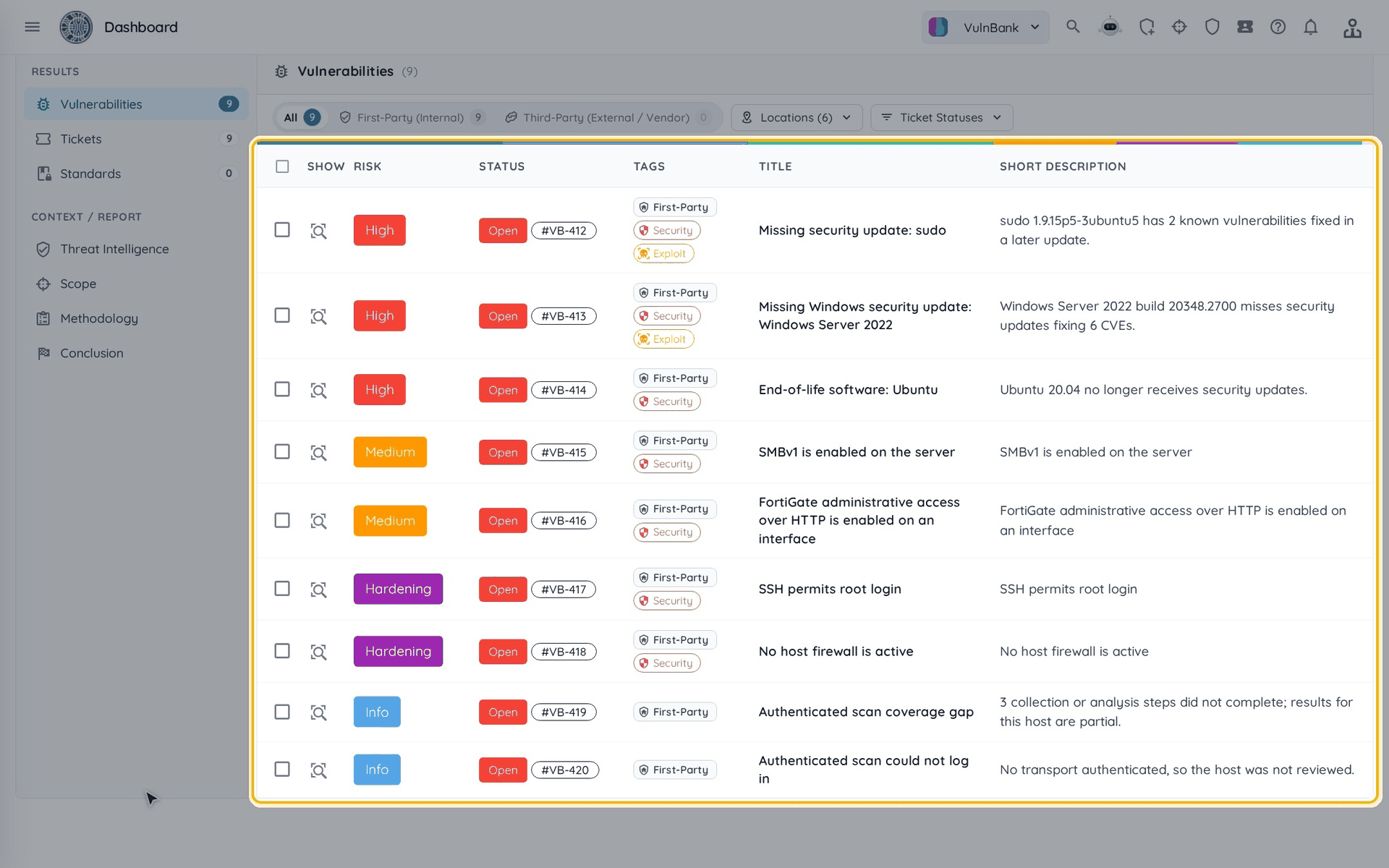
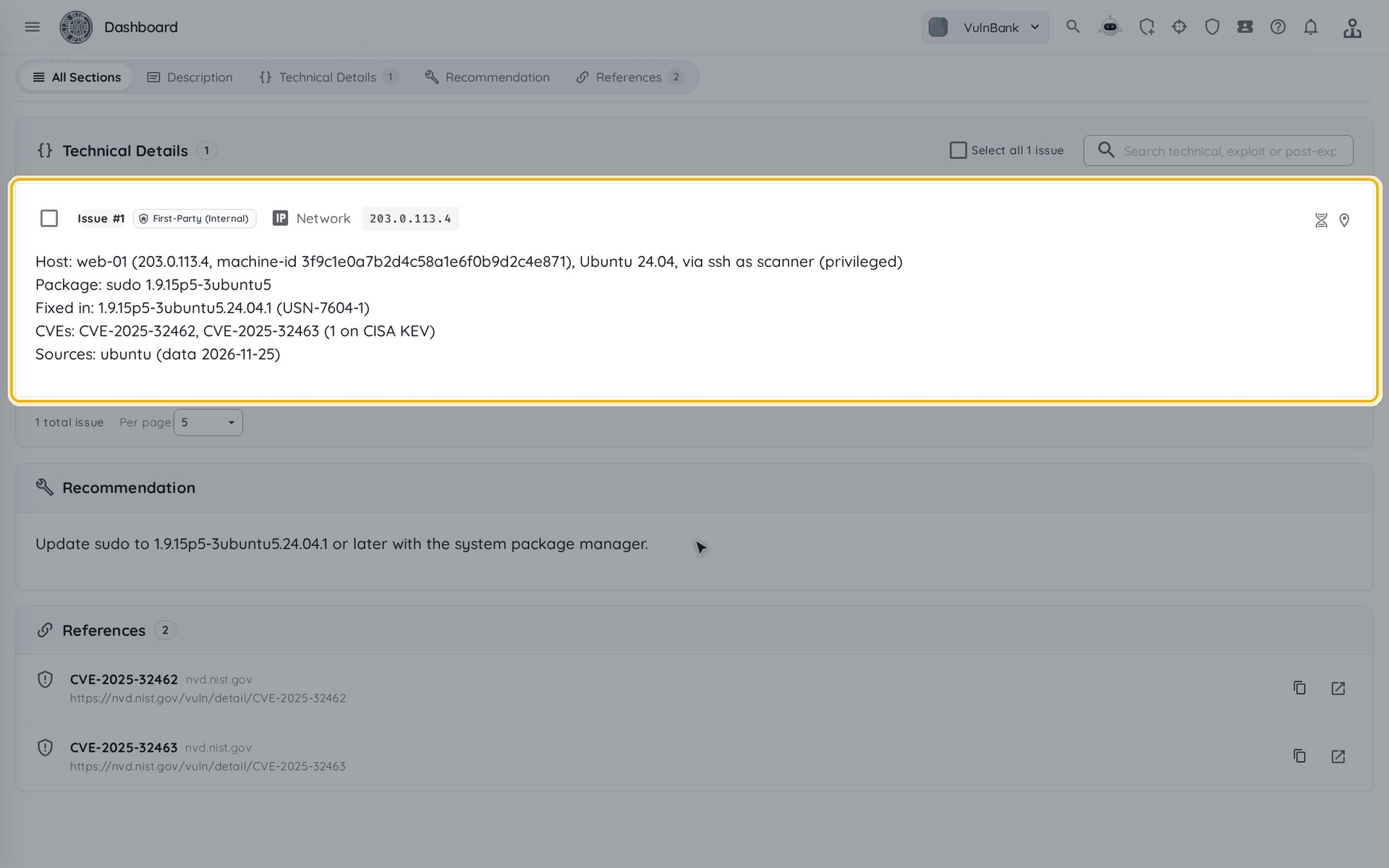
- Open a finding to see the host, the package, the installed and the fixed version, and the CVEs involved.
- A Missing security update finding tells you which update to install. For Windows, install the latest cumulative update. For Linux, update the package with the system package manager.
- A configuration finding names the setting to change.
- A finding rated Potentially is an indicator of compromise that needs a human check: it can be legitimate software, such as an administrator's own startup script.
- Look for Authenticated scan could not log in and Authenticated scan coverage gap findings. They list the hosts the scan could not fully review, and the step that failed. Fix the access, then scan again.
When you patch a host and scan it again, its findings close.