Pause and Resume a Scan
Pausing a scan stops it where it is and frees the scanner it runs on, so other scans can use it. The progress and the findings reported so far are kept. When you resume the scan, it continues from the point where it was paused on the next available scanner.
Unlike a stopped scan, a paused scan can be resumed at any time.
| Behavior | Pause | Stop |
|---|---|---|
| Frees the scanner | Yes | Yes |
| Can be continued later from the same point | Yes, with Resume | No |
Only a running scan can be paused, and only a paused scan can be resumed. A paused scan can still be stopped.
Pause a scan
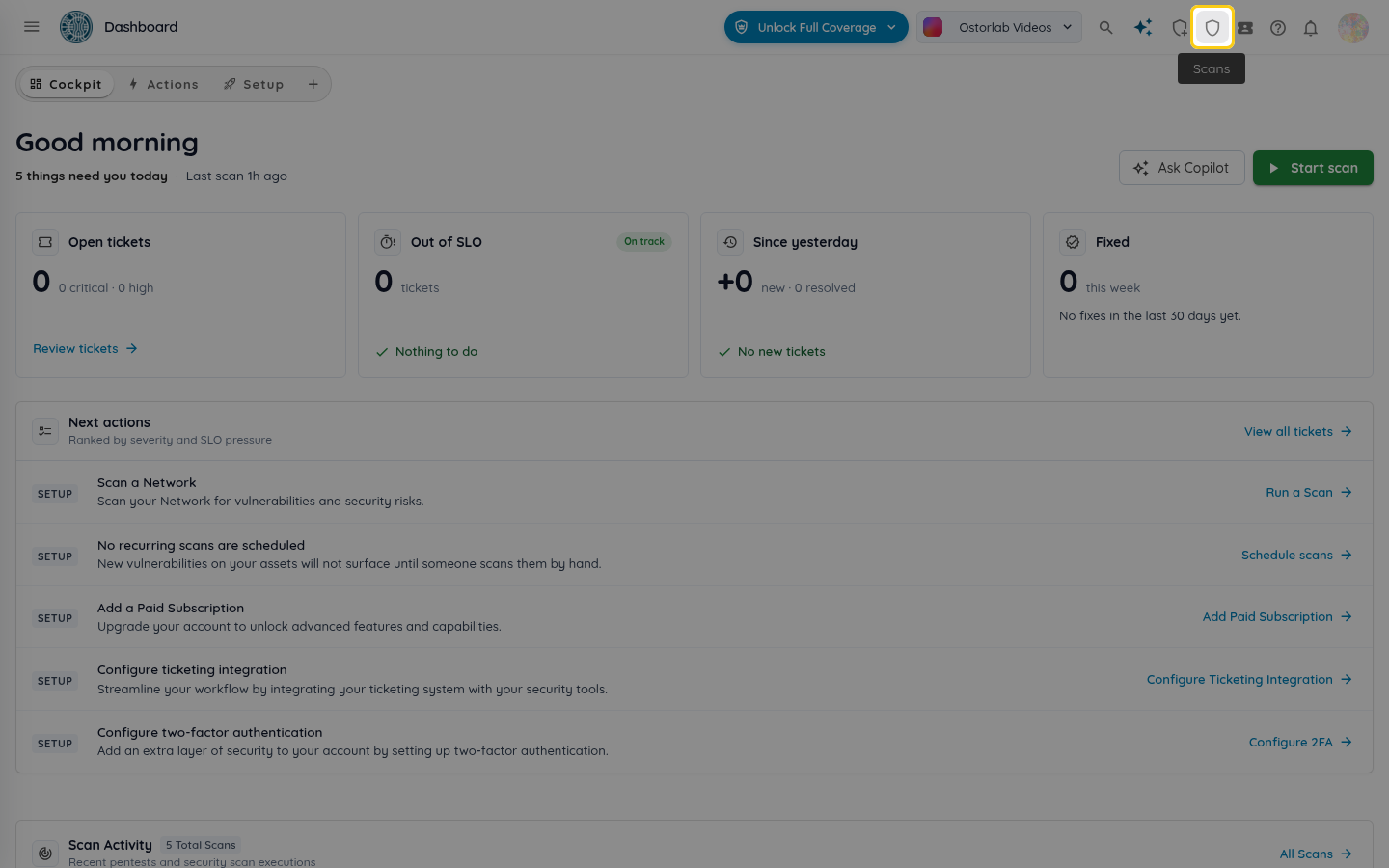
1. Open report.ostorlab.co and click Scans in the top bar
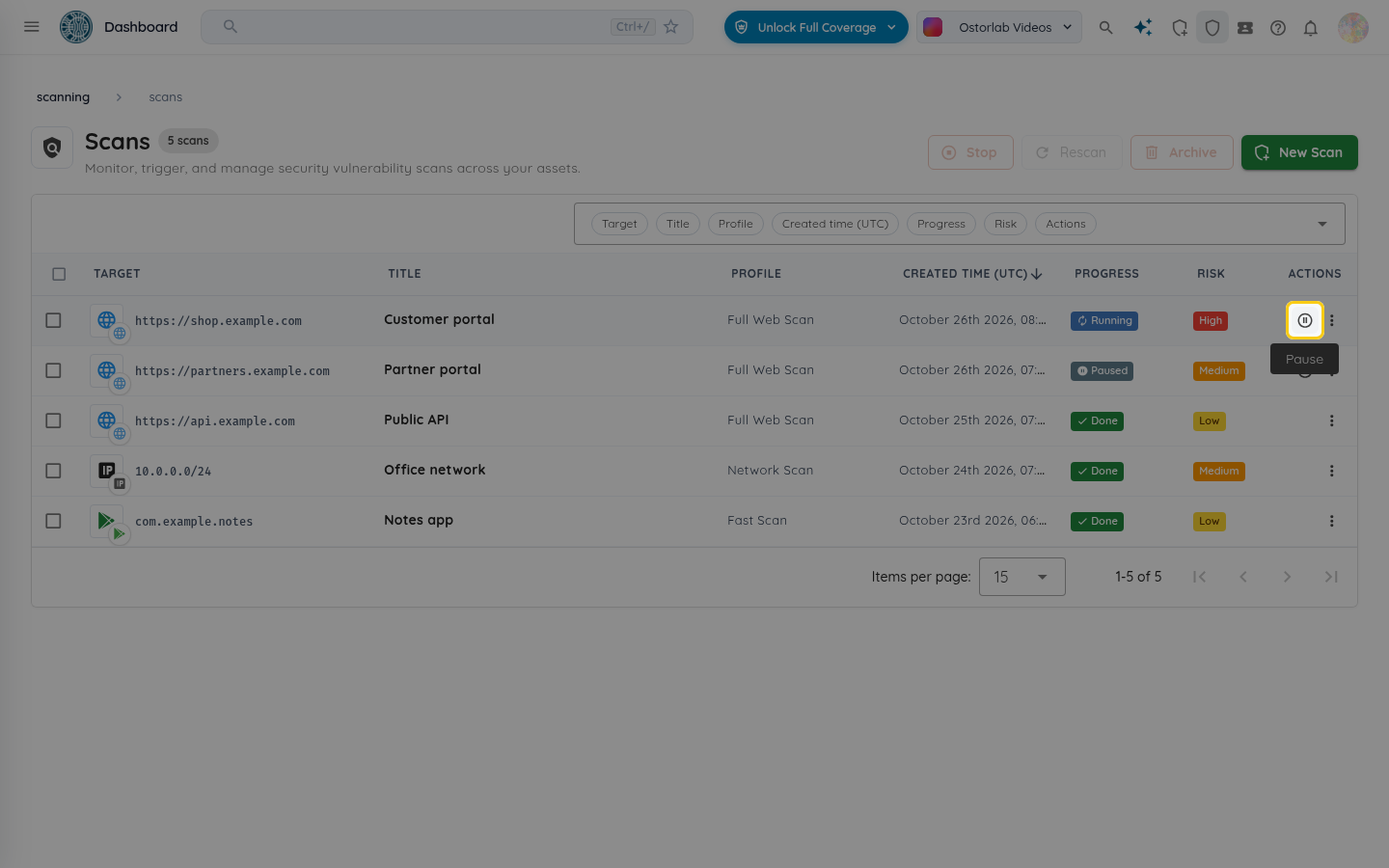
2. Find the running scan and click the pause button
The pause button is shown in the Actions column of scans whose progress is Running.
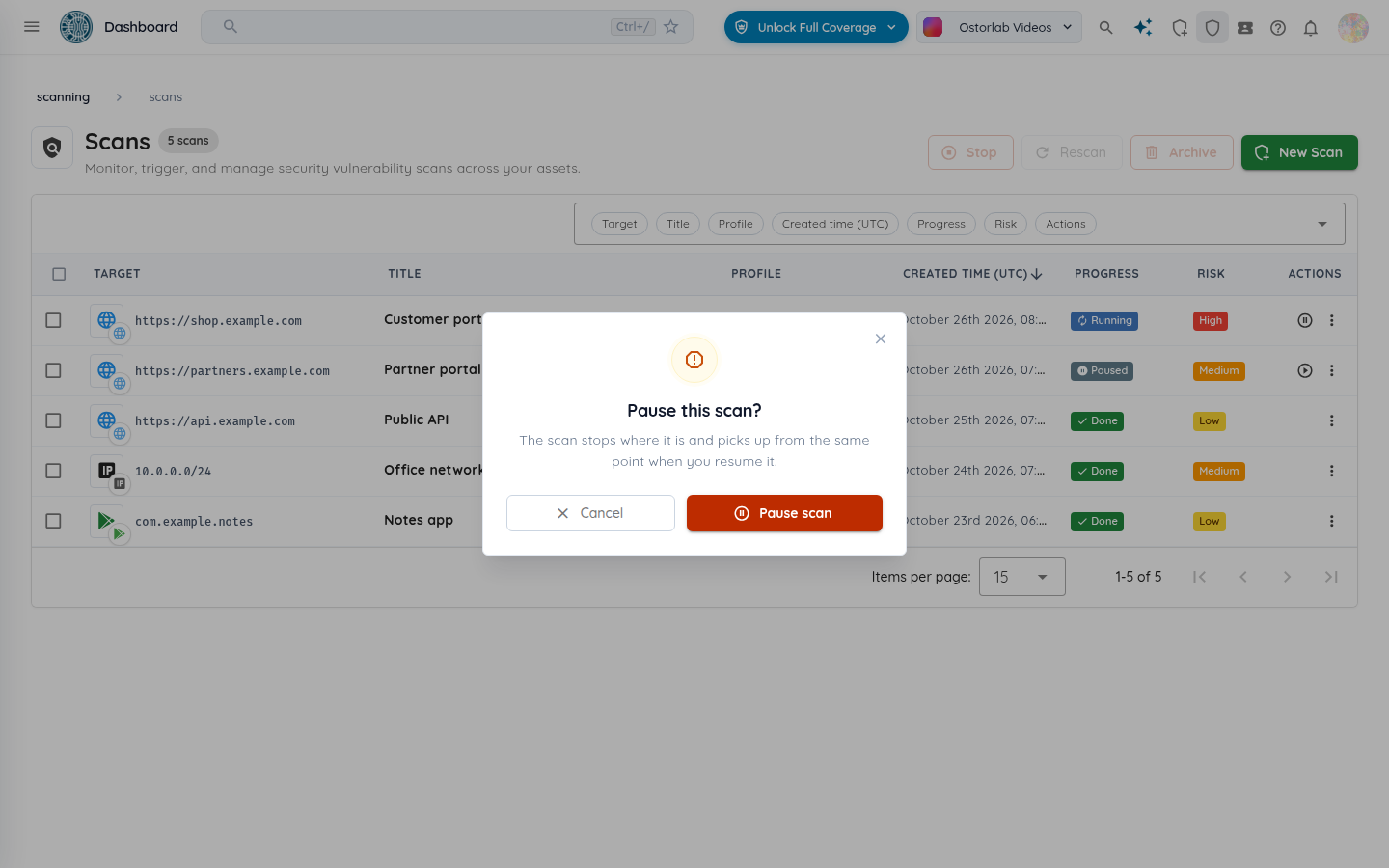
3. Confirm by clicking Pause scan
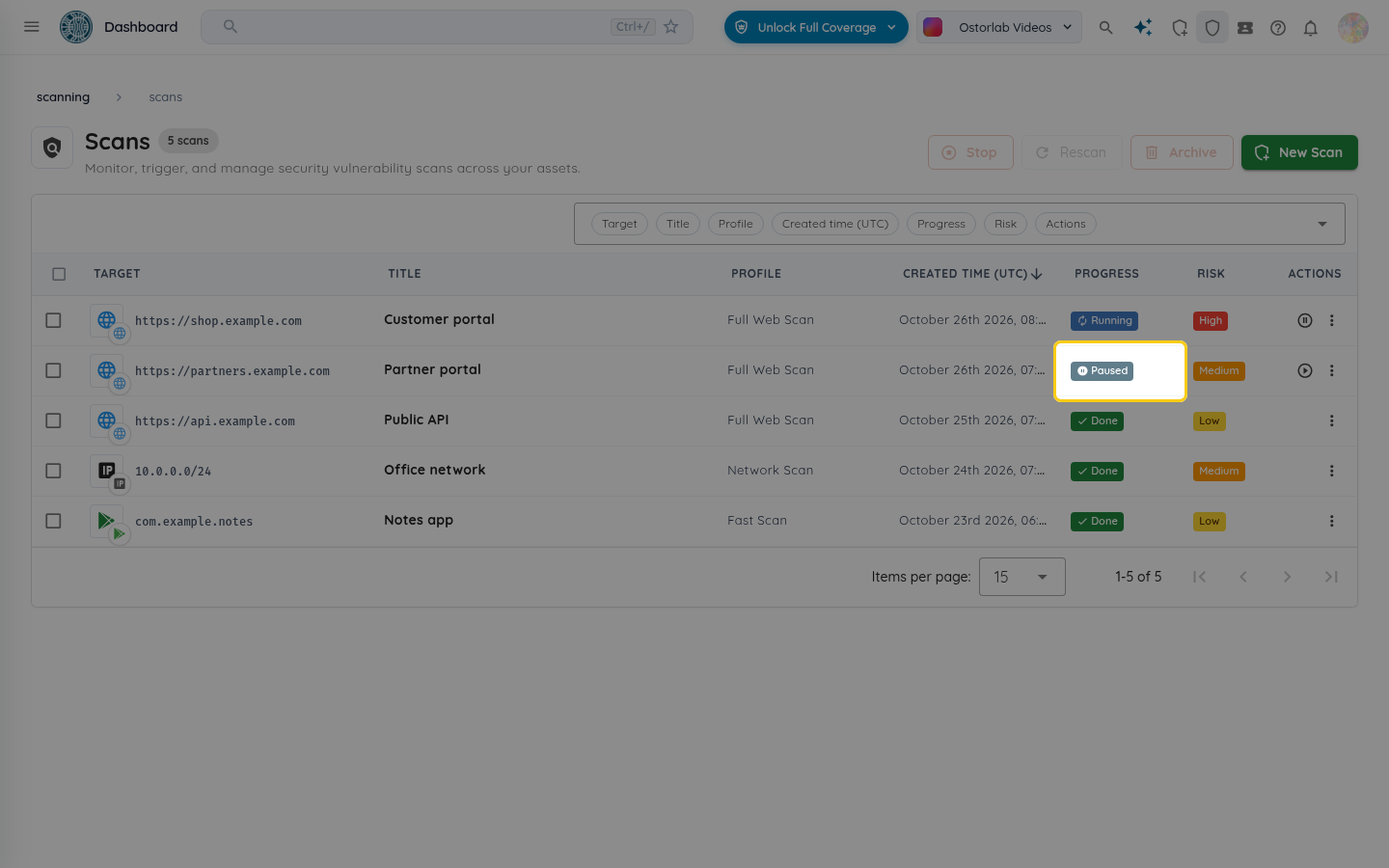
The scan progress changes to Paused.
Resume a scan
1. Find the paused scan and click the resume button
The resume button is shown in the Actions column of scans whose progress is Paused.
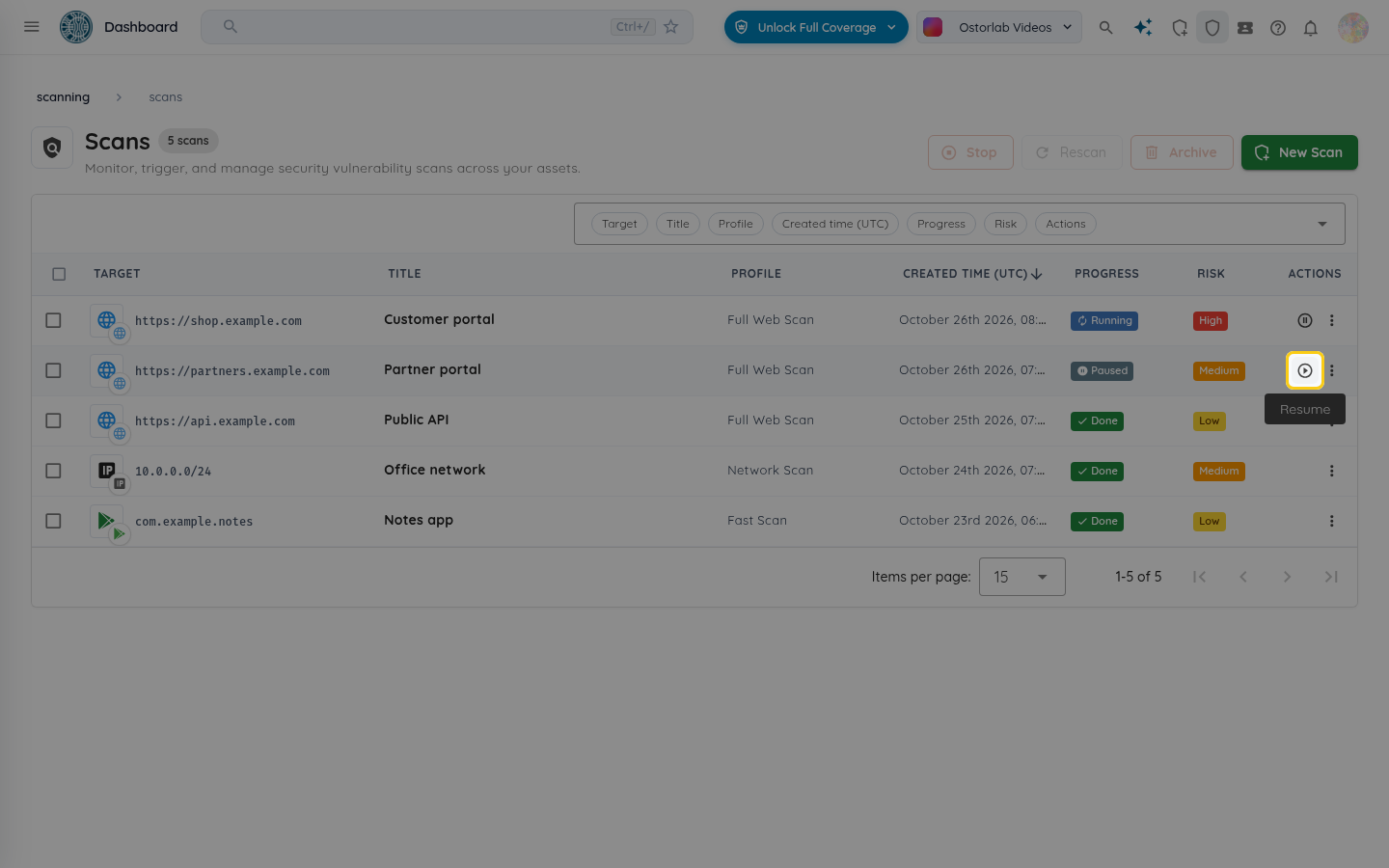
The scan is queued and continues from where it was paused on the next available scanner.
Pause or resume from the scan page
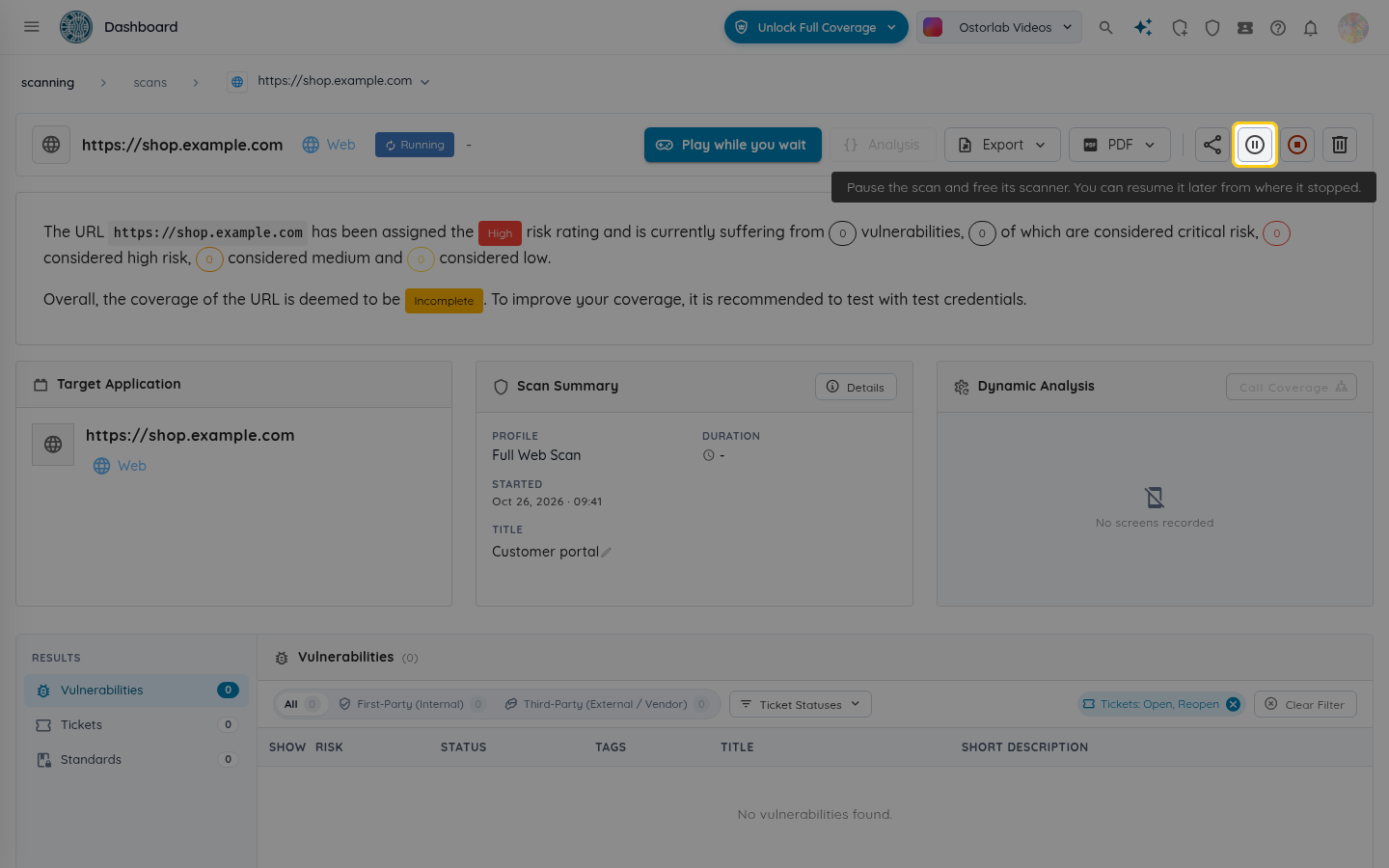
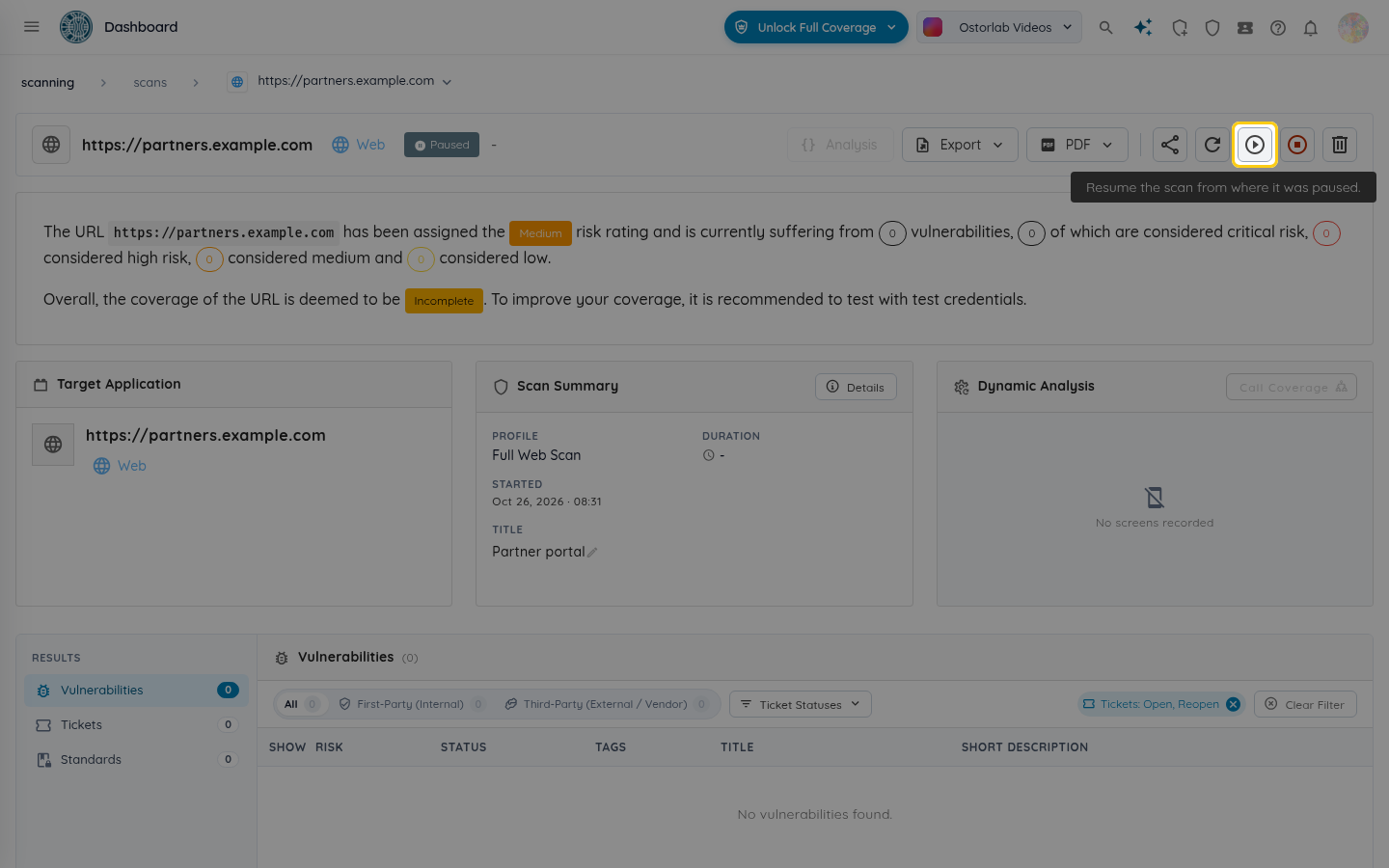
You can also pause or resume a scan from its page, using the buttons at the top right.
- When the scan is running, click the pause button and confirm.
- When the scan is paused, click the resume button.
See also: Stop a Scan.