Choose when a scan runs
This guide walks through limiting a scan to the hours you choose, with an execution window.
A scan with an execution window only runs inside it. Outside the window, the scan pauses, then continues in the next window until it finishes. Use it to keep scans away from your busy hours, for example to run them overnight or outside working hours.
The execution window is optional. A scan without one runs at any time.
Go to report.ostorlab.co
1. Start a new scan
Click New Scan and fill in the scan as usual: the asset, the scan profile and its other settings. The execution window is available for every scan type.
2. Open the "Execution window" step
The Execution window step is the last step of the form, before you submit the scan.
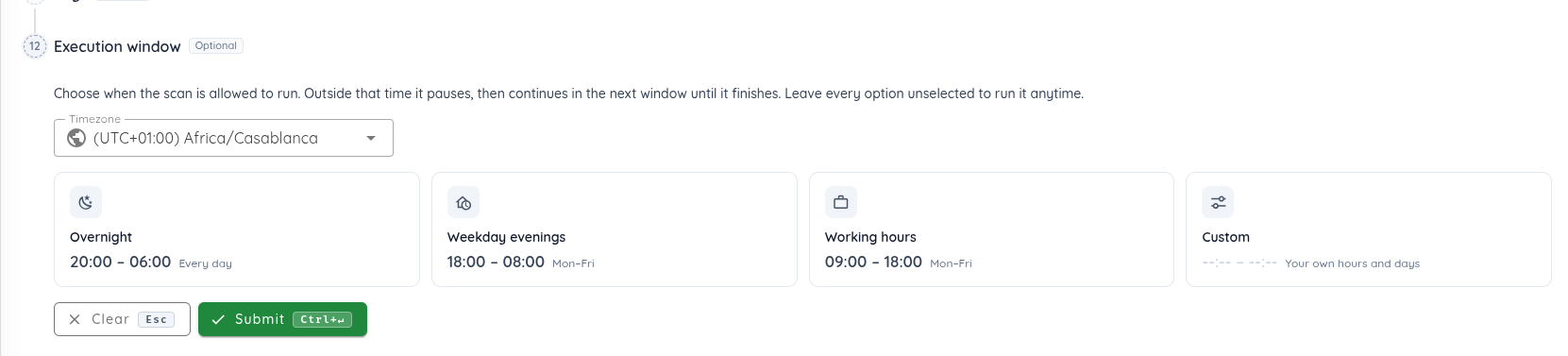
3. Choose the timezone
The window hours are local times in the Timezone you choose. It defaults to the timezone of your browser. Search the list by city, country or UTC offset.
4. Pick a suggestion
Click one of the suggested windows:
| Suggestion | Hours | Days |
|---|---|---|
| Overnight | 20:00 - 06:00 | Every day |
| Weekday evenings | 18:00 - 08:00 | Monday to Friday |
| Working hours | 09:00 - 18:00 | Monday to Friday |
Click the selected suggestion again to unselect it and run the scan at any time.
5. Or set your own window
Click Custom to choose your own hours and days.
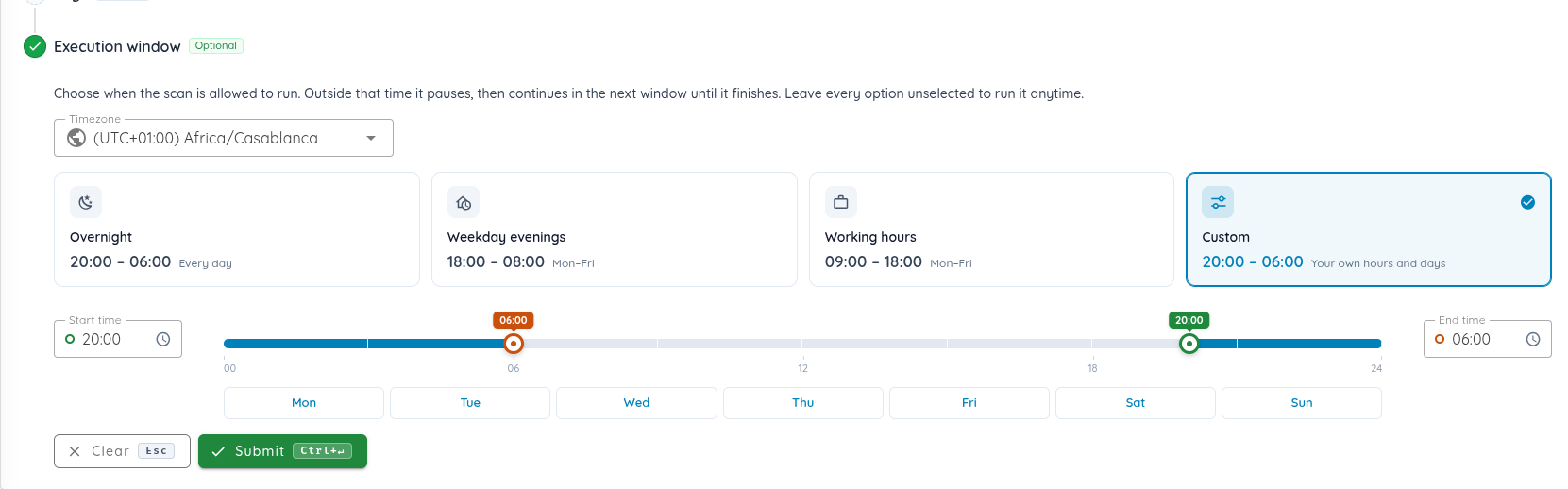
- Start time and End time: type the times, or drag the two handles on the 24-hour bar. The blue part of the bar shows when the scan may run.
- When the end time is earlier than the start time, the window ends on the next day. For example, 20:00 - 06:00 runs from 20:00 until 06:00 the next morning.
- Days: select the days the window starts on. Without a selected day, the window applies every day.
The start and end times must be different.
6. Click "Submit"
Click Submit to create the scan. Click Clear first to remove the window and run the scan at any time.
7. Check the window of a scan
Open the scan, then click Details in the Scan Summary. The Execution Window section shows the hours, the days and the timezone of the scan.
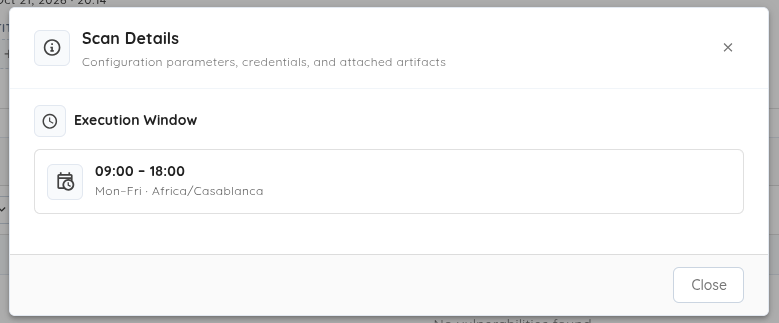
The section only appears when the scan has an execution window.
How the window works
- A scan created outside its window waits, and starts when the window opens.
- When the window closes, the running scan pauses. It continues from where it stopped when the next window opens, until it finishes.
- A scan that cannot be paused keeps running after its window closes, until it finishes.
- A rescan runs in the same window as the original scan.
Use the API
The scan creation mutations of the GraphQL API take an executionWindow argument, and a scan returns it in its executionWindow field:
executionWindow: {
  startTime: "20:00"
  endTime: "06:00"
  timezone: "Africa/Casablanca"
  daysOfWeek: [0, 1, 2, 3, 4]
}
startTimeandendTimeareHH:MMtimes intimezone, an IANA timezone name.daysOfWeeklists the days the window starts on, from0(Monday) to6(Sunday). Leave it out to run the window every day.
This guide walked through limiting a scan to the hours you choose with an execution window.