Multi Asset Supported Asset Types
A Multi Asset scan can combine the asset types below in a single scan. Assets are added one at a time from the Add Asset dialog, which groups them under the All, Mobile, Web, Network, and Code tabs.
A scan can include at most one mobile application. All other asset types can be added without a limit.
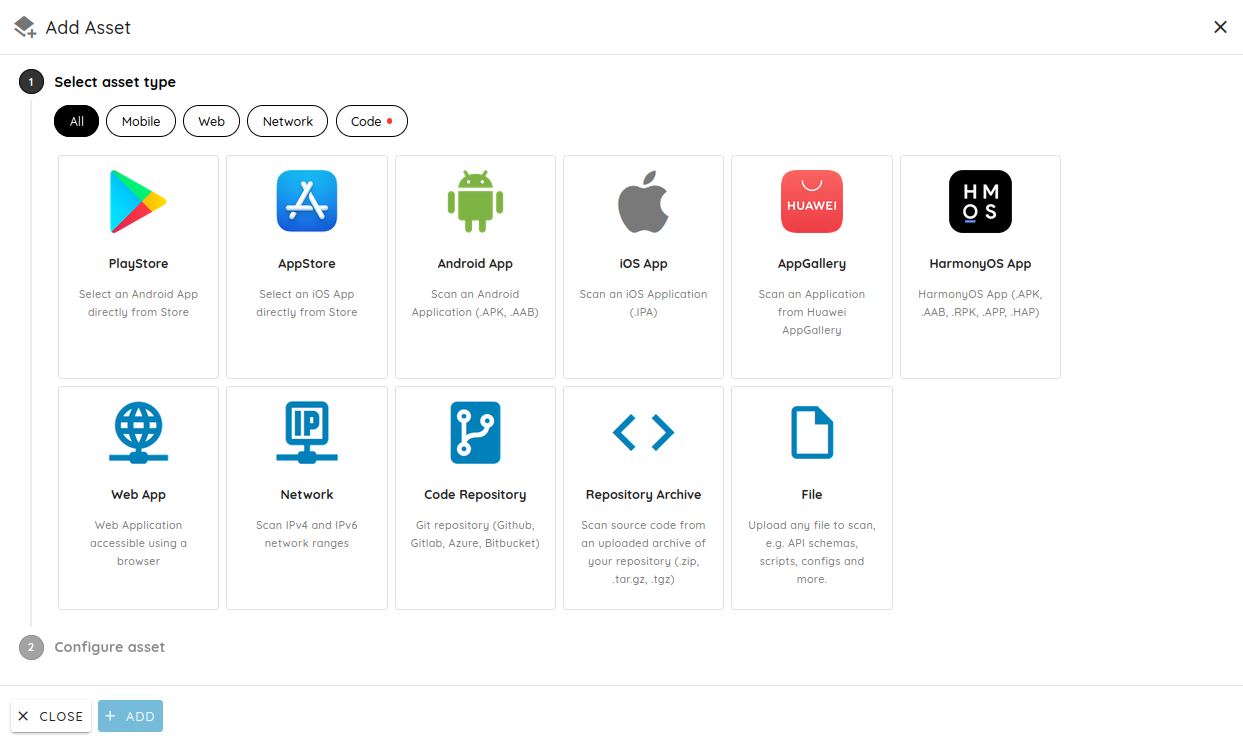
Mobile
| Asset Type | Description |
|---|---|
| PlayStore | Select an Android application directly from the store |
| AppStore | Select an iOS application directly from the store |
| AppGallery | Select an application from the Huawei AppGallery |
| Android App | Upload an Android application (.APK, .AAB) |
| iOS App | Upload an iOS application (.IPA) |
| HarmonyOS App | Upload a HarmonyOS application (.APK, .AAB, .RPK, .APP, .HAP) |
A Multi Asset scan can include at most one mobile application.
When selecting from a store, search for the application using its name, package name, bundle name, or
bundle ID. If the application is only available in a specific country, use the Country menu to select it.
For more detail on mobile assets, see Scan a Mobile Application from the Store and Scan a Mobile Application from a File.
Web
| Asset Type | Description |
|---|---|
| Web App | A web application accessible using a browser |
Add the backends, APIs, and portals that your other assets communicate with. For authenticated targets, configure credentials in the Test Credentials step of the scan.
See Scan a Web Application and Authenticated Web Application Scan.
Network
| Asset Type | Description |
|---|---|
| Network | IPv4 and IPv6 addresses or network ranges |
Enter individual IP addresses or ranges to assess the infrastructure your applications run on.
See Scan Networks.
Code
| Asset Type | Description |
|---|---|
| Code Repository | A Git repository from GitHub, GitLab, Azure, or Bitbucket |
| Repository Archive | Source code from an uploaded archive (.zip, .tar.gz, .tgz, .7z) |
Repository Archive lets you scan source code without connecting a Git provider or granting Ostorlab access to your repository. Upload an archive of the code instead.
Using Code Repository requires a configured source code integration. See Source Code Scanning for the setup steps.
Files
| Asset Type | Description |
|---|---|
| File | Any file to scan, such as API schemas, scripts, and configs |
Uploading supporting files helps the scan reflect how your system is actually built and deployed.
SBOM and lock files are not added as assets. They are uploaded separately in the SBOM Files step of the scan,
which supports SPDX, CycloneDX, and the common lock files. See
Scans with SBOM or Lockfile for the full list.