Streams
Create and Manage Streams
Streams allow you to group related tickets, assign team members, and track remediation progress against a defined timeline.
When you open a stream, all tickets associated with it are displayed in one place. You can view tickets in a table or across a timeline.
Create a Stream
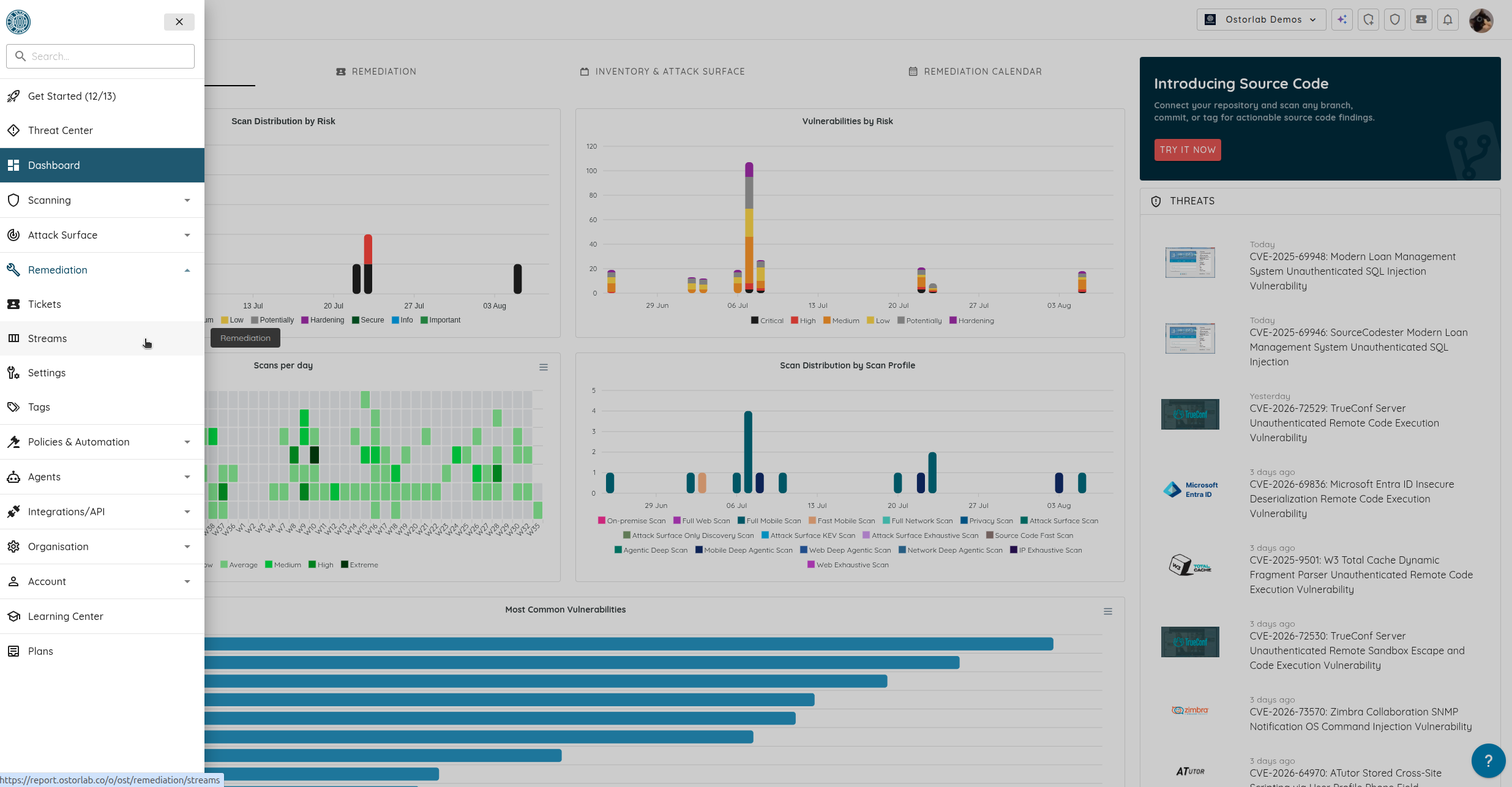
Go to Remediation > Streams.
- Open the Ostorlab main menu.
-
Under Remediation, click Streams.
-
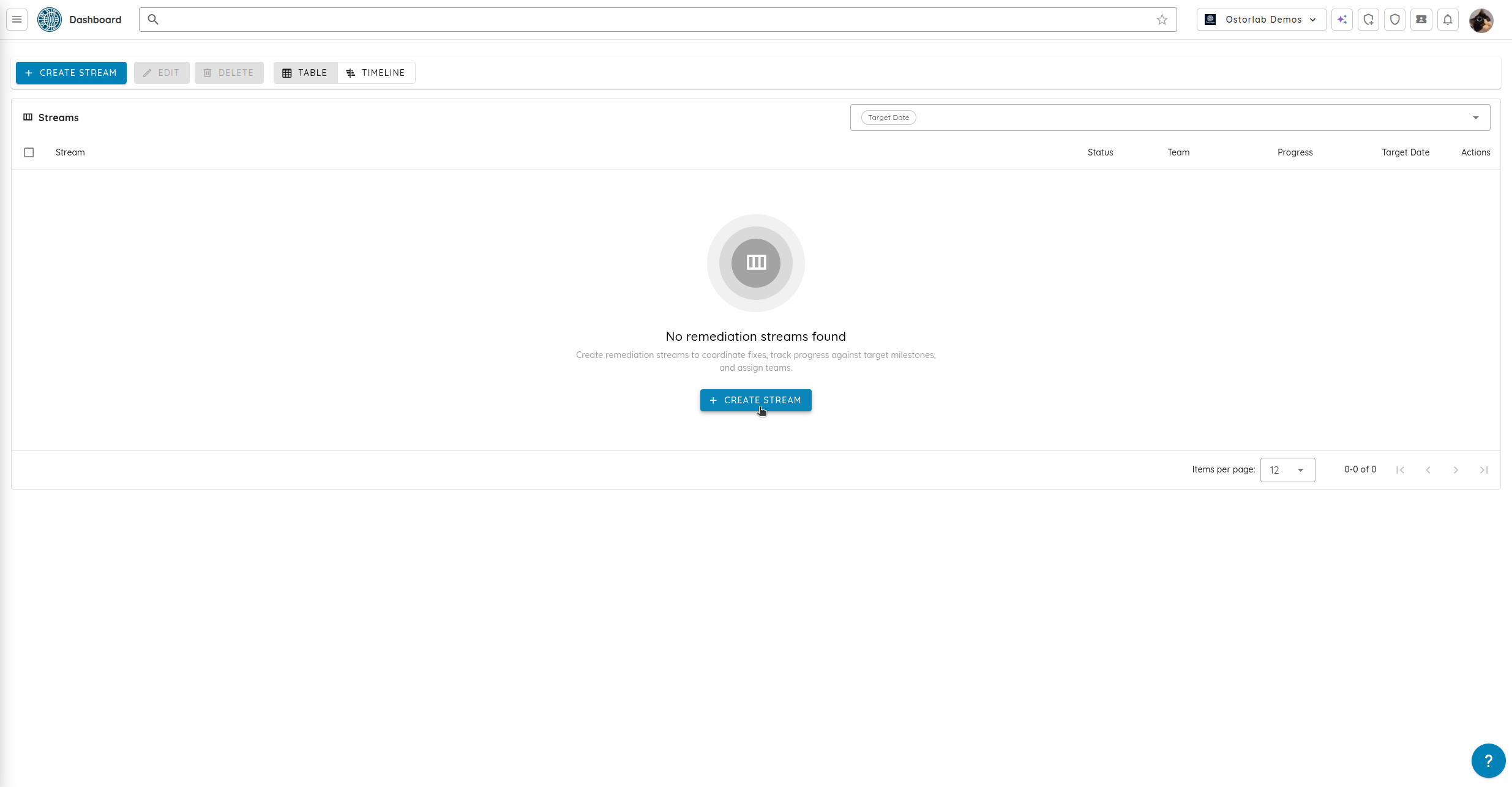
Click Create Stream.
-
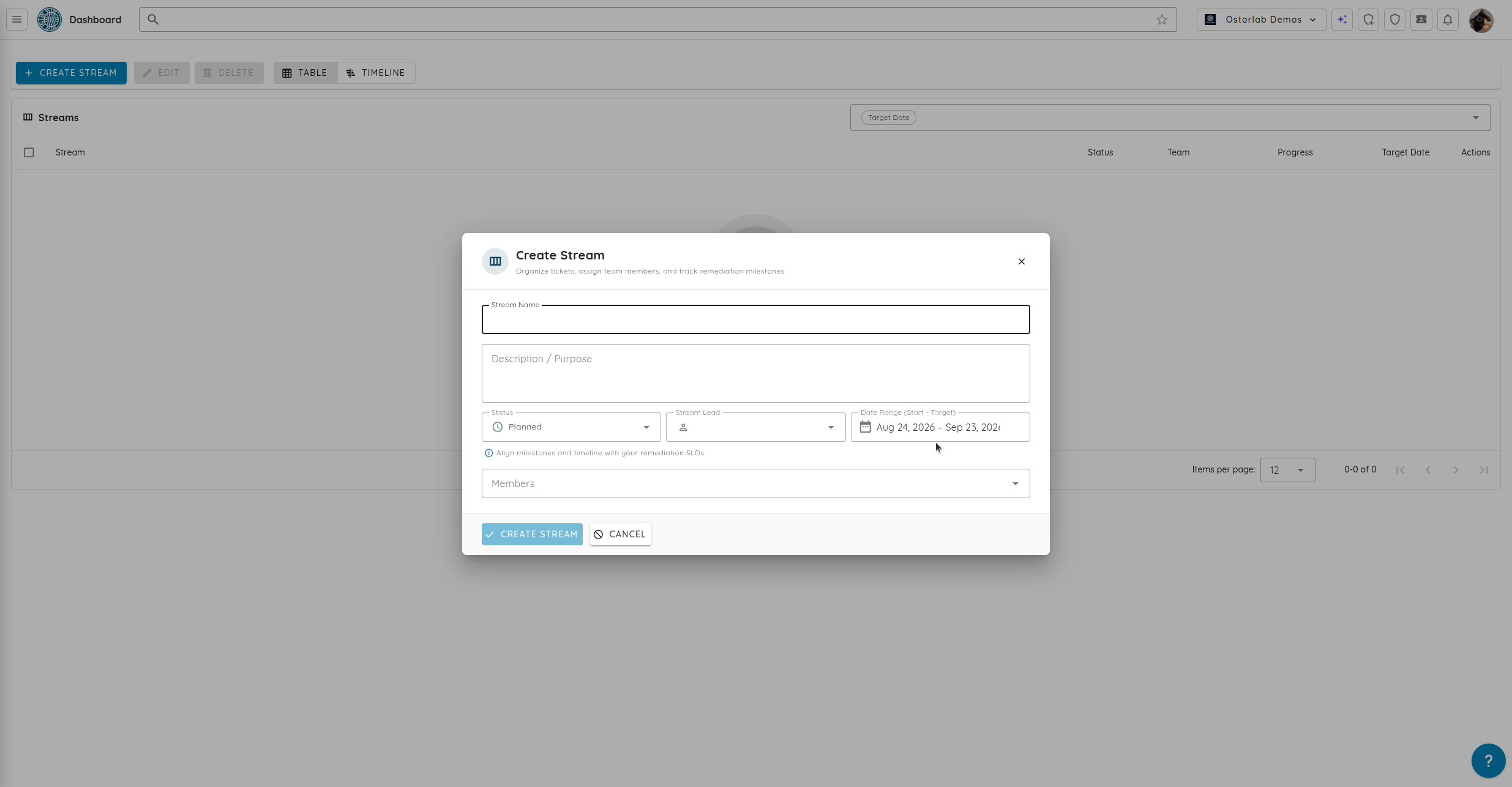
Enter the stream name and description.
- Select the stream status.
- Select a stream lead.
- Set the start and target dates.
- Select the stream members.
-
Click Create Stream to save it.
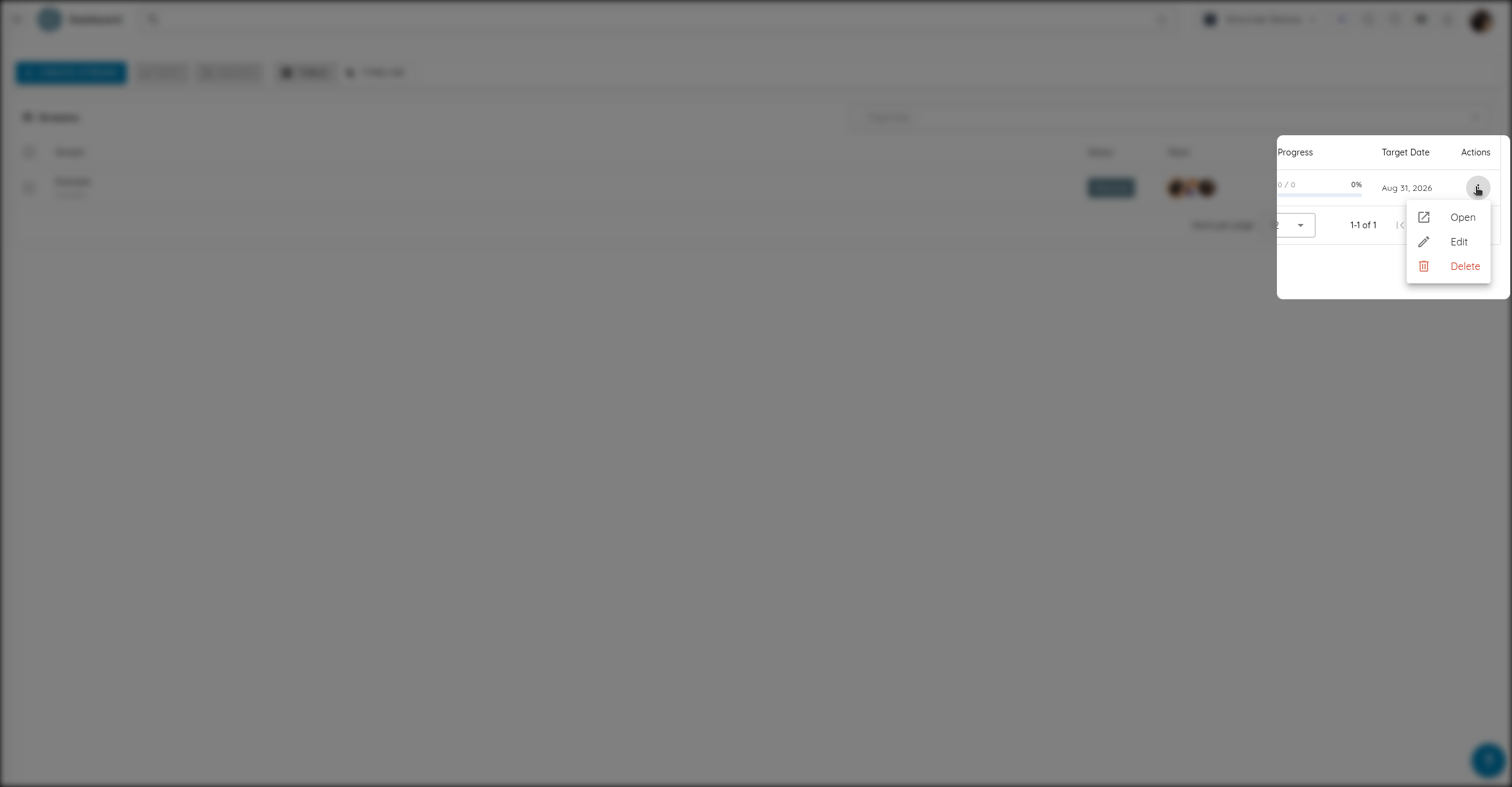
Once created, the stream appears in the Streams table. From this table, you can track its status, team members, remediation progress, and target date.
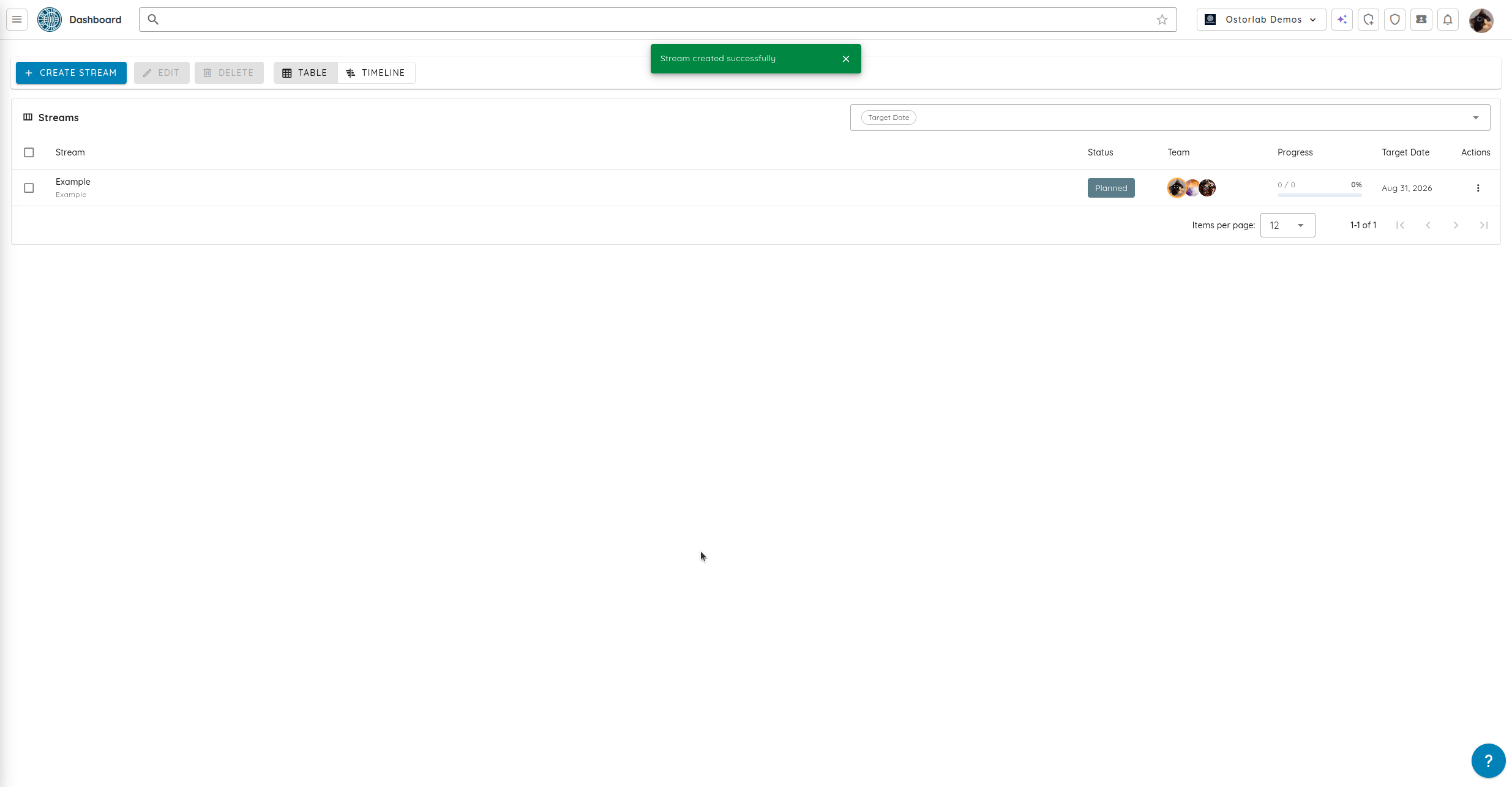
Use the actions menu to open, edit, or delete a stream.
Add Existing Tickets to a Stream
From an open stream, you can add existing tickets or create a new ticket directly in the stream.
Open the stream and click Add Tickets.
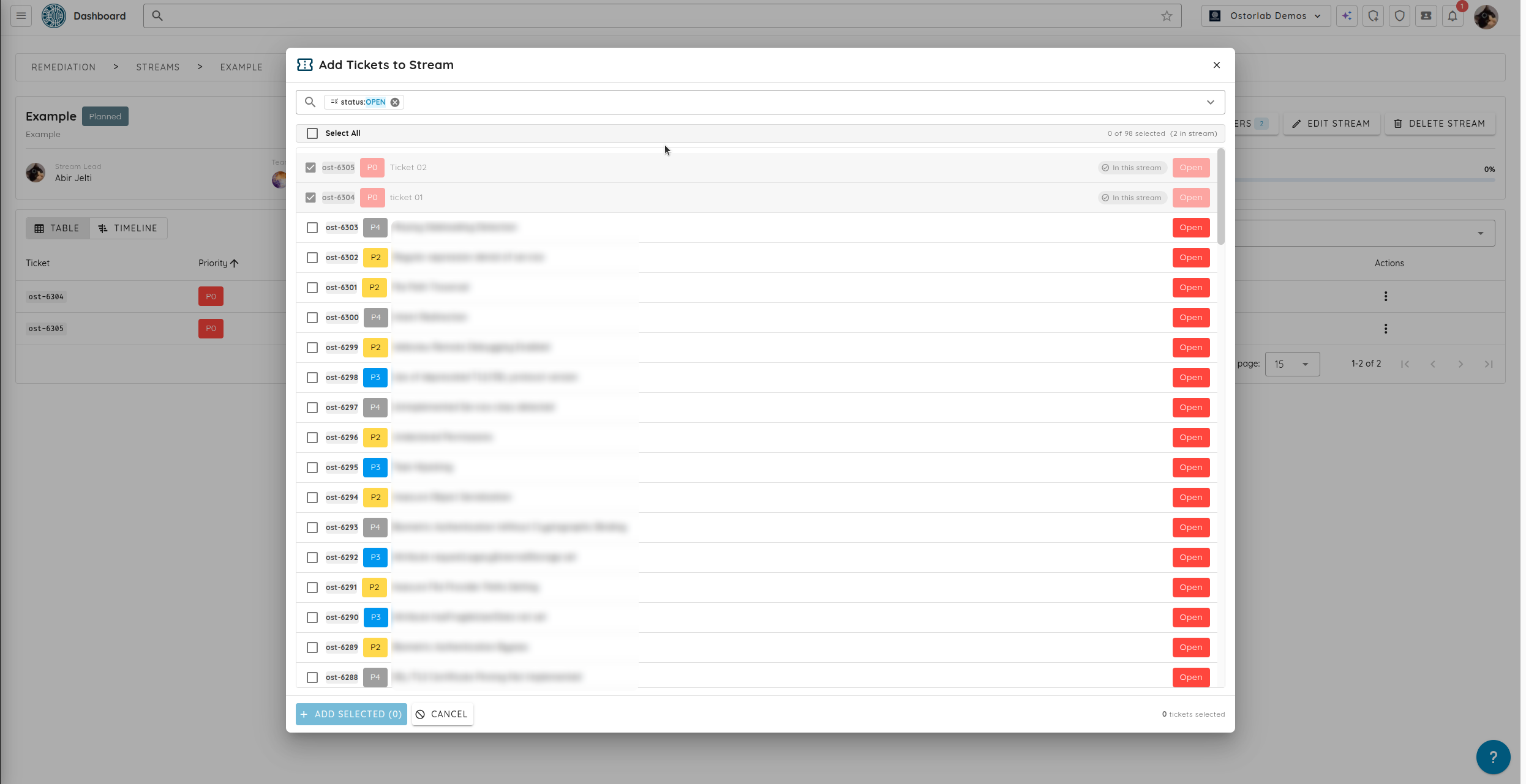
The available tickets are displayed in a list.
- Select the tickets you want to add.
- Click Add Selected.
The selected tickets are added to the stream.
Create a New Ticket in a Stream
You can create a new ticket directly from an open stream.
- Open the stream.
- Click Create Ticket.
- Enter the ticket information.
- Under Stream, click Add Stream.
- Select the stream to associate with the ticket.
-
Click Save.
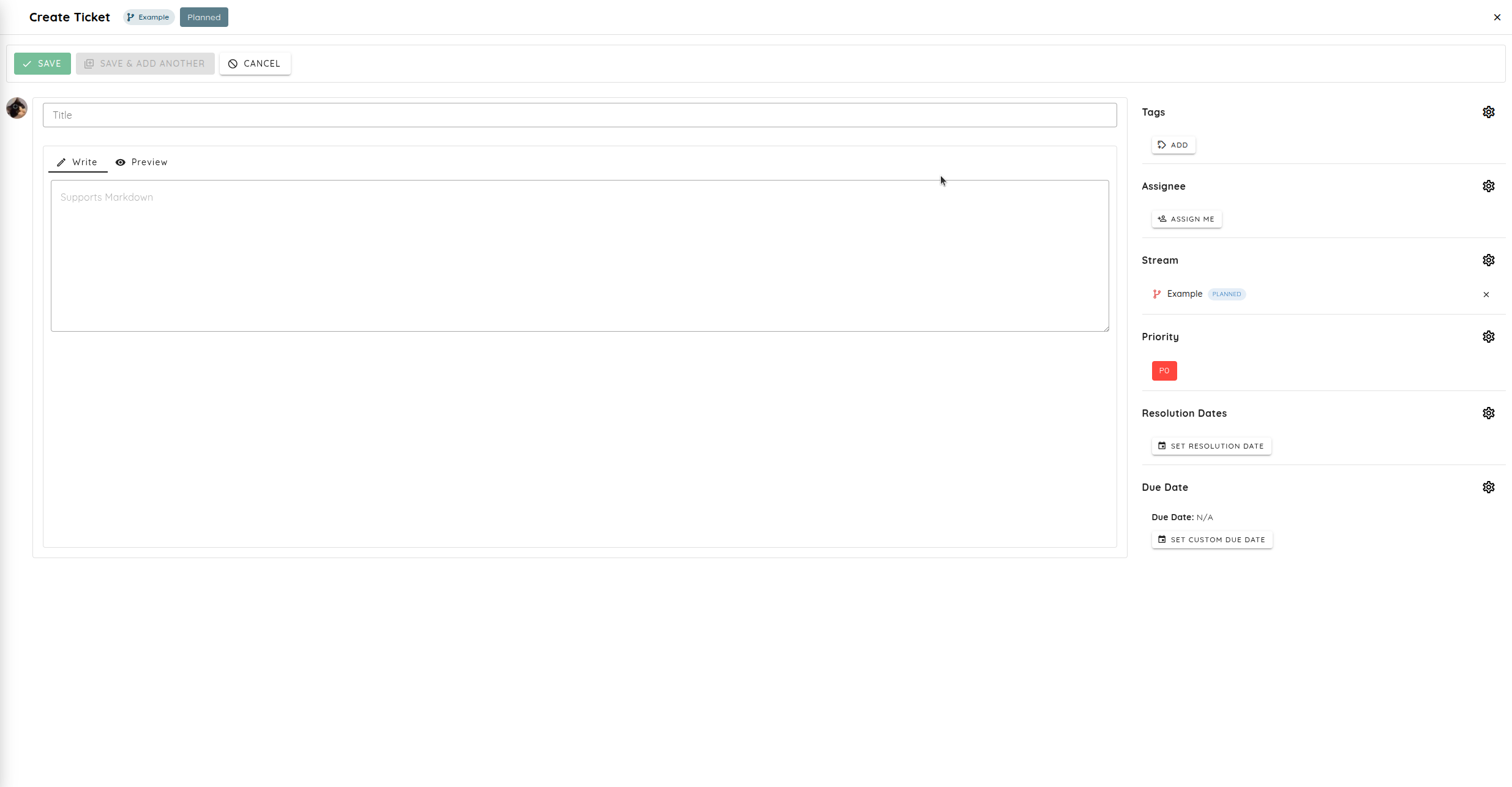
The new ticket is created and added to the selected stream.
View and Track a Stream
Click a stream to open it and view all its associated tickets.
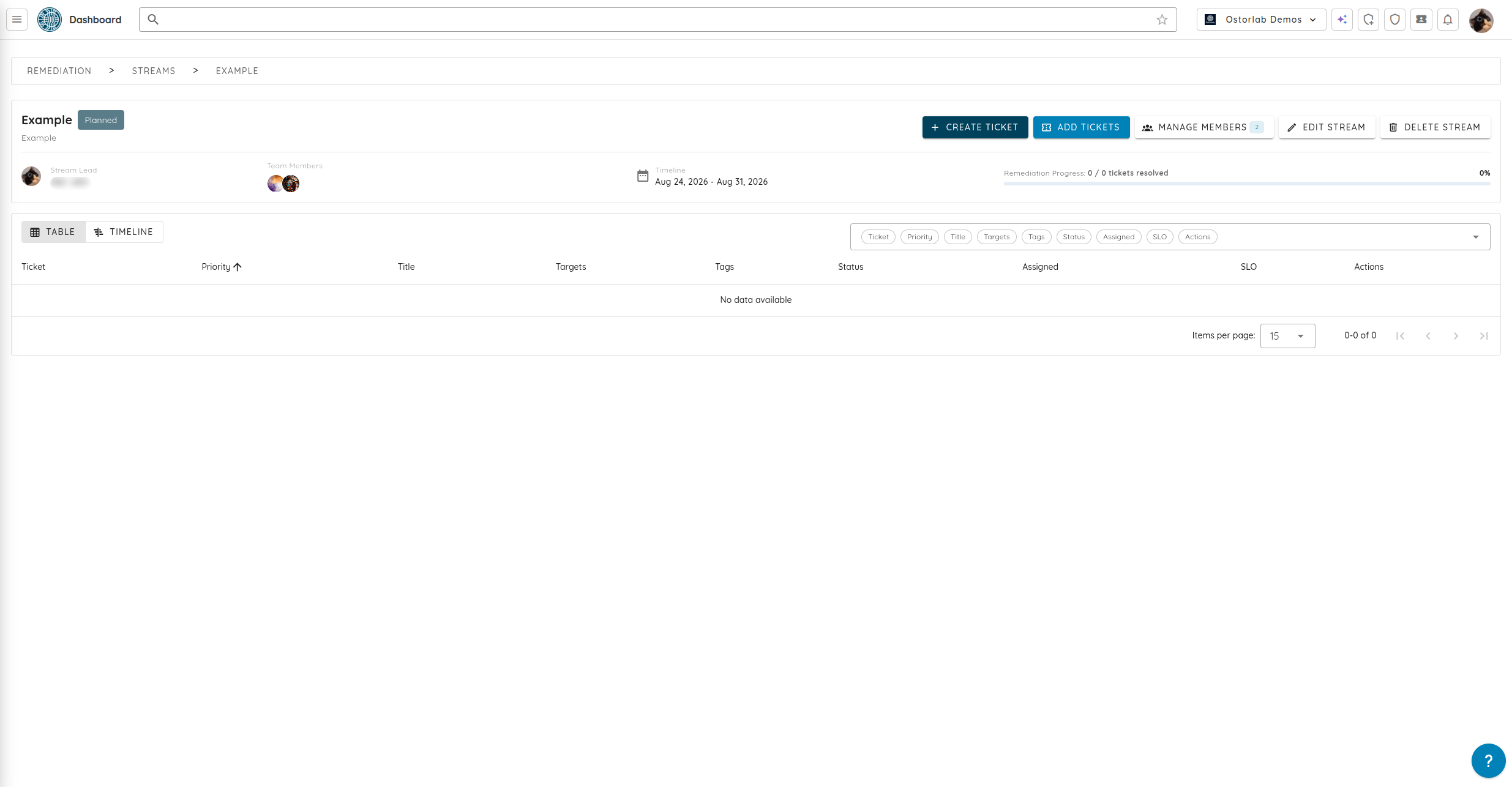
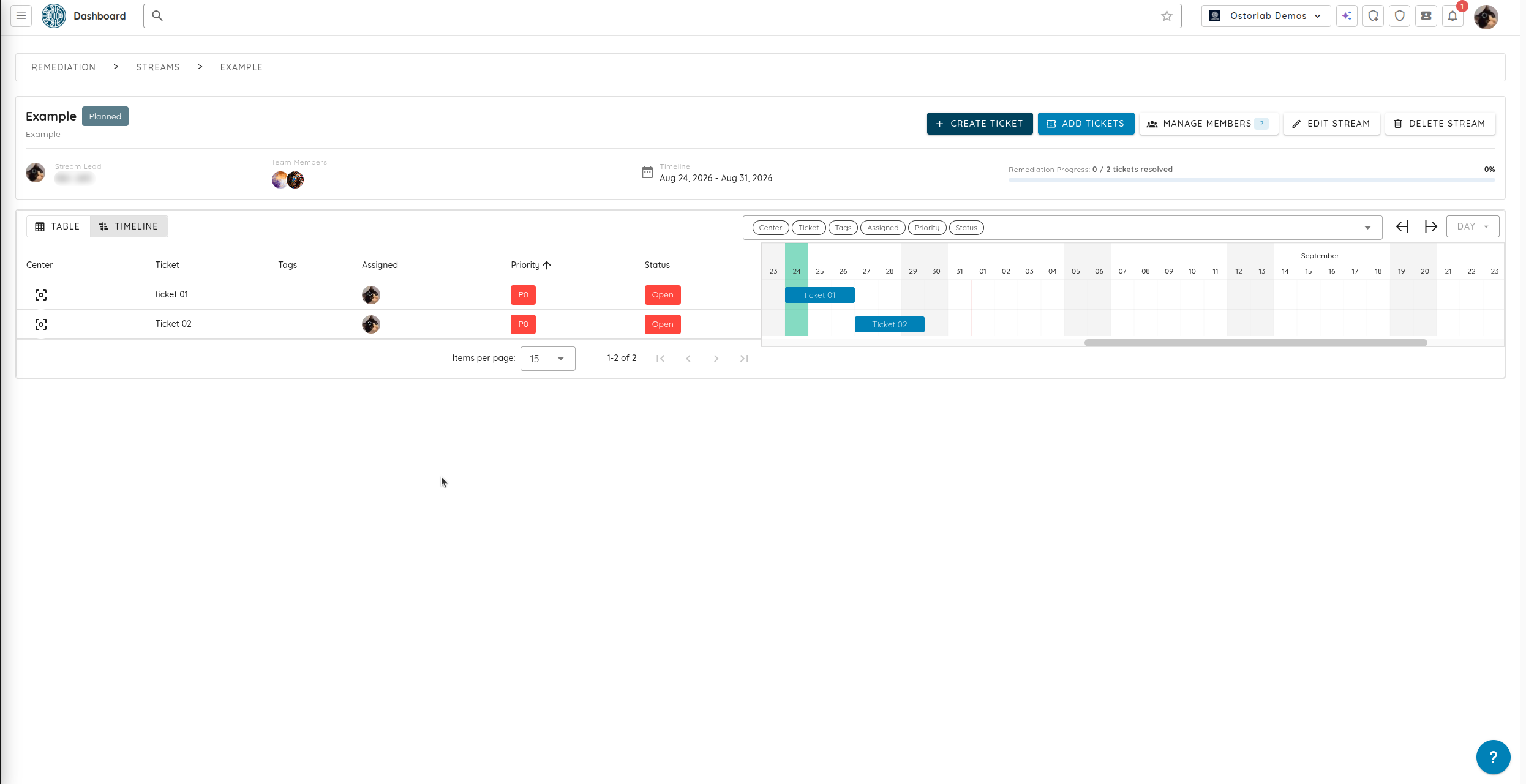
The stream page displays:
- The stream lead and team members.
- The start and target dates.
- The number of resolved tickets.
- The overall remediation progress.
- All tickets associated with the stream.
Tickets can be displayed using two views:
- Table: Displays the tickets and their details, including tags, assignee, priority, and status.
- Timeline: Displays the tickets across the stream timeline.
The timeline shows the planned start and end dates for each ticket.
Manage Stream Members
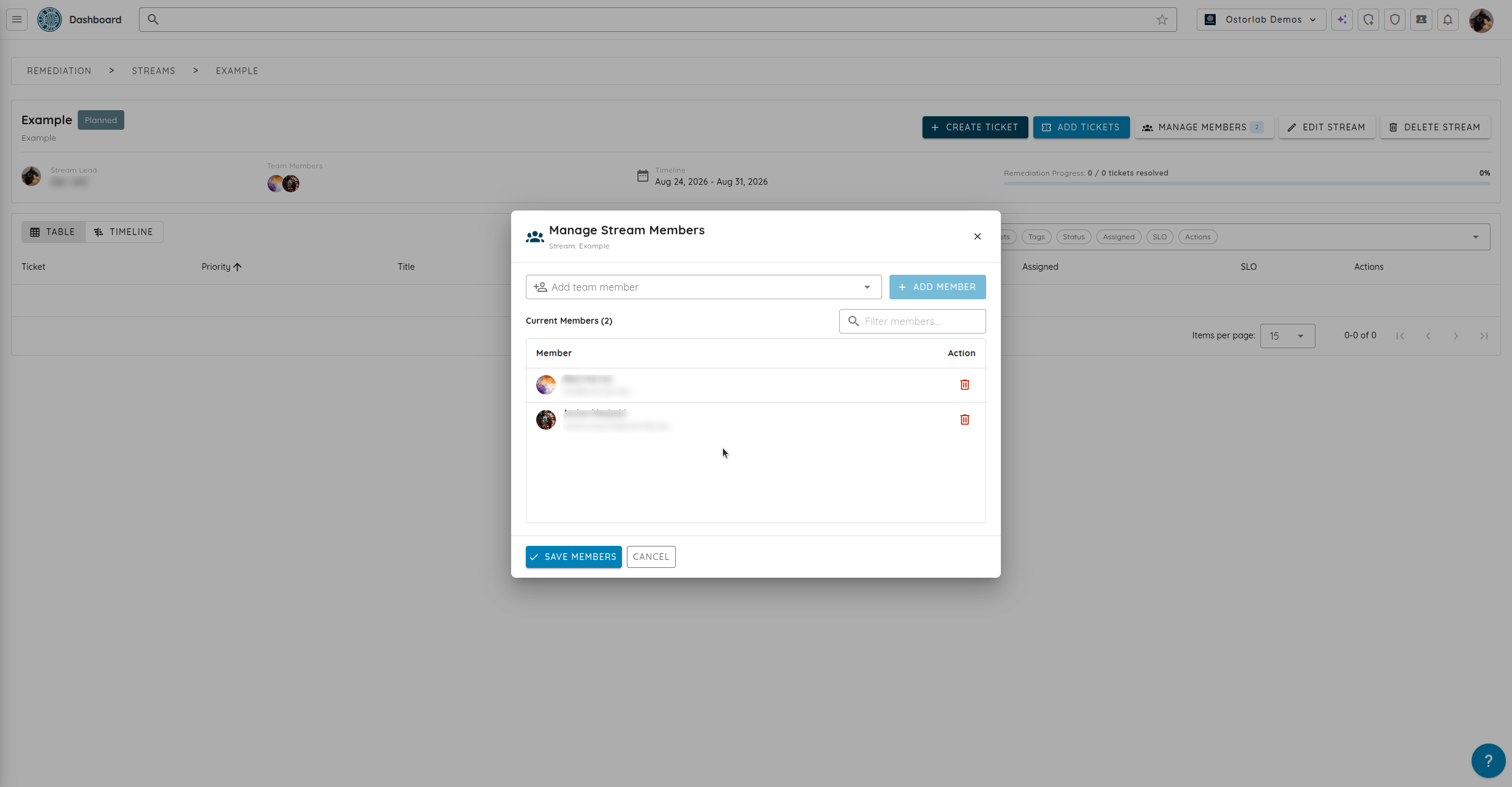
From an open stream, click Manage Members to add members to the stream or remove current members.
Select a team member, click Add Member, and then click Save Members to apply your changes.
From the stream page, you can also click Edit Stream to update its details or Delete Stream to remove it.