Mobile Deep Agentic Scan
The Mobile Deep Agentic Scan provides AI-powered penetration testing that uncovers complex logical flaws, chains multiple vulnerabilities into sophisticated attack paths, and validates findings through proof-of-concept exploits to confirm real-world impact on your mobile applications. Featuring advanced Reverse Engineering capabilities, the agent gains a deep understanding of your application's structure and native code before testing begins. Enhanced Vulnerability Chaining and Risk Prioritization help identify relationships between weaknesses to uncover critical attack paths.
To create a Mobile Deep Agentic Scan:
-
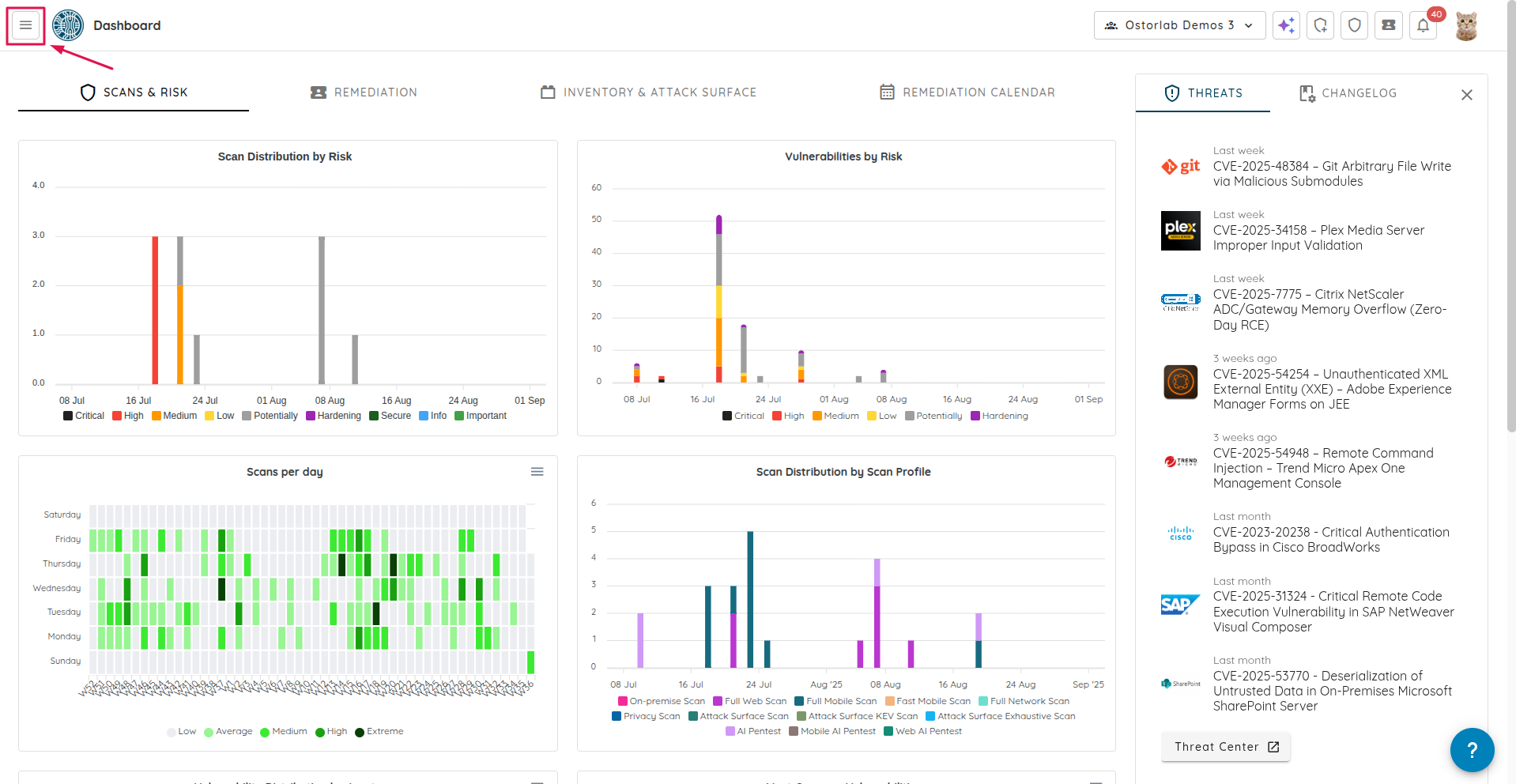
Click the "Hamburger" menu icon.
-
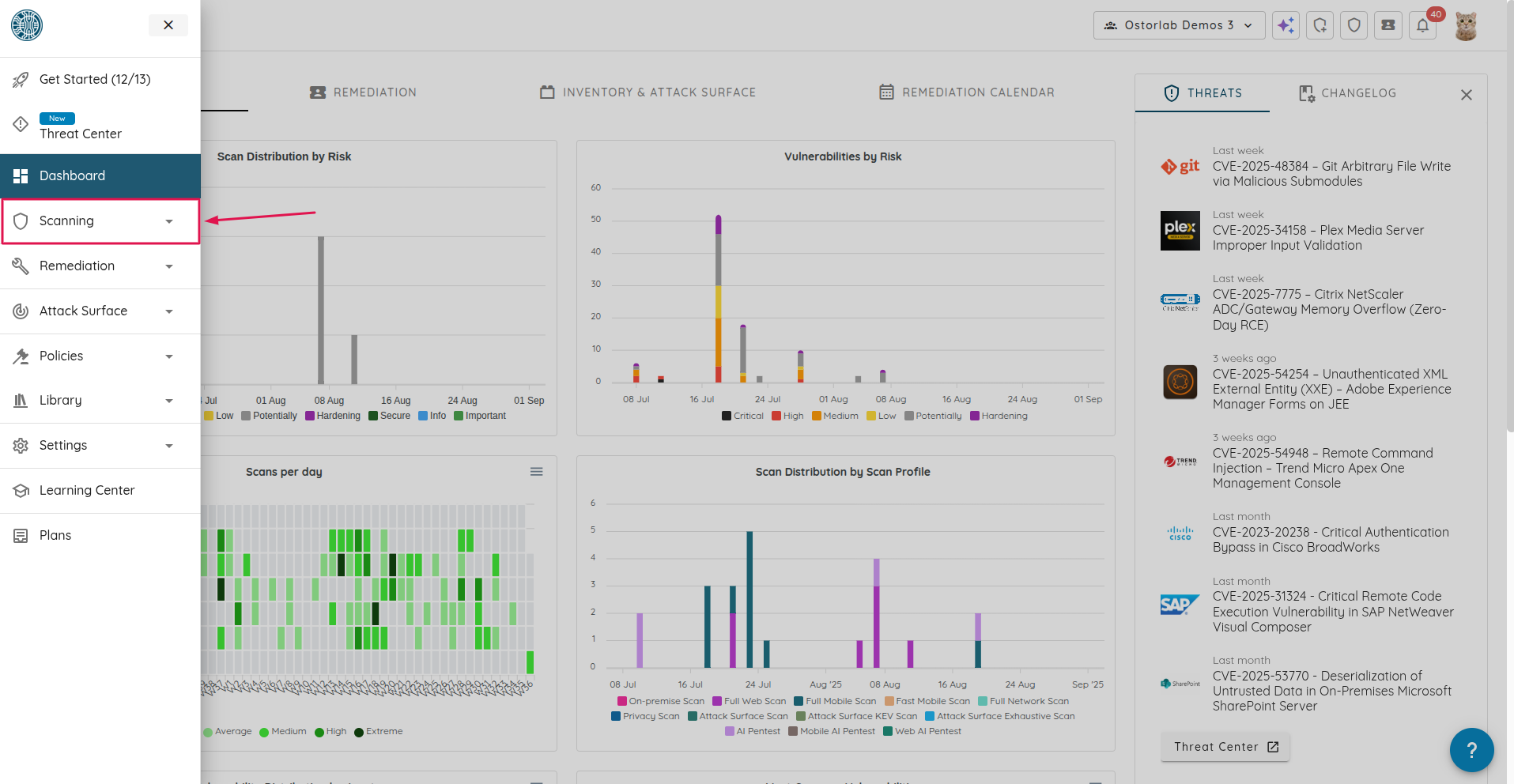
Click on "Scanning".
-
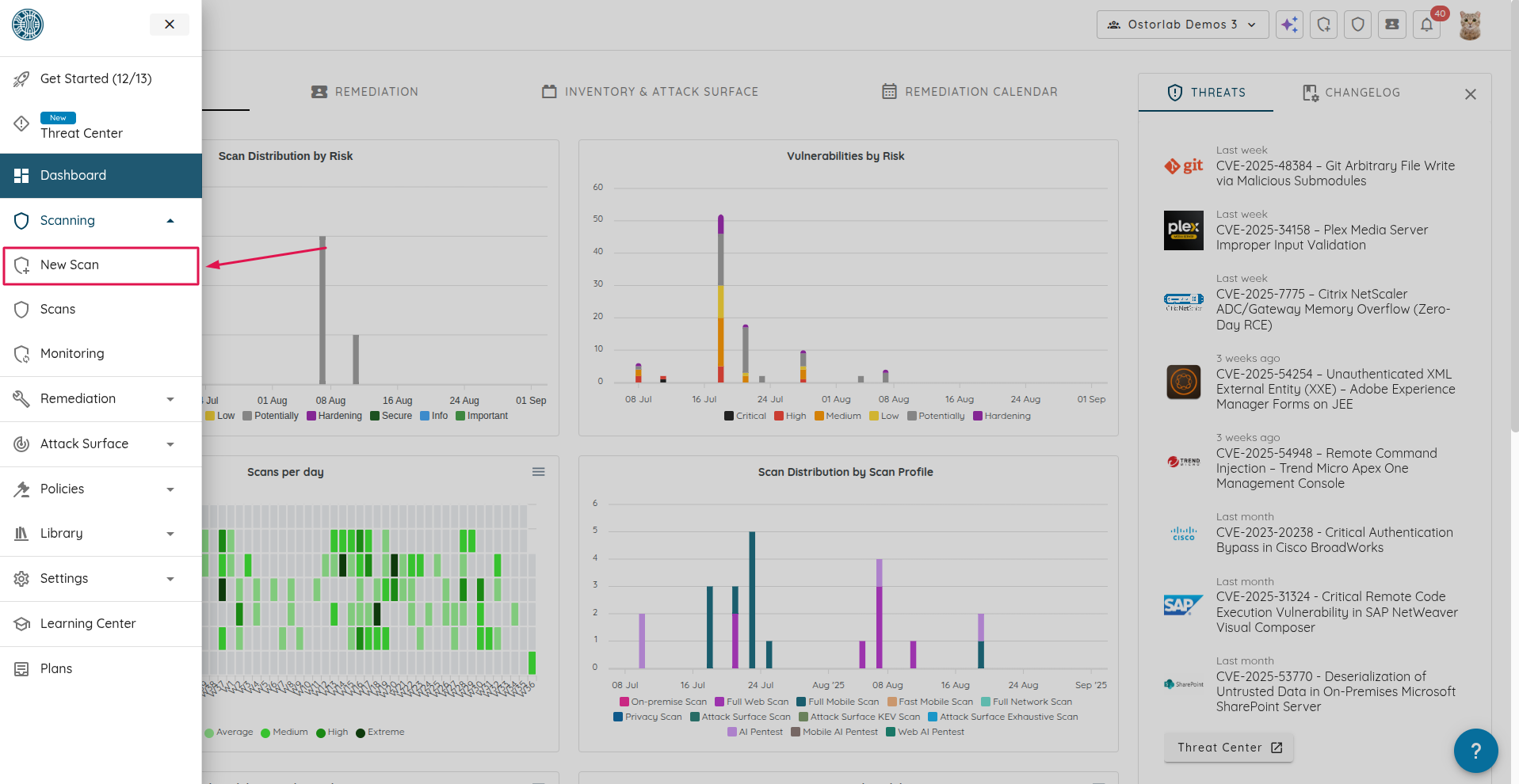
Navigate to the scan page by clicking "New Scan".
-
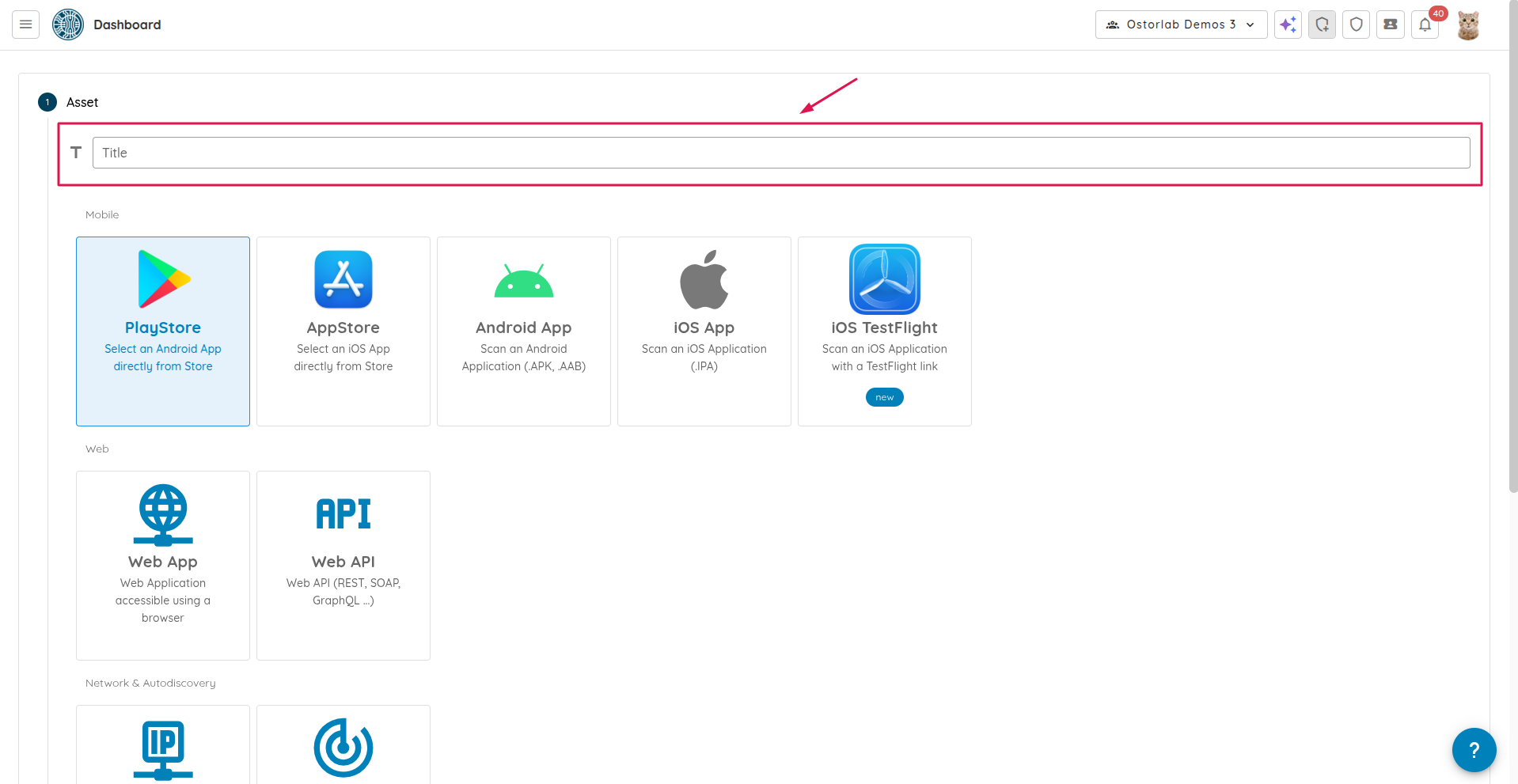
Enter a name for your scan in the "Title" field. This field is optional.
-
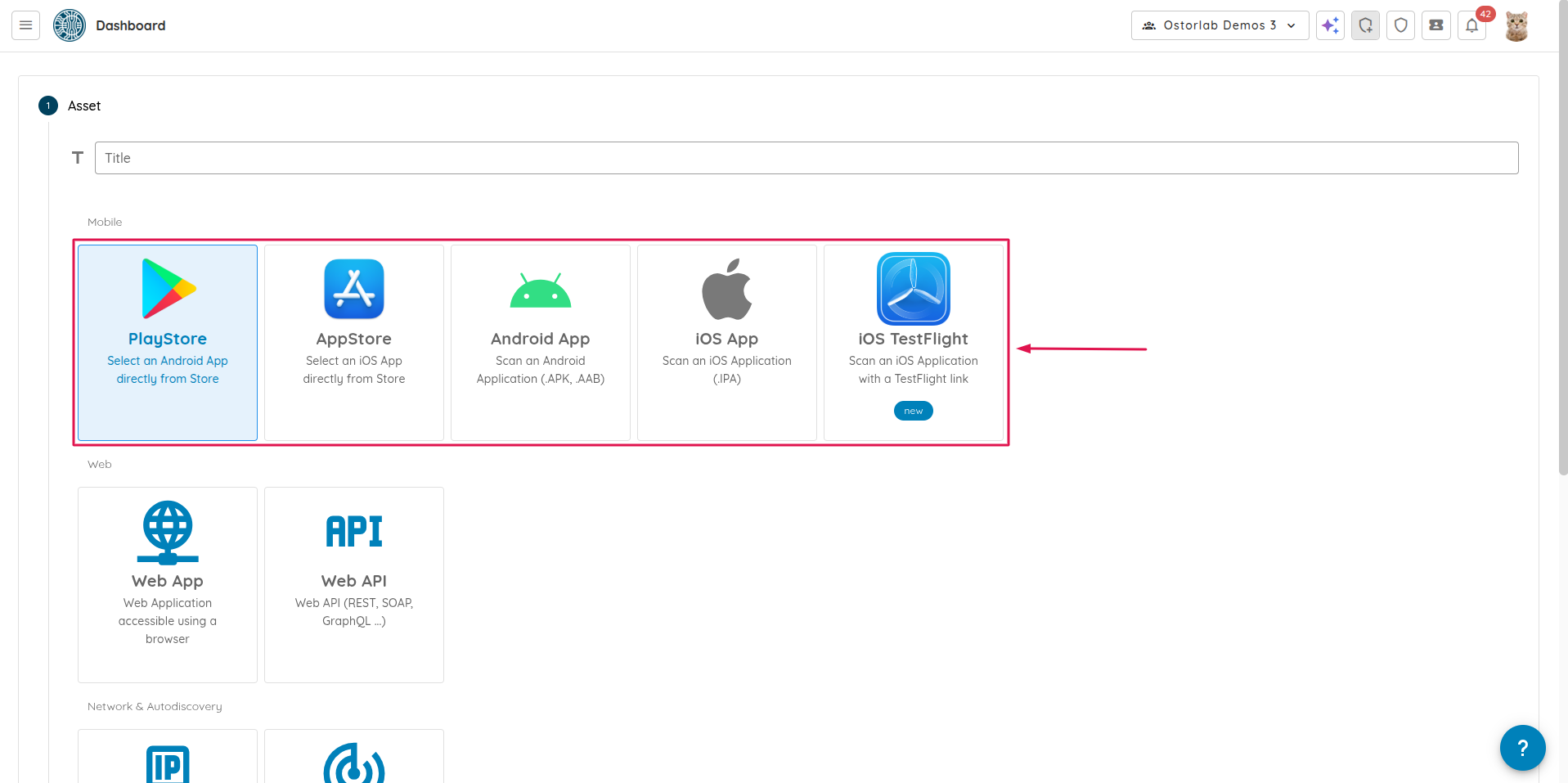
If the application is available on the store, select either "PlayStore" for Android or "AppStore" for iOS. You can also upload an APK or AAB file for Android or an IPA file for iOS, or even TestFlight. For this example, we will select "PlayStore".
-
Search for the application using its
name,package name, orbundle ID. Press "Enter". If the application is only accessible in a specific location or country, use the "Country" menu to select the appropriate option. Click "Continue".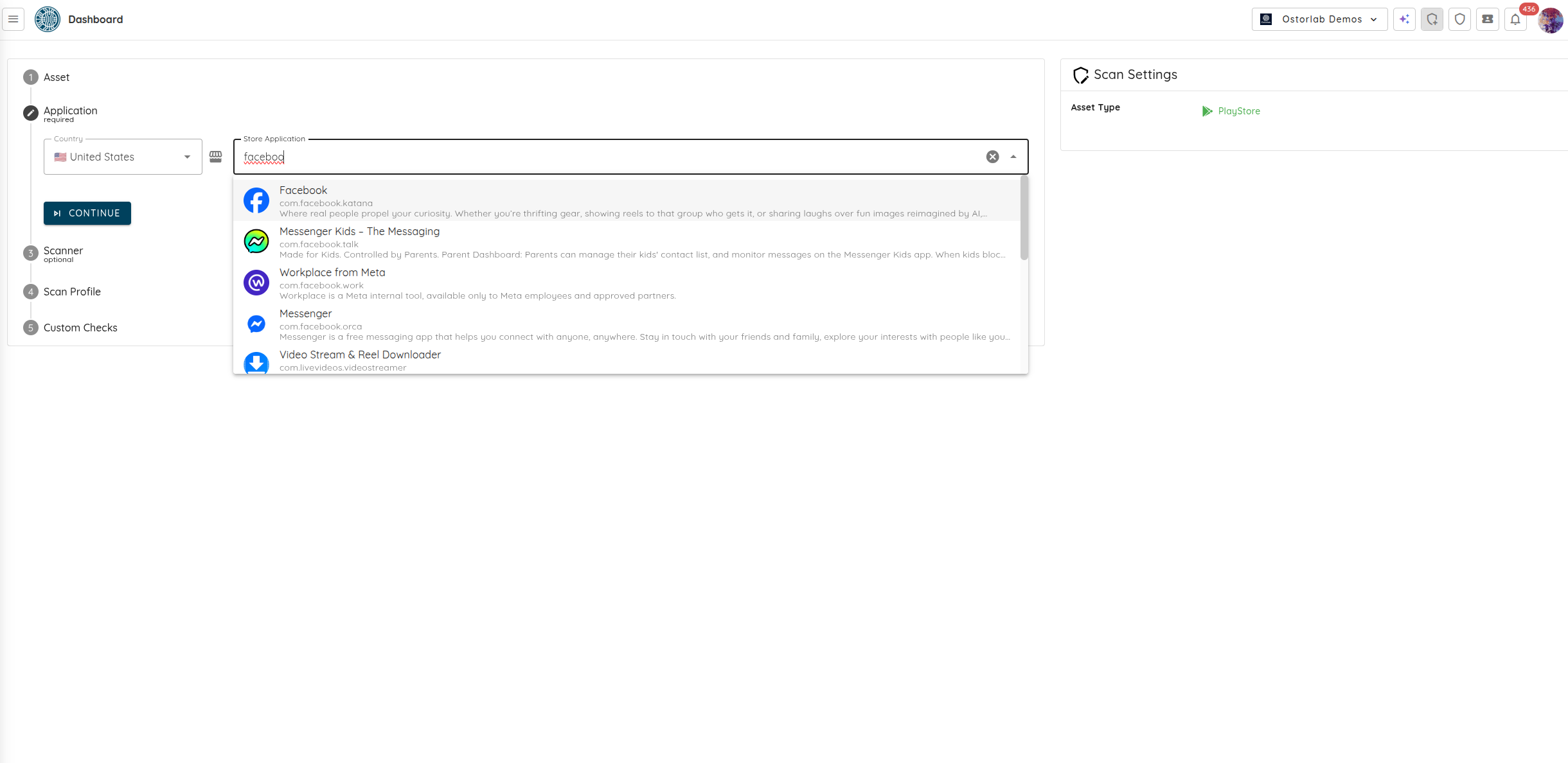
-
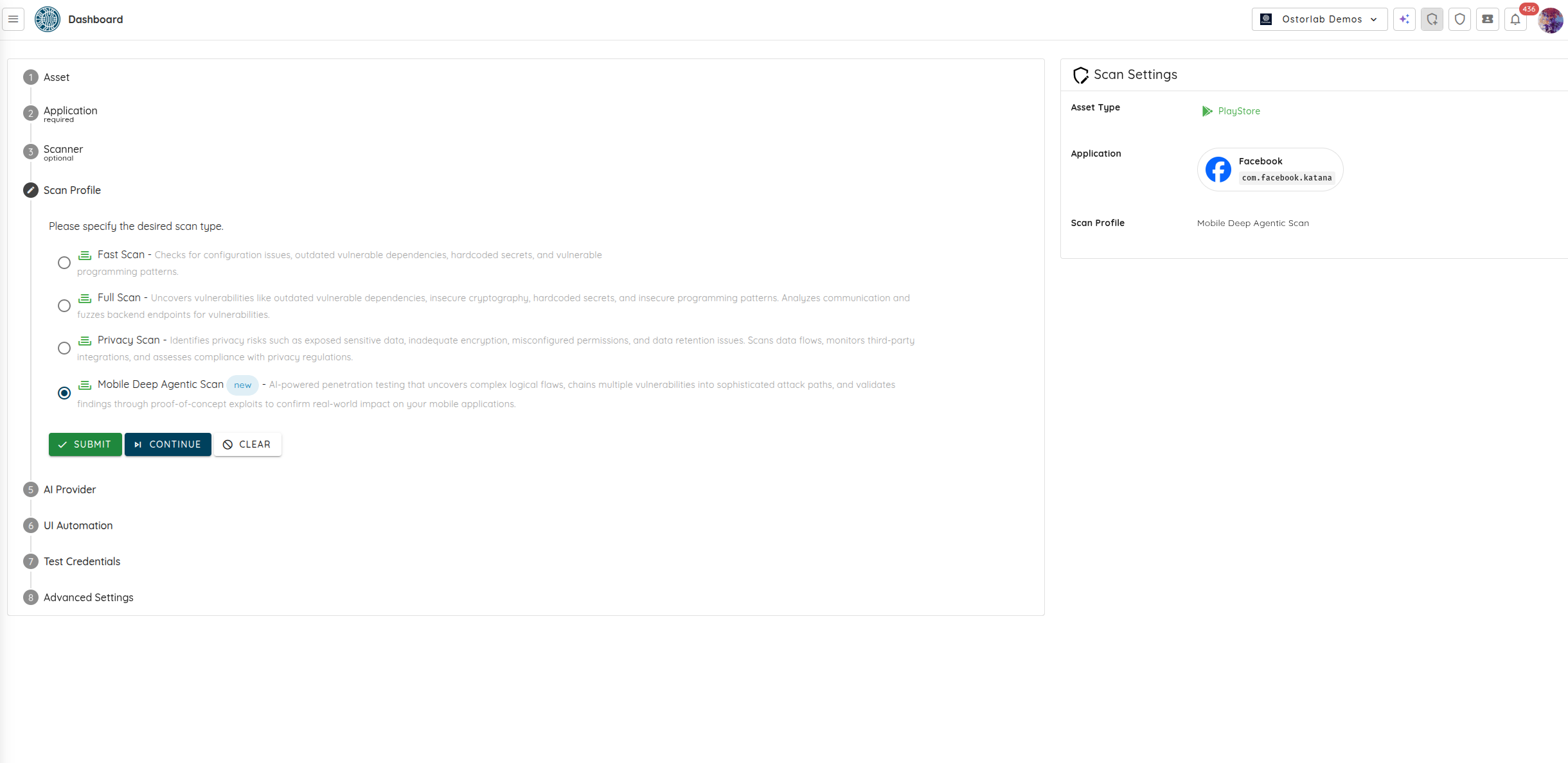
Once you have selected your desired application, select "Mobile Deep Agentic Scan" as the scan type. At this point, you can create the scan by clicking "Submit" or you can choose to provide specific instructions for the deep scan to focus on particular areas of the application. To do this, click on "Continue".
-
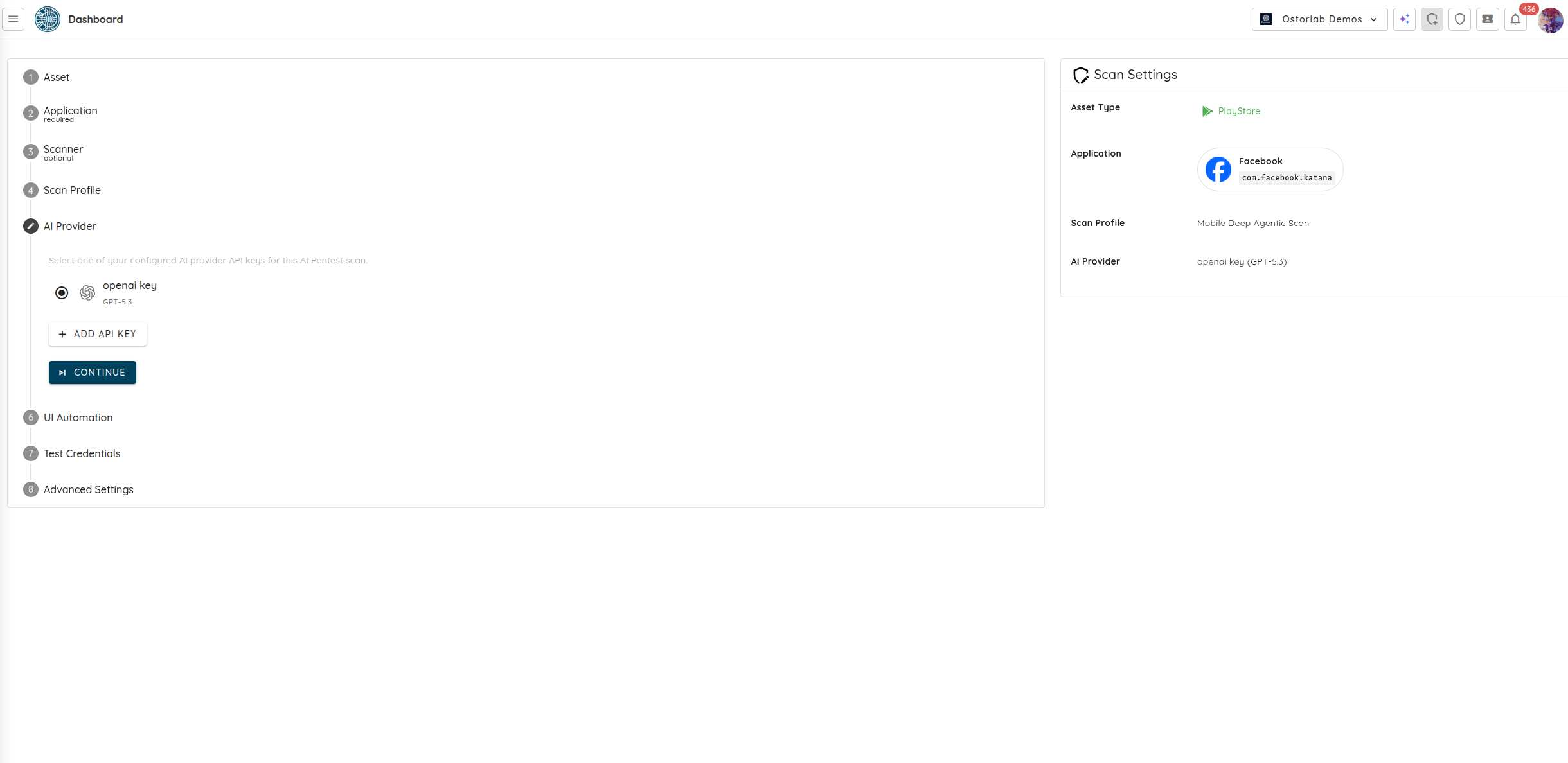
Select the testing duration for your scan using the "Testing Depth" option, ranging from focused 1-week assessments to comprehensive 8-week penetration tests. Next, configure the AI model. You can select an Ostorlab-managed "Cyber Model" for immediate testing without managing API keys, or select one of your configured "BYOK" (Bring Your Own Key) API keys for this Agentic Deep Scan, or create a new one by clicking "ADD API KEY".
-
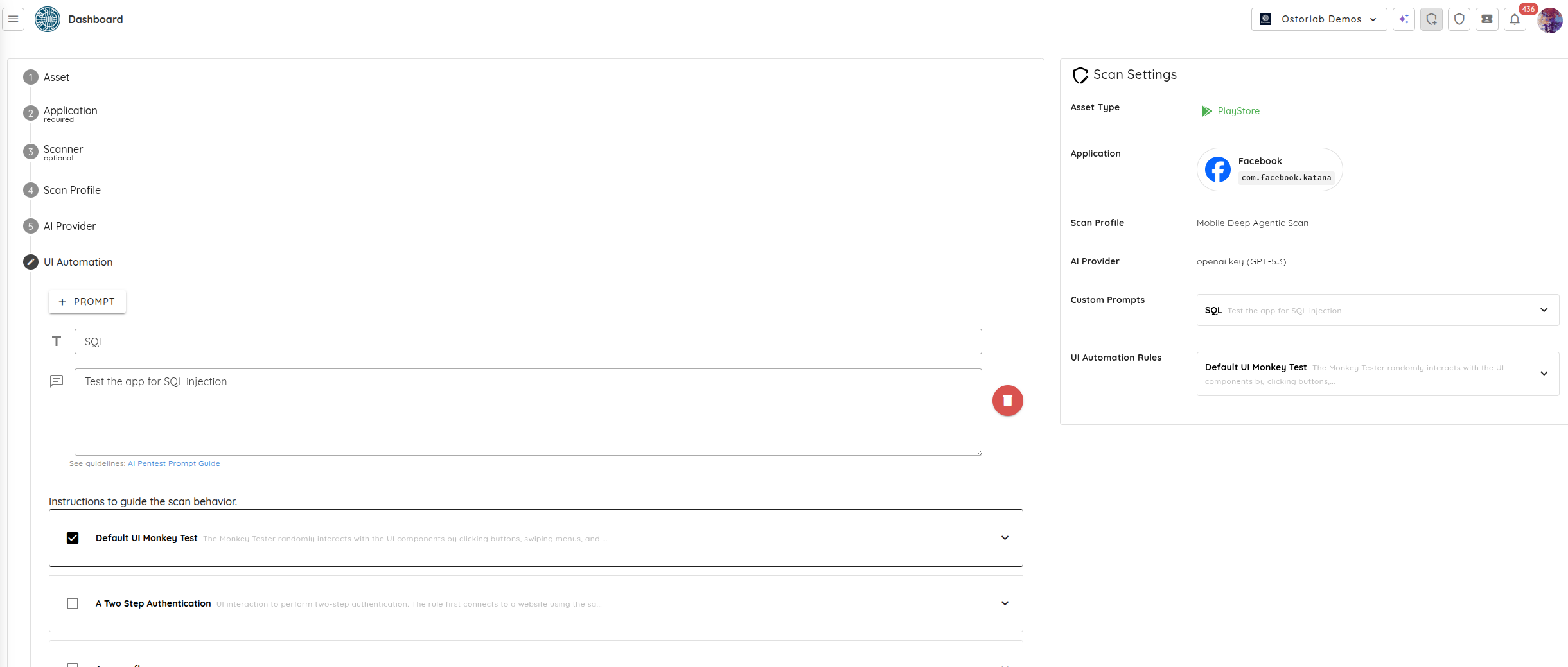
Prompts allow you to guide the Deep Scan on what to test. You can select from existing prompts or create your own by clicking on "+ Prompt". After selecting or adding the desired prompts, click on "Continue".
-
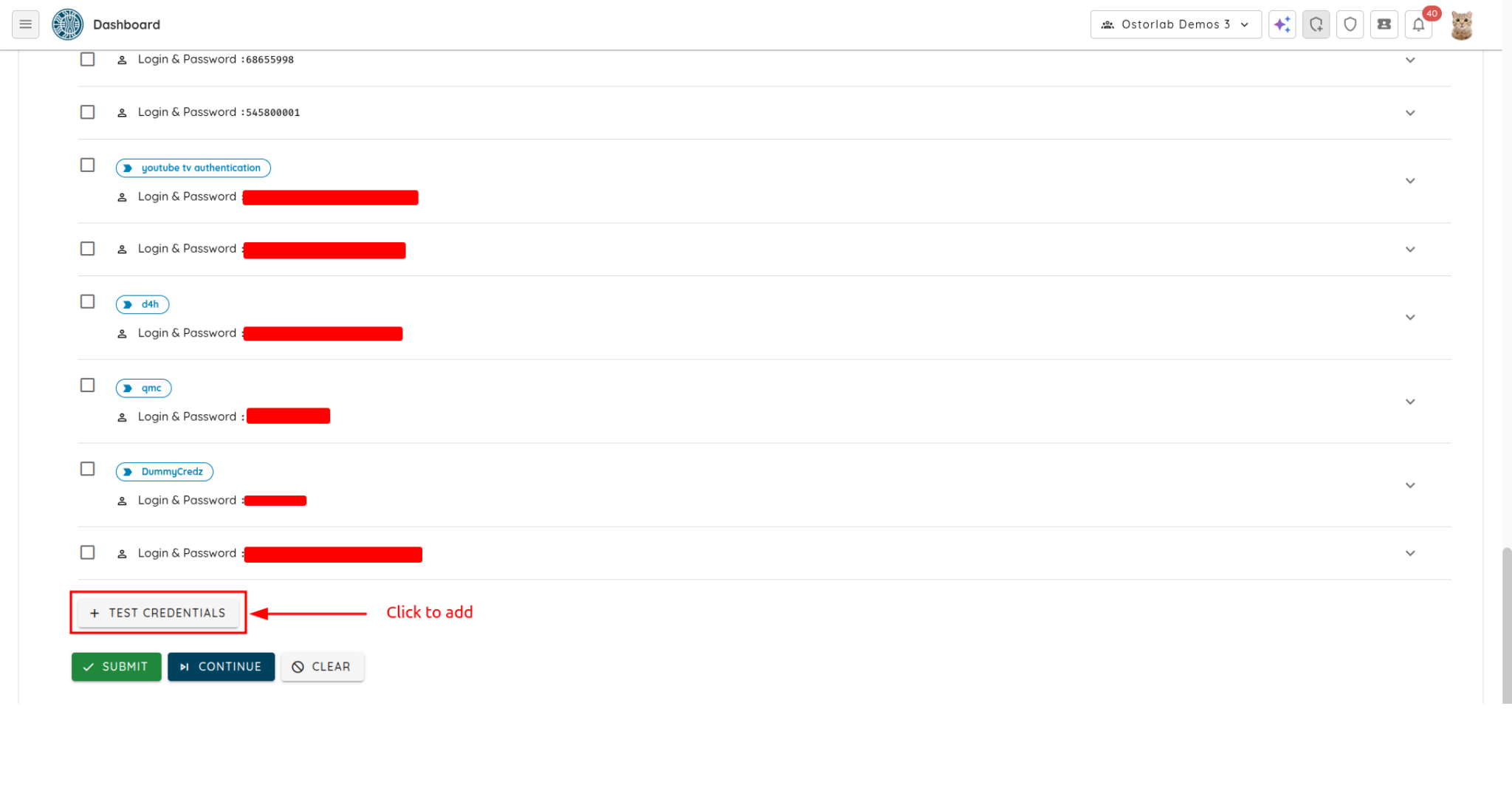
Select or add new test credentials to enable the Deep Scan to perform authenticated testing. After selecting or adding the desired credentials, click on "Continue".
-
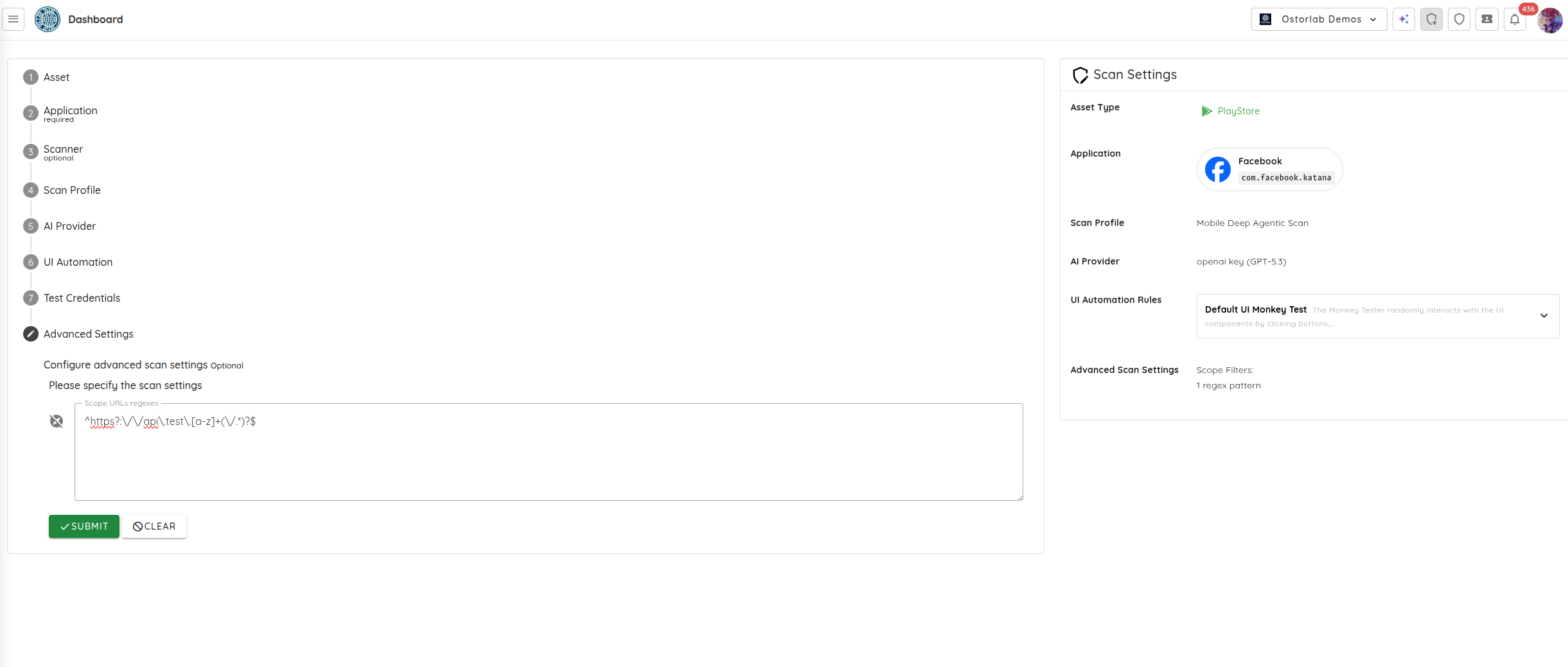
You can also configure advanced settings such as "Scope URLs regexes" to whitelist specific URLs to be scanned. Click on "Submit" to start the scan.
-
Click on "Show" to see the scan. Inside the scan results, you can explore the Transparent Attack Validation paths to see the exact decisions, tool outputs, and steps taken by the AI agent to validate vulnerabilities.
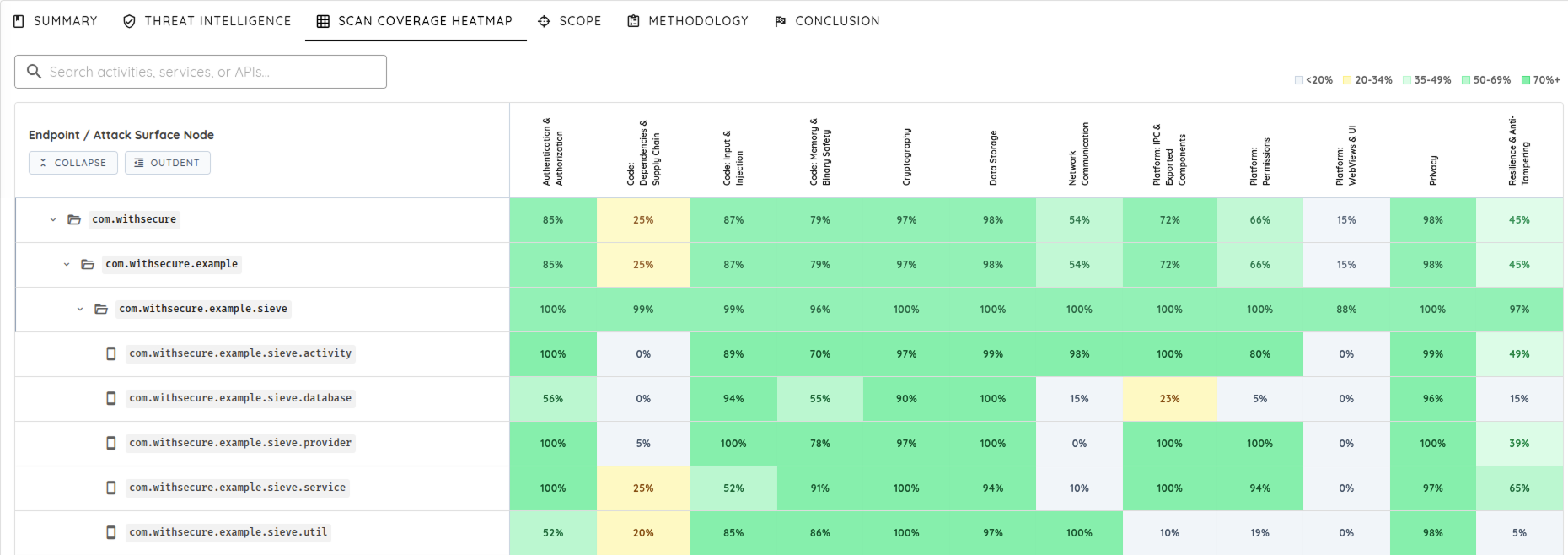
You can also open the Scan Coverage Heatmap, which provides a visual view of testing coverage across application components and security categories. This helps teams understand which areas of the application received deeper analysis, where coverage was limited, and how coverage evolves across assessments.
Note: Historical Scan Processing is enabled by default. The scanner remembers previous findings and validated attack paths, focusing subsequent scans on new or changed functionality for cumulative, incremental coverage.
This tutorial demonstrated how to create a Mobile Deep Agentic Scan from the store or through a file upload.