Two-Factor Authentication (2FA) for Automated Scans
Overview
The platform supports applications protected by Two-Factor Authentication (2FA).
Scans can automatically complete authentication flows that require additional verification, allowing the security assessment to proceed without manual intervention.
Supported authentication mechanisms include:
- SMS-based One-Time Passwords (OTP)
- Time-Based One-Time Passwords (TOTP) generated by authenticator apps
- Passwordless authentication flows (Email tokens)
- Browser-based authentication mechanisms
This enables the scanner to authenticate securely and continue testing protected areas of your application.
What This Enables
- Fully automated security scans, even with multi-step authentication
- End-to-end coverage of the complete login workflow
- Automatic OTP handling through SMS retrieval or real-time TOTP generation
- Compatibility with most standard 2FA implementations
Supported 2FA Methods
1. SMS-Based 2FA
SMS-based 2FA is an authentication mechanism that secures access to an application by requiring the user to enter a One-Time Password (OTP) sent via a text message to their registered phone number.
The platform supports the full automation of this authentication flow. It enable the security scanner to perform authenticated scans on applications that require SMS-based verification by intercepting, extracting, and injecting the OTP automatically, ensuring seamless end-to-end coverage of the login workflow.
Prerequisites
Before configuring SMS 2FA in the platform, ensure you have completed these steps:
- Contact Support: Contact Ostorlab Support to request your dedicated testing phone number.
- Setup Test Account: Update your application's test account to use this number for 2FA.
- Identify Sender: Trigger an OTP to the test number using your application to identify the official Sender Phone Number (the specific number or short-code from which your application sends OTP SMS messages).
Configuration
Once you have your dedicated testing number and have identified the sender's phone number:
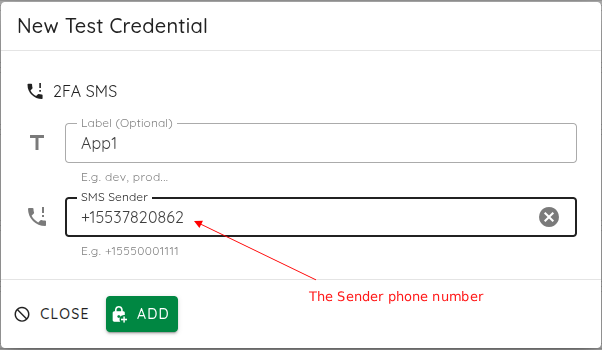
- Navigate: Go to Scan > Test Credentials > New > 2FA SMS.
- Label: Provide a descriptive name for this credential (e.g., "Production SMS 2FA").
- Sender Phone Number: Enter the Sender Phone Number you identified in the prerequisites step (e.g.,
+15550001111). - Save: Click Add to store the credentials securely.
Troubleshooting
- Configuration: Ensure the test account has SMS 2FA enabled.
- Filtering: Confirm that your application's anti-spam or rate-limiting policies allow incoming messages from the gateway.
- Sender ID: If the scanner fails to capture the OTP, double-check that the "Sender Phone Number" exactly matches the number appearing on the device when an OTP is received.
2. Email based OTP
Email-based 2FA secures access to an application by requiring the user to enter a One-Time Password (OTP) sent to their registered email address.
The platform automates this flow by securely monitoring a dedicated test mailbox, parsing the incoming email, extracting the OTP, and injecting it into the application's login form automatically. This ensures your security scans can complete the authentication flow without manual intervention.
Prerequisites
Before configuring Email 2FA, ensure you have:
- Dedicated Mailbox: A test account specifically configured to receive OTPs.
- Identify Sender: Trigger an OTP to your test account and identify the official Email Sender (the specific email address from which your application sends OTP messages).
- App Password: If your email provider (e.g., Gmail) enforces 2FA on the mailbox account, you must generate an App Password. Do not use your regular account password, as it is often rejected by modern provider security settings.
Configuration
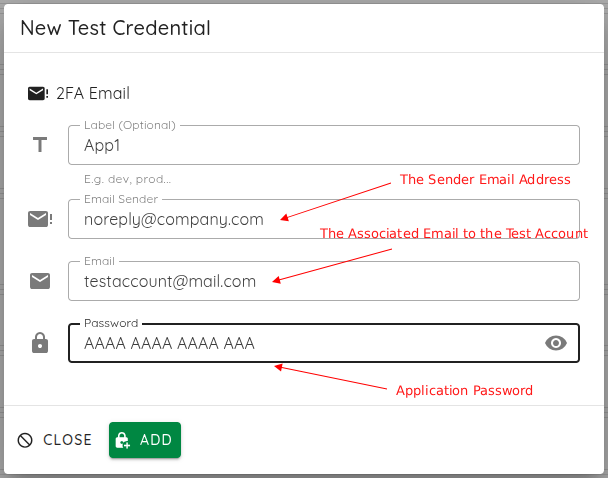
- Navigate: Go to Scan > Test Credentials > New > 2FA Email.
- Label: Provide a descriptive name for this credential (e.g., "Production Email 2FA").
- Email Sender: Enter the Email Sender address you identified in the prerequisites step (e.g.,
noreply@yourdomain.com). - Email & Password: Enter the email address of the test mailbox and its corresponding App Password.
- Save: Click Add to store the credentials securely.
Troubleshooting
- Parsing Errors: If the scanner fails to extract the OTP, ensure the email body contains the code in a clear, readable format.
- Connectivity: Verify that IMAP/SMTP access is enabled in your mailbox settings and that the credentials (especially the App Password) are correct.
- Security Blocks: Ensure the mailbox account is not protected by an additional 2FA layer that would prevent the scanner from logging into the inbox itself.
3. TOTP (Authenticator Apps)
TOTP-based authentication generates time-based verification codes that refresh every 30 seconds.
The platform supports full automation of TOTP by acting as a virtual authenticator device, generating valid codes in real-time based on the shared secret key.
Prerequisites
- Setup Test Account: Enable TOTP-based 2FA on your test account.
- Secure the Secret: Retrieve the TOTP secret key (seed) from your authentication app during setup.
Configuration
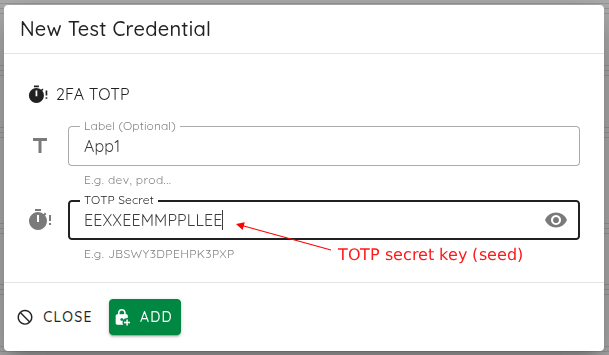
- Navigate: Go to Scan > Test Credentials > New > 2FA TOTP.
- Credential Name: Provide a descriptive name for this credential.
- TOTP Secret: Paste the Base32-encoded TOTP seed (e.g.,
JBSWY3DPEHPK3PXP). - Save: Click Add to store the credentials securely.
Security Note
All TOTP seeds are encrypted at rest and are never exposed in scan logs or results. This implementation is fully compliant with the RFC 6238 TOTP standard.
4. Manual 2FA
Manual 2FA is ideal for proprietary, complex, or legacy authentication flows that cannot be fully automated.
When the scanner encounters a 2FA step, it automatically pauses, presenting a modal for manual code input. Upon submission, the scan resumes.
Configuration
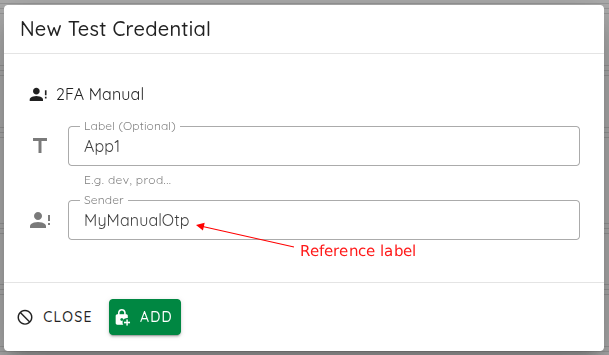
- Navigate: Go to Scan > Test Credentials > New > 2FA Manual.
- Credential Name: Provide a descriptive name for this credential.
- Sender: Enter a reference label (e.g.,
helpdesk) to identify the source of the manual request. - Save: Click Add to store the credentials.
Operational Tip
Ensure that you are available to monitor the scan progress, as the scanner will wait in a "paused" state for manual intervention until the code is provided.
Entering the Token
When the scan pauses for manual intervention, follow these steps to input the token:
-
Scan Details: Click on the details of the ongoing scan.
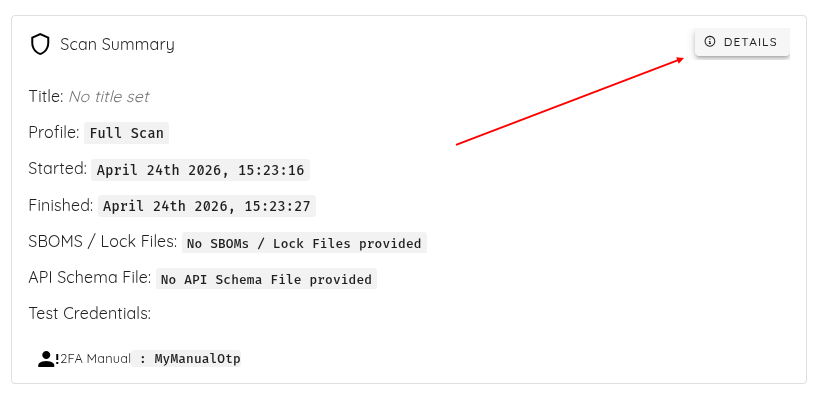
-
Select OTP: Click on the Manual OTP credential you created earlier.
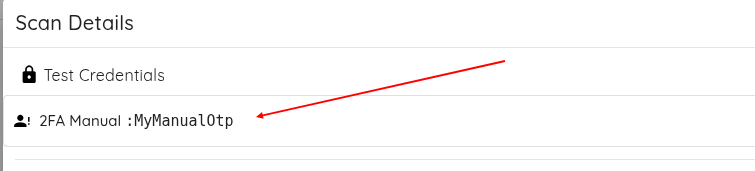
-
Click Manual OTP: Click on the MANUAL OTP button.
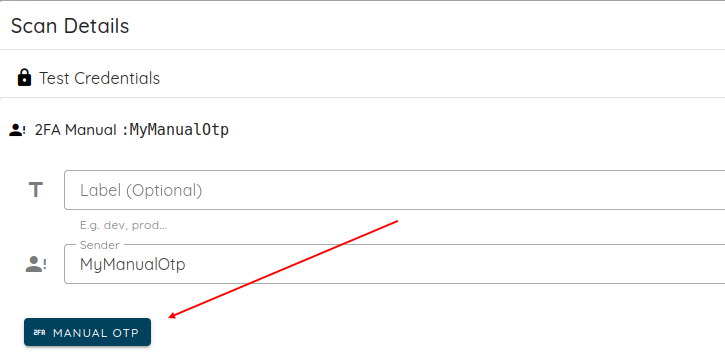
-
Submit: Enter the received token (e.g.,
751629) and submit it to resume the scan.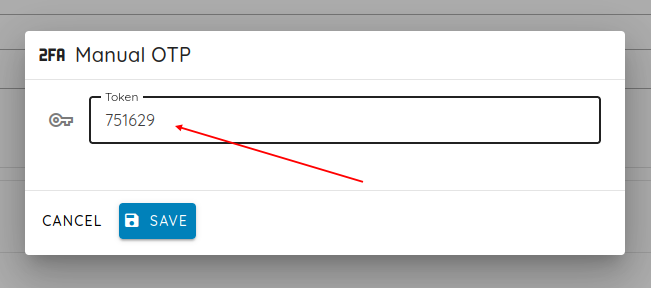
Validating Results
Once the scan is complete, you can verify that the scanner successfully navigated the 2FA authentication flow by inspecting the Call Coverage:
- Navigate to the Scan Details page.
- Select the Call Coverage tab.
- Review the requests to confirm that the scanner successfully performed the login and bypassed the 2FA step to access protected areas of the application.