Integrations & API
Linear
Configure Linear Integration
Ostorlab offers the possibility to easily manage vulnerabilities using Ostorlab tickets and seamlessly sync them with Linear.
The Linear configuration is done at the organization level: once connected, Ostorlab tickets are synced either one way or two ways to Linear.
Linear Configuration:
To enable the Linear integration, the organization must have an enterprise subscription.
Ostorlab connects to Linear using a personal API key: there is no separate username or workspace URL to configure.
Create a Linear Api key:
- Access your Linear API settings.
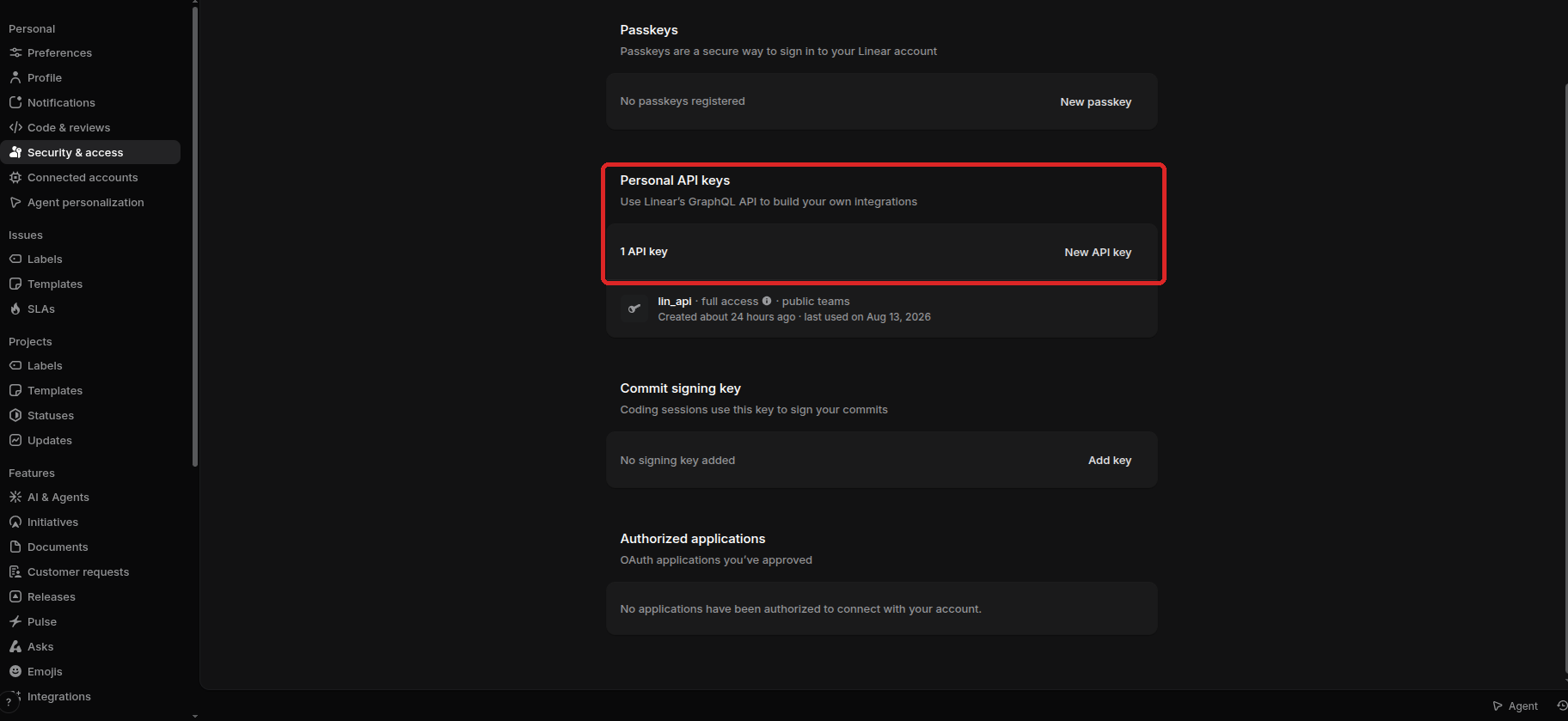
- Create a personal API key.
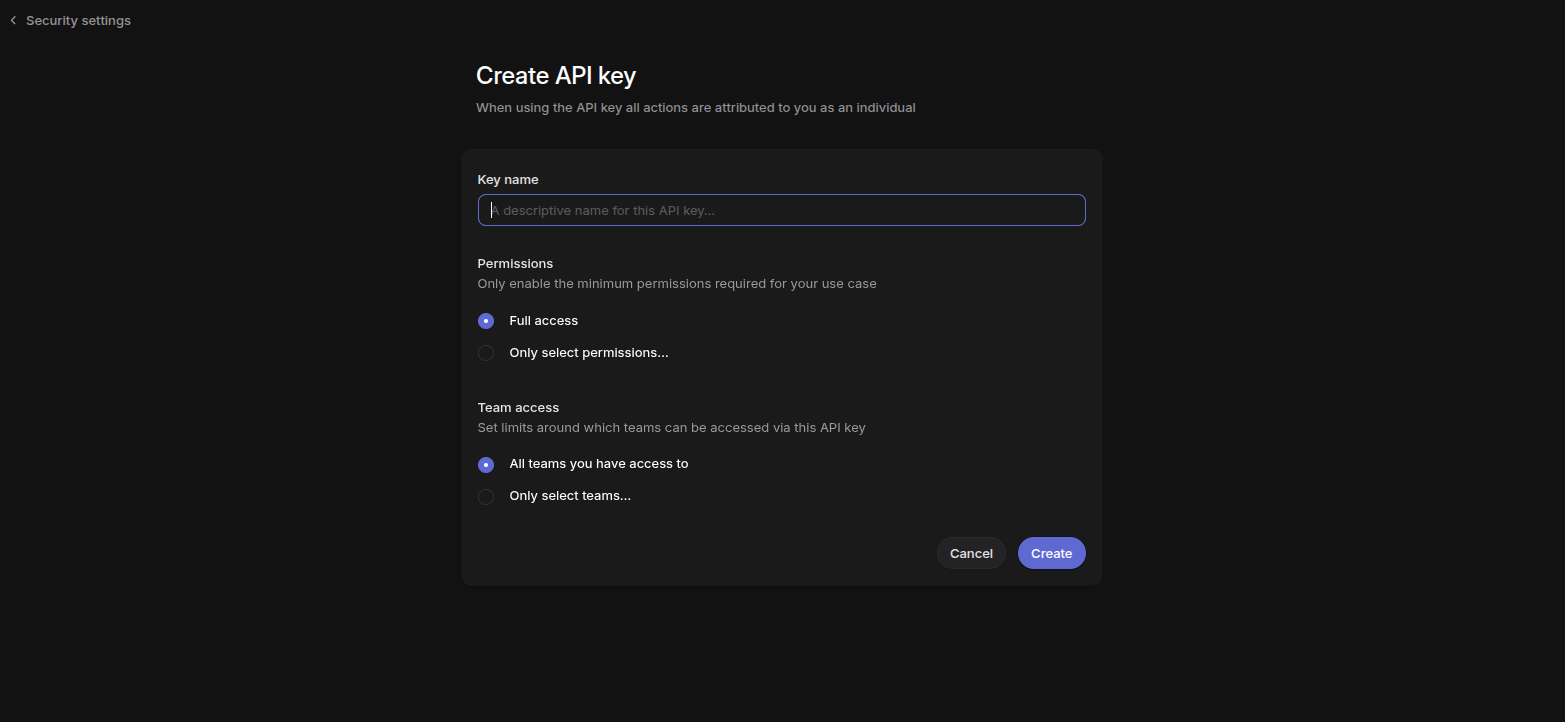
- Copy the generated key.
Connect Linear Integration:
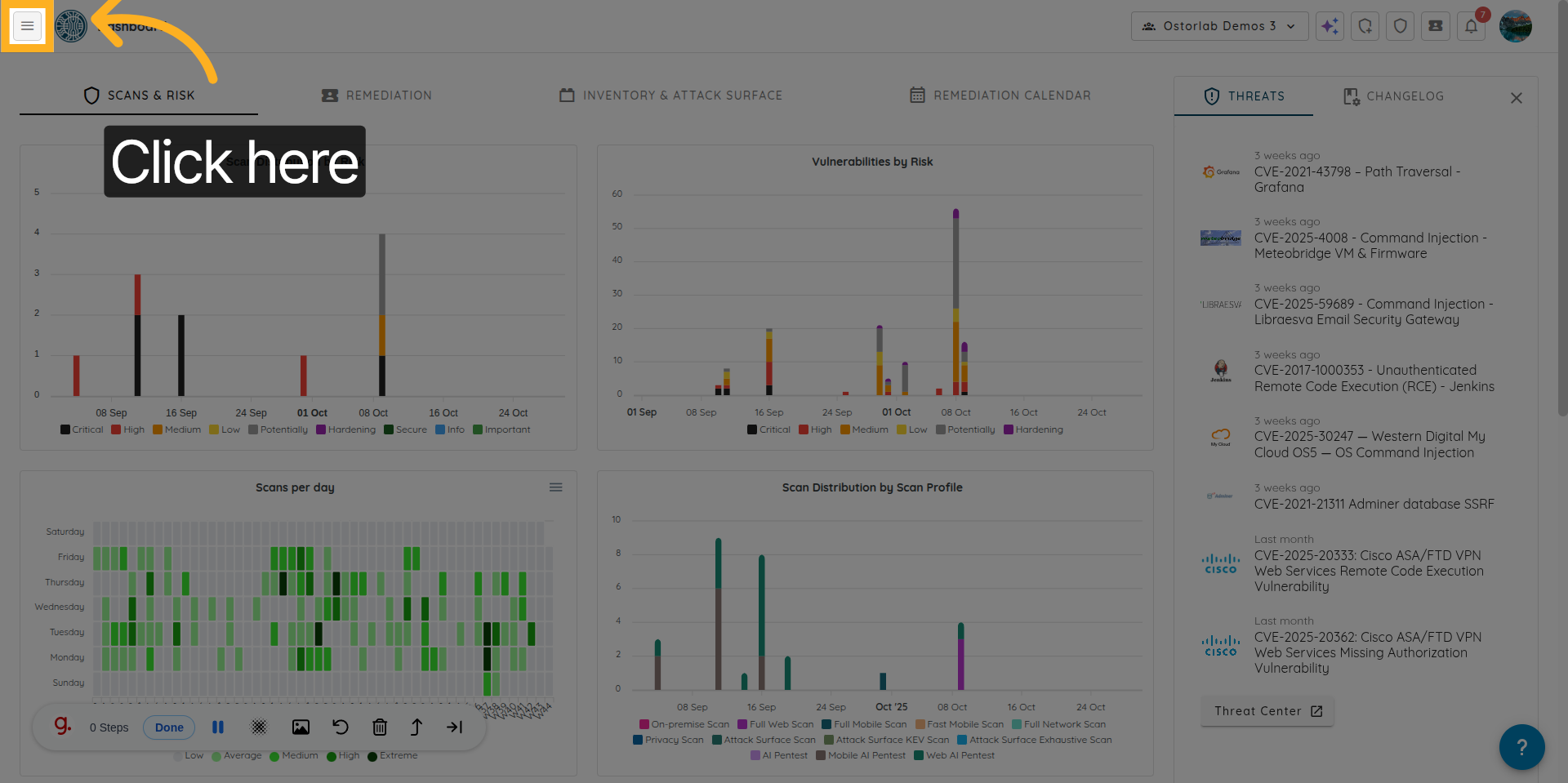
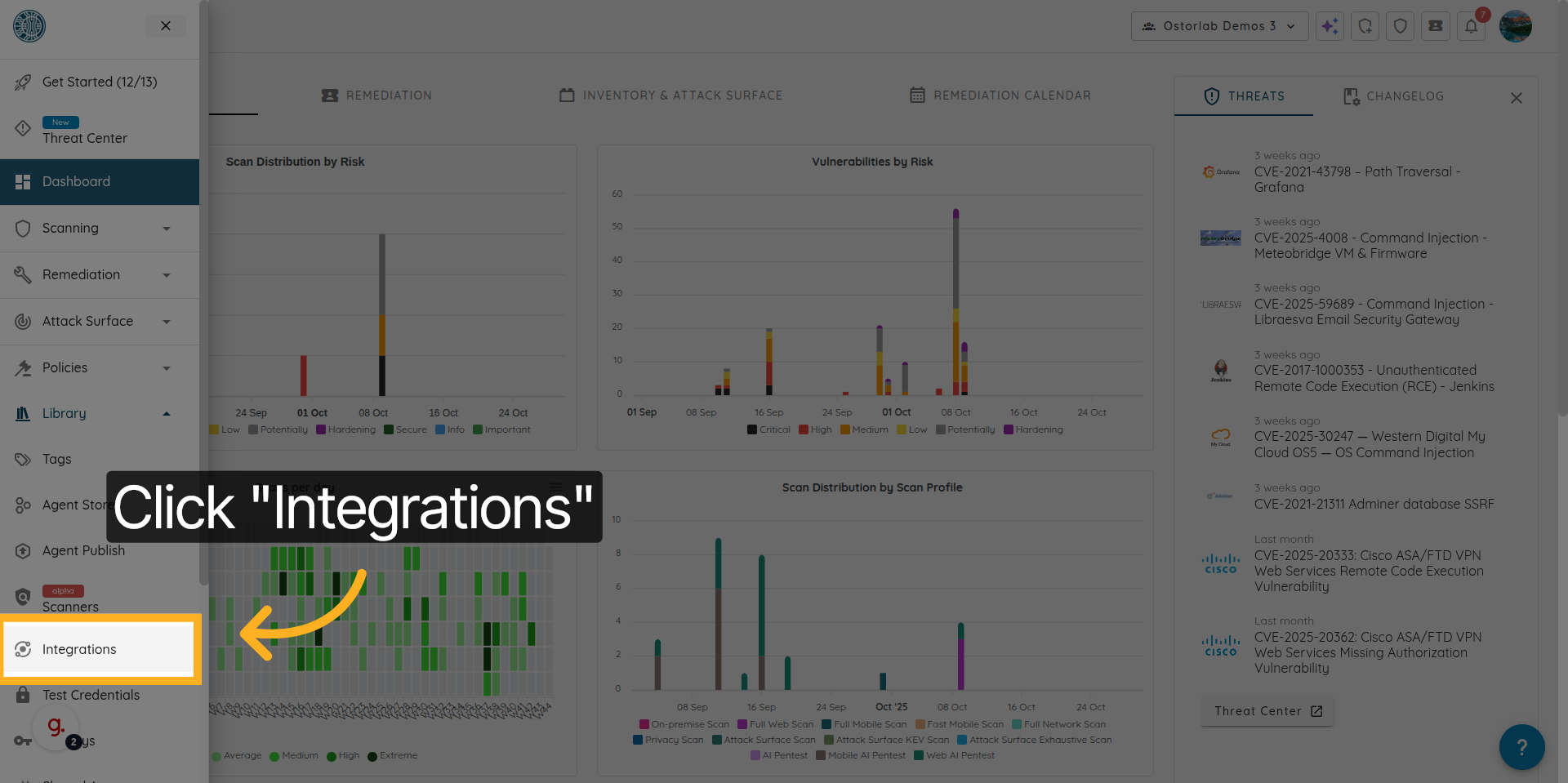
Go to Linear Integration menu Library -> Integrations -> Linear -> Configuration.
- Open the Ostorlab main menu.
- Click "Library".
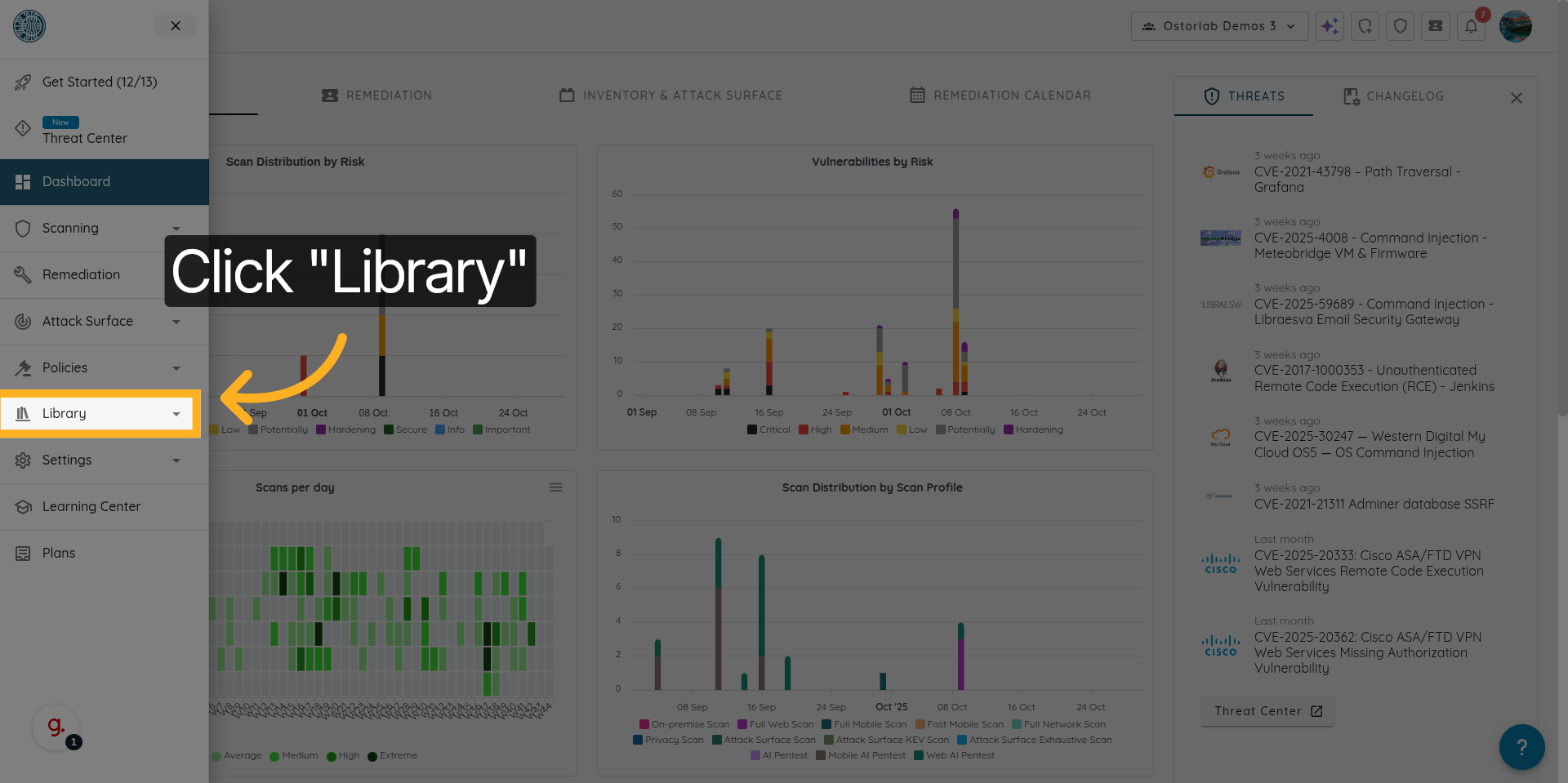
- Click "Integrations".
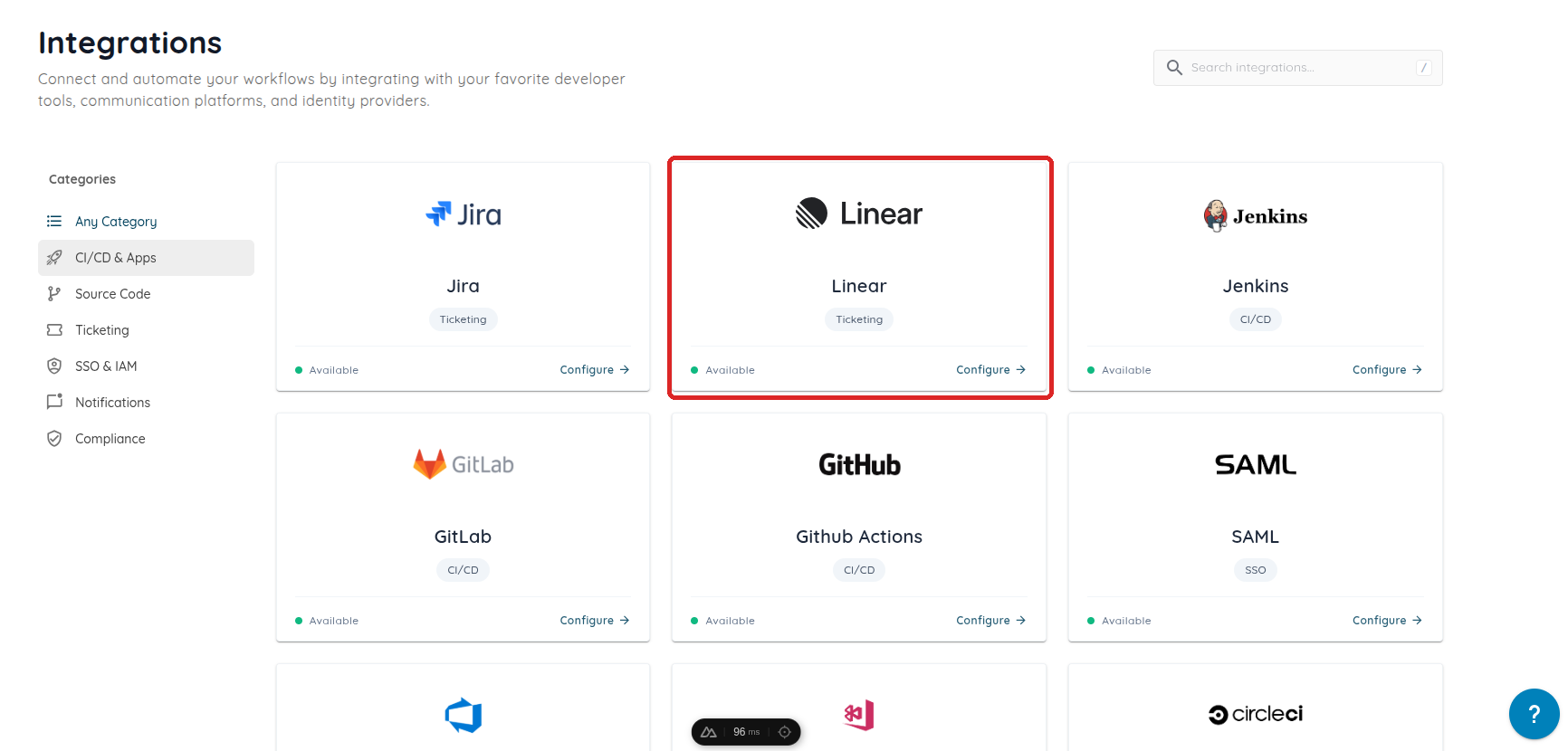
- Select the Linear integration.
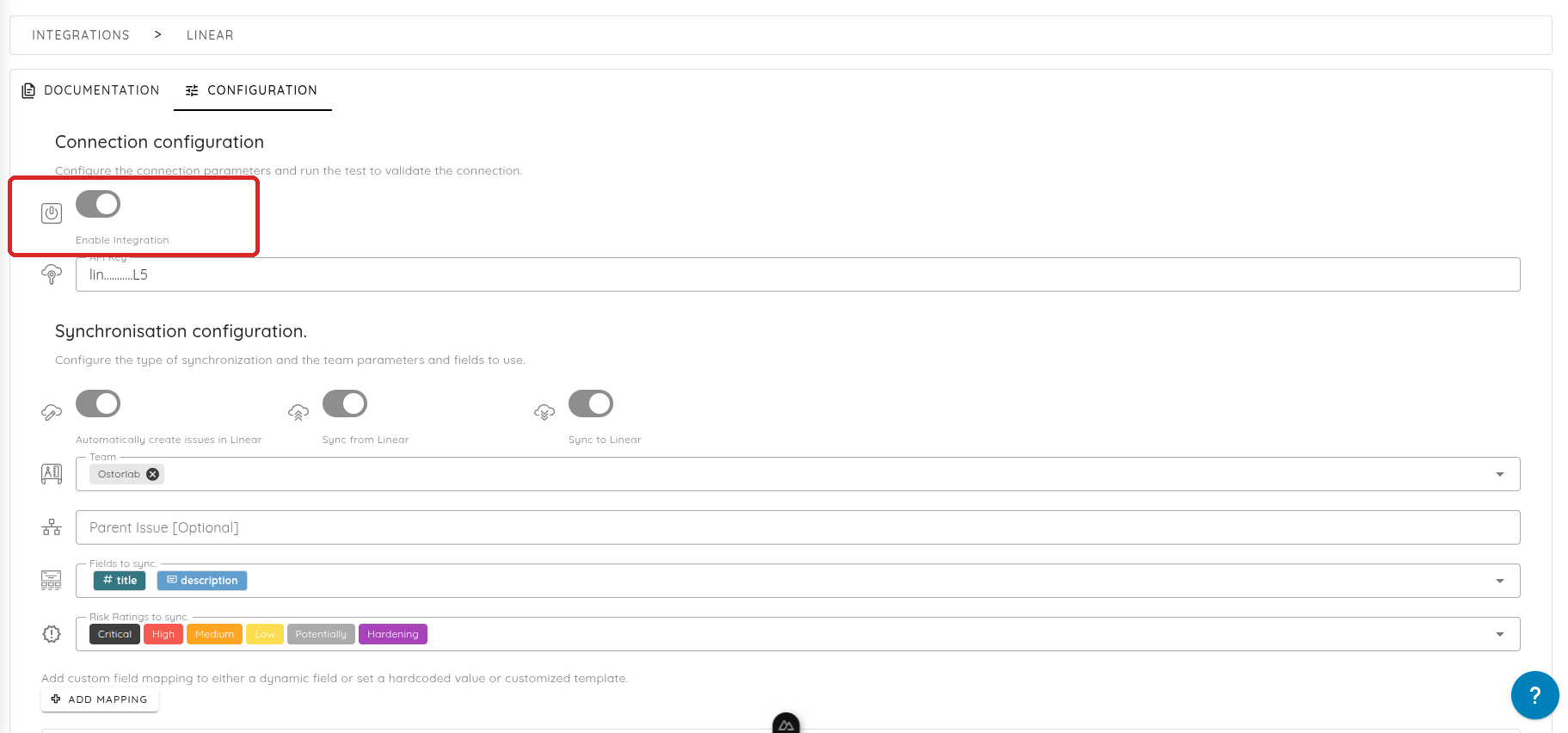
- Switch on the toggle to enable the Linear integration.
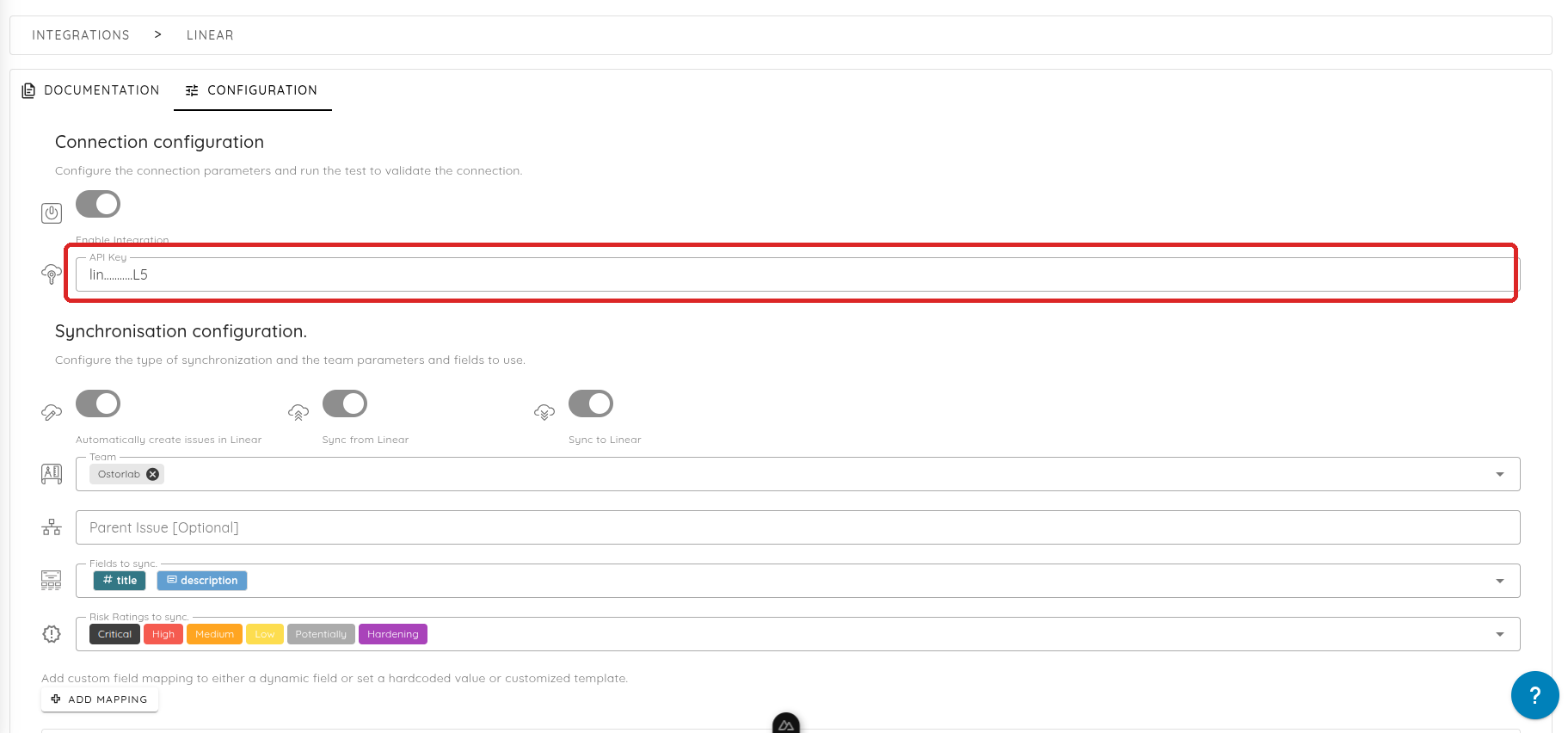
- Add the Linear Api key.
- Select the Linear team to sync tickets with. The list of teams is fetched live from Linear once a valid Api key is entered.
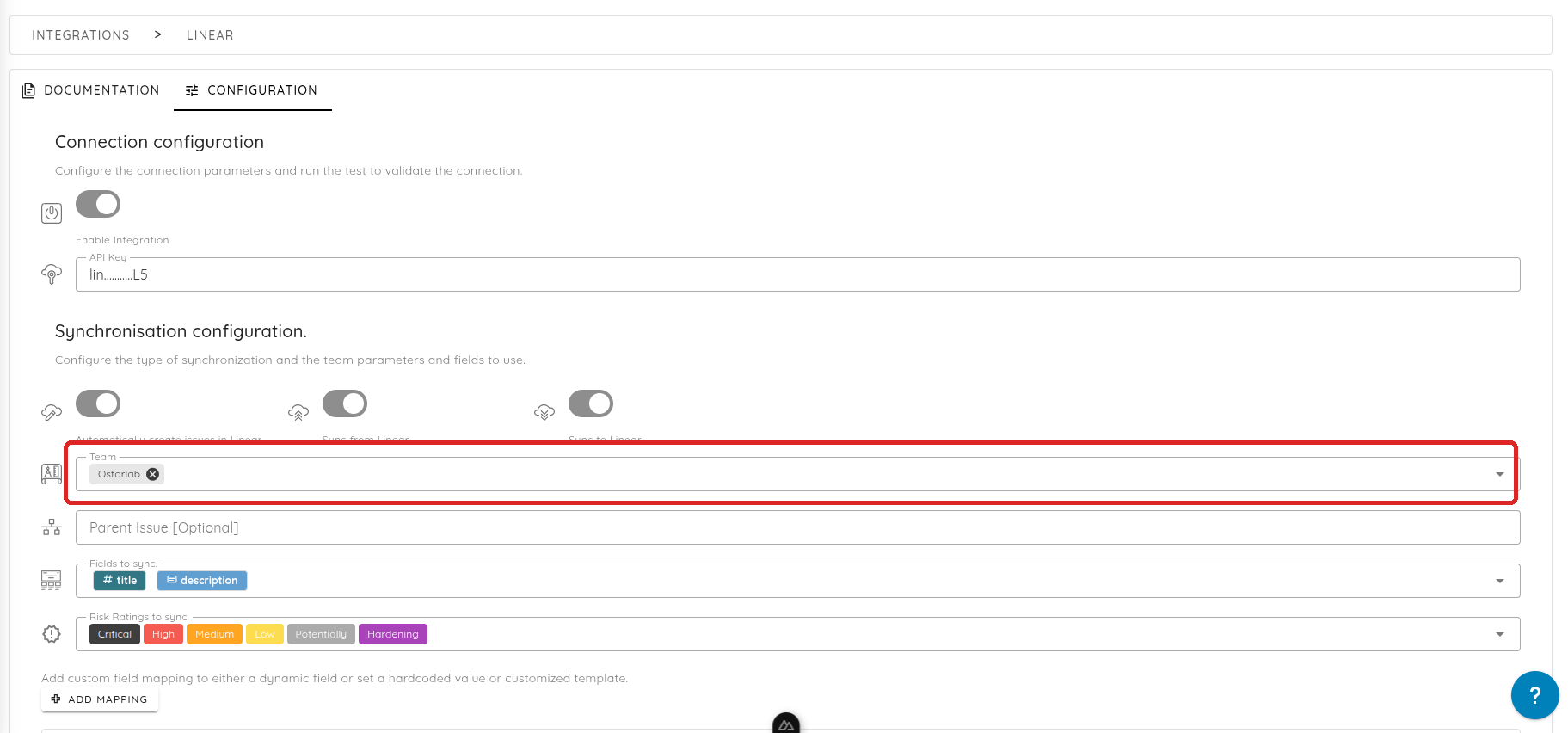
You can save the configuration and test the connection to Linear. All the tests should pass.
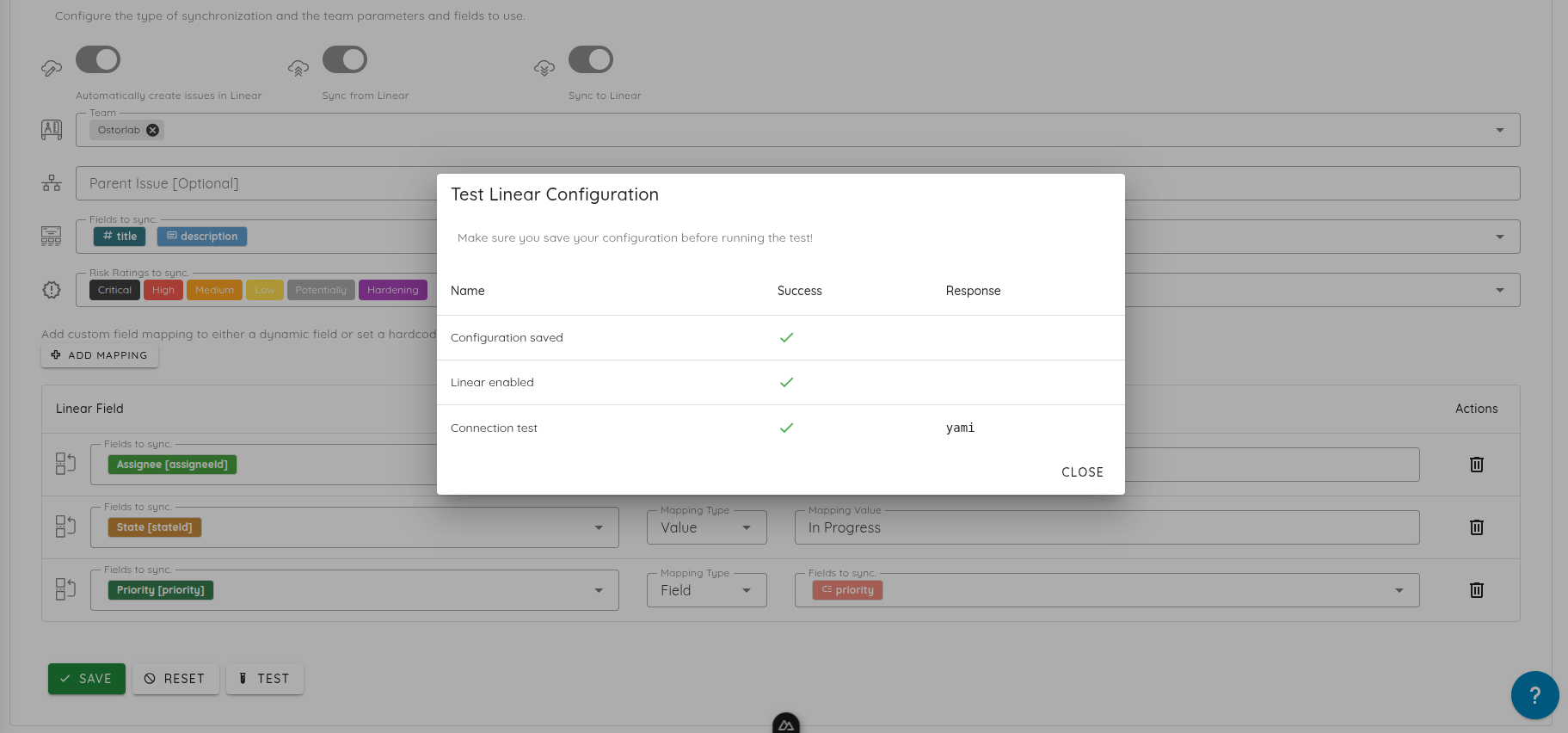
NOTE: If you would like to whitelist Ostorlab's Linear clients communicating with your Linear instance, contact the support team.
Automatically create Linear issues from Ostorlab tickets:
Make sure the steps in Connect Linear Integration are done and the connection check is passing.
To enable the automatic creation of Linear tickets, switch on the "Automatically create Ticket" toggle.
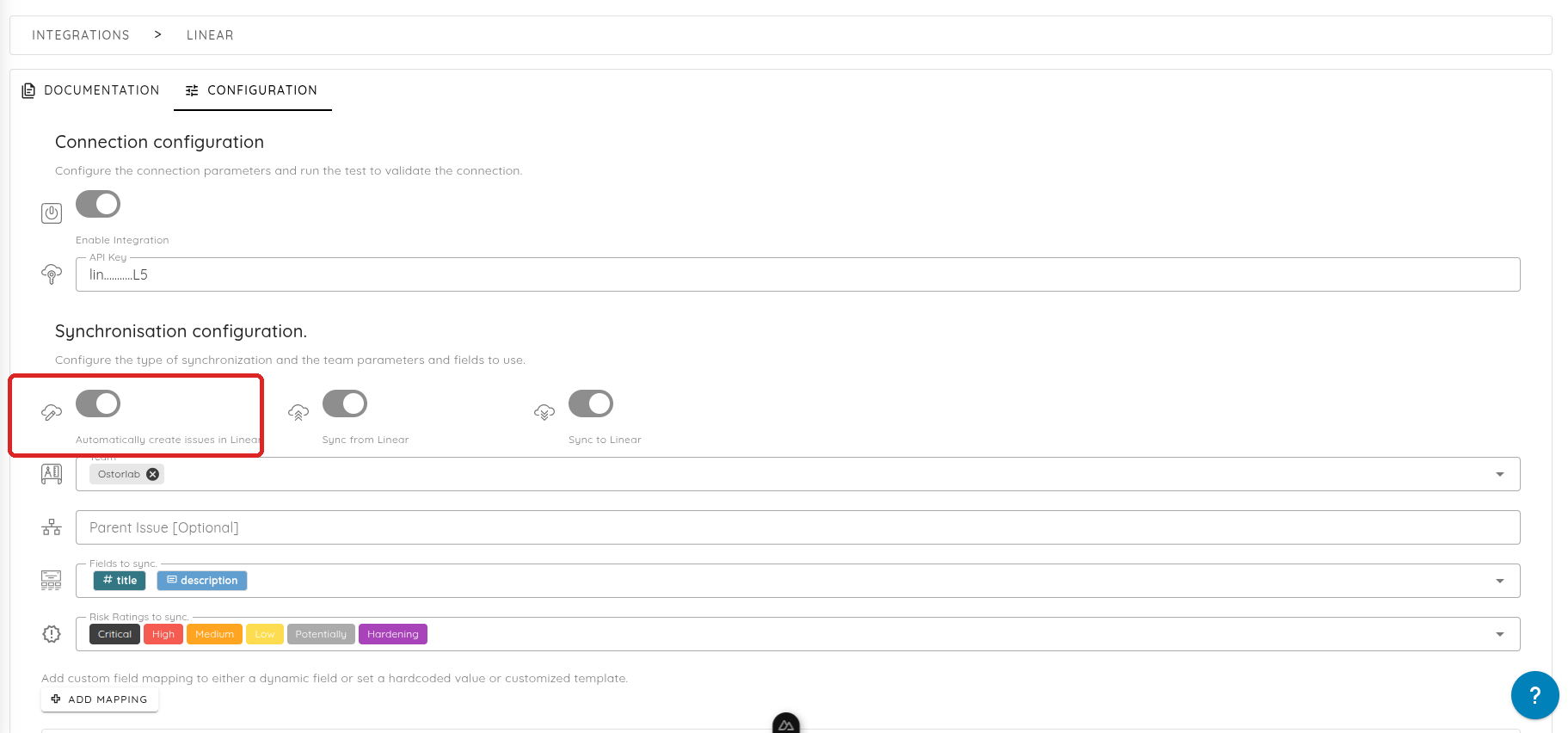
You can also choose to:
- Sync the updates from Ostorlab to Linear.
- Sync updates from Linear to Ostorlab.
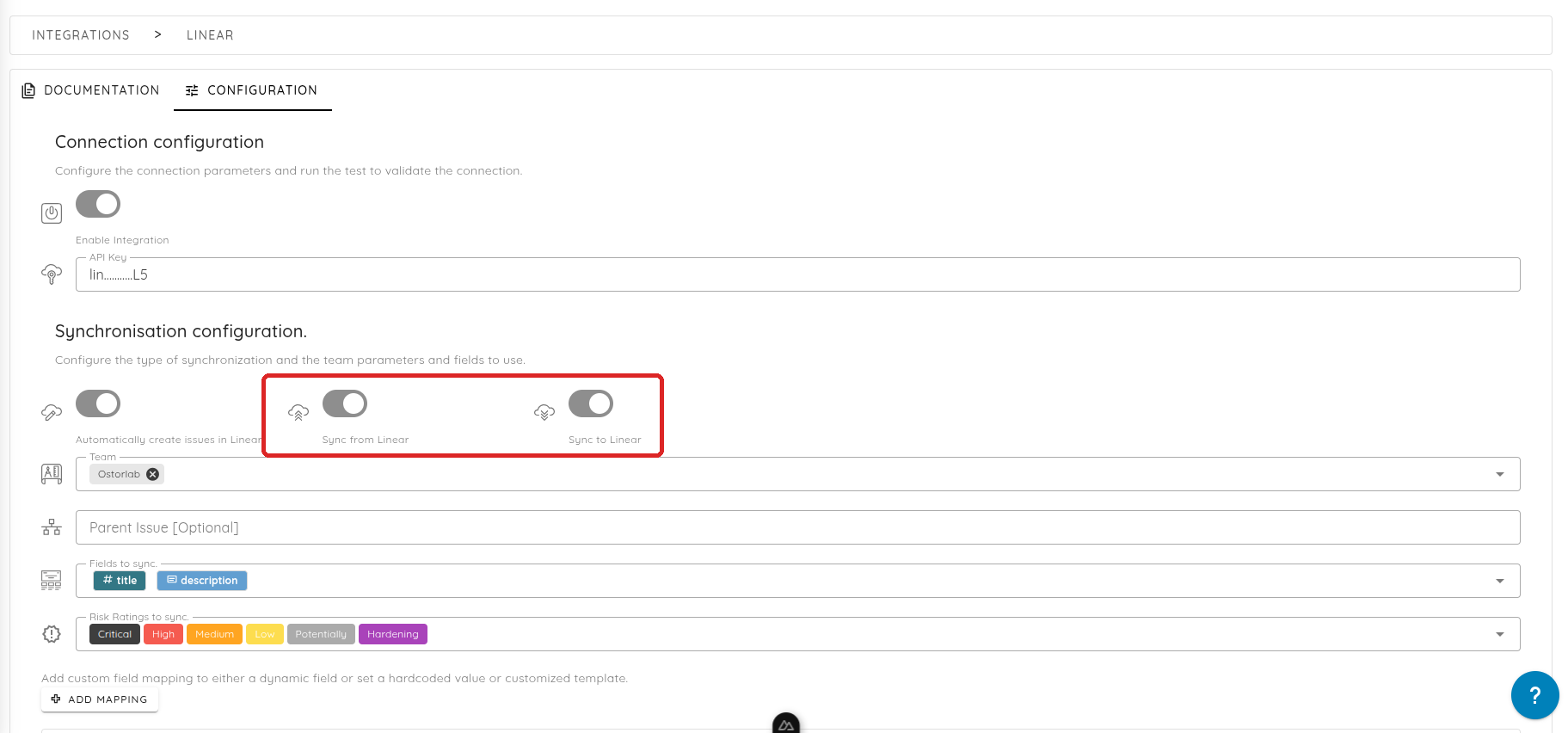
Once the sync modes are configured, you need to choose:
- The Linear team to use for the issues (see
Connect Linear Integrationabove). - If you would like to create the issues as a child issue of an existing one, you can set the parent issue id to use. This is an optional field.
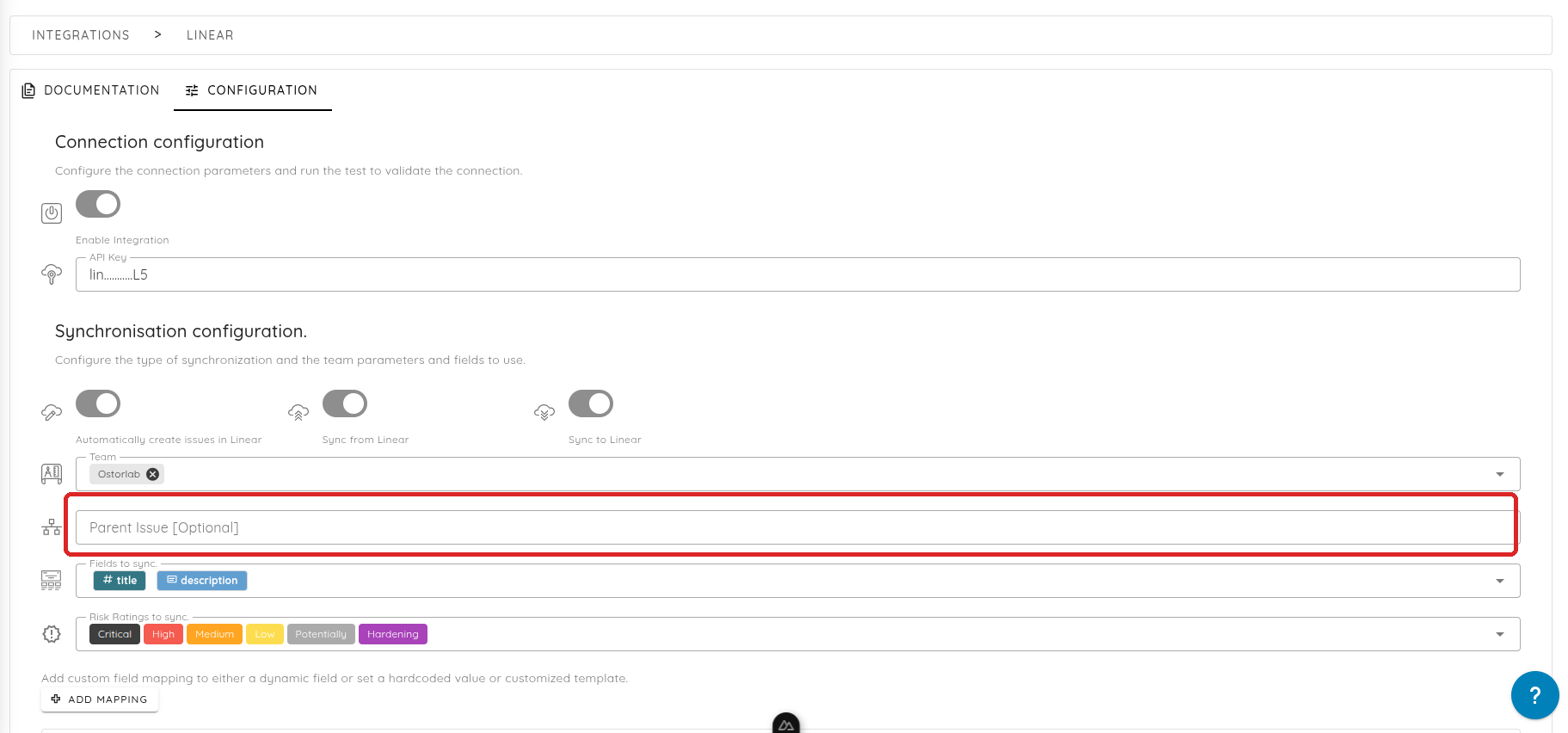
- The fields to sync: Linear only supports syncing the ticket
titleanddescriptionautomatically; anything else needs a field mapping (see below). - The ticket risk ratings to sync to Linear.
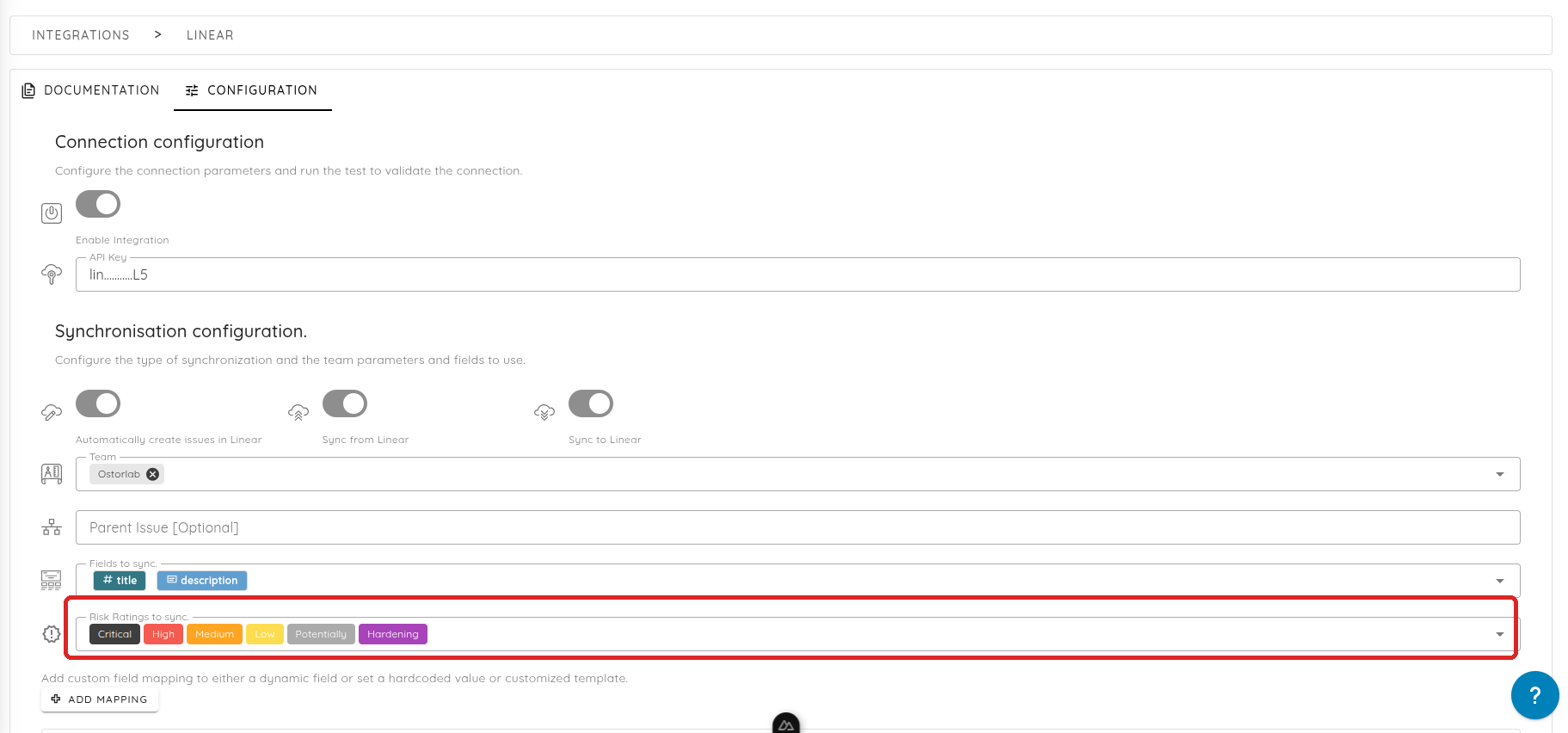
- Click on Save.
You can click on the test button to check if the integration is able to write an issue to the Linear team.
Field Mapping Types
When configuring field mappings between Ostorlab and Linear, you can use three different mapping types:
- Field Mapping: Maps Ostorlab fields directly to Linear fields (e.g., title, description, priority, state, assignee, labels, due date)
- Value Mapping: Sets a static value for a Linear field
- Template Mapping: Provides custom templating for Linear fields using Ostorlab ticket variables
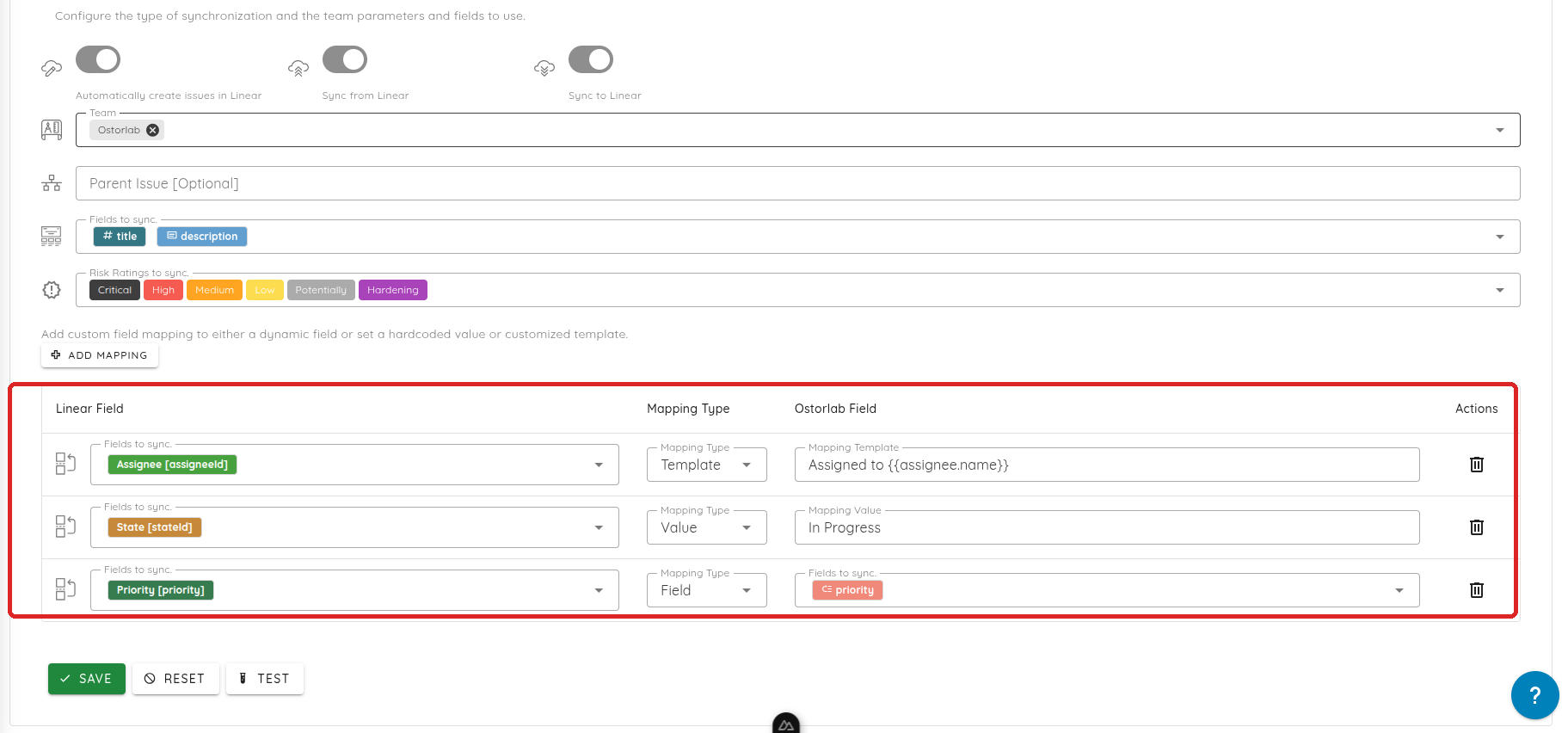
Template Mapping
Template mapping allows you to create custom field values using Ostorlab ticket variables. Use double curly braces to reference ticket variables: {{variable_name}}
Available variables:
{{title}}: Ticket title{{description}}: Ticket description{{risk_rating}}: Ticket risk rating{{status}}: Ticket status{{assigned}}: Assigned user's username{{due_date}}: Ticket due date{{target}}: The ticket's scanned target{{tags.<tag_name>}}: The value of a ticket tag named<tag_name>
Example template:
Assigned to {{assigned}}