Connect Azure to your asset inventory
The Azure connector reads the internet-facing resources of your Azure subscriptions and keeps them in the Ostorlab asset inventory, so you can scan them and track them as part of your attack surface. It only needs the built-in Reader role.
This page is about the Azure cloud connector. For the Azure DevOps CI/CD integration, see Azure DevOps.
What does the connector collect?
The connector reads Azure Resource Graph and the Azure DNS management API. Private addresses are skipped.
| Resource | What is kept |
|---|---|
| Subscriptions | Each subscription read becomes a cloud node that is the parent of the others |
| Public IP addresses | IPv4 and IPv6 addresses, with the DNS label hostname when there is one |
| Load balancers and application gateways | The frontends that a public IP address is attached to |
| Virtual machines | The machines that a public IP address is attached to, through their network interface |
| Azure DNS | Public DNS zones and their A, AAAA and CNAME records (wildcard records are skipped) |
Databases, CDN, storage, AKS, Functions and Front Door are not collected. The public IP addresses and hostnames of the resources become regular IP and domain assets, so the rest of the platform can scan them.
What do I need before I start?
- An Ostorlab plan that includes integrations. Otherwise Ostorlab answers "Your organisation does not have the necessary permissions to run this integration."
- Your Microsoft Entra tenant ID and the ID of the subscription or management group to connect.
- The Azure CLI (
az), for example in Azure Cloud Shell, logged in to the tenant that owns the scope. - The Owner or User Access Administrator role on that scope, to assign the Reader role. Depending on your tenant settings, adding an external application to the directory may also need a directory administrator role such as Application Administrator.
- An Ostorlab owner for the imported assets. Create one beforehand if needed.
Set up access in Azure
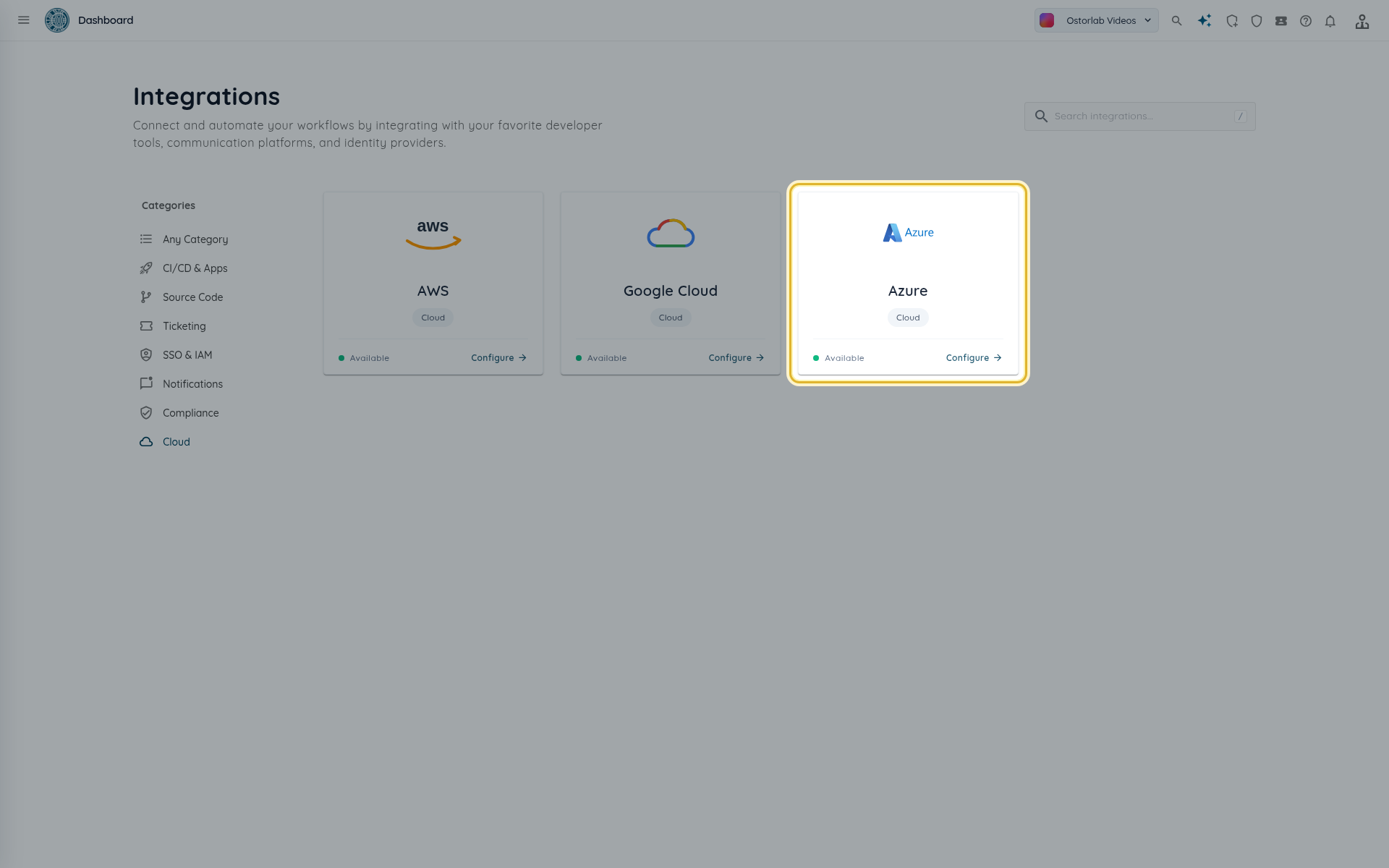
Open Library > Integrations, select the Cloud category, then the Azure card (not Azure DevOps). The Configuration tab starts with Step 1: prepare your Azure tenant.
Both methods are az scripts, run with the SCOPE of your choice:
/subscriptions/<subscription id>for one subscription;/providers/Microsoft.Management/managementGroups/<group id>for a management group, which covers every subscription under it.
Put the SCOPE value in single quotes, for example SCOPE='/providers/Microsoft.Management/managementGroups/<group id>': management group IDs can contain parentheses, which the shell rejects when they are not quoted.
Option 1: Ostorlab multi-tenant application (recommended)
Ostorlab registers its own multi-tenant application in your tenant and authenticates without any secret.
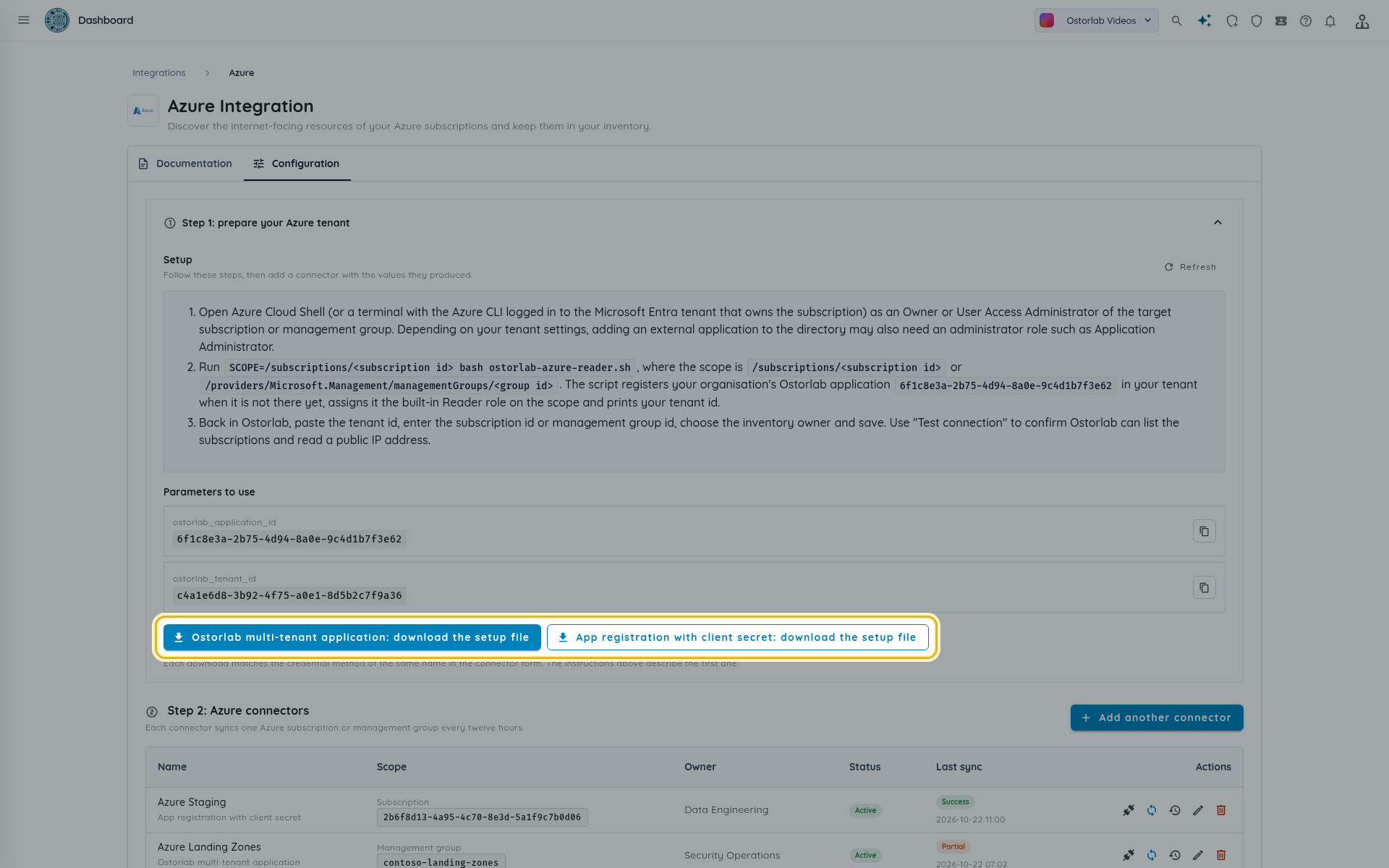
- In Step 1, click Ostorlab multi-tenant application: download the setup file. You get
ostorlab-azure-reader.sh. The Parameters to use block shows the Ostorlab application ID and the Ostorlab tenant ID the script works with. -
In Cloud Shell, run:
SCOPE='/subscriptions/<subscription id>' bash ostorlab-azure-reader.sh -
The script registers the Ostorlab application in your tenant when it is not there yet, assigns it the built-in Reader role on the scope (it retries while Azure propagates the new principal) and prints
Tenant id: <your tenant id>. Copy that value.
Option 2: app registration with a client secret
Use this method when you prefer to own the application.
- In Step 1, click App registration with client secret: download the setup file. You get
ostorlab-azure-service-principal.sh. -
Run it the same way:
SCOPE='/subscriptions/<subscription id>' bash ostorlab-azure-service-principal.sh -
The script creates an application registration named
ostorlab-cloud-connector-sub-<subscription id>(orostorlab-cloud-connector-mg-<group id>), assigns it Reader on the scope and printstenant_id,client_id,client_secretandscope_id. Map them to the connector form:tenant_id-> Tenant IDclient_id-> Client IDclient_secret-> Client secretscope_id(the subscription GUID or the management group ID) -> Subscription ID or Management group ID- Each scope gets its own application. Running the script again for the same scope replaces the client secret, so update the connector with the new one. Rotate the secret before it expires.
Tip
The client secret is encrypted at rest and never shown again in Ostorlab.
Add the connector
-
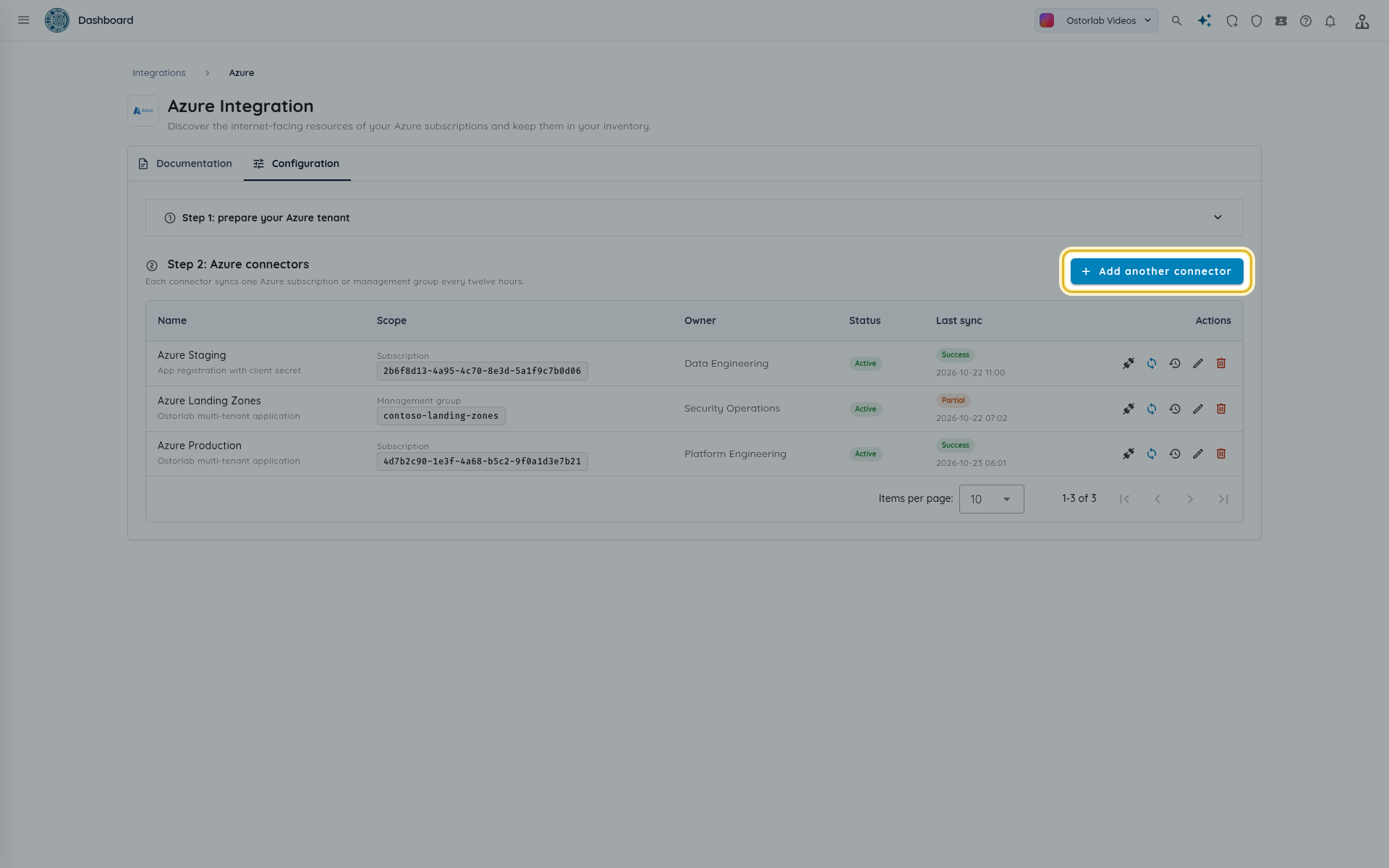
In the Configuration tab, below Step 2: Azure connectors, click Add connector (or Add another connector).
-
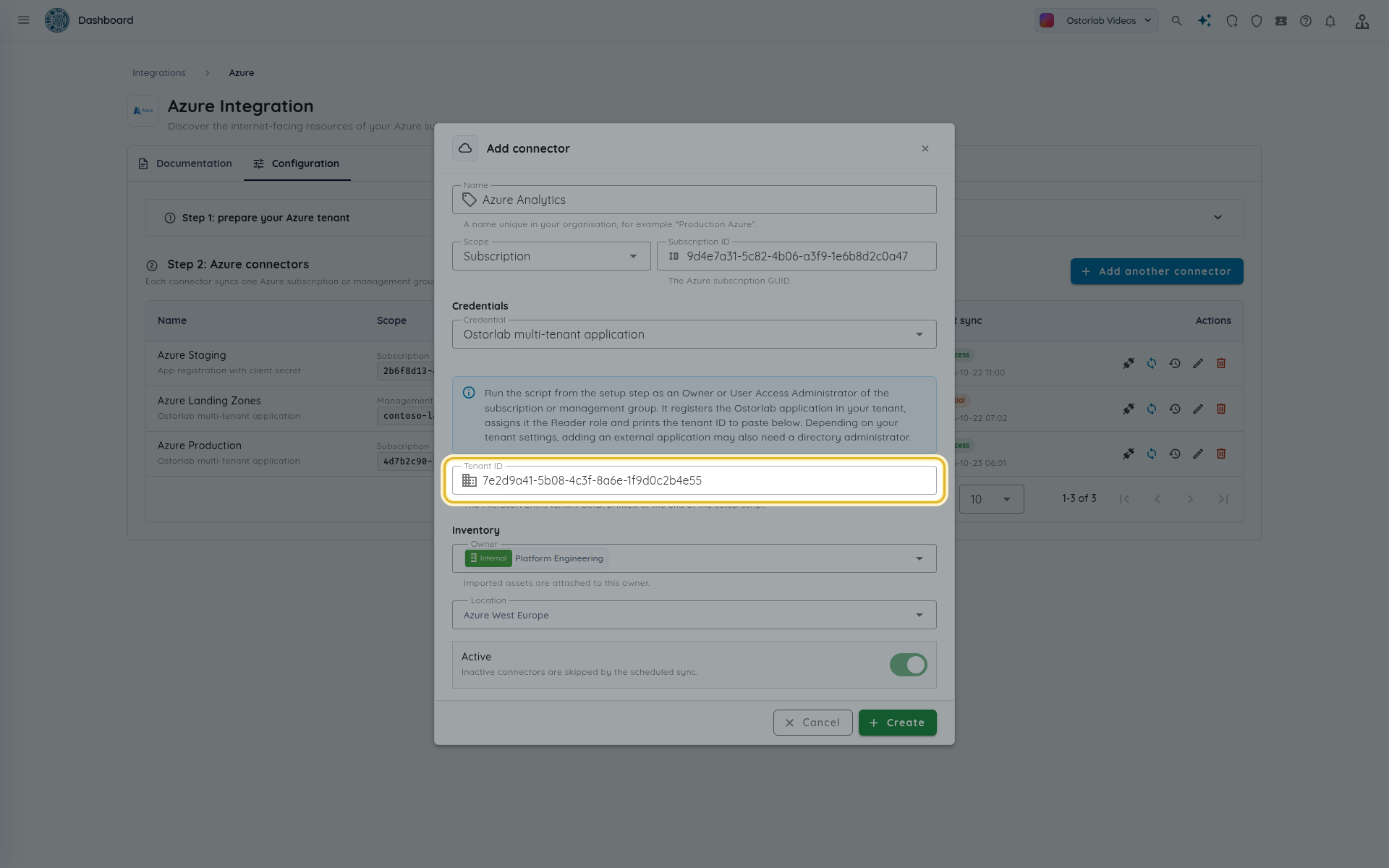
Fill in the form, then click Create.
| Field | What to enter |
|---|---|
| Name | A name that is unique in your organization, for example Production Azure. |
| Scope | Subscription or Management group. |
| Subscription ID or Management group ID | The subscription GUID, or the management group ID (1 to 90 letters, digits, hyphens, underscores, periods or parentheses). Every subscription under a management group is collected. |
| Credential | Ostorlab multi-tenant application or App registration with client secret. |
| Tenant ID | The Microsoft Entra tenant GUID, printed at the end of the setup script. |
| Client ID and Client secret | App registration method only. |
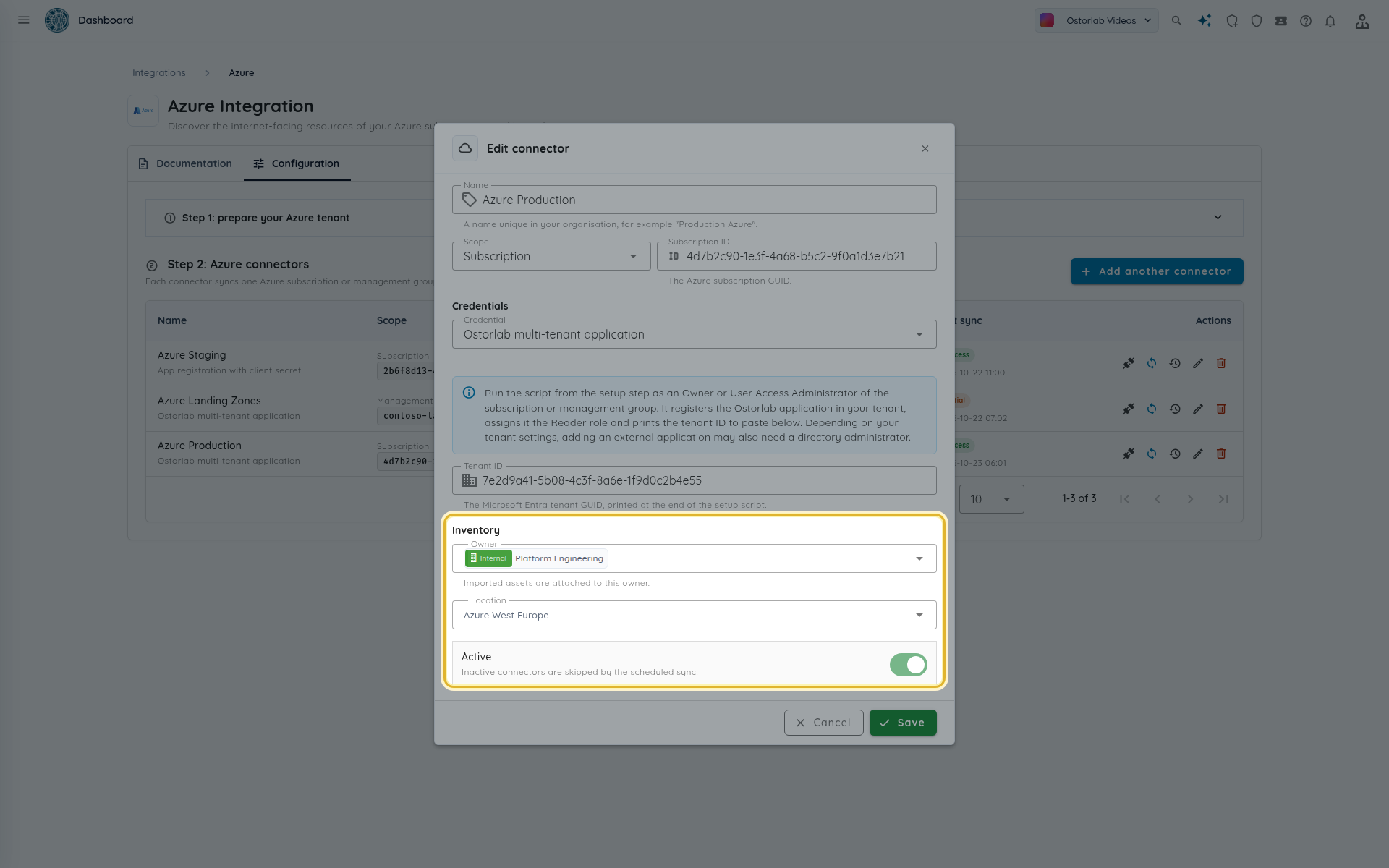
| Owner | Required. The imported assets are attached to this owner. |
| Location | Optional location for the imported assets. |
| Active | Inactive connectors are skipped by the scheduled sync. |
Test the connection
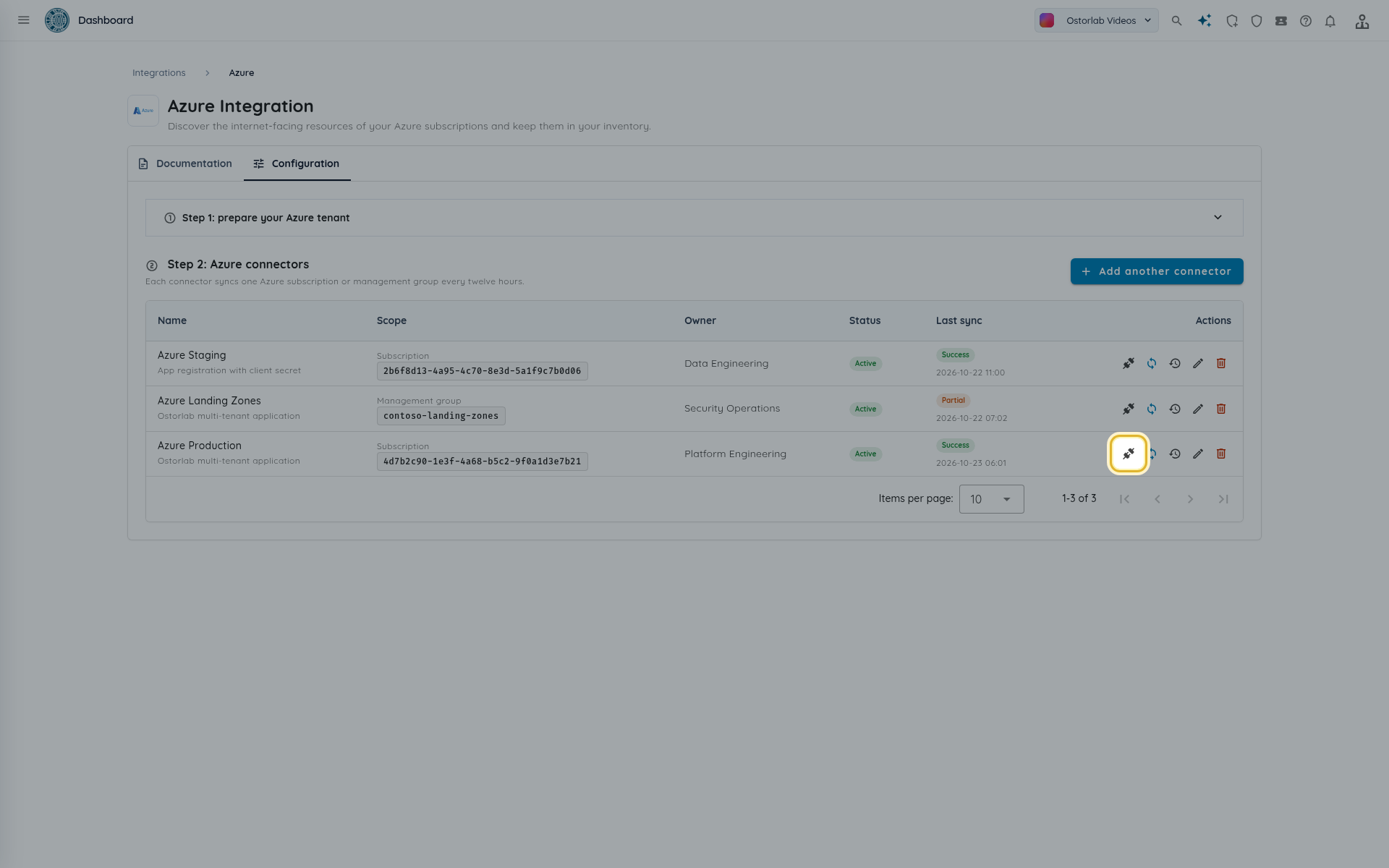
Click Test connection in the connector's row. The test reads from your scope without importing anything.
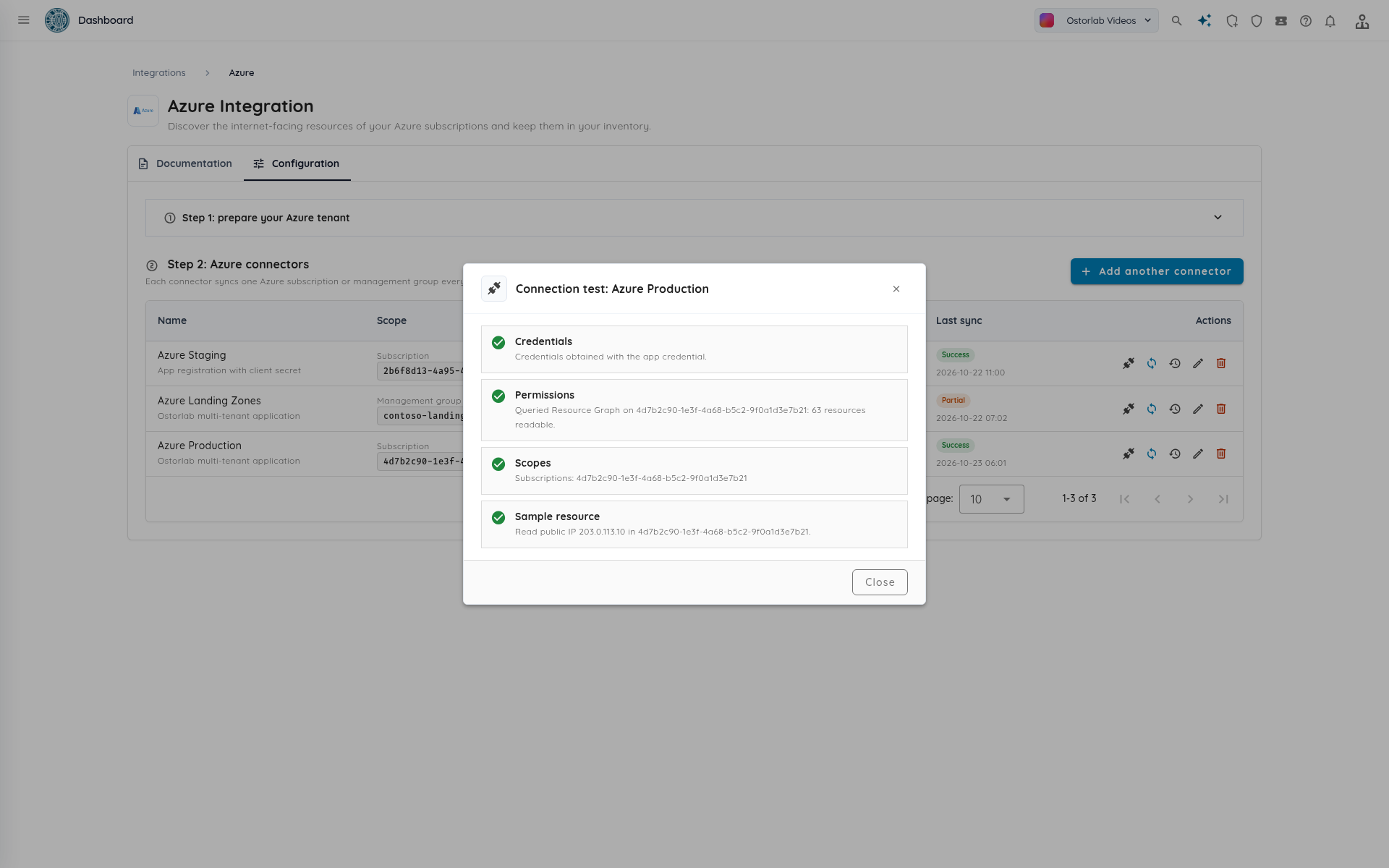
Four checks run:
| Check | What it verifies |
|---|---|
| Credentials | Ostorlab authenticated against Microsoft Entra ID as the multi-tenant application, or exchanged the client secret for a token, and obtained a valid token. |
| Permissions | Ostorlab queried Resource Graph on the scope and reports how many resources are readable. |
| Scopes | The subscriptions that will be read. For a management group, every subscription under it. A subscription that cannot be read is listed in the message. |
| Sample resource | Ostorlab reads one public IP address of the scope. The check also passes when the scope has none. |
Sync the connector
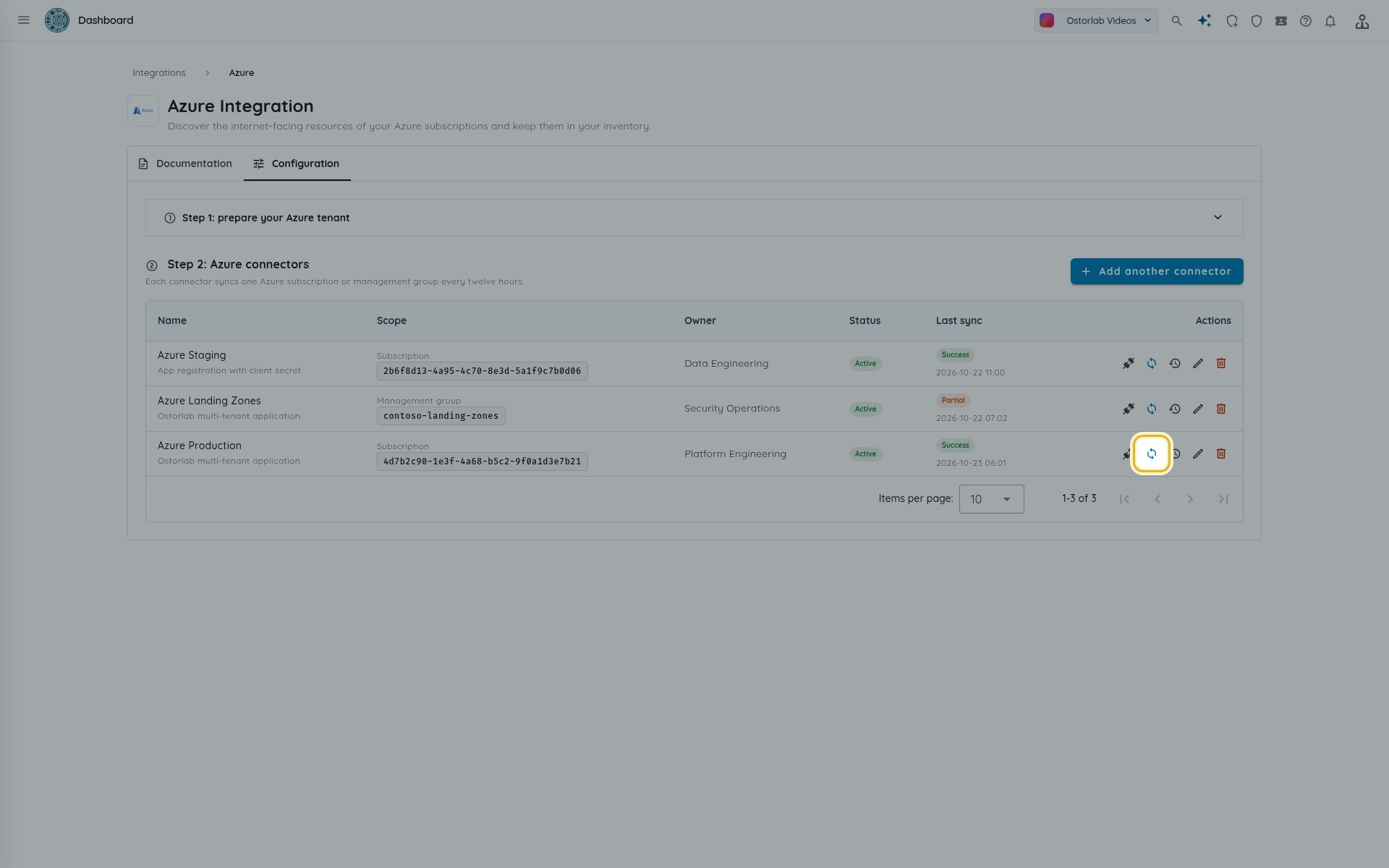
Every active connector syncs automatically every twelve hours. To import right away, click Sync now in the connector's row.
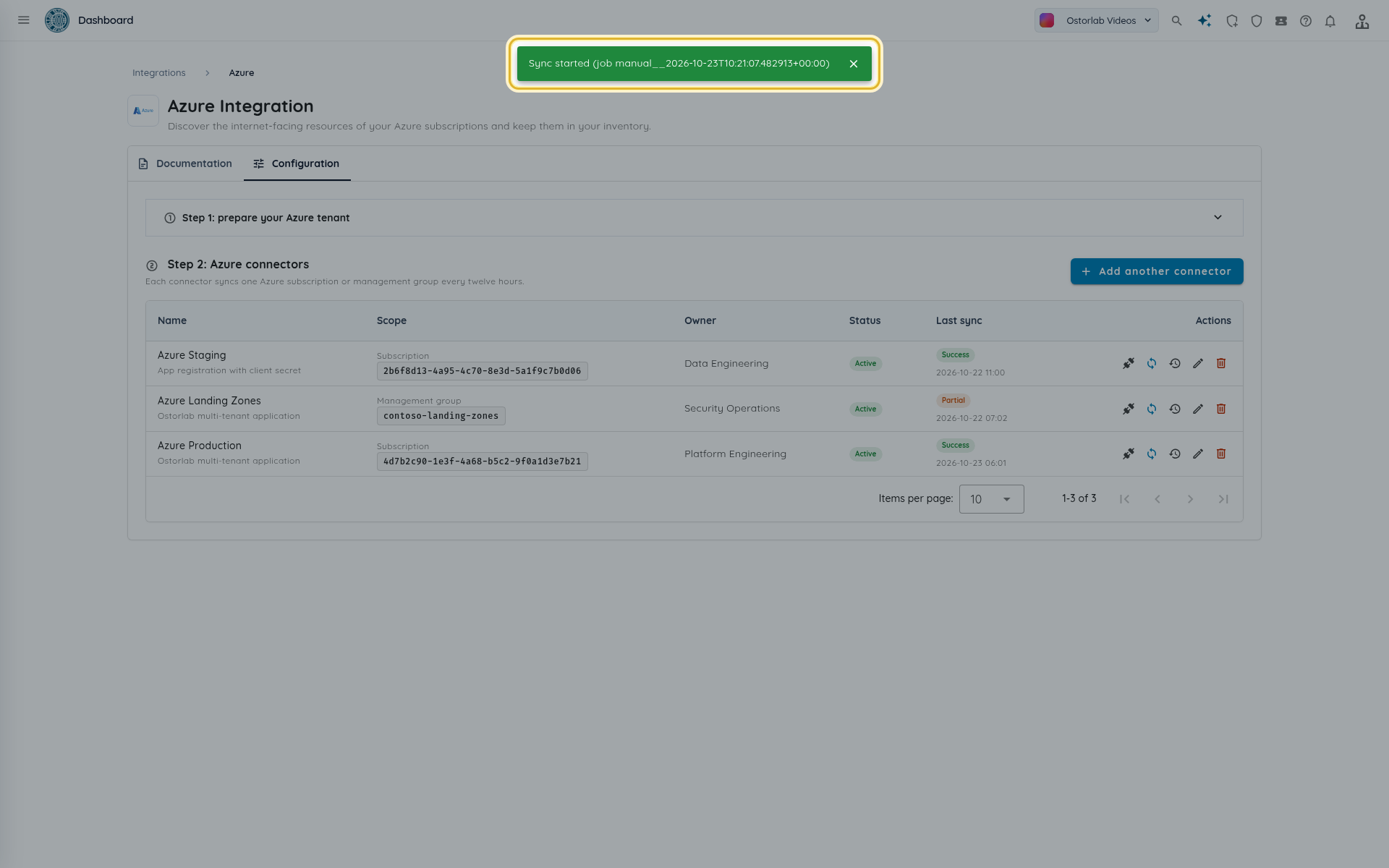
A toast confirms the job (Sync started (job ...)). A sync is refused when the connector is inactive or when a sync of the same connector is already running.
Read the sync runs and errors
Click Recent syncs to see the runs of a connector.
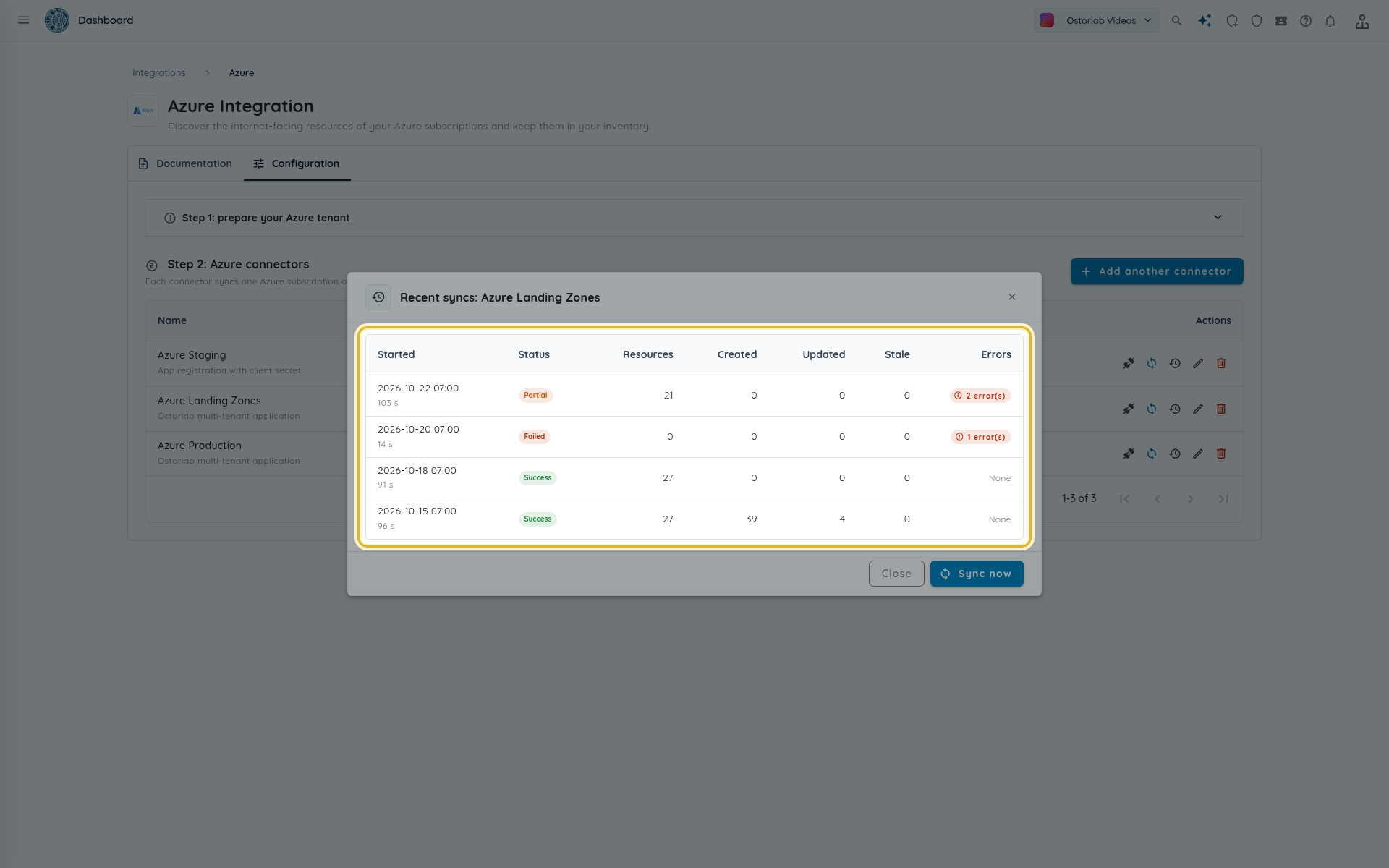
| Column | Meaning |
|---|---|
| Status | Running, Success, Partial (some scopes failed, the rest was imported) or Failed (the sync could not complete, for example because the credentials were refused). |
| Resources | Resources found in this run. |
| Created, Updated | New and changed assets and nodes. The created count includes IP and hostname assets as well as nodes. |
| Stale | Resources the connector tagged cloud:stale because they were not seen in this run. |
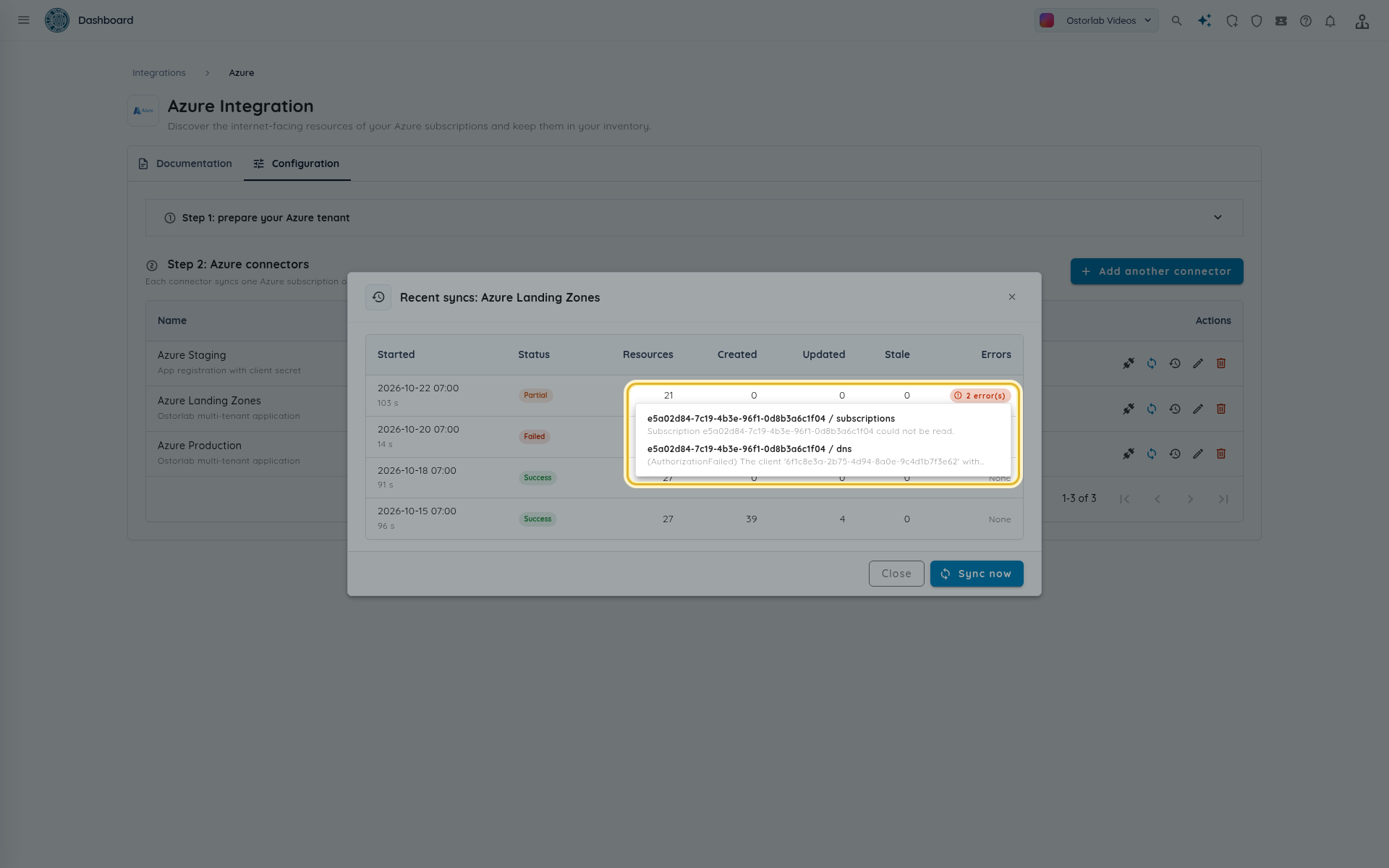
| Errors | The number of scope errors. Click it to list them. |
With a management group, a subscription that cannot be read is one error (for example "Subscription ... could not be read.") and the other subscriptions are still read: the run ends Partial.
Note
Resources that disappear from Azure are tagged cloud:stale only after a run without any scope error. They are never deleted from the inventory. The tag is removed when a later sync sees the resource again.
A run left Running for more than two hours is treated as stopped: it no longer blocks a new sync, and the next scheduled sync marks it Failed.
View the assets in the inventory
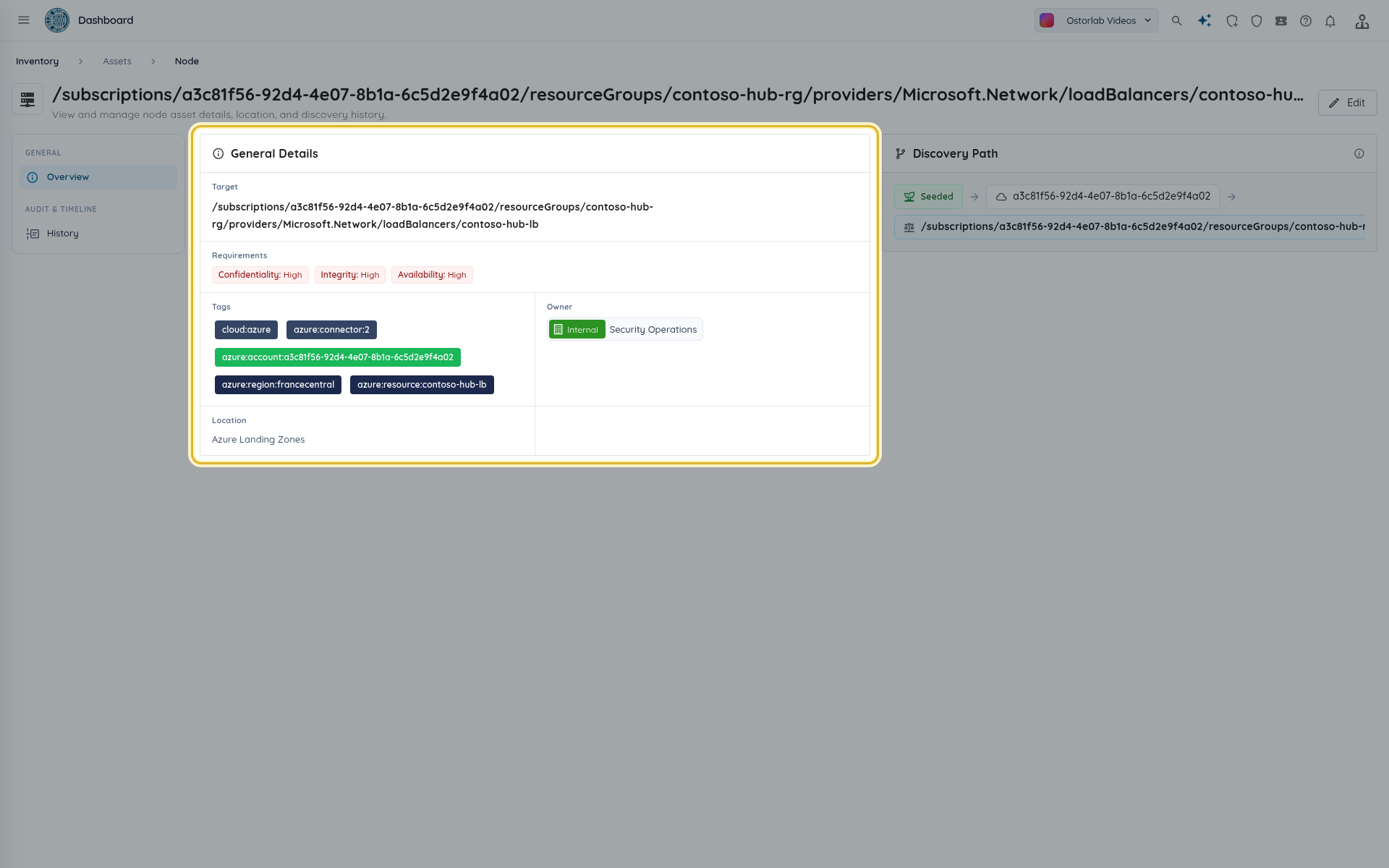
Imported assets belong to the owner and location you chose. Every one of them carries the tag cloud:azure.
- Open Inventory > Assets.
-
Open the search panel, go to the Tags tab, set the tag name to
cloudand the value toazure, then click Search.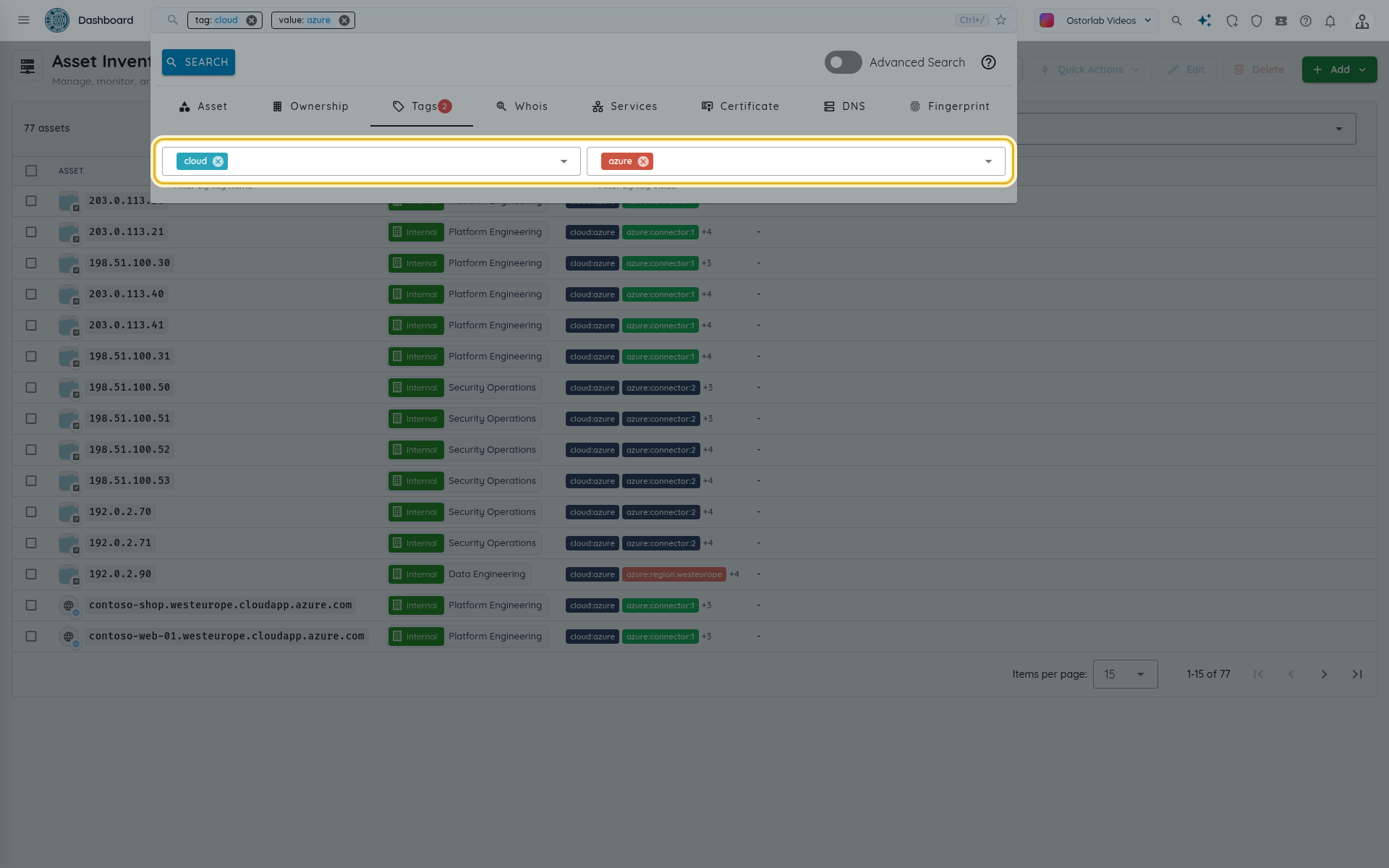
-
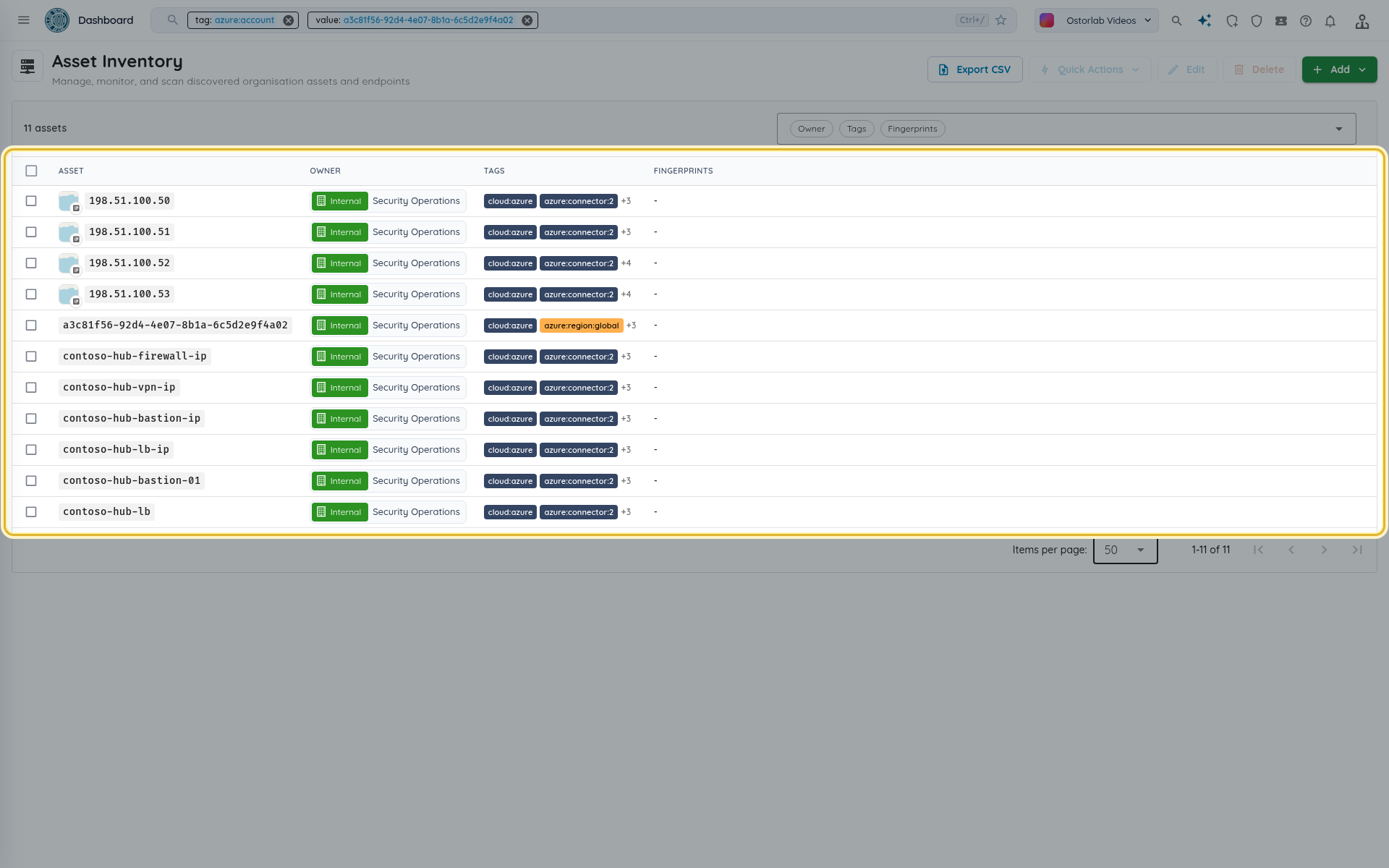
To narrow the list, filter on the other tags the connector adds:
azure:account(the subscription GUID),azure:region(such aswesteurope, orglobal),azure:resource(the Azure resource ID) andazure:connector(the connector's ID).
Follow the discovery path
Open a cloud node, such as a load balancer, to see its target, tags, owner and location. The Discovery Path card shows where the node comes from: the Azure subscription, then its parent resource. The public addresses and hostnames of a node list that node in their own discovery path, so you can always tell which subscription and resource exposed them.
Edit, pause or remove the connector
-
Edit changes the name, credential, owner, location and Active switch. Leave a stored client secret empty to keep it, or type a new one to replace it.
-
Switch Active off to pause the scheduled sync while keeping the connector.
- Delete removes the connector: the assets already imported stay in the inventory and future syncs stop.
- To also remove Ostorlab's access from Azure, delete the Reader role assignment of the Ostorlab application (or of your app registration) on the scope, and delete the app registration or the enterprise application if you no longer need it.
Troubleshooting
| Symptom | What to check |
|---|---|
| The script stops with "SCOPE must be a subscription or a management group, not a nested resource path" | Set SCOPE to /subscriptions/<id> or /providers/Microsoft.Management/managementGroups/<id>, nothing deeper. |
| The script says it "Could not assign Reader" | You need the Owner or User Access Administrator role on the scope. Run the script again after the role is granted. |
| The script cannot add the Ostorlab application | Your tenant restricts external applications. Ask a directory administrator, such as an Application Administrator, to run it. |
| Credentials check fails | The Tenant ID is wrong, the Reader assignment is missing, or (client secret method) the secret expired or was replaced. Run the script again and update the connector. |
| Permissions check fails | The Reader role is not assigned on the scope yet, or not propagated. Wait a few minutes and test again. |
| Scopes check names a subscription that "could not be read" | The principal has no Reader role on that subscription. Assign Reader on the management group or on that subscription. |
| Form error about a GUID | Tenant, subscription and client IDs are GUIDs, for example 00000000-0000-0000-0000-000000000000. |
| "The cloud connector is disabled." | Switch Active on in the connector's edit form. |
| "A sync of this cloud connector is already running." | Wait for the running sync to finish. |
| Resources you expect are missing | The connector keeps only public IP addresses, their load balancers, application gateways and virtual machines, and public Azure DNS records. |