Approve the actions of an AI agent
This guide shows how to make an agentic scan ask you before it takes a risky action, and how to answer from the scan page.
An AI agent decides what to test, and some of its actions reach real people or change real data. With Approval of actions, you choose whether the agent asks you first. A request waits in the Approvals tab of the scan, and you approve it, deny it, or reply with your own instructions.
The video shows the setting in the scan form, then answers three requests.
Approval of actions is a setting of the Guardrails step of the agentic scan profiles: the Deep Agentic Scans, the Mobile Shielding Scan and the Single Vulnerability Assessments. It is optional. By default, the agent runs risky actions on its own.
Go to report.ostorlab.co
1. Choose what the agent does with a risky action
Click New Scan and fill in the scan as usual: the asset and an agentic scan profile. In the Guardrails step, under Approval of actions, choose one of three options.
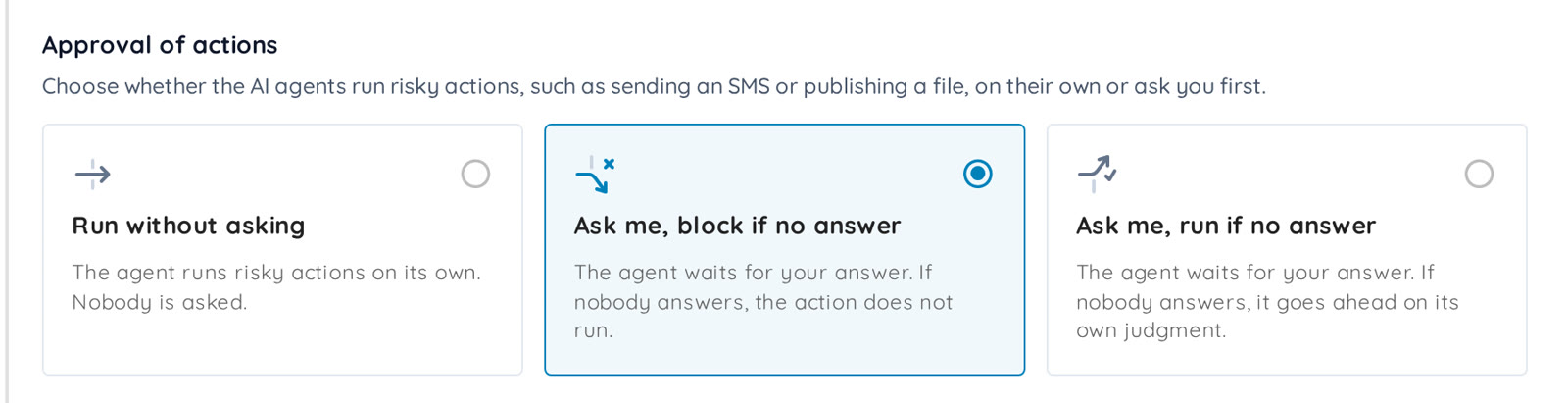
| Option | What happens |
|---|---|
| Run without asking | The agent runs risky actions on its own. Nobody is asked. This is the default. |
| Ask me, block if no answer | The agent waits for your answer. If nobody answers, the action does not run. |
| Ask me, run if no answer | The agent waits for your answer. If nobody answers, it goes ahead on its own judgment. |
Complete the other steps and click Submit. The option applies to the whole scan, and Dig Deeper carries it into the follow-up assessment.
2. Know when the agent asks
The agent decides when to ask. The setting does not pause every tool call. The agent asks:
- before an action that reaches real people, such as sending an SMS or publishing content,
- before an action that is destructive or cannot be undone,
- before an action that leaves the scope of the scan,
- when it is blocked and cannot choose safely, for example when it cannot tell whether a target is in scope, or needs a credential or a code that only you have.
While a request waits, the other tests of the scan keep running. Only the action that waits for your decision is blocked.
3. Open the Approvals tab
Open the scan. When its approval mode is not Run without asking, the results menu shows an Approvals tab under Risks. An orange dot and a count appear on the tab while an agent waits for you. The tab lists the requests that wait for your answer first.
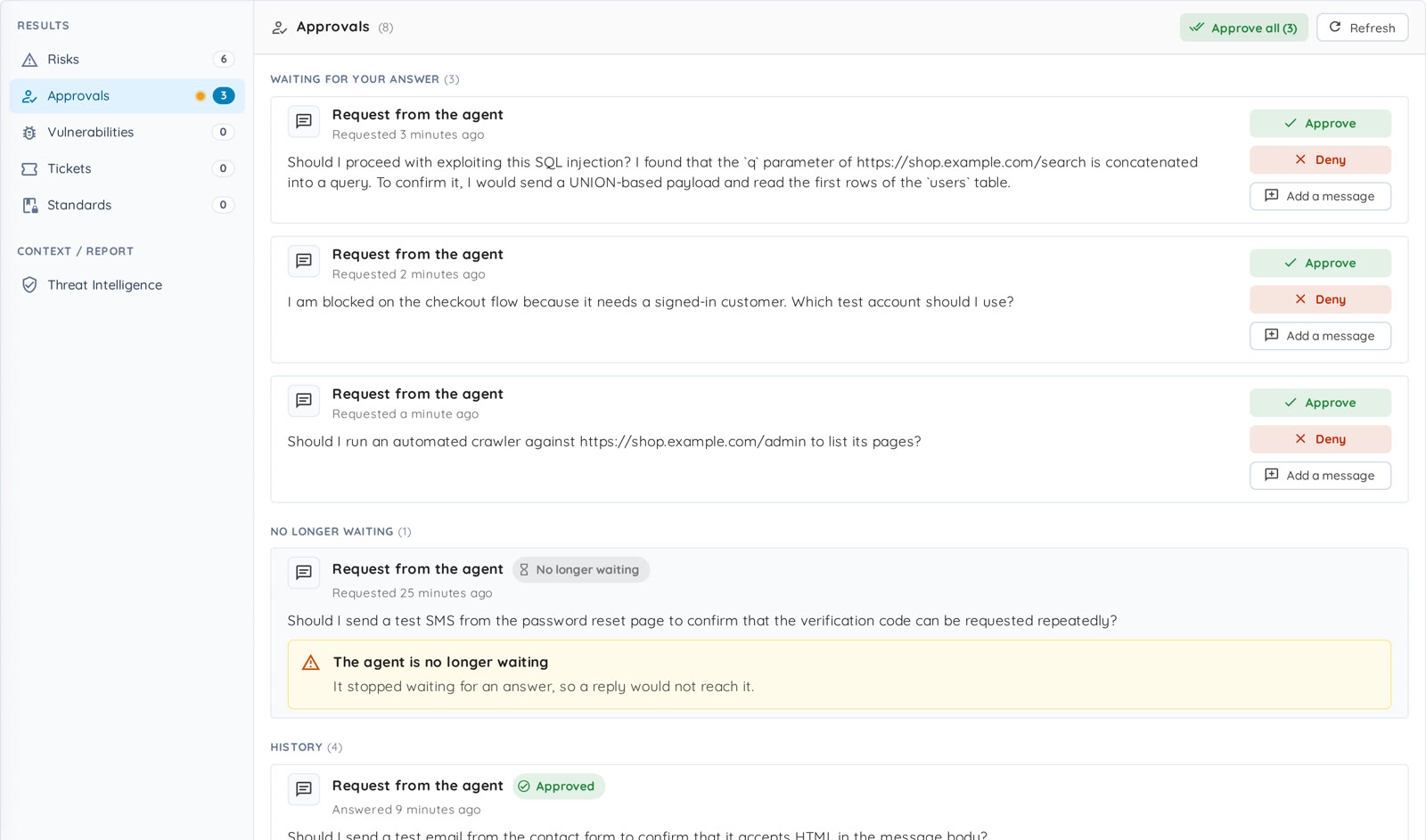
Ostorlab also tells you when a request arrives. It sends an email with a link to this tab, and adds a notification, to the admins and users of your organization who can see the scan. Readers are not told. A person is told about a scan at most once every 10 minutes.
4. Read the request
Each card in Waiting for your answer is a message the agent wrote: what it wants to do, and why. Read it before you answer. A long message is shortened: click Show details to read all of it.
5. Answer the request
Each card has three ways to answer.
- Approve: the agent goes ahead with what it described in its message, and only with that. A later request needs a new approval.
- Deny: the agent does not go ahead, and does not retry or work around the refusal. To give a reason, click Add a message first: Deny sends your message as the reason.
- Add a message, then Send reply: your message goes to the agent as the answer. For a question, it is the answer. For an action, it is guidance and not an approval: the agent reconsiders, and asks again if it still wants to go ahead.

While you write a message, Approve is off: an approval takes no message.
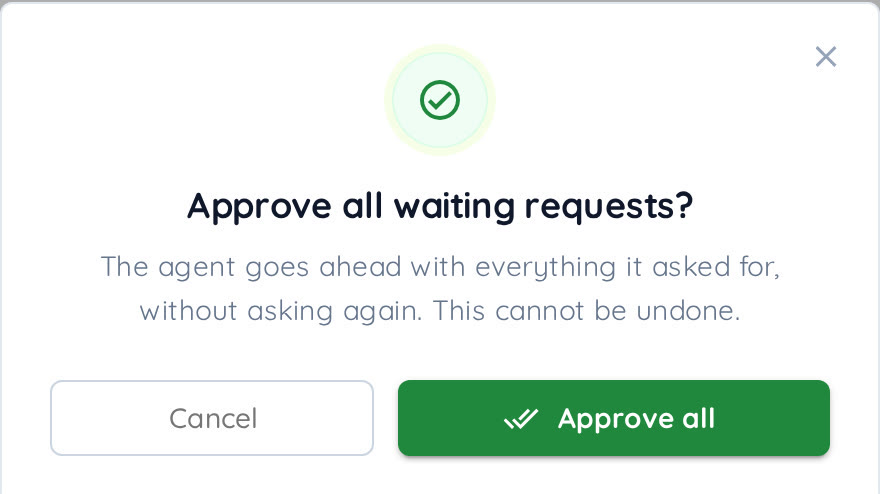
To approve every waiting request at once, click Approve all at the top of the tab, and confirm. The agent then goes ahead with everything it asked for, without asking again, and this cannot be undone.
6. Check the history
Answered requests move to History, with the answer you gave.
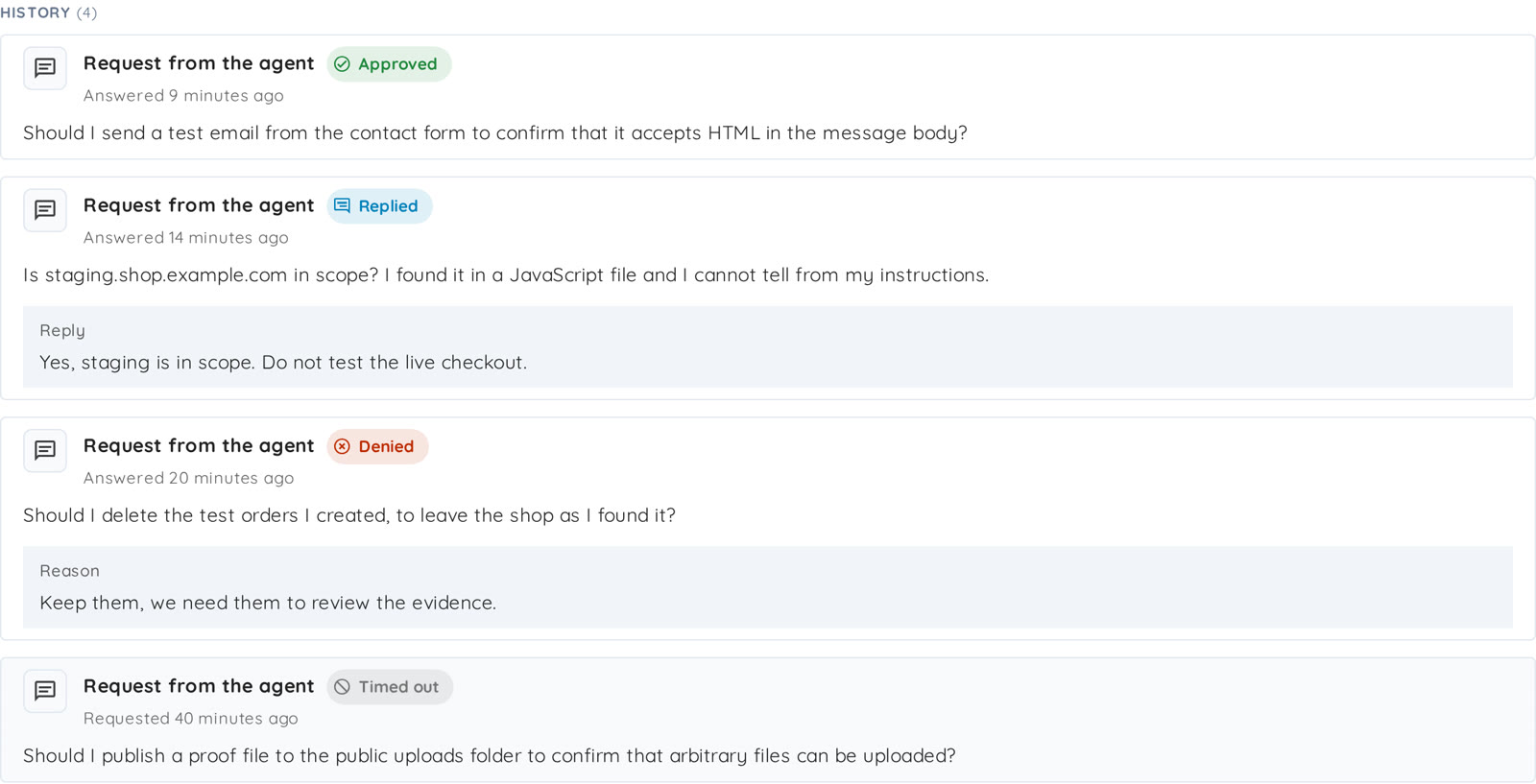
| Status | Meaning |
|---|---|
| Approved | You approved the request. |
| Denied | You denied the request. Your reason, if any, is shown as Reason. |
| Replied | You answered with a message, shown as Reply. |
| Timed out | The request timed out and was cancelled; it appears in History. |
A request still pending when the scan ends or the agent stops checking for an answer appears under No longer waiting, with the message "The agent is no longer waiting". It can no longer be answered, because a reply would not reach the agent. This is separate from a cancelled request, which appears in History as Timed out.

What happens when nobody answers
By default, the agent waits up to 24 hours for the answer to one request. After that, the approval mode decides:
- Ask me, block if no answer: the action does not run, and the agent carries on with its other tests.
- Ask me, run if no answer: the agent goes ahead with the action on its own judgment.
A question about whether a target is in scope is the exception. If nobody answers it, the agent treats the target as out of scope and leaves it alone, in both modes.
A denial or a reply never lets the action run, in either mode.
Who can answer
Users with the admin or user role can answer. Readers can open the Approvals tab and read the requests, but they cannot answer them.
Use the API
The scan creation mutations of the GraphQL API take an approvalMode argument, and a scan returns it in its approvalMode field:
approvalMode: FAIL_CLOSED
AUTO_APPROVE: Run without asking.FAIL_CLOSED: Ask me, block if no answer.FAIL_OPEN: Ask me, run if no answer.
List and answer the requests of a scan with a signed-in user. API keys cannot answer them.
query {
  humanInputRequests(scanId: 42, status: PENDING) {
    id
    message
    status
    createdAt
  }
}
mutation {
  answerHumanInputRequest(
    humanInputRequestId: 7
    decision: DENIED
    responseText: "Do not touch /admin. It is out of scope."
  ) {
    humanInputRequest {
      id
      status
      responseText
    }
  }
}
statusisPENDING,APPROVED,DENIED,REPLIEDorCANCELLED.CANCELLEDappears in History as Timed out. APENDINGrequest whose agent is no longer waiting appears under No longer waiting instead.decisionisAPPROVED,DENIEDorREPLIED.REPLIEDneeds aresponseText,DENIEDtakes an optionalresponseTextas the reason, andAPPROVEDtakes none.