Connect Google Cloud to your asset inventory
The Google Cloud connector reads the internet-facing resources of your Google Cloud projects and keeps them in the Ostorlab asset inventory, so you can scan them and track them as part of your attack surface. It only needs read access.
What does the connector collect?
Everything is read through Cloud Asset Inventory, project by project. Private addresses are skipped.
| Resource | What is kept |
|---|---|
| Compute Engine instances | Instances with an external IPv4 or IPv6 address |
| Reserved addresses | Regional and global external addresses |
| Forwarding rules | Regional and global rules with an external load balancing scheme |
| Cloud DNS | Public managed zones and their record sets (wildcard records are skipped) |
Only the resources listed above are imported; Cloud Run, Cloud Functions, GKE and other services are not collected.
Each project becomes a cloud node that is the parent of the project's other nodes. The public IP addresses and hostnames a resource exposes become regular IP and domain assets, so the rest of the platform can scan them.
What do I need before I start?
- An Ostorlab plan that includes integrations. Otherwise Ostorlab answers "Your organisation does not have the necessary permissions to run this integration."
- The ID of the project that will host the service account (the project ID, not its display name).
-
gcloudauthenticated as an owner of that project, for example in Cloud Shell. For an organization-wide connector, also an owner of the organization. - For an organization-wide connector, the numeric organization ID.
- An Ostorlab owner for the imported assets. Create one beforehand if needed.
Set up access in Google Cloud
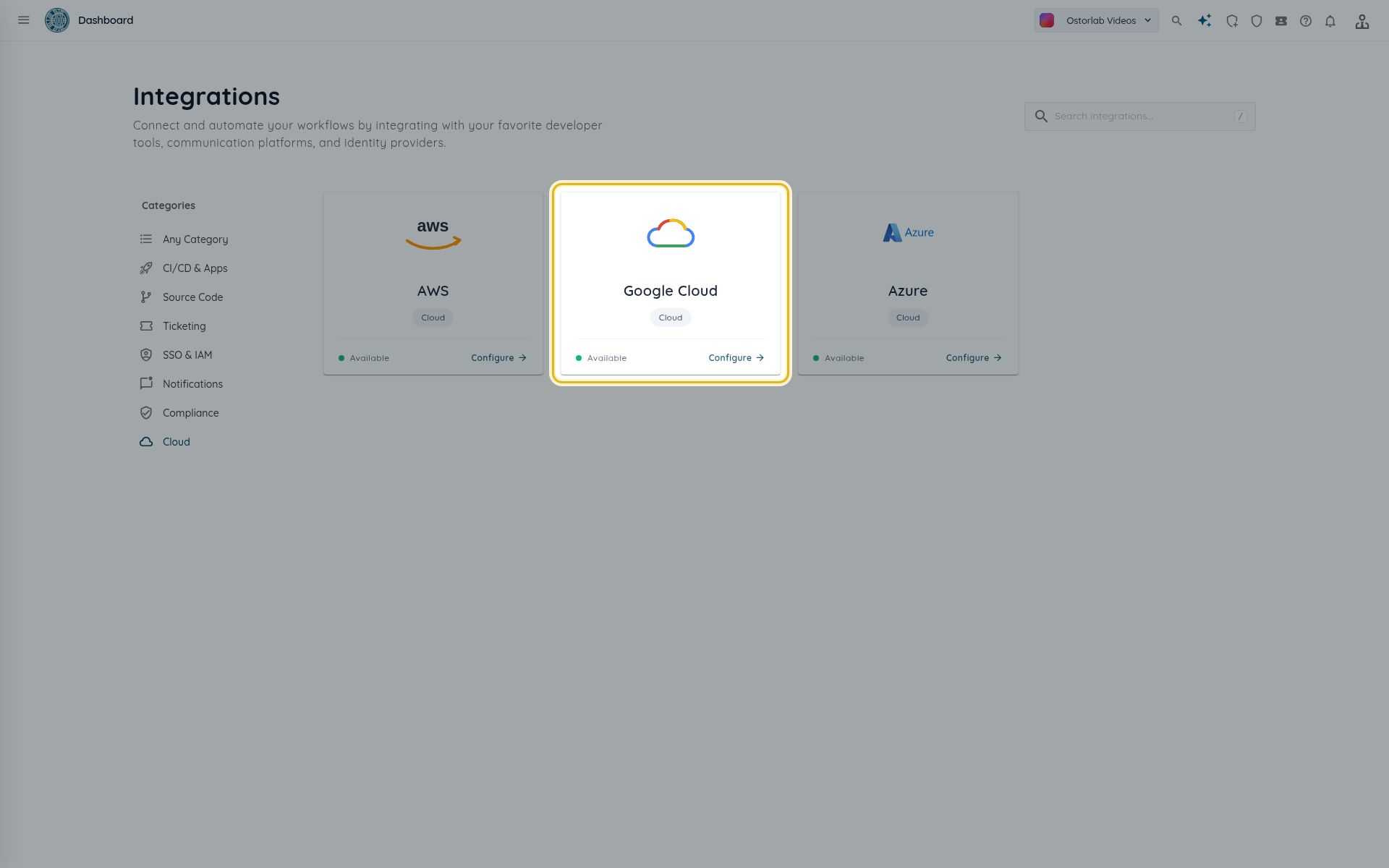
Open Library > Integrations, select the Cloud category, then the Google Cloud card. The Configuration tab starts with Step 1: prepare your Google Cloud project.
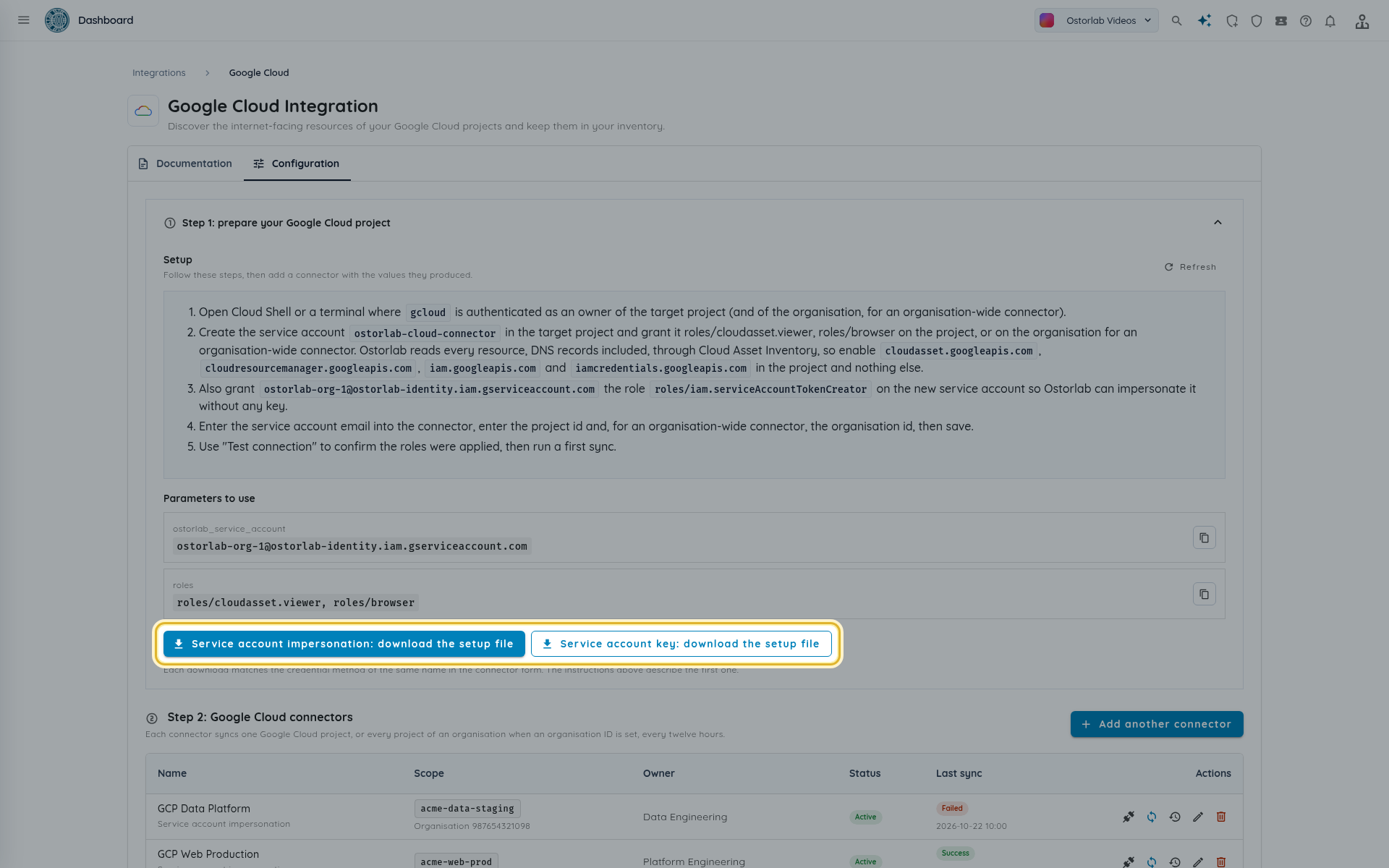
Both download buttons provide a file named ostorlab-gcp-connector.sh; the impersonation and key versions are identical except for the final step. Service account impersonation is preferred: no key leaves your organization.
Option 1: service account impersonation (recommended)
- In Step 1, click Service account impersonation: download the setup file. The Parameters to use block shows
ostorlab_service_account, the service account that Ostorlab creates for your organization, and therolesthe script grants. -
Open Cloud Shell, upload the script and run it for one project:
PROJECT_ID=<project id> bash ostorlab-gcp-connector.shTo read every project of an organization, grant the roles at organization level:
ORGANIZATION_ID=<organization id> PROJECT_ID=<project id> bash ostorlab-gcp-connector.sh -
The script prints the service account email,
ostorlab-cloud-connector@<project id>.iam.gserviceaccount.com. Copy it.
The script:
- enables the APIs
cloudresourcemanager.googleapis.com,cloudasset.googleapis.comandiamcredentials.googleapis.comin the project, and nothing else; - creates the service account
ostorlab-cloud-connectorin the project; - grants it
roles/cloudasset.viewerandroles/browser, on the project or on the organization; - grants Ostorlab's service account (
ostorlab_service_account) the roleroles/iam.serviceAccountTokenCreatoron the new service account, so Ostorlab can impersonate it without any key.
Re-running the script is safe: it reuses the service account when it exists and retries while Google propagates the new account.
Option 2: service account key
Use this method when impersonation is not an option.
- In Step 1, click Service account key: download the setup file.
- Run the same command as above in Cloud Shell. Instead of the token creator binding, the script creates a JSON key file,
ostorlab-cloud-connector-key.json. - Copy the content of the whole file for the connector form, then delete the file from your machine.
-
To rotate the key, run the script again and update the connector with the new key. Then list the keys to find the ID of the previous one and delete it. The script never deletes an older key:
gcloud iam service-accounts keys list --iam-account <service account email>
gcloud iam service-accounts keys delete <previous key id> --iam-account <service account email>
Tip
The JSON key is encrypted at rest and never shown again in Ostorlab.
Add the connector
-
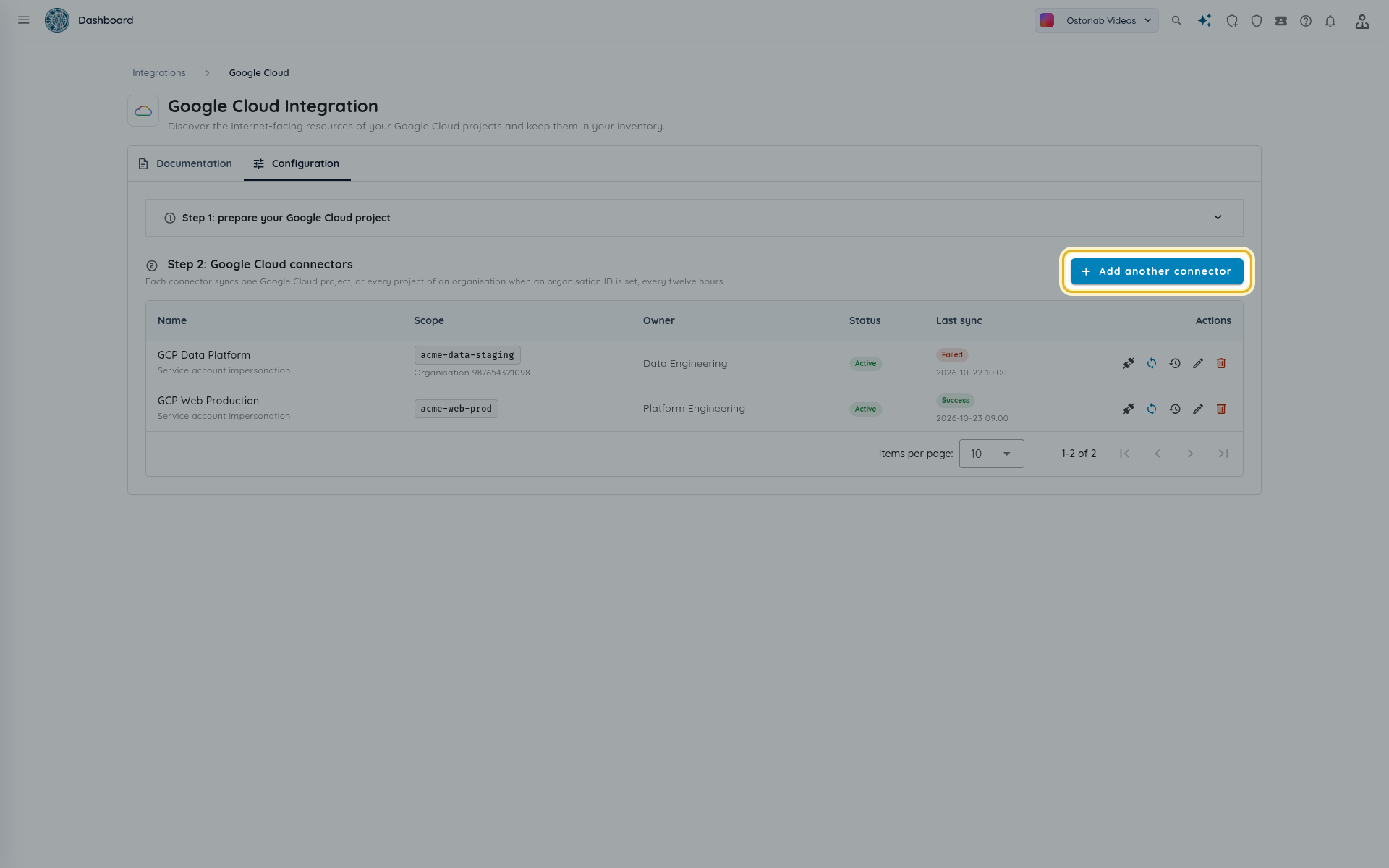
In the Configuration tab, below Step 2: Google Cloud connectors, click Add connector (or Add another connector).
-
Fill in the form, then click Create.
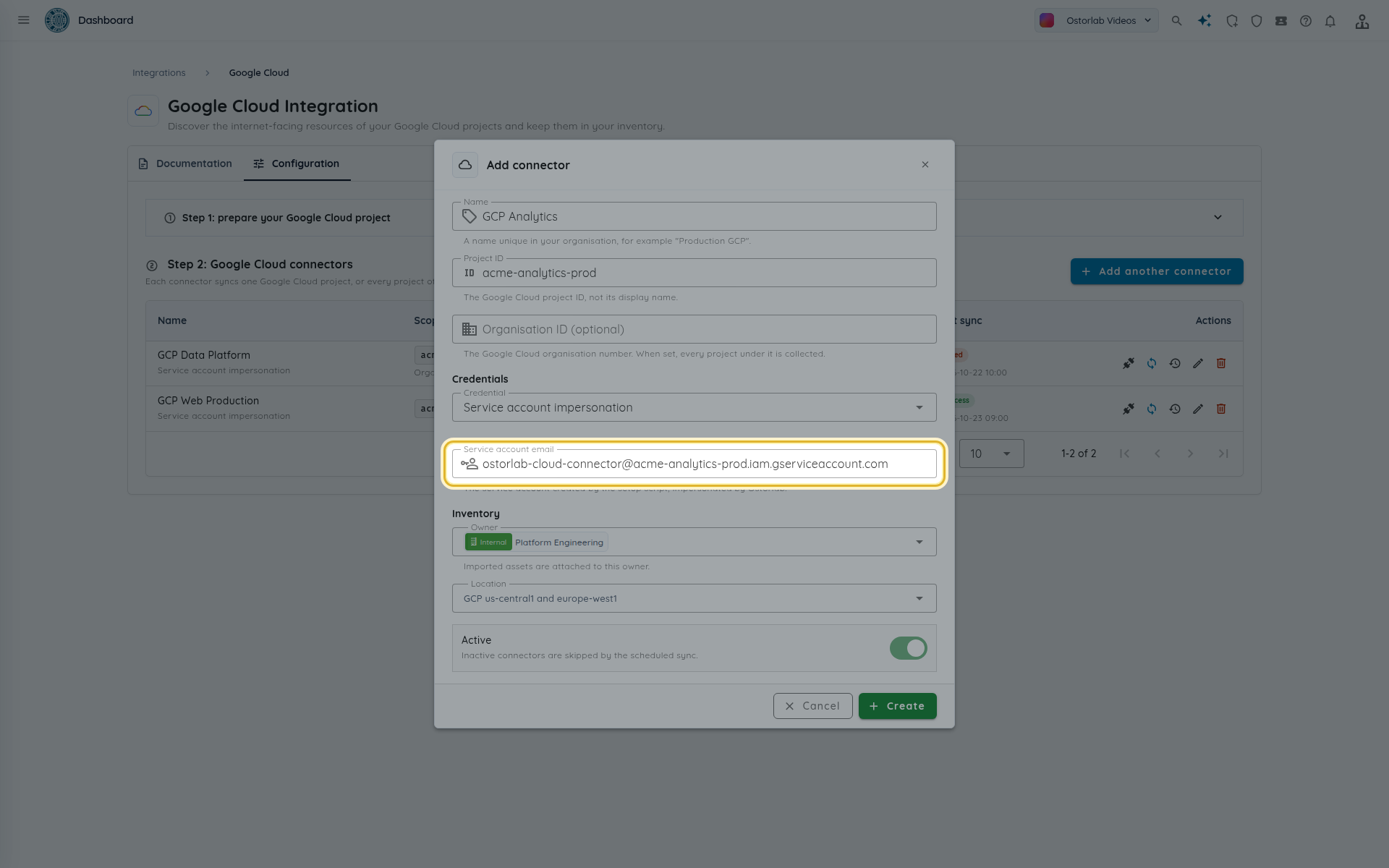
| Field | What to enter |
|---|---|
| Name | A name that is unique in your organization, for example Production GCP. |
| Project ID | The Google Cloud project ID: 6 to 30 lowercase letters, digits or hyphens, starting with a letter and ending with a letter or digit. |
| Organization ID (optional) | The numeric Google Cloud organization number. When set, every active project under the organization is collected. |
| Credential | Service account impersonation or Service account key. |
| Service account email | Impersonation method only. The email printed by the script. |
| Service account JSON key | Key method only. The whole JSON key file. |
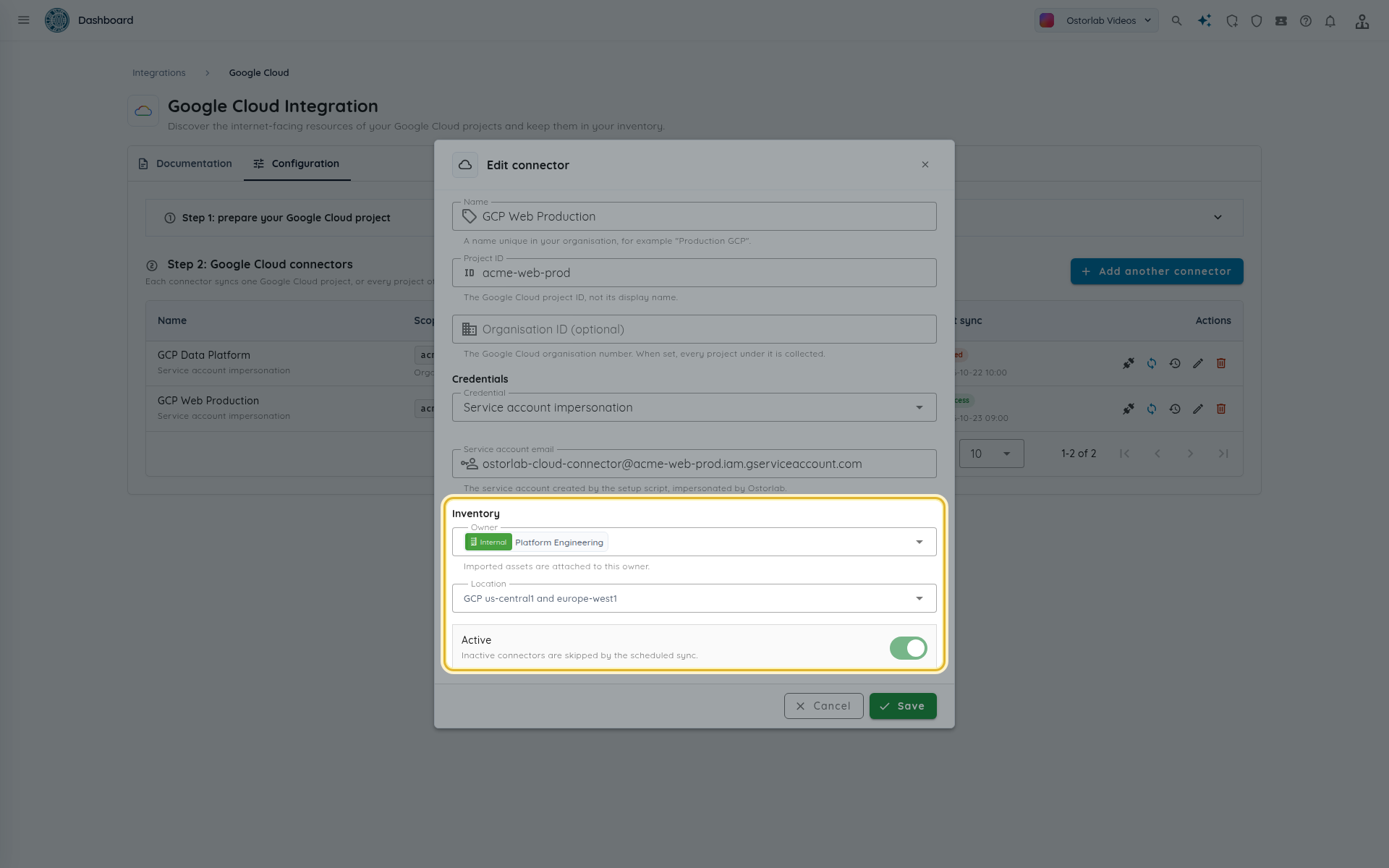
| Owner | Required. The imported assets are attached to this owner. |
| Location | Optional location for the imported assets. |
| Active | Inactive connectors are skipped by the scheduled sync. |
Test the connection
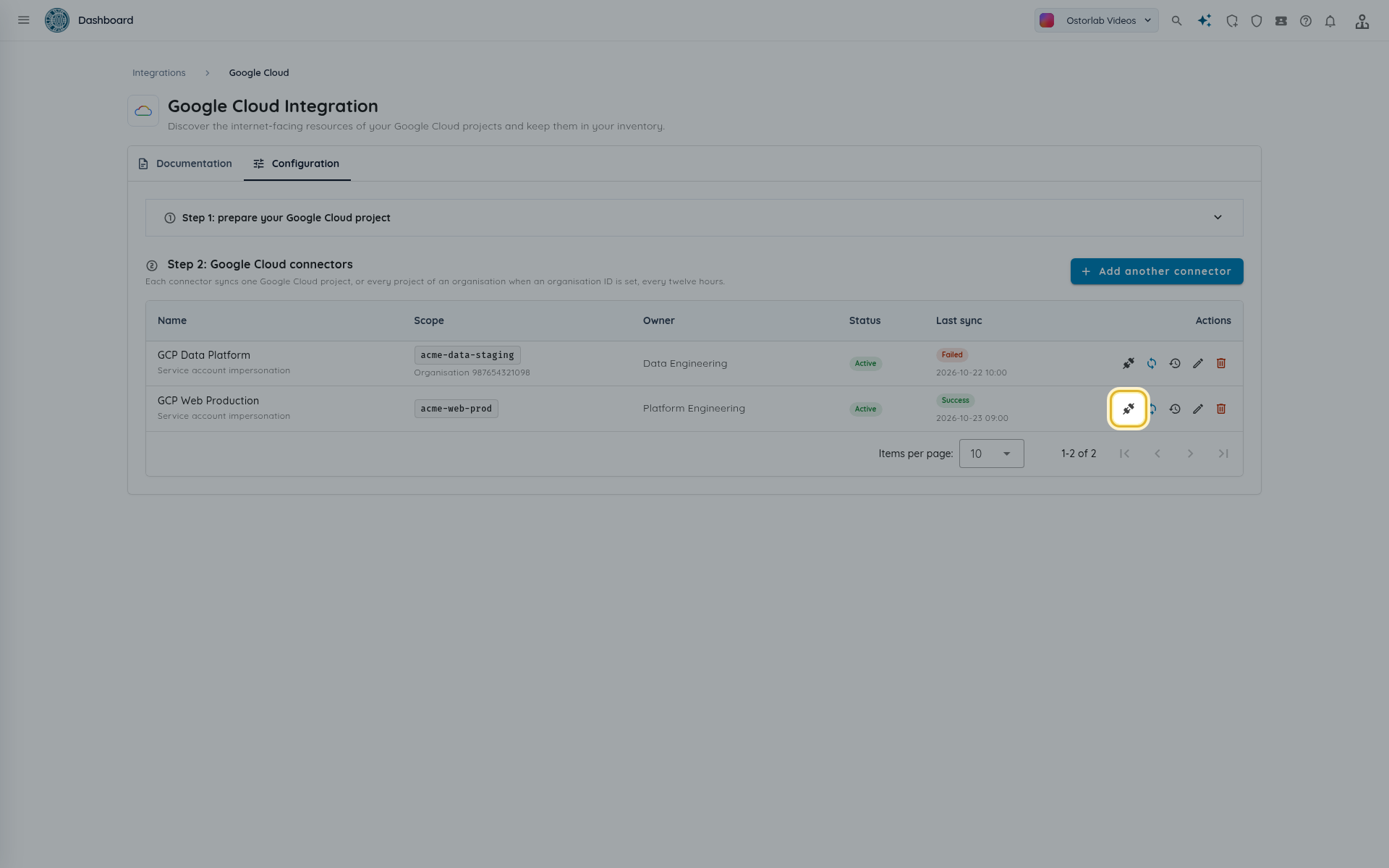
Click Test connection in the connector's row. The test reads from your project without importing anything.
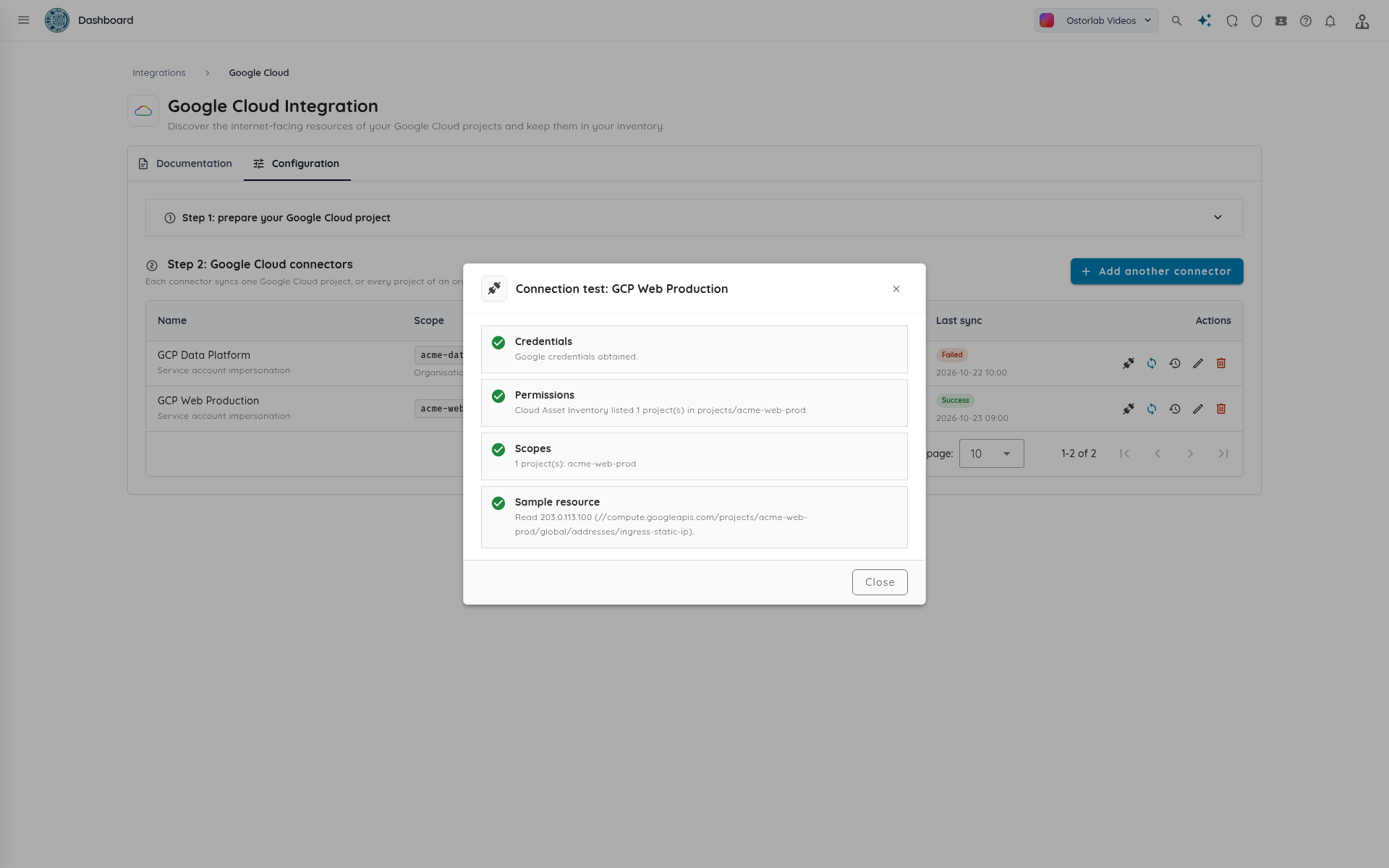
Four checks run:
| Check | What it verifies |
|---|---|
| Credentials | Ostorlab obtained a Google token for the service account (impersonated, or from the stored key). |
| Permissions | Cloud Asset Inventory lists the projects of the scope. |
| Scopes | The projects that will be read: your project, or every active project of the organization. The check fails if the project is not active or cannot be read. |
| Sample resource | Ostorlab reads the first reserved external address of the scope. The check also passes when none is reserved. |
If a check fails, the following ones are shown as skipped or failed too: fix the first failing check first.
Sync the connector
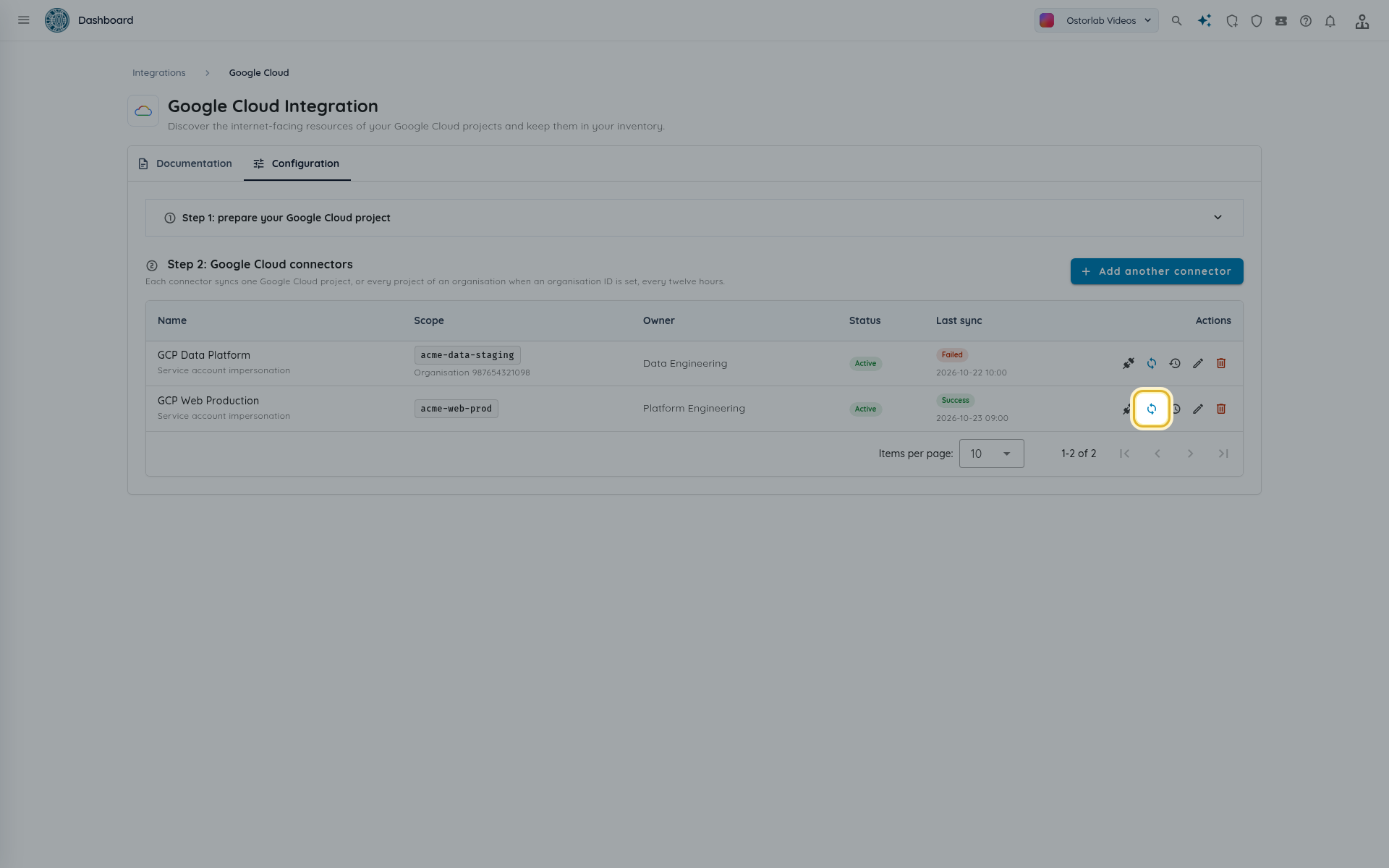
Every active connector syncs automatically every twelve hours. To import right away, click Sync now in the connector's row.
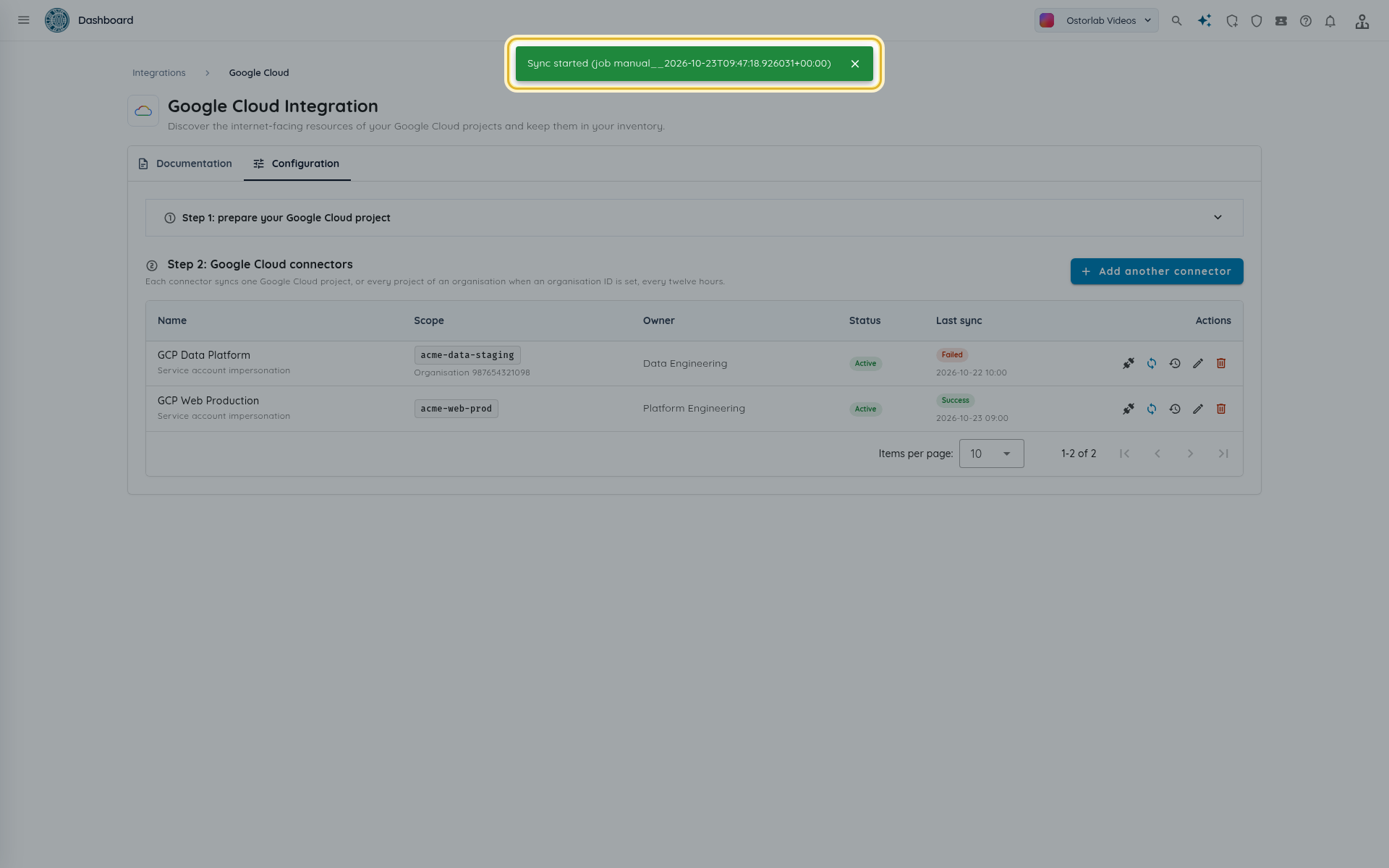
A toast confirms the job (Sync started (job ...)). A sync is refused when the connector is inactive or when a sync of the same connector is already running.
Read the sync runs and errors
Click Recent syncs to see the runs of a connector.
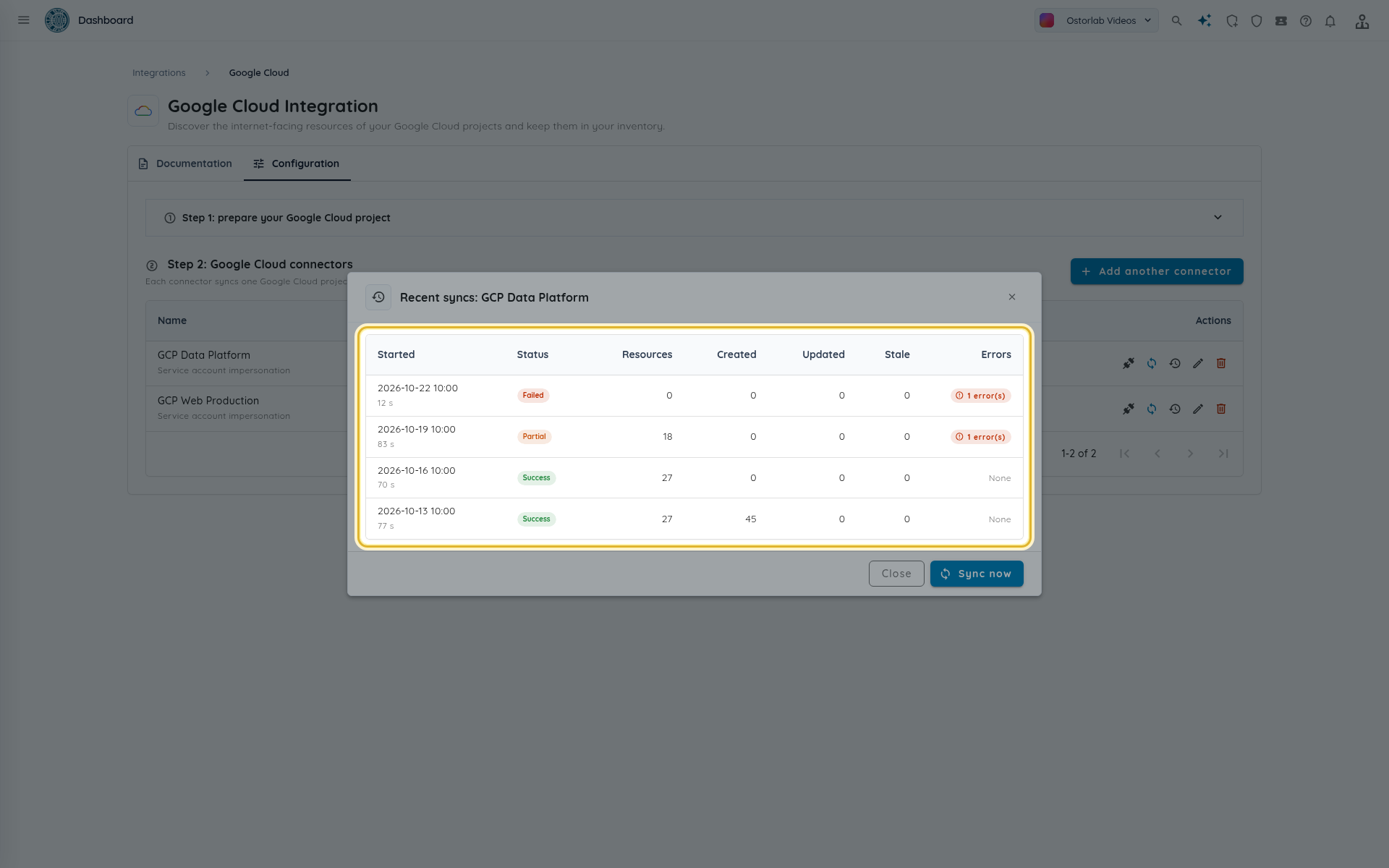
| Column | Meaning |
|---|---|
| Status | Running, Success, Partial (some projects failed, the rest was imported) or Failed (the sync could not complete, for example because Google refused the token). |
| Resources | Resources found in this run. |
| Created, Updated | New and changed assets and nodes. The created count includes IP and hostname assets as well as nodes. |
| Stale | Resources the connector tagged cloud:stale because they were not seen in this run. |
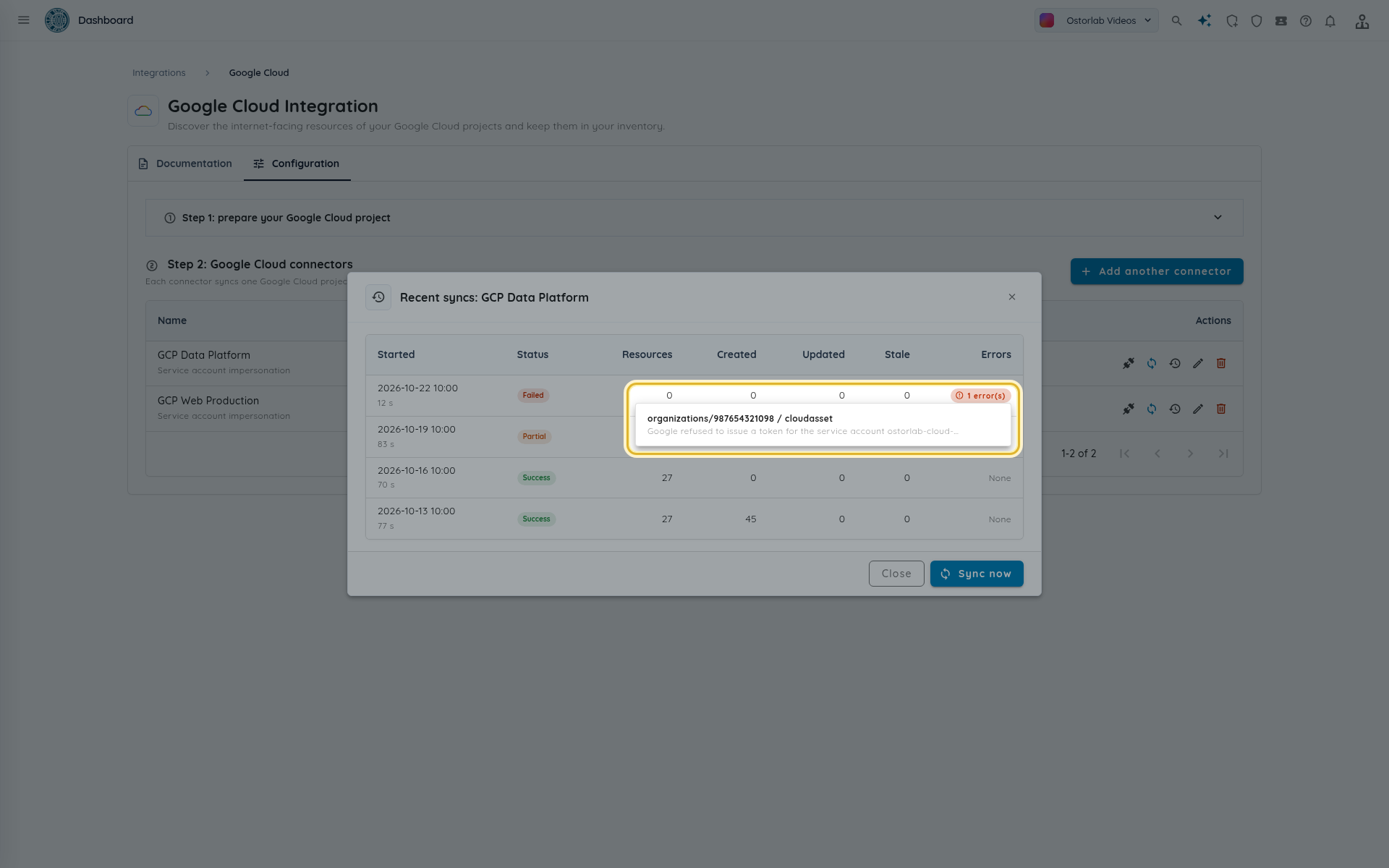
| Errors | The number of scope errors. Click it to list them. |
A project whose listing fails is one error, and the other projects are still read: the run ends Partial.
Note
Resources that disappear from Google Cloud are tagged cloud:stale only after a run without any scope error. They are never deleted from the inventory. The tag is removed when a later sync sees the resource again.
A run left Running for more than two hours is treated as stopped: it no longer blocks a new sync, and the next scheduled sync marks it Failed.
View the assets in the inventory
Imported assets belong to the owner and location you chose. Every one of them carries the tag cloud:gcp.
- Open Inventory > Assets.
-
Open the search panel, go to the Tags tab, set the tag name to
cloudand the value togcp, then click Search.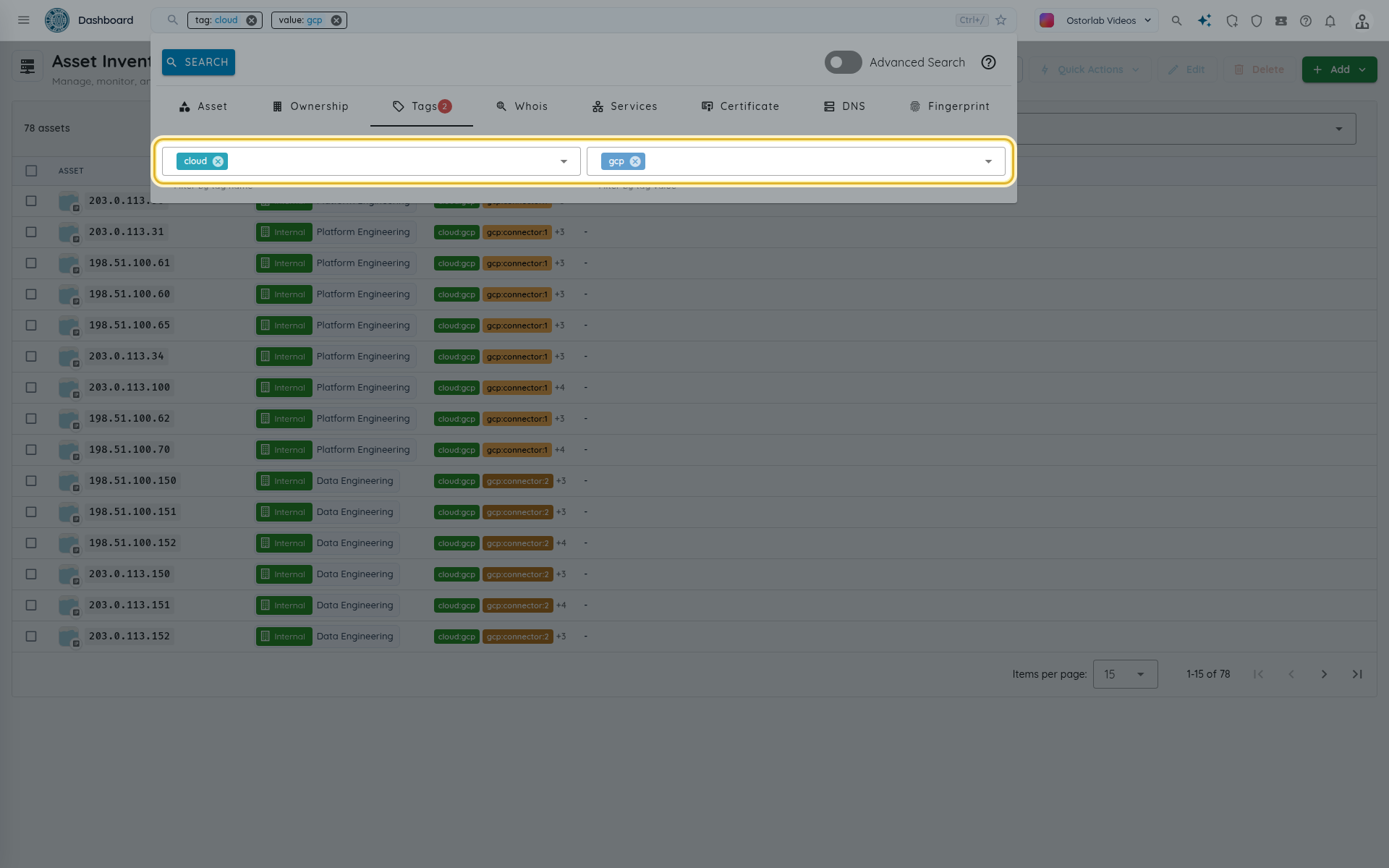
-
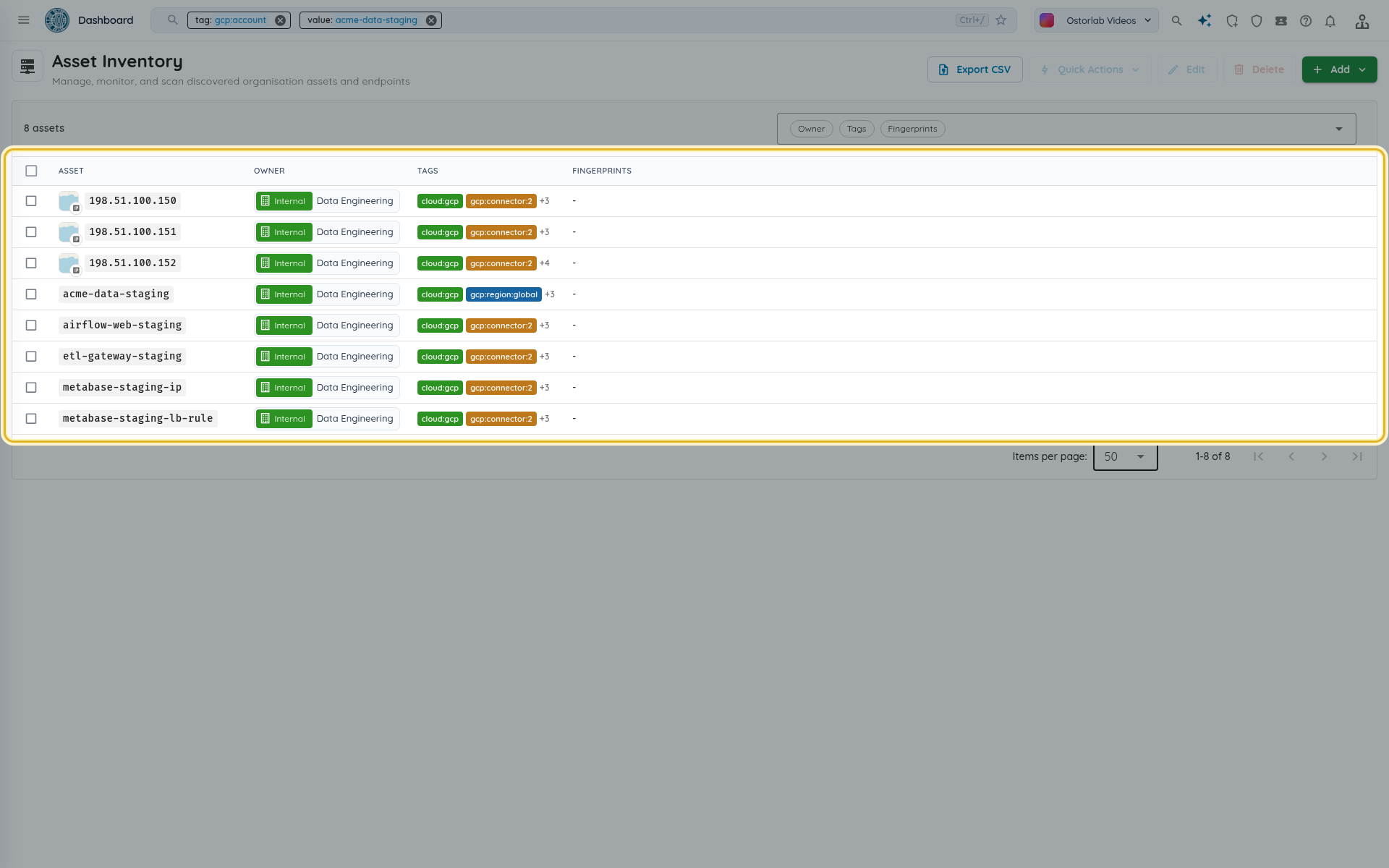
To narrow the list, filter on the other tags the connector adds:
gcp:account(the project ID),gcp:region,gcp:resource(the full resource name) andgcp:connector(the connector's ID).
Follow the discovery path
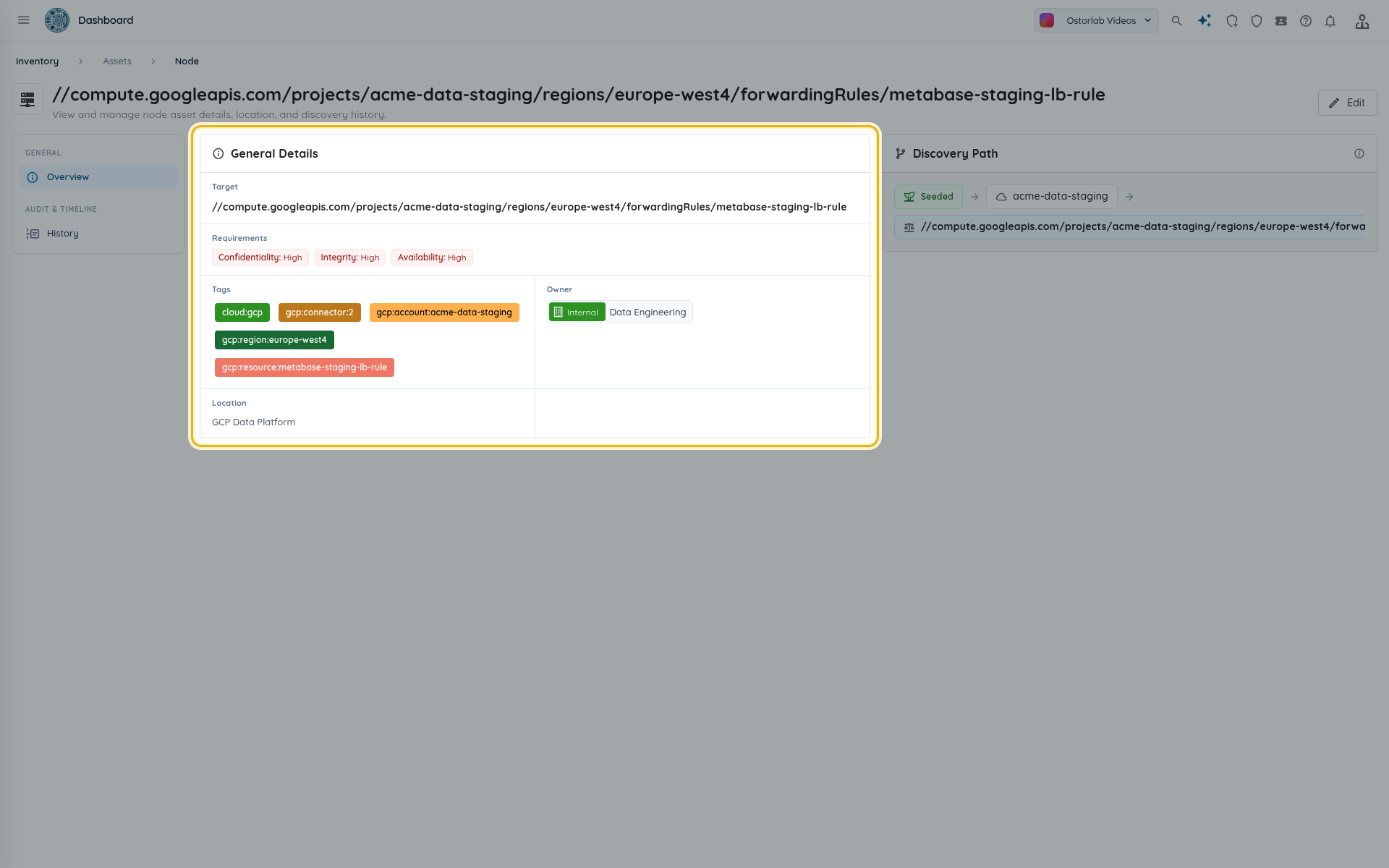
Open a cloud node, such as a forwarding rule, to see its target, tags, owner and location. The Discovery Path card shows where the node comes from: the Google Cloud project, then its parent resource. The public addresses and hostnames of a node list that node in their own discovery path, so you can always tell which project and resource exposed them.
Edit, pause or remove the connector
-
Edit changes the name, project and organization IDs, credential, owner, location and Active switch. Leave a stored key empty to keep it, or paste a new one to replace it.
-
Switch Active off to pause the scheduled sync while keeping the connector.
- Delete removes the connector: the assets already imported stay in the inventory and future syncs stop.
- To also remove Ostorlab's access from Google Cloud, delete the service account
ostorlab-cloud-connector(or remove its IAM bindings and the token creator binding that trusts Ostorlab). Deleting the service account does not remove the project or organization role bindings made for it: removeroles/cloudasset.viewerandroles/browserfor that member as well.
Troubleshooting
| Symptom | What to check |
|---|---|
| "Google refused to issue a token for the service account ... Check that the organisation's Ostorlab service account has roles/iam.serviceAccountTokenCreator on it." | The script's last step did not run, or the binding was removed. Run the script again. |
| "Google refused the service account key. Check that the key and the service account ... are enabled." | The key was deleted or disabled, or the service account is disabled. Create a new key and update the connector. |
| "Project ... is not active or cannot be read." | The Project ID is wrong, the project is being deleted, or the service account lacks the roles on it. |
| "No active project found in scope." | Organization-wide connector: the roles were granted on the project only. Run the script again with ORGANIZATION_ID. |
| Permissions check fails | The APIs of the script are not enabled in the project, or the roles are missing. Run the script again. |
| Form error about the JSON key | Paste the whole key file: it must be a service account key ("type": "service_account") with a client_email and a private_key. |
| The test says the connection is not available right now | A problem on Ostorlab's side, not in your project. Try again later and contact support if it persists. |
| "The cloud connector is disabled." | Switch Active on in the connector's edit form. |
| "A sync of this cloud connector is already running." | Wait for the running sync to finish. |
| Resources you expect are missing | They may have no external address, or sit in a private DNS zone. The connector keeps only internet-facing resources. |