Connect AWS to your asset inventory
The AWS connector reads the internet-facing resources of your AWS accounts and keeps them in the Ostorlab asset inventory, so you can scan them and track them as part of your attack surface. It only needs read access.
What does the connector collect?
For every account, the connector reads these resources. Private addresses are skipped.
| Scope | Resources |
|---|---|
| Each region | EC2 instances with a public address, Elastic IPs, internet-facing Classic, Application and Network load balancers, publicly accessible RDS instances |
| Global | Public Route 53 hosted zones with their A, AAAA and CNAME records (wildcard records are skipped), CloudFront distributions with their default and alternate domain names |
Only the resource types listed above are imported; S3 buckets, Lambda functions, API Gateway, ECS and EKS are not collected.
Each resource becomes a cloud node in the inventory, attached to its AWS account. The public IP addresses and hostnames it exposes become regular IP and domain assets, so the rest of the platform can scan them.
What do I need before I start?
- An Ostorlab plan that includes integrations. Otherwise Ostorlab answers "Your organisation does not have the necessary permissions to run this integration."
- The 12-digit ID of the AWS account to connect.
- Permission in that account to create a CloudFormation stack that creates IAM resources (or to create an IAM user, for the access keys method).
- An Ostorlab owner for the imported assets. Create one beforehand if needed.
Set up access in AWS
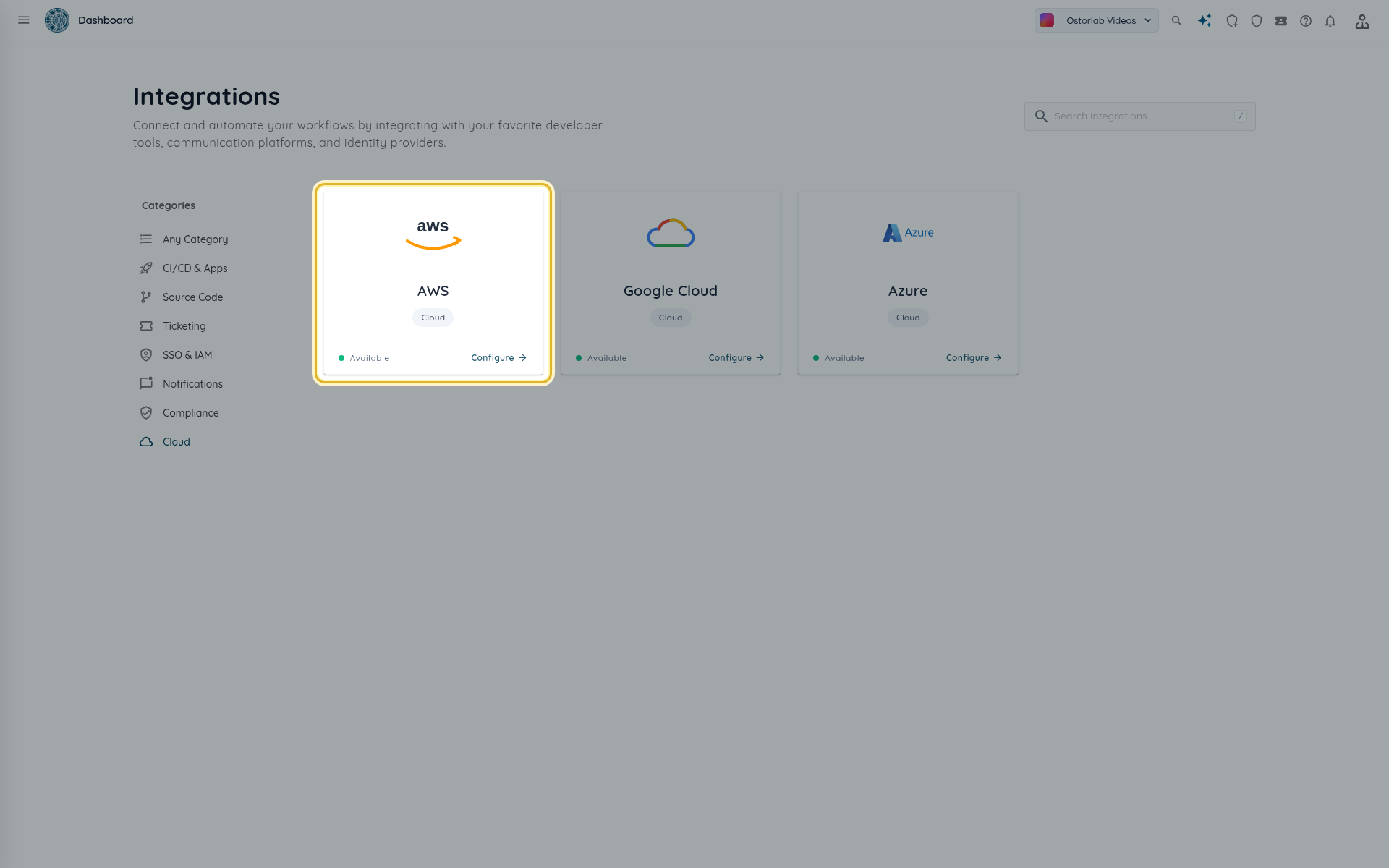
Open Library > Integrations, select the Cloud category, then the AWS card. The Configuration tab starts with Step 1: prepare your AWS account.
Choose one of the two credential methods. The cross-account role is preferred: it needs no long-lived key.
Option 1: cross-account IAM role (recommended)
The role OstorlabReadOnly trusts Ostorlab's AWS sync role and only accepts it when it presents your organization's external ID.
-
In Step 1, click Cross-account IAM role: download the setup file. You get the CloudFormation template
ostorlab-read-only-role.yaml. The Parameters to use block shows the three values the template already contains: theOstorlabPrincipal,ExternalIdandRoleNameparameters.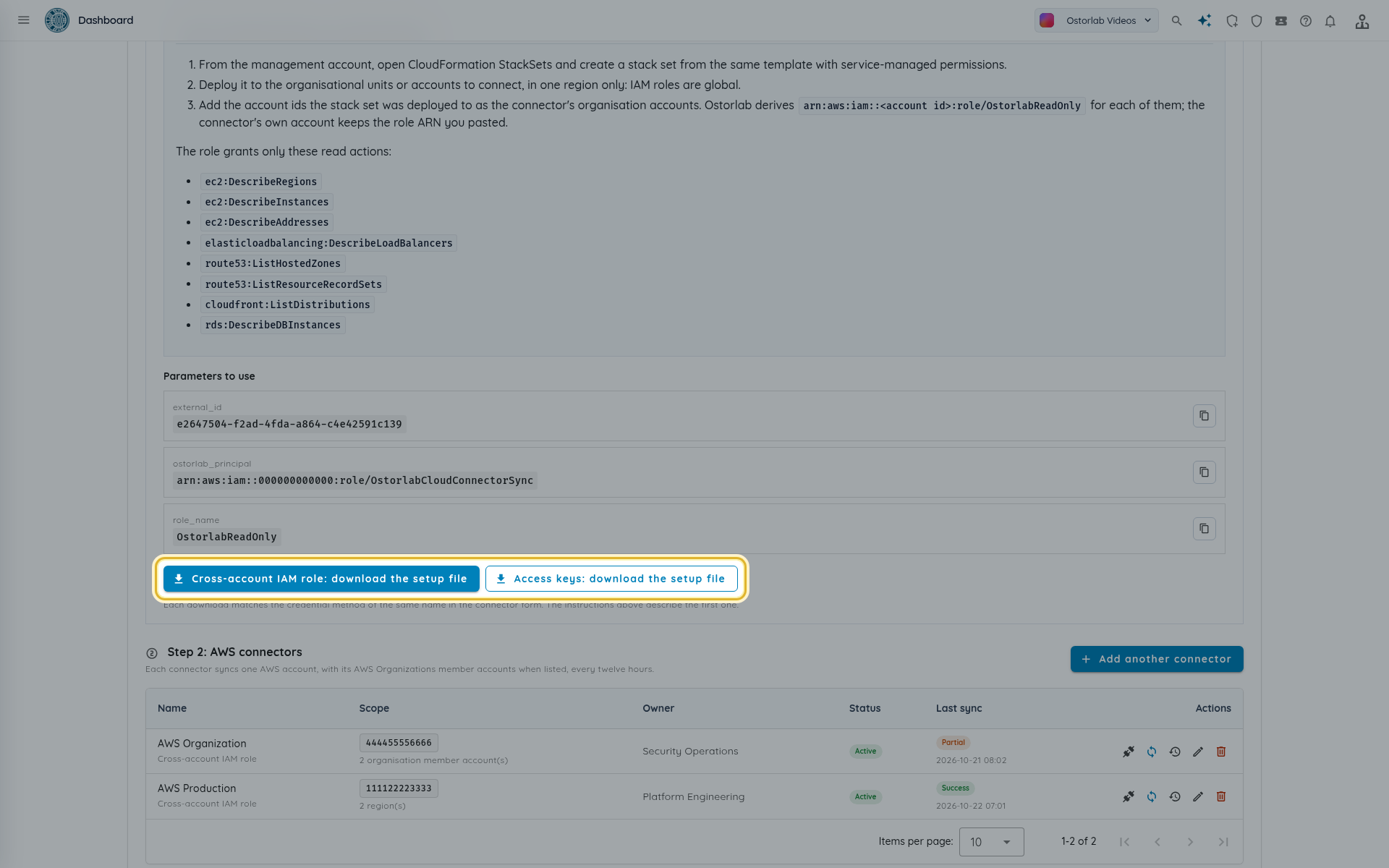
-
In the CloudFormation console of the account, create a stack from the template. Keep the default parameters (
OstorlabPrincipal,ExternalId,RoleName) and acknowledge that CloudFormation can create IAM resources. Or use the AWS CLI:aws cloudformation create-stack --stack-name ostorlab-read-only \ --template-body file://ostorlab-read-only-role.yaml \ --capabilities CAPABILITY_NAMED_IAM aws cloudformation describe-stacks --stack-name ostorlab-read-only --no-cli-pager \ --query "Stacks[0].Outputs[?OutputKey=='RoleArn'].OutputValue" --output text -
When the stack is complete, copy its
RoleArnoutput, for examplearn:aws:iam::123456789012:role/OstorlabReadOnly.
The role grants only these read actions, on all resources:
ec2:DescribeRegions
ec2:DescribeInstances
ec2:DescribeAddresses
elasticloadbalancing:DescribeLoadBalancers
route53:ListHostedZones
route53:ListResourceRecordSets
cloudfront:ListDistributions
rds:DescribeDBInstances
Several accounts with AWS Organizations
- From the management account, enable trusted access for AWS CloudFormation StackSets in AWS Organizations. In the CloudFormation console, open StackSets and choose Enable trusted access, or run
aws organizations enable-aws-service-access --service-principal member.org.stacksets.cloudformation.amazonaws.com. Service-managed stack sets cannot be created without it. - From the management account, open CloudFormation StackSets and create a stack set from the same template, with service-managed permissions.
- Deploy it to the organizational units or accounts to connect, in one region only: IAM roles are global.
- Create one Ostorlab connector for the account whose role ARN you copied, and list the other account IDs in AWS Organizations member accounts (optional).
Ostorlab derives
arn:aws:iam::<account id>:role/OstorlabReadOnlyfor each member account.
Option 2: access keys
Use this method when you cannot create a cross-account role. It reads only the connector's own account.
- In Step 1, click Access keys: download the setup file. You get
ostorlab-read-only-user.yaml. - Create a stack from it in the account. It creates the IAM user
OstorlabReadOnly, without console access, with an inline policy that allows exactly the actions listed above. -
Create an access key for that user and keep the pair for the connector form:
aws iam create-access-key --user-name OstorlabReadOnly --no-cli-pager -
To rotate the key, run the
aws iam create-access-key --user-name OstorlabReadOnlycommand from step 3 again to create the replacement (an IAM user holds at most two access keys), update the connector with the new pair, then delete or deactivate the previous key.
Tip
The secret access key is encrypted at rest and never shown again in Ostorlab. Delete any copy you saved locally once the connector works.
Add the connector
-
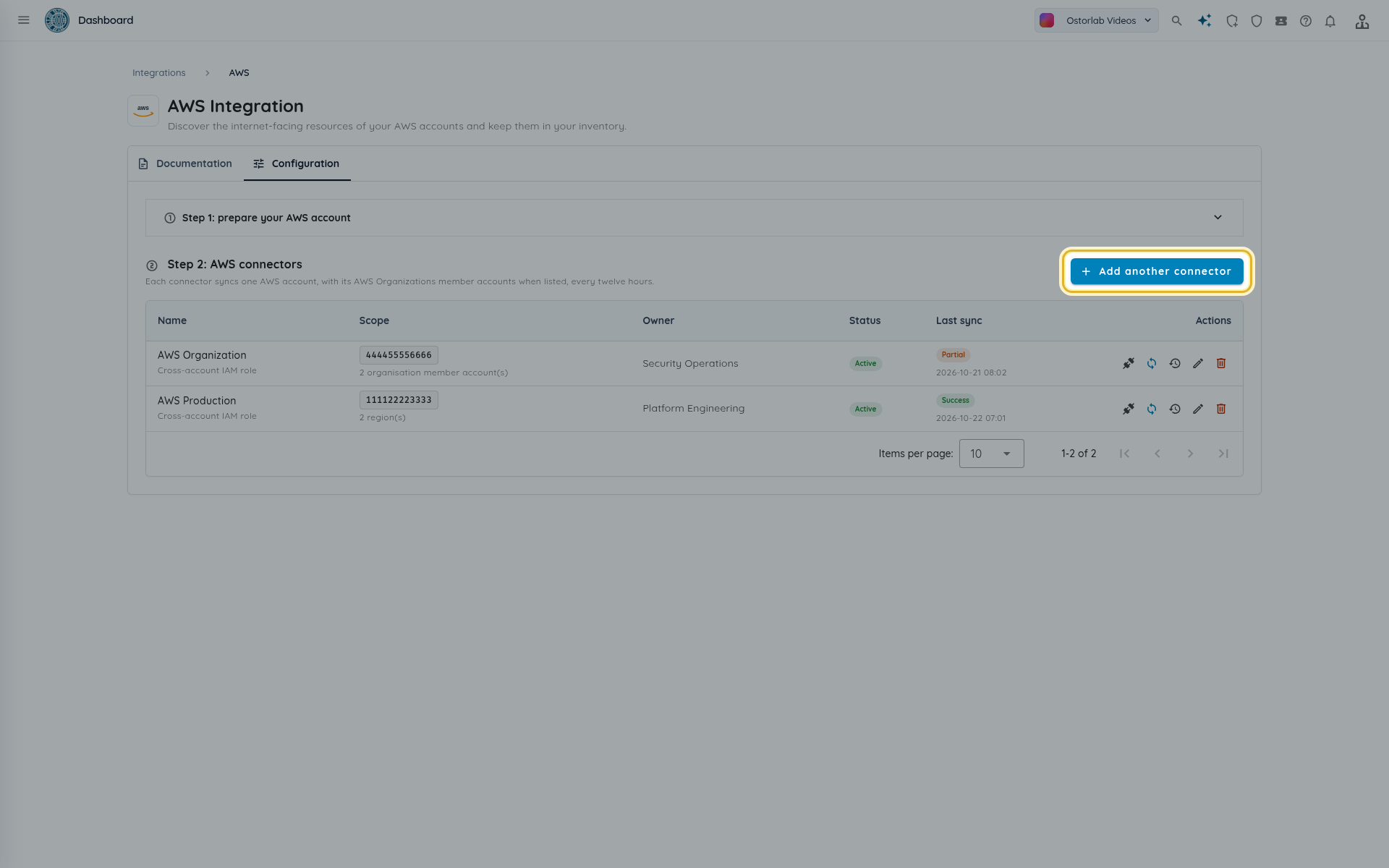
In the Configuration tab, below Step 2: AWS connectors, click Add connector (or Add another connector).
-
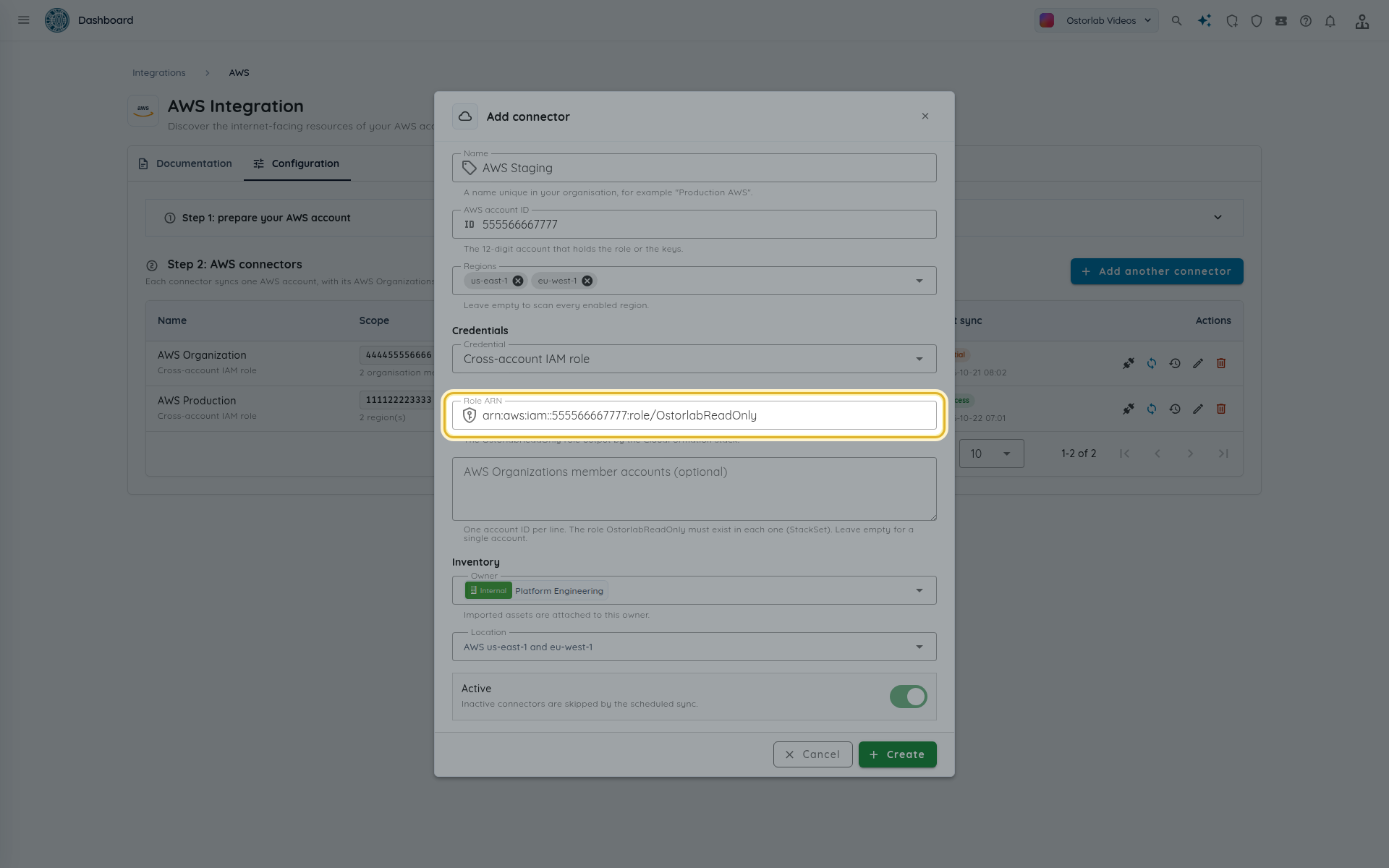
Fill in the form, then click Create.
| Field | What to enter |
|---|---|
| Name | A name that is unique in your organization, for example Production AWS. |
| AWS account ID | The 12-digit account that holds the role or the keys. |
| Regions | The regions to read, as AWS region codes such as eu-west-1. Leave empty to read every enabled region. |
| Credential | Cross-account IAM role or Access keys. |
| Role ARN | Role method only. The OstorlabReadOnly role ARN. It must belong to the AWS account ID above. |
| AWS Organizations member accounts (optional) | Role method only. One 12-digit account ID per line. The role OstorlabReadOnly must exist in each one. |
| Access key ID and Secret access key | Access keys method only. |
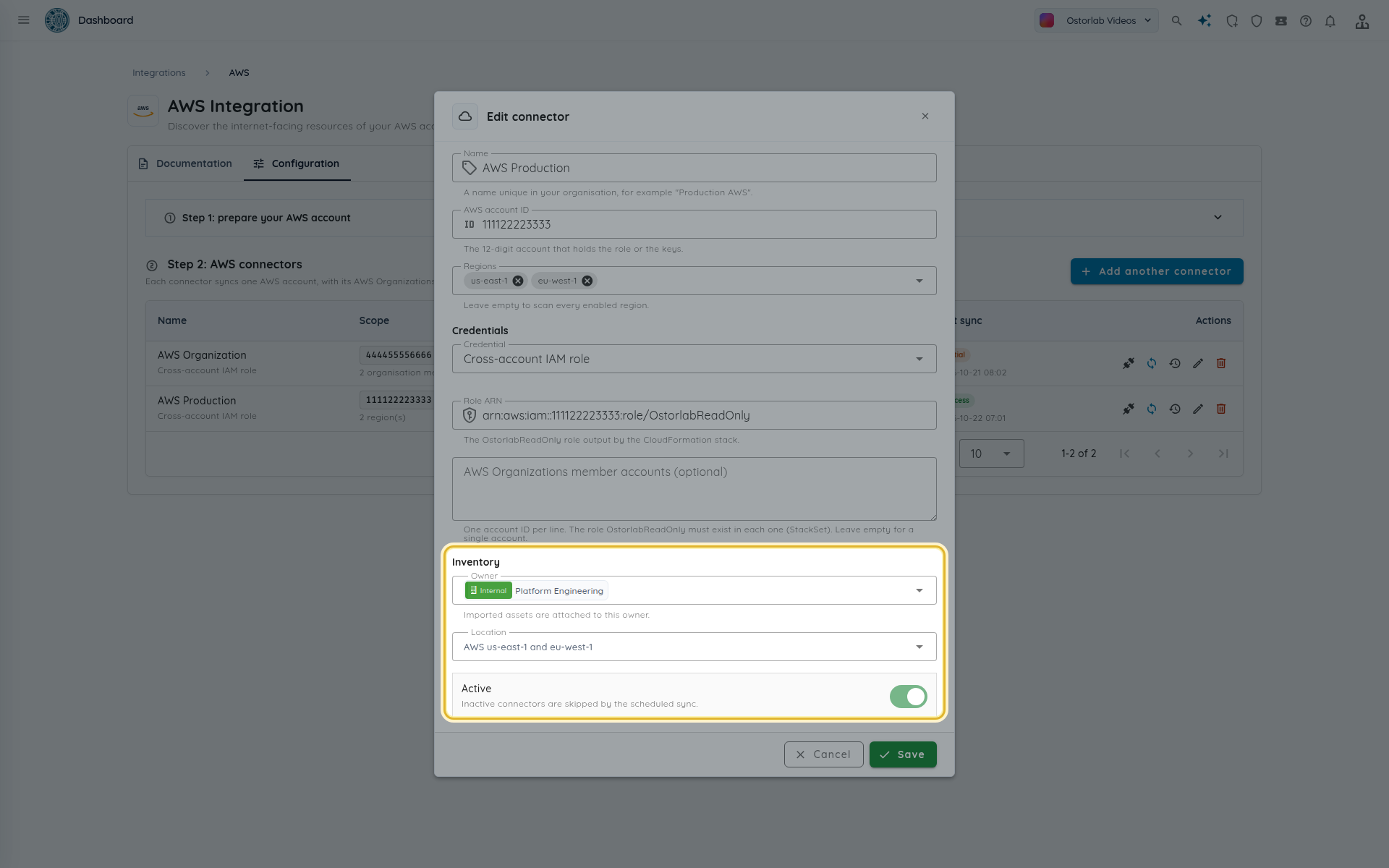
| Owner | Required. The imported assets are attached to this owner. |
| Location | Optional location for the imported assets. |
| Active | Inactive connectors are skipped by the scheduled sync. |
Access keys and member accounts cannot be combined: access keys read only the connector's own account.
Test the connection
Click Test connection in the connector's row. The test reads from your account without importing anything.
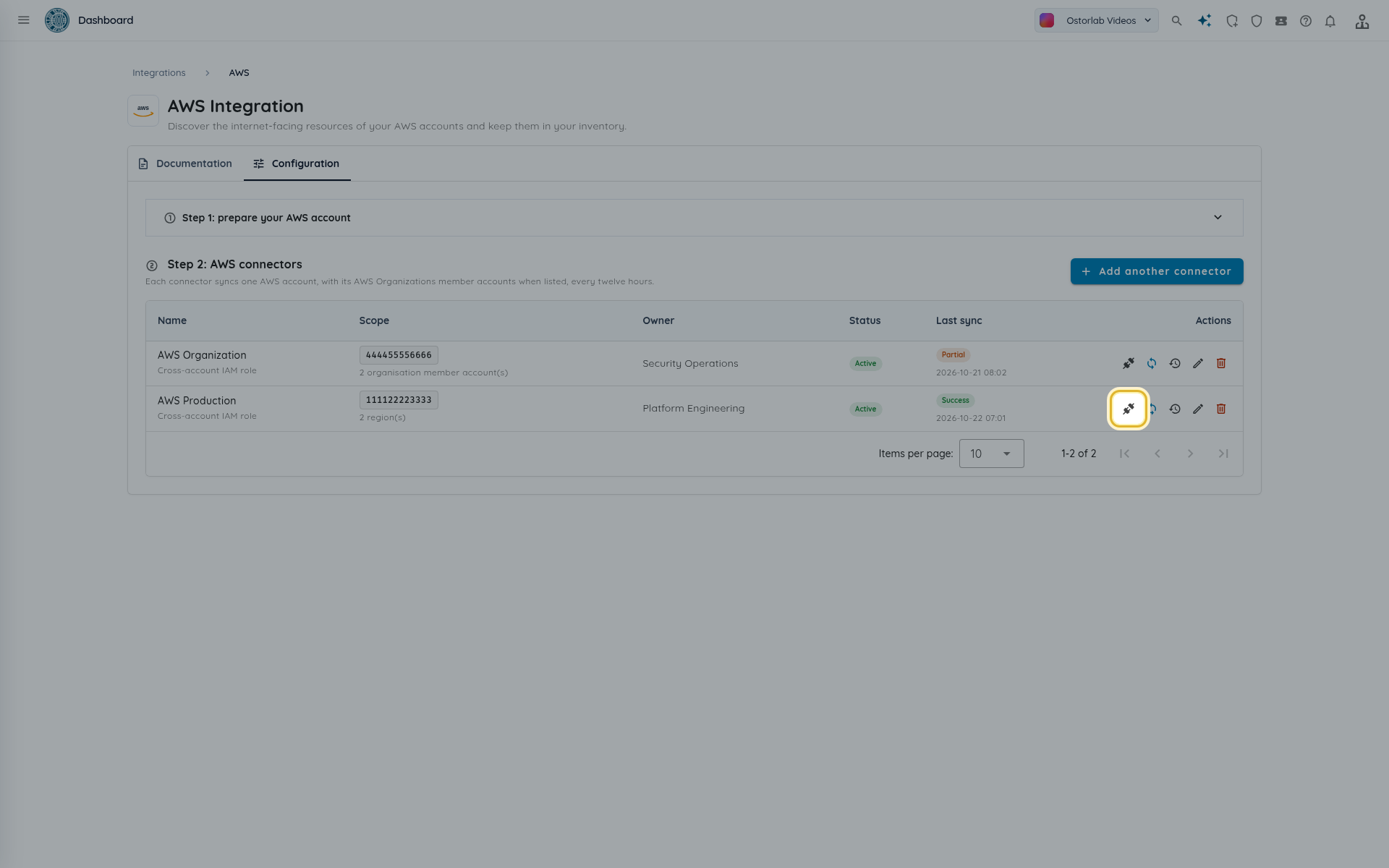
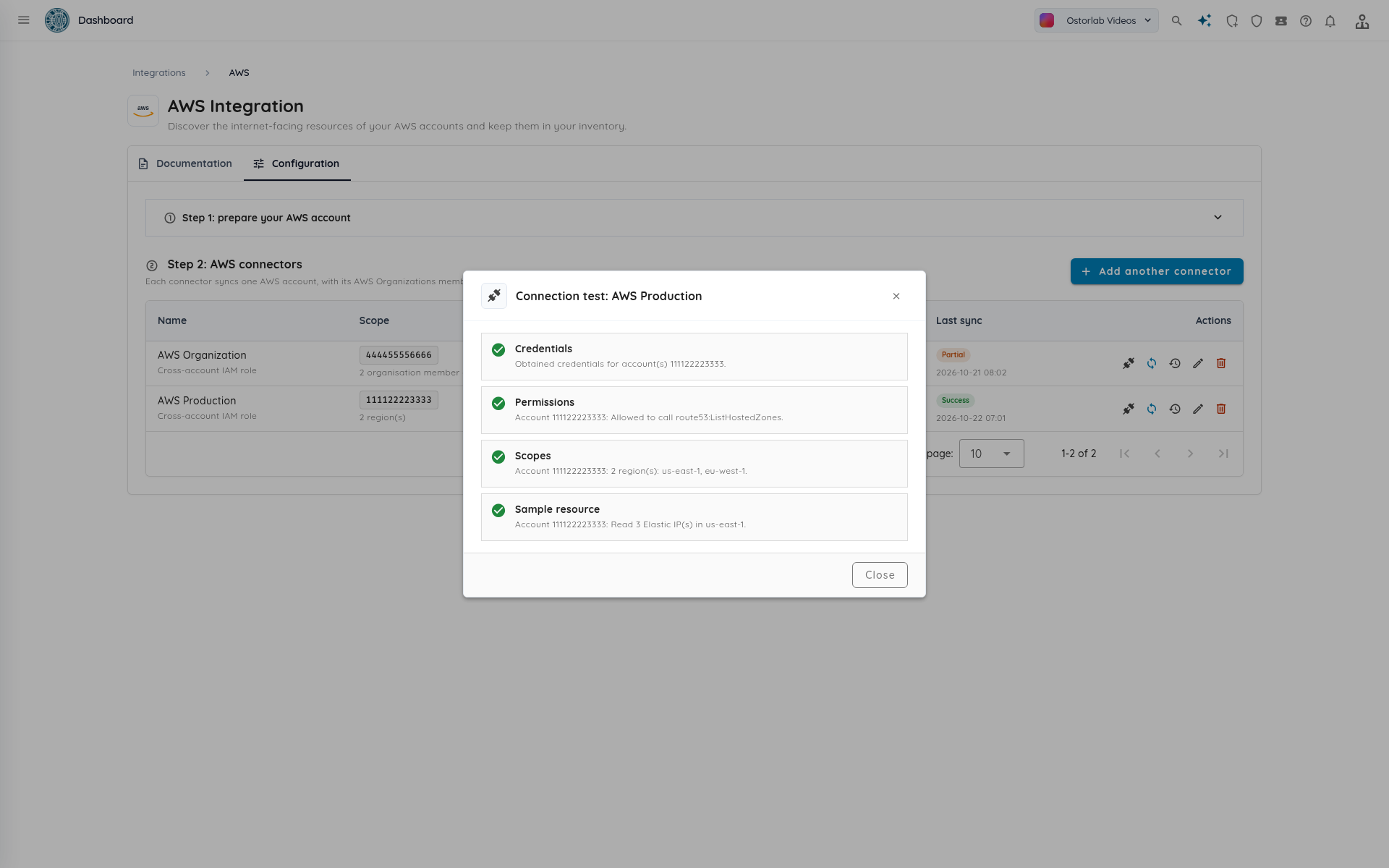
Four checks run, in order, and an account's checks stop at the first one that fails:
| Check | What it verifies |
|---|---|
| Credentials | Ostorlab obtained credentials for the account. For access keys, it also confirms the keys belong to the connector's account. |
| Permissions | The role or user is allowed to call route53:ListHostedZones. |
| Scopes | The regions that will be read. The check fails if no region is enabled. |
| Sample resource | Ostorlab reads the Elastic IPs of the first region. The check also passes when the account has none. |
For a connector with member accounts, every account gets its own checks, each message starting with the account ID.
Sync the connector
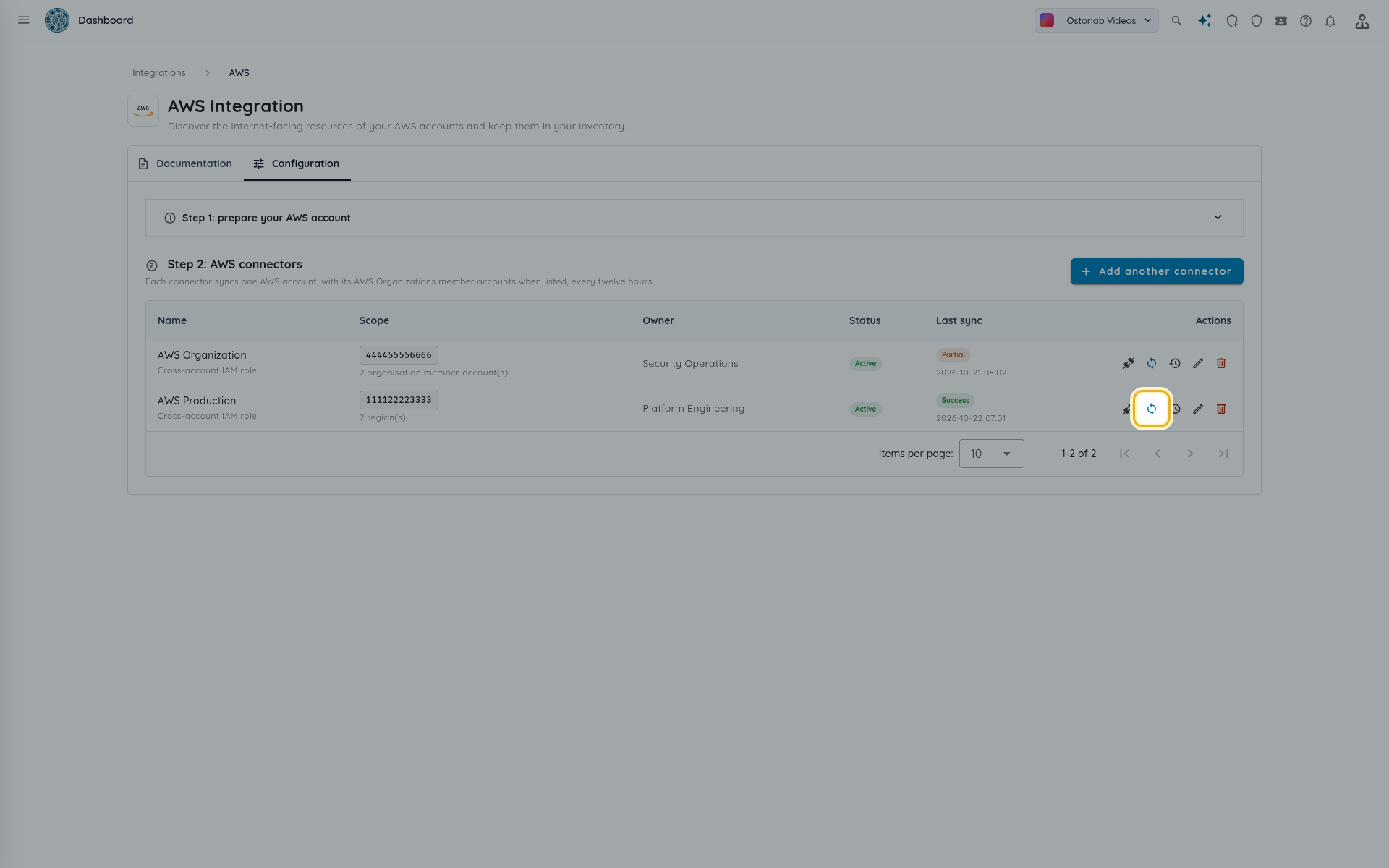
Every active connector syncs automatically every twelve hours. To import right away, click Sync now in the connector's row.
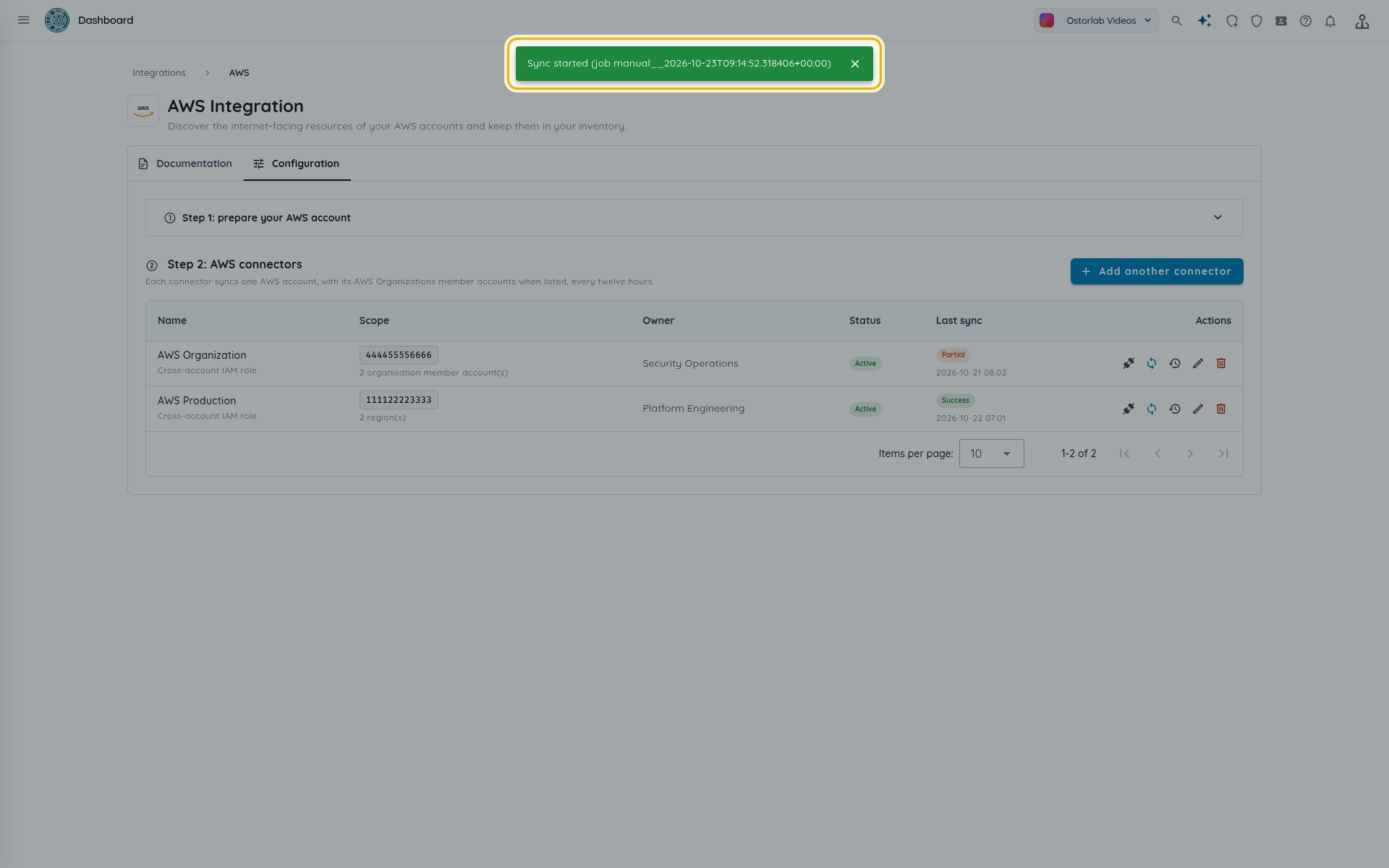
A toast confirms the job (Sync started (job ...)). A sync is refused when the connector is inactive or when a sync of the same connector is already running.
Read the sync runs and errors
Click Recent syncs to see the runs of a connector.
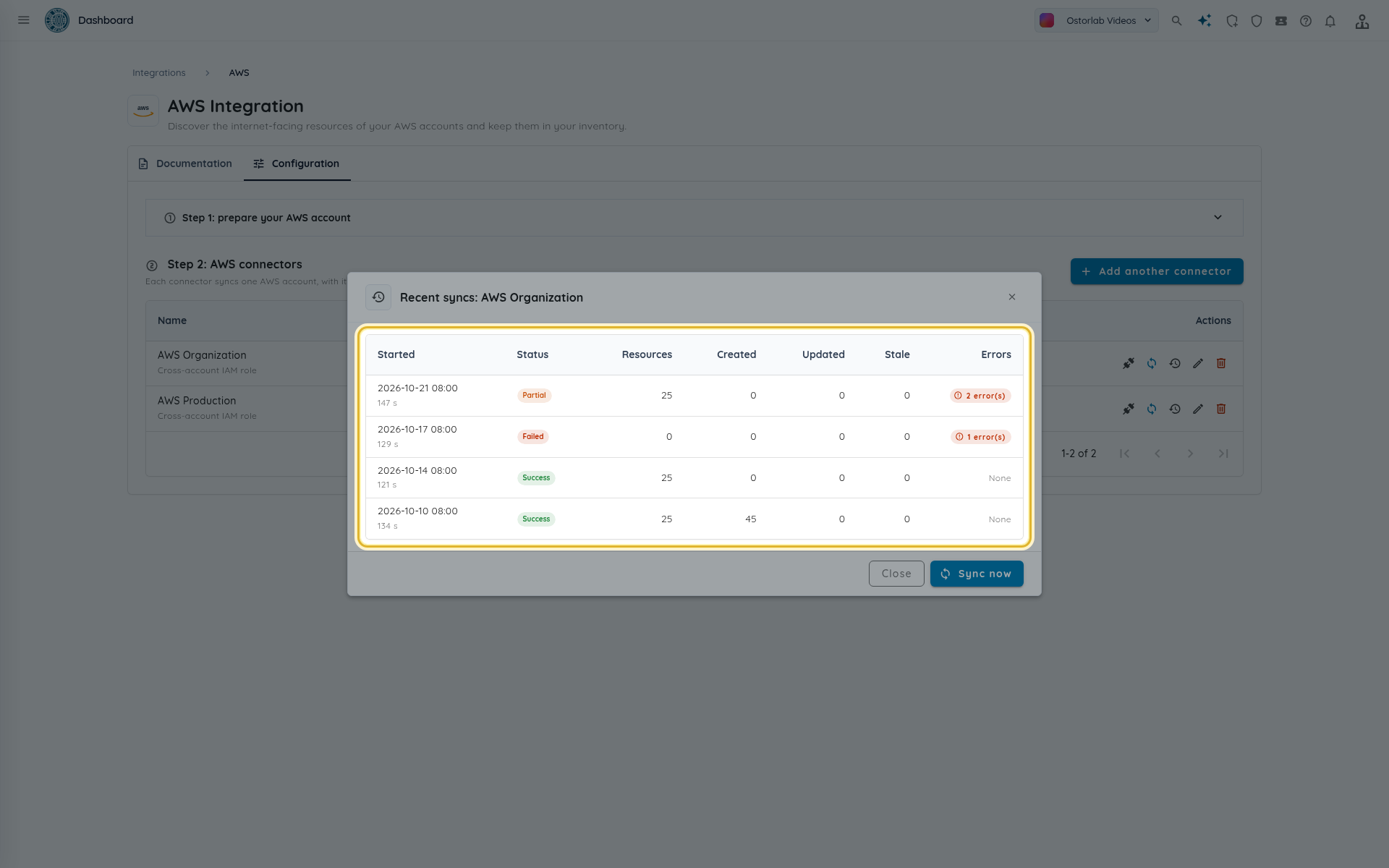
| Column | Meaning |
|---|---|
| Status | Running, Success, Partial (some scopes failed, the rest was imported) or Failed (the sync could not complete, for example because no credentials were accepted). |
| Resources | Resources found in this run. |
| Created, Updated | New and changed assets and nodes. The created count includes IP and hostname assets as well as nodes. |
| Stale | Resources the connector tagged cloud:stale because they were not seen in this run. |
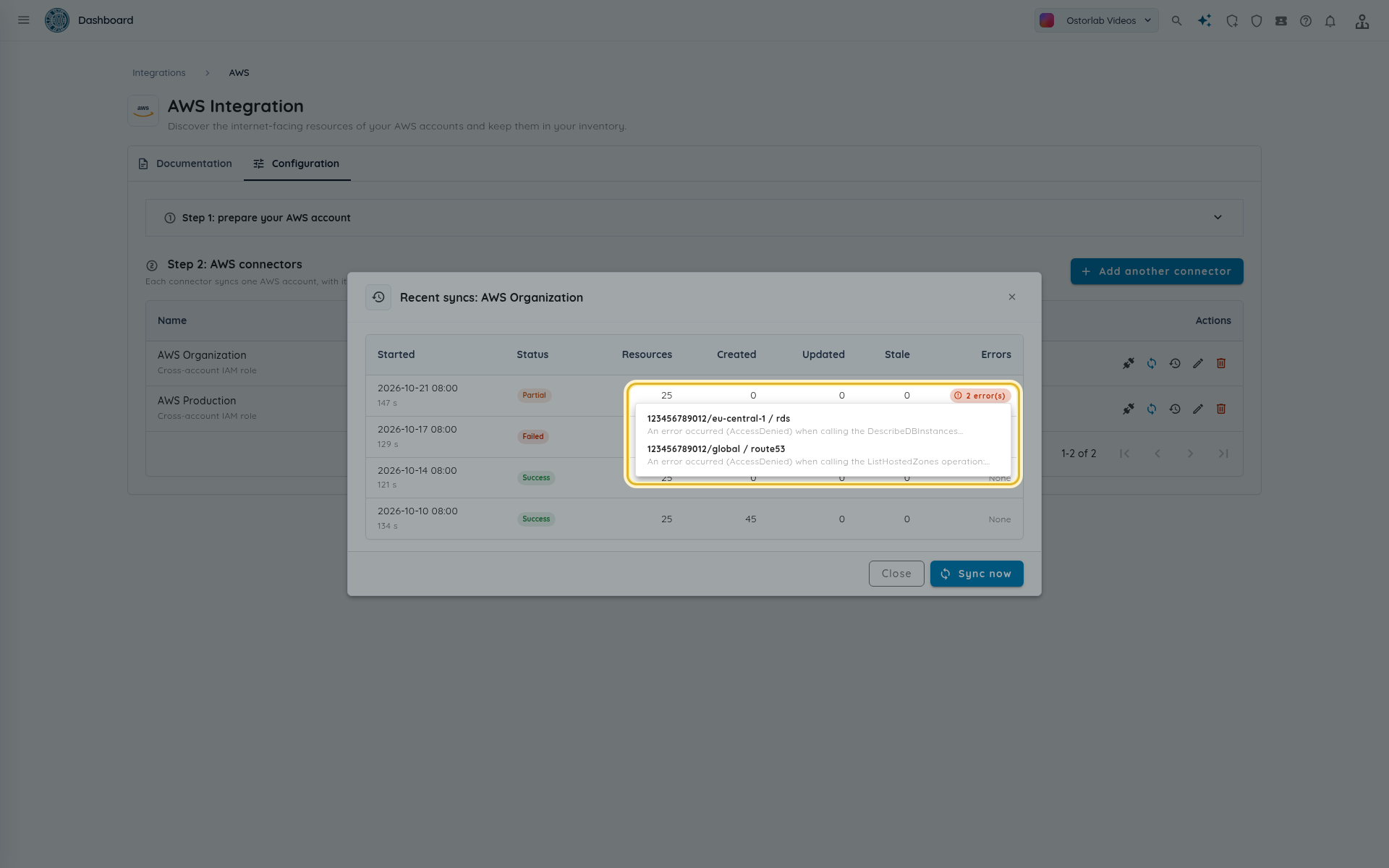
| Errors | The number of scope errors. Click it to list them. |
A failing region or service never stops the other scopes: it is reported as an error and the run ends Partial.
Each error names the scope as <account id>/<region> / <service>, for example 123456789012/eu-central-1 / rds, followed by the message from AWS.
Note
Resources that disappear from AWS are tagged cloud:stale only after a run without any scope error. They are never deleted from the inventory. The tag is removed when a later sync sees the resource again.
A run left Running for more than two hours is treated as stopped: it no longer blocks a new sync, and the next scheduled sync marks it Failed.
View the assets in the inventory
Imported assets belong to the owner and location you chose. Every one of them carries the tag cloud:aws.
- Open Inventory > Assets.
-
Open the search panel, go to the Tags tab, set the tag name to
cloudand the value toaws, then click Search.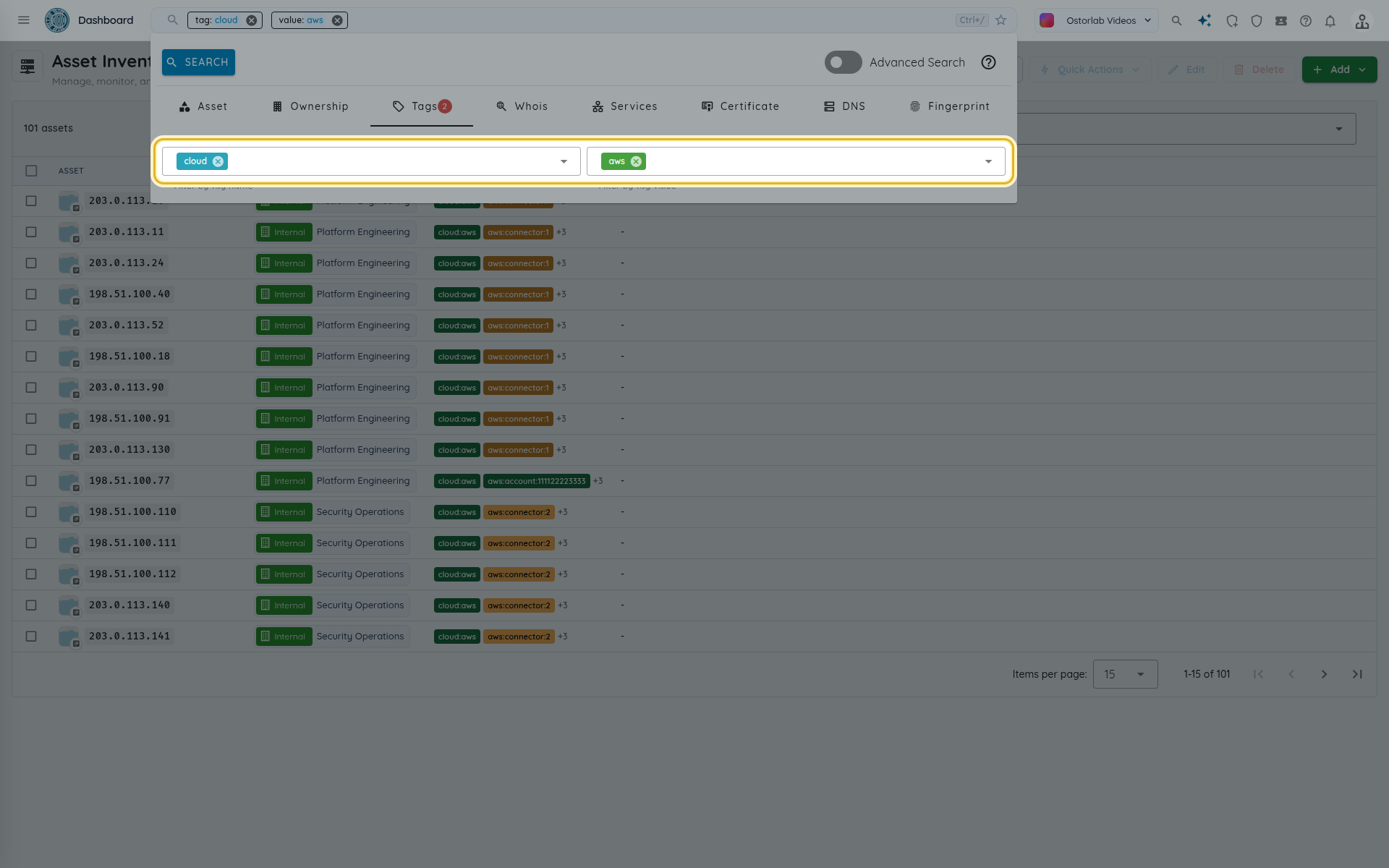
-
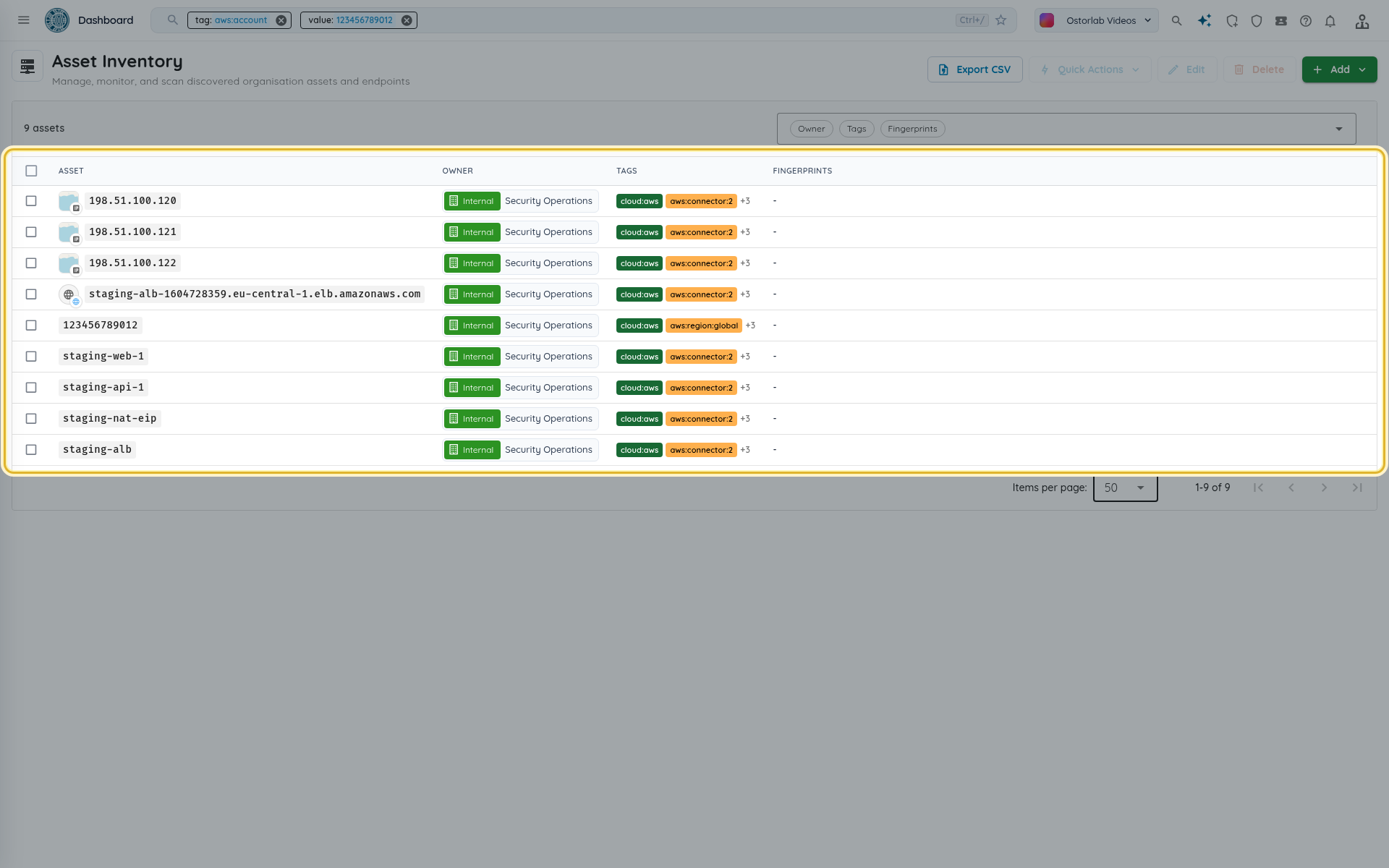
To narrow the list, filter on the other tags the connector adds:
aws:account(the account ID),aws:region,aws:resource(the ARN) andaws:connector(the connector's ID).
Follow the discovery path
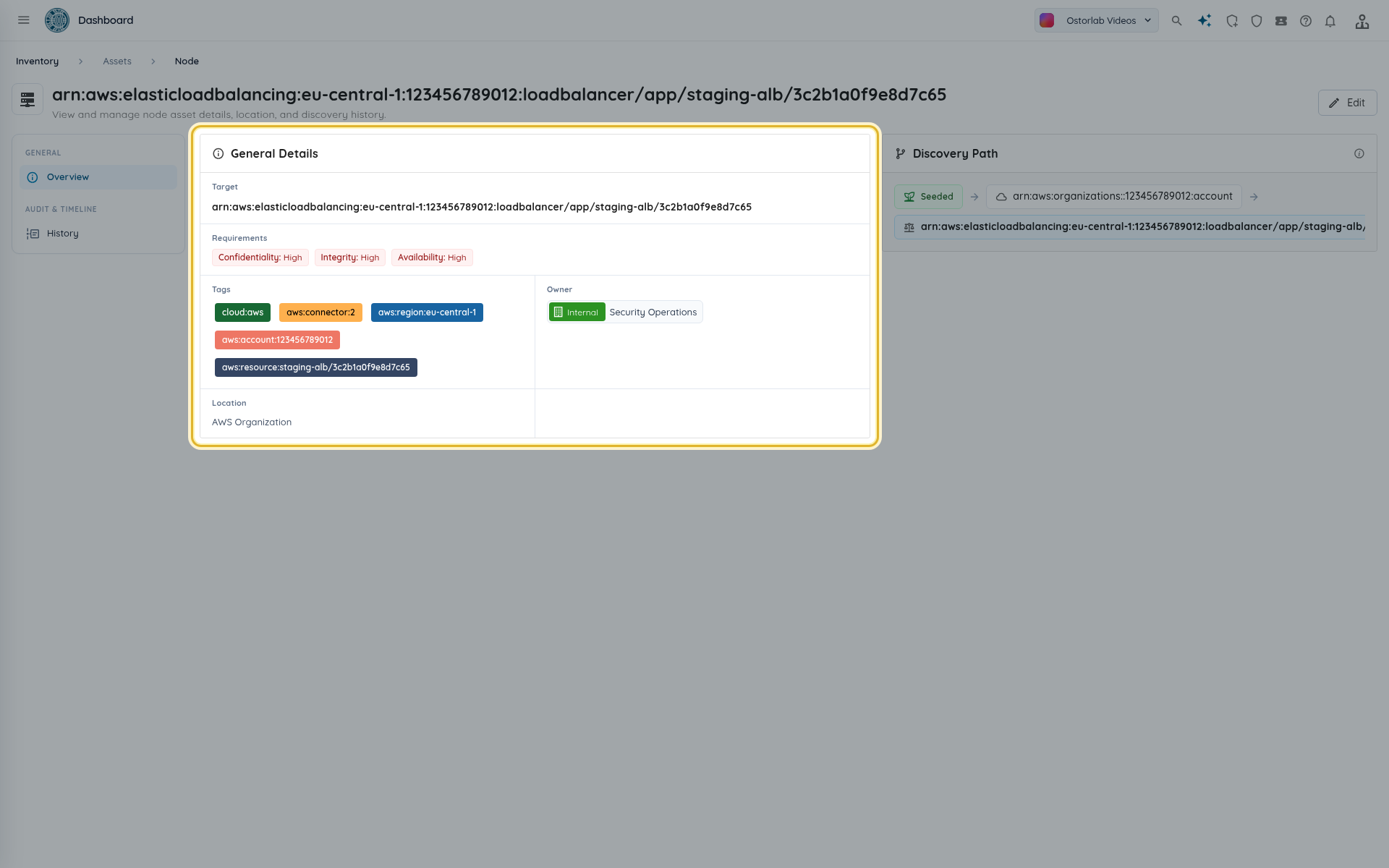
Open a cloud node, such as a load balancer, to see its target, tags, owner and location. The Discovery Path card shows where the node comes from: the AWS account, then its parent resource. The public addresses and hostnames of a node list that node in their own discovery path, so you can always tell which account and resource exposed them.
Edit, pause or remove the connector
-
Edit changes the name, regions, credential, owner, location and Active switch. Leave a stored secret empty to keep it, or type a new one to replace it. To replace the secret access key, enter the new access key ID together with the new secret: the ID and the secret are a pair. Switching the credential clears the fields of the previous one.
-
Switch Active off to pause the scheduled sync while keeping the connector.
- Delete removes the connector: the assets already imported stay in the inventory and future syncs stop.
- To also remove Ostorlab's access from AWS, delete the CloudFormation stack (it removes the
OstorlabReadOnlyrole or user) and, for the access keys method, delete the access key.
Troubleshooting
| Symptom | What to check |
|---|---|
| "AWS connections are not available right now. Try again later." | A problem on Ostorlab's side, not in your account. Try again later and contact support if it persists. |
Permissions check fails with AccessDenied |
The stack was changed or deleted, or the role trust was edited. Keep the default parameters: the role only trusts Ostorlab's principal together with your external ID. |
| "The access keys belong to AWS account ... not to the connector's account" | The keys were created in another account than the AWS account ID of the connector. |
SignatureDoesNotMatch or InvalidClientTokenId |
The access key ID or secret is wrong. Re-enter both. |
| Form error: "The role must belong to the AWS account ID above." | The account ID in the role ARN differs from the connector's AWS account ID. |
Partial sync with AccessDenied on one service |
The role or user lacks one of the read actions above for that service. Redeploy the downloaded template. |
| "The cloud connector is disabled." | Switch Active on in the connector's edit form. |
| "A sync of this cloud connector is already running." | Wait for the running sync to finish. |
| Resources you expect are missing | Check the Regions of the connector, and that the resource is internet-facing (public address, internet-facing load balancer, public hosted zone). |