Scan Active Directory
What does the Active Directory scan do?
The Active Directory scan targets your domain controllers: AI agents test each controller's IP, confirm the exploitable risks they find, and back every finding with evidence.
What does the scan test?
The agents test the domain the way an attacker on your network would:
- Discover: they find the domain controllers and the Active Directory services they expose.
- Map: they list users, shares and misconfigurations over LDAP, SMB and RPC, without credentials where possible.
- Compromise: they run real attacks to obtain and validate credentials, such as Kerberos roasting, password spraying, and abuse of certificate services (ADCS) and permissions (ACLs).
- Escalate: each new credential opens new attack paths. The agents use it to escalate privileges and move to other machines, toward domain admin.
Every finding is tied to the tool call that proved it: click Reasoning on a finding to see each command and its output.
Is it safe to run on a production domain?
The scan runs real attacks against your domain, with these protections:
- Password spraying is limited so that real accounts are not locked out.
- Changes the agents make during testing are recorded and reverted.
Before you start, tell the team that monitors your network: the scan can trigger failed logins and security alerts. Use the Guardrails step to block IPs, limit the scope and approve risky actions, and the Execution window step to choose when it runs.
How do I start an Active Directory scan?
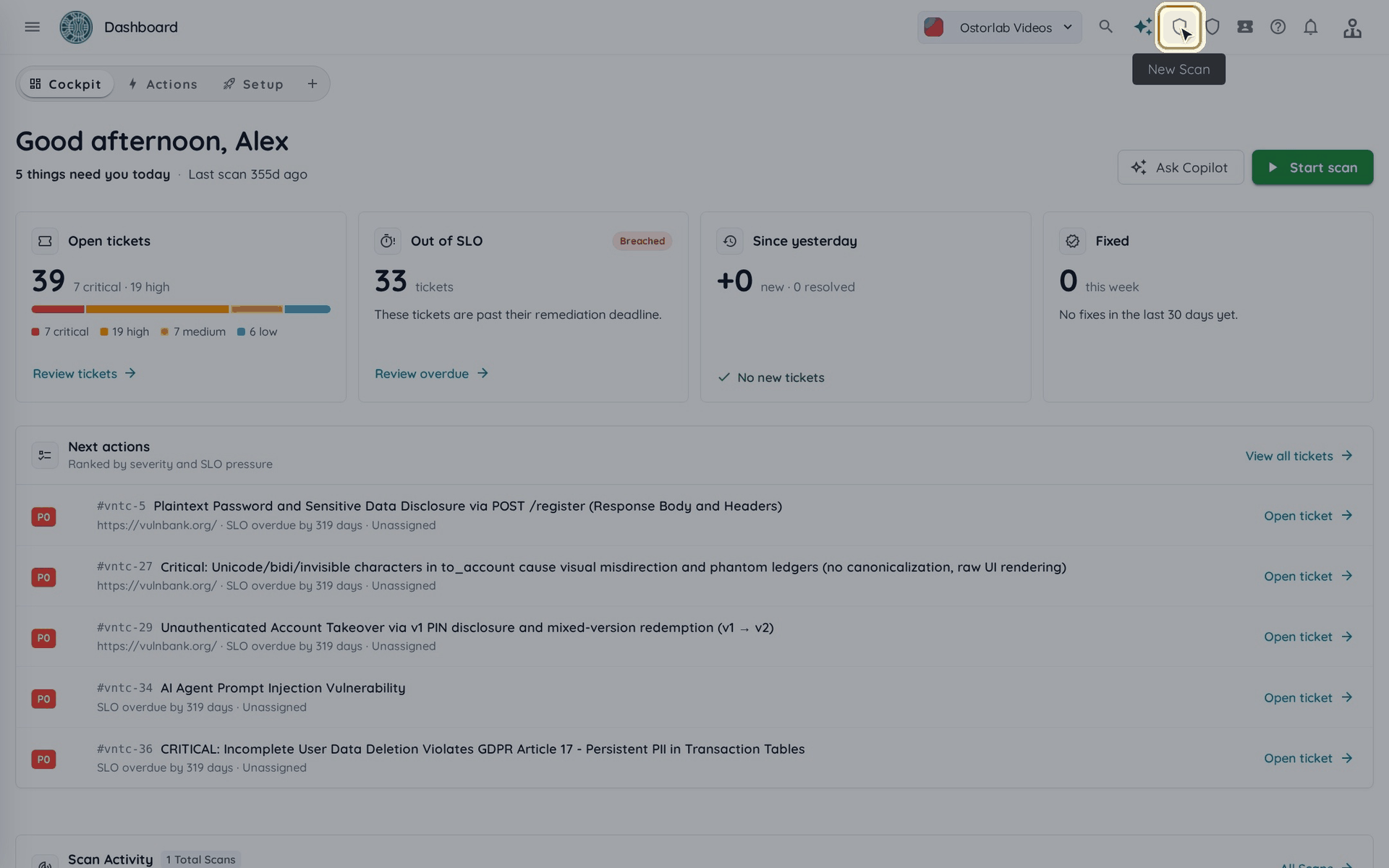
- Click New Scan in the top bar.
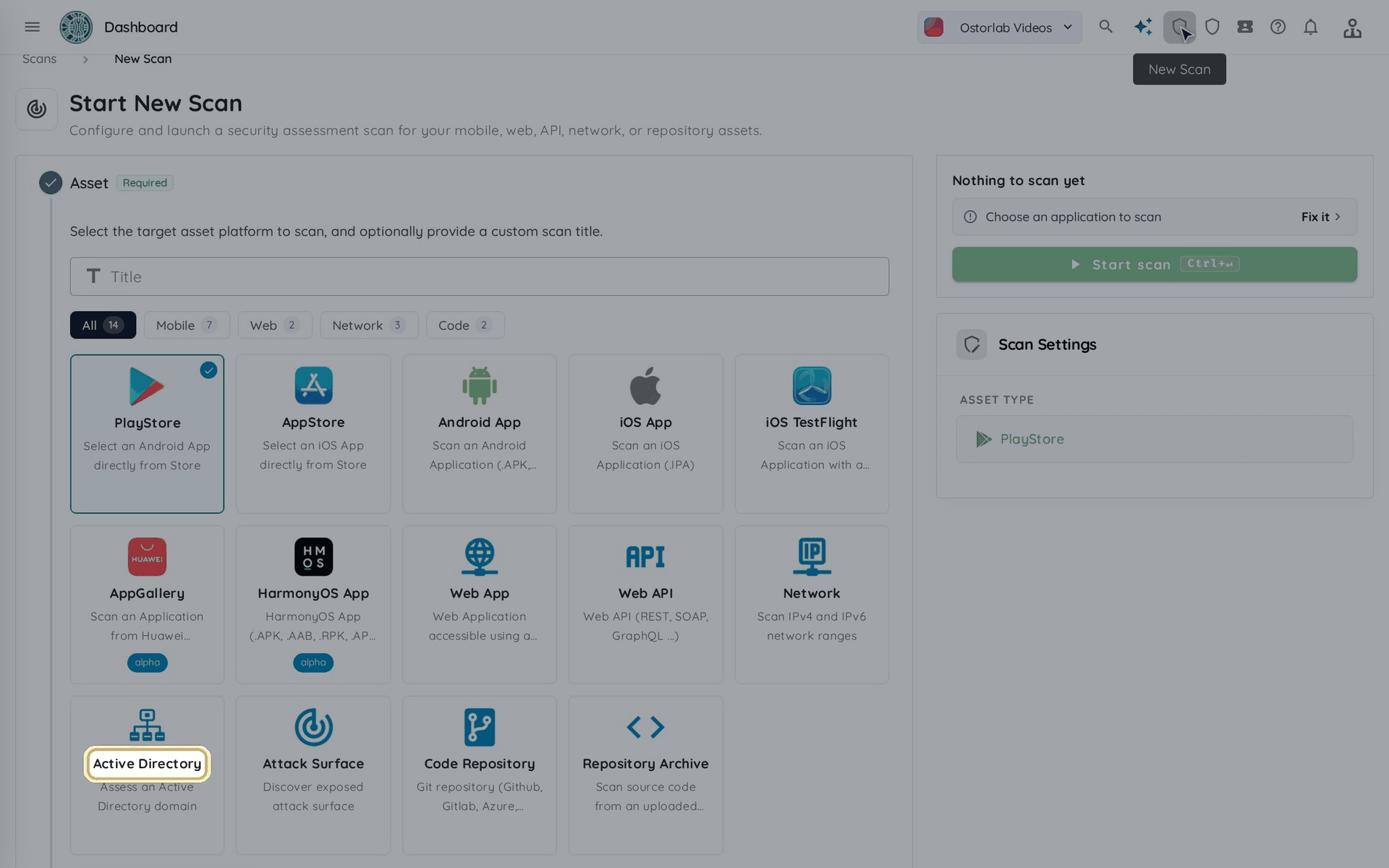
- Choose Active Directory.
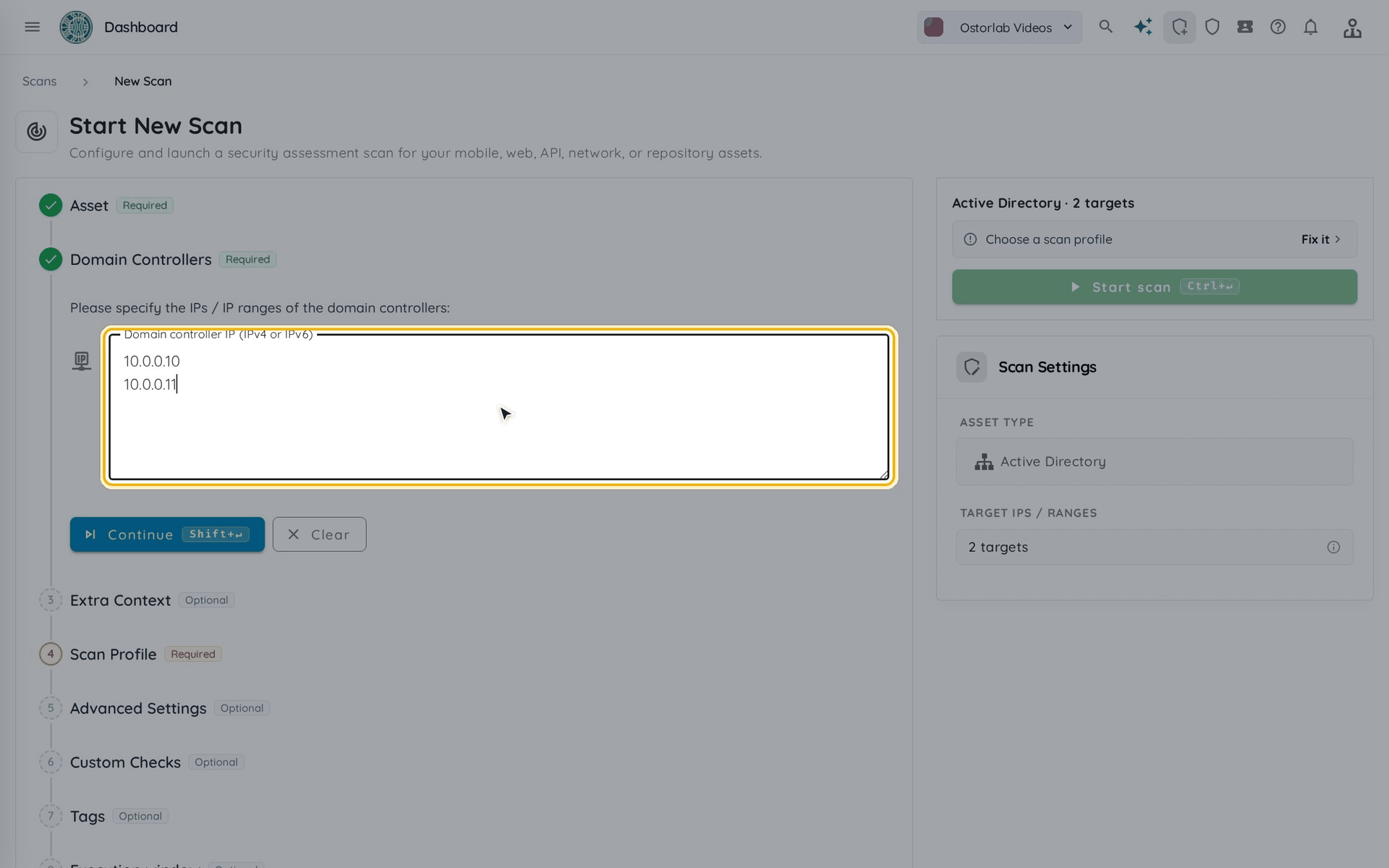
- Under Domain Controllers, enter the IPv4 or IPv6 address or range of each domain controller, one per line, then click Continue.
- The Extra Context step lets you add related assets to scan together with the domain controllers. It is optional: click Continue to skip it.
If your domain controllers are on an internal network, the scan has to reach them from inside it: deploy an on-prem scanner first. When your organization has a scanner, a Scanner step lets you choose it.
Which scan profile should I choose?
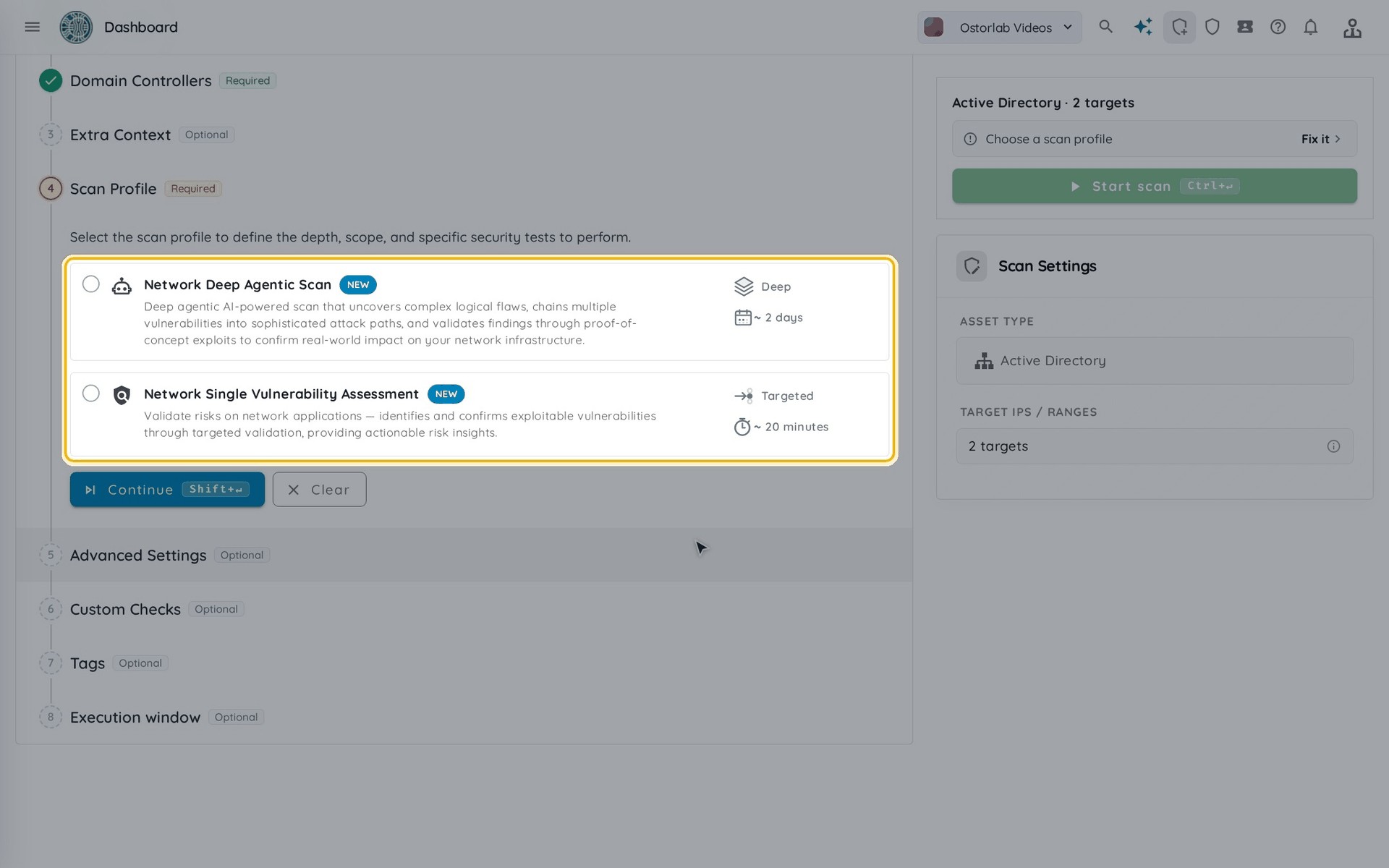
Two profiles are available for Active Directory:
- Network Single Vulnerability Assessment: a targeted scan of about 20 minutes that identifies and confirms exploitable vulnerabilities. Its Prompts step is required: describe what to test.
- Network Deep Agentic Scan: a deep scan of about 2 days. The agents chain vulnerabilities into attack paths and validate them with proof-of-concept exploits.
Select a profile, then click Continue.
How do I configure the AI agents?
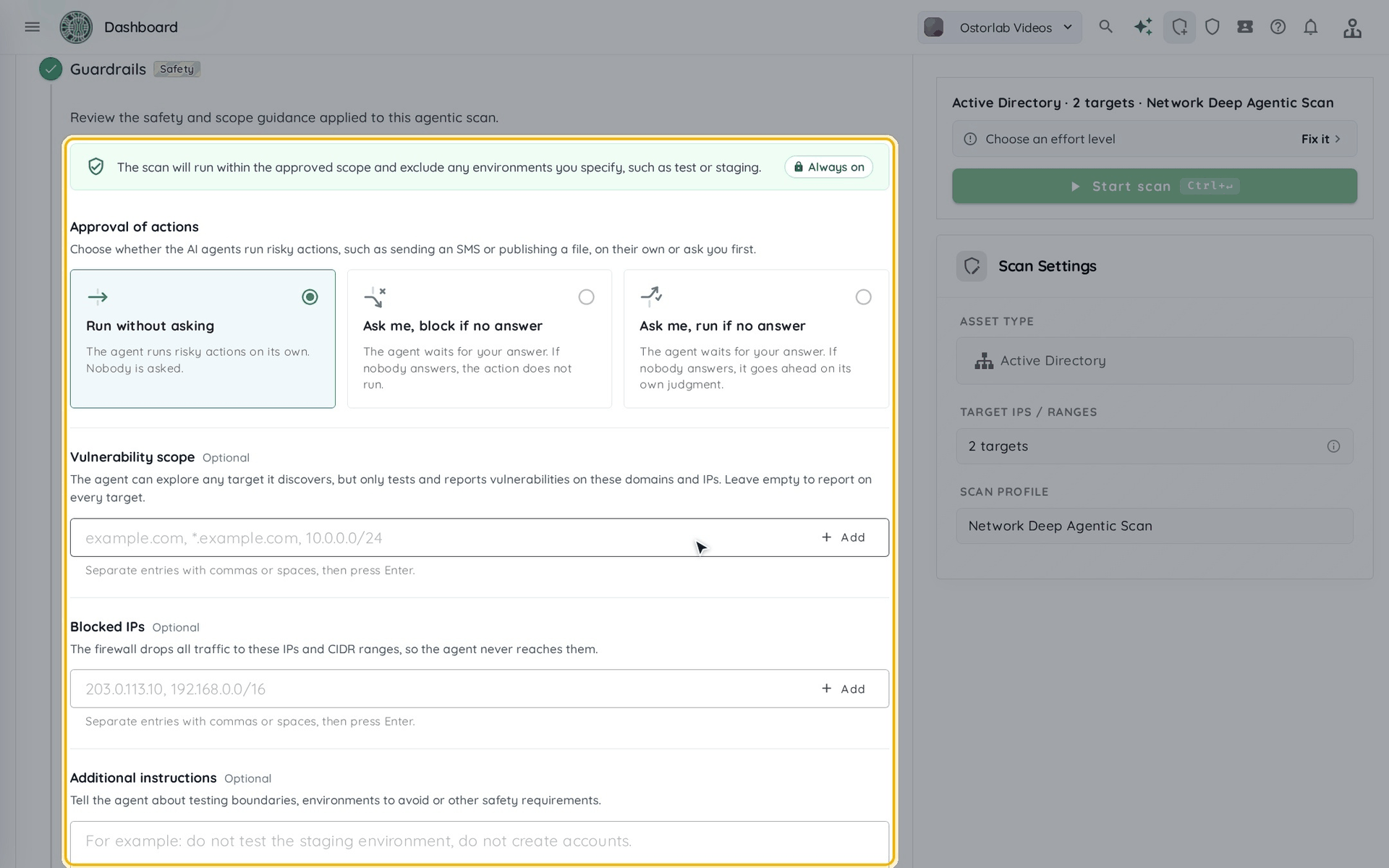
- Guardrails: choose whether the agents run risky actions on their own or ask you first. Optionally, use Vulnerability scope to limit the domains and IPs the agents test and report vulnerabilities on (leave it empty to cover every target), list the IPs they must never reach in Blocked IPs, and add Additional instructions, such as environments to avoid. Click Continue.
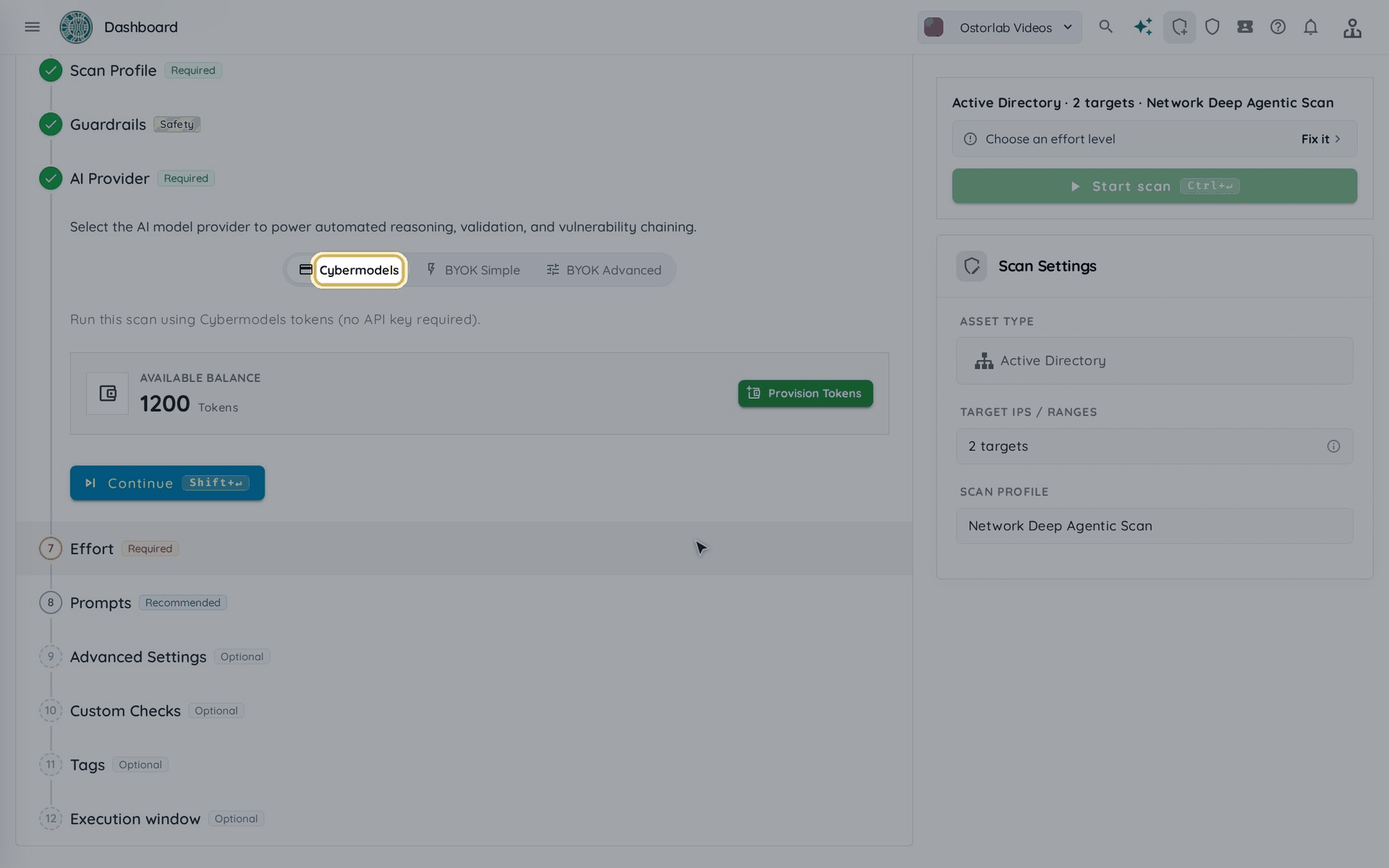
- AI Provider: run the scan with Cybermodels tokens, or with your own key (BYOK Simple or BYOK Advanced). Click Continue.
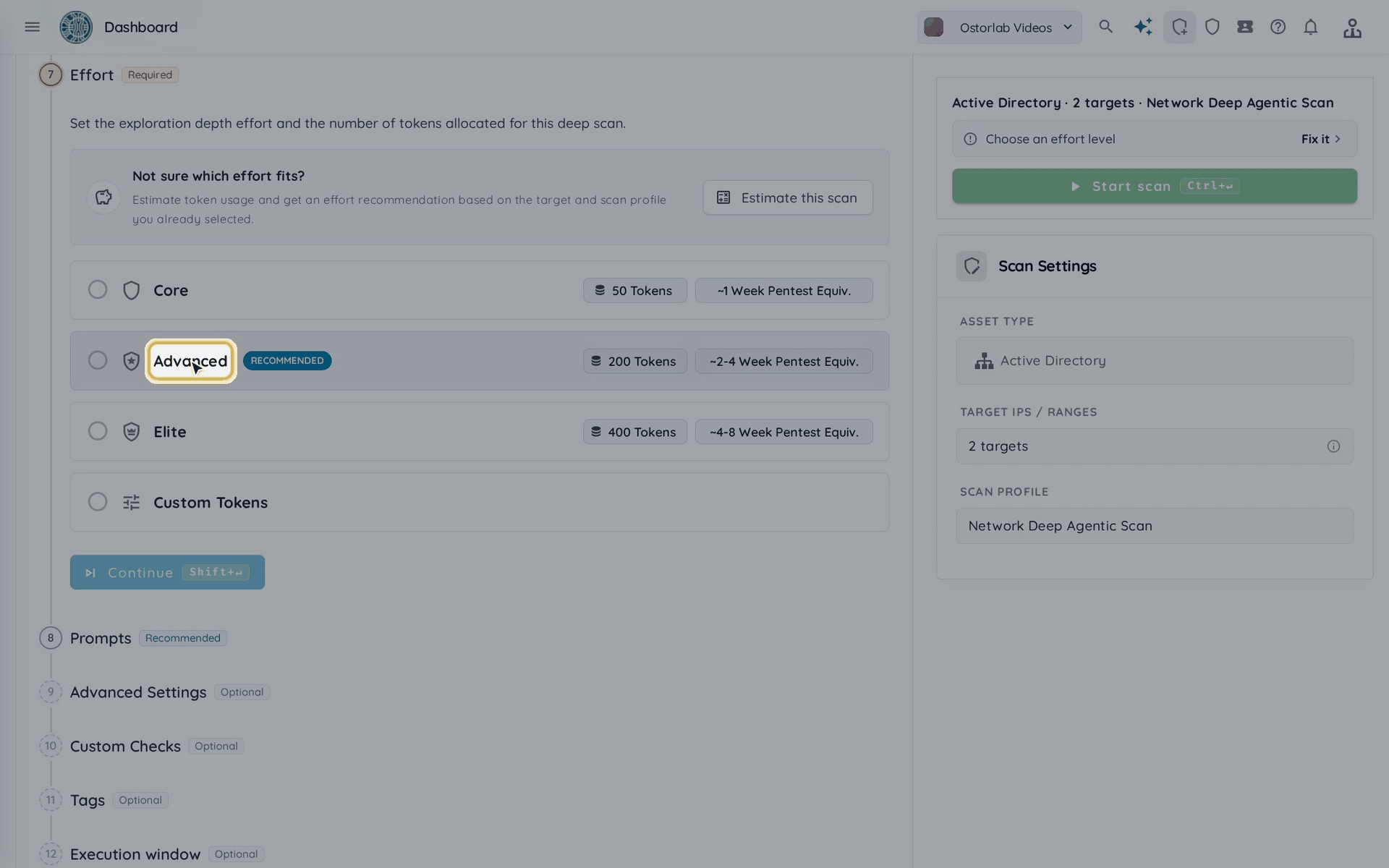
- Effort: choose Core (50 tokens), Advanced (200 tokens), Elite (400 tokens) or Custom Tokens. Higher effort explores more and uses more tokens. Not sure? Click Estimate this scan for a recommendation. Click Continue.
How do I finish and launch the scan?
- Prompts is required only with Network Single Vulnerability Assessment; with Network Deep Agentic Scan it is optional. The next three steps are optional: click Continue to skip any of them.
- Advanced Settings: set the maximum requests per second (QPS) the scan sends.
- Custom Checks: add extra agents to run with this scan.
- Tags: label the scan to filter and organize it in Scans.
- Execution window is optional too: choose when the scan is allowed to run, for example Overnight. Outside that time the scan pauses, then continues in the next window. See Choose when a scan runs.
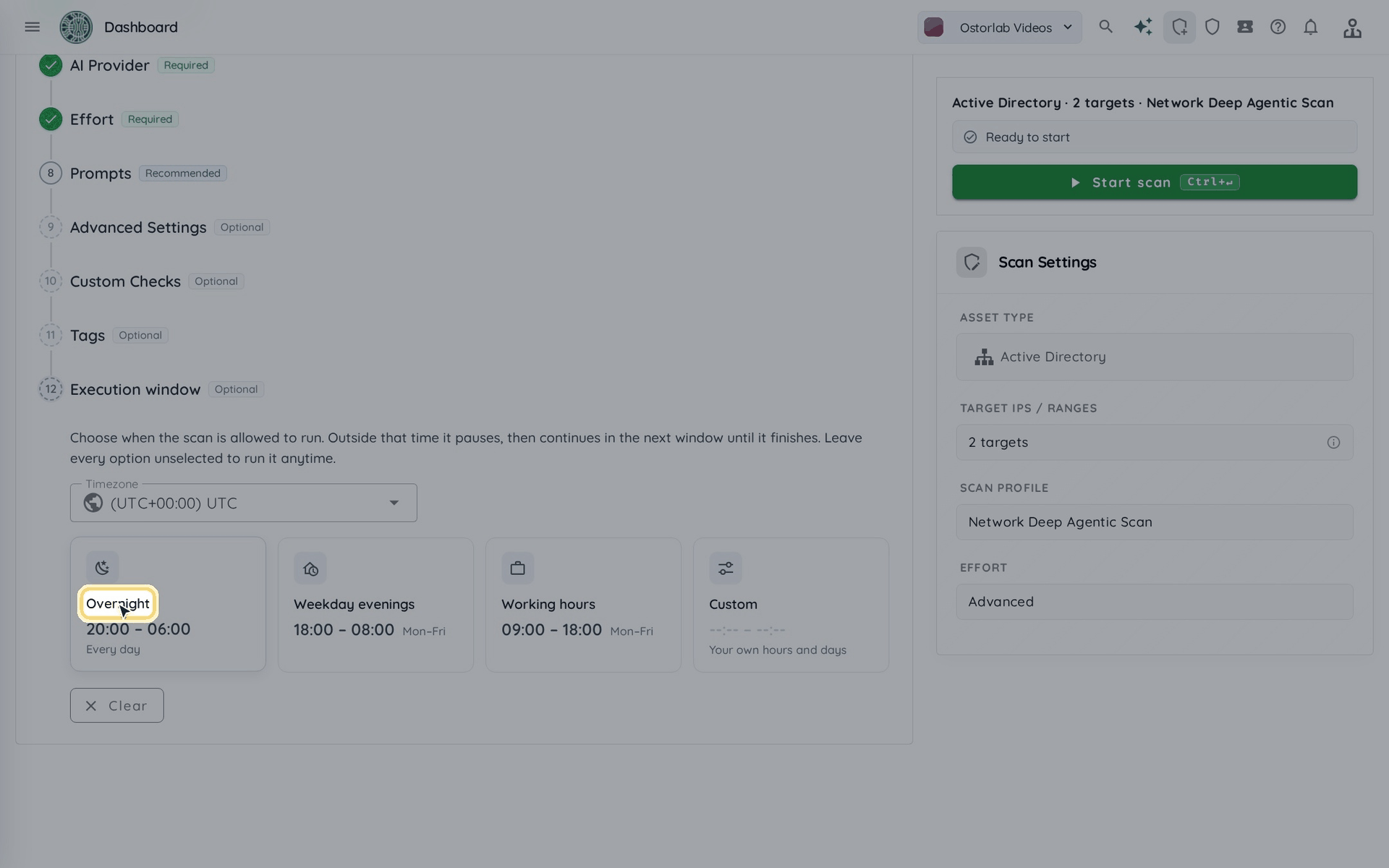
- Check the summary on the right, then click Start scan.
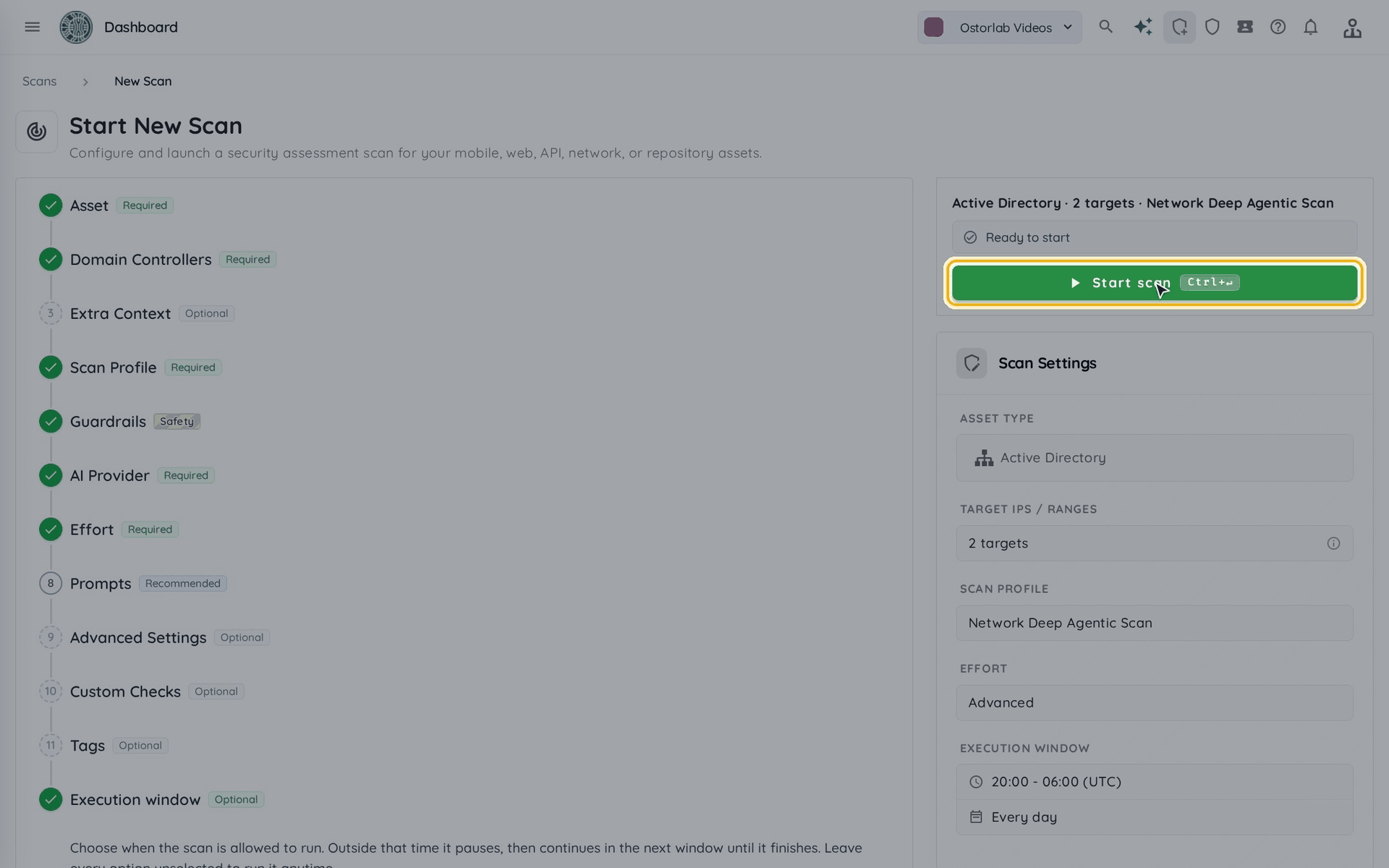
The scan is listed in Scans: it is queued first, then runs. When it finishes, see Understand the scan results.