Applications and builds
Each time you protect an app, you get a build: a protected copy of one version of the app, with the checks you chose. "Mobile ADR" lists your protected apps in the "Applications" tab, and every build in the "Builds" tab.
Your protected apps
The "Applications" tab lists each app you protected, with its platform and when it was first protected. An app shows once, whatever the number of its versions and builds.
-
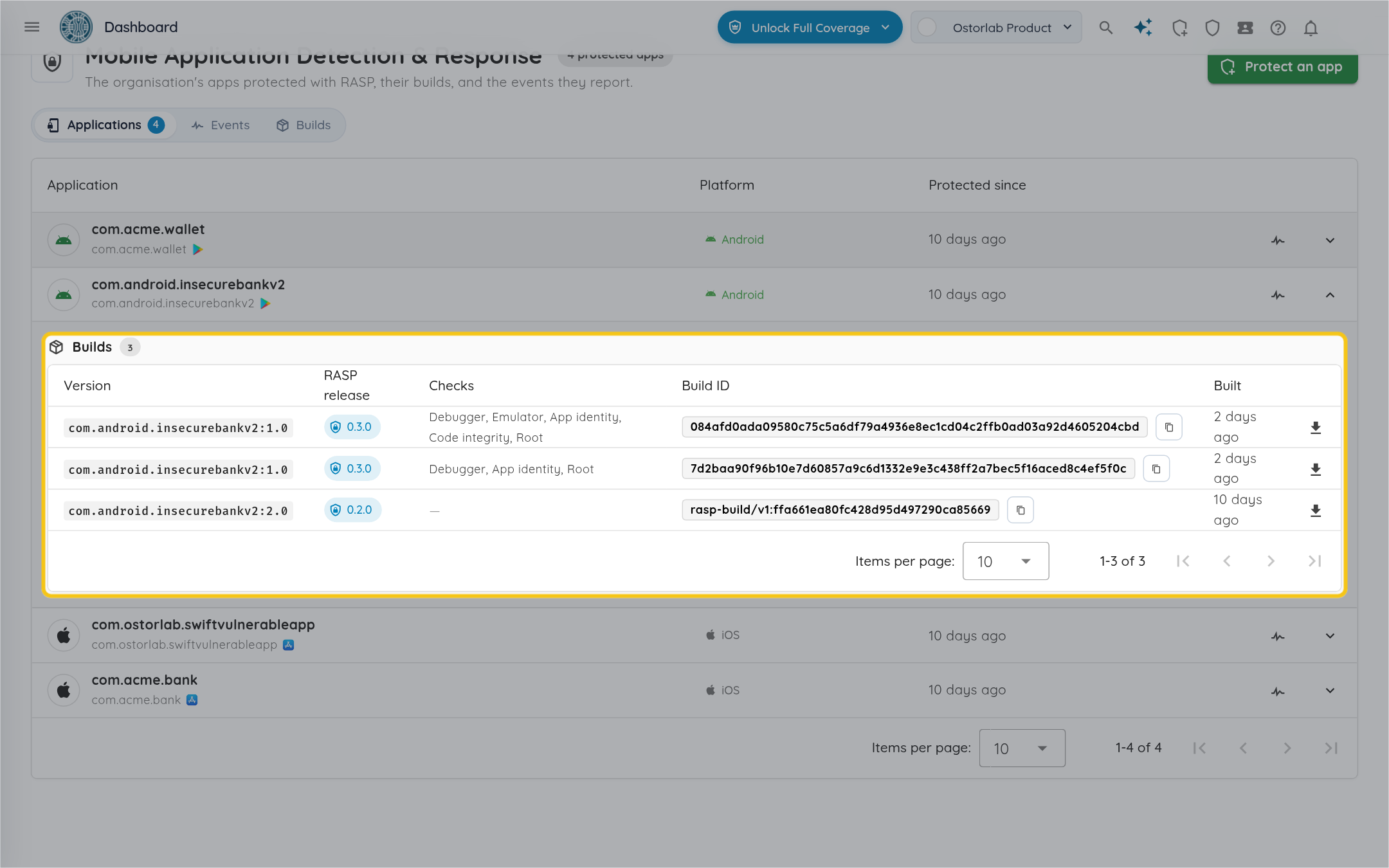
Click the arrow at the end of an app's row to see its builds:
- "Version": the package name or bundle ID, and the version of the app.
- "RASP release": the version of the protection added to the app.
- "Checks": the checks the build runs.
- "Build ID": the ID the protected app reports in its events. Click the copy icon next to it to copy it.
- "Built": when the build was made.
- The download icon downloads the protected app.
-
Click the "View events" icon on the row to see the app's events.
All builds
-
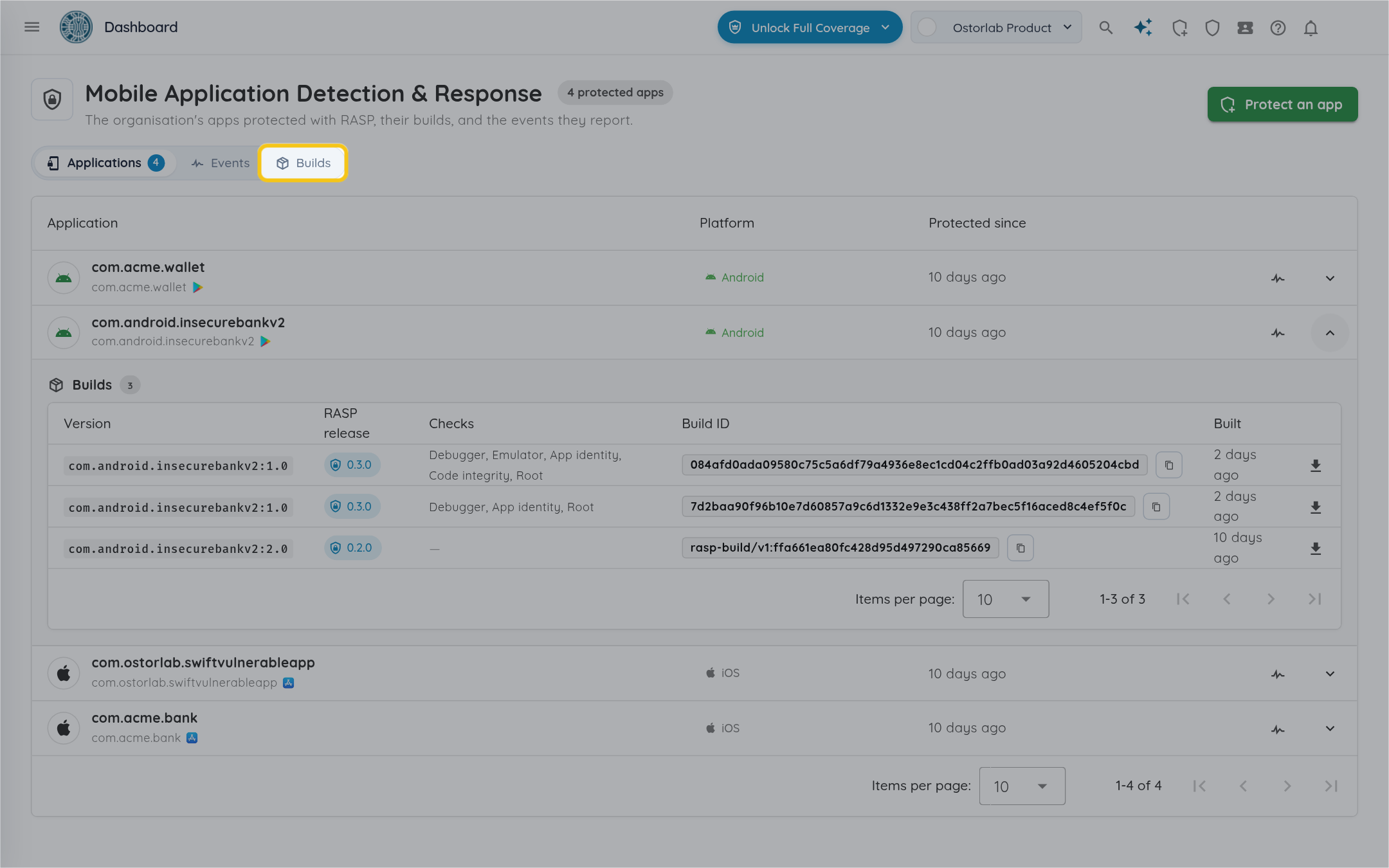
Click "Builds" to see every build of your apps, newest first, including the ones in progress and the ones that failed.
-
Each row shows the file you uploaded, the build's status, the protected build (package name and version), the checks it runs, when it was requested, and the download icon once the app is protected.
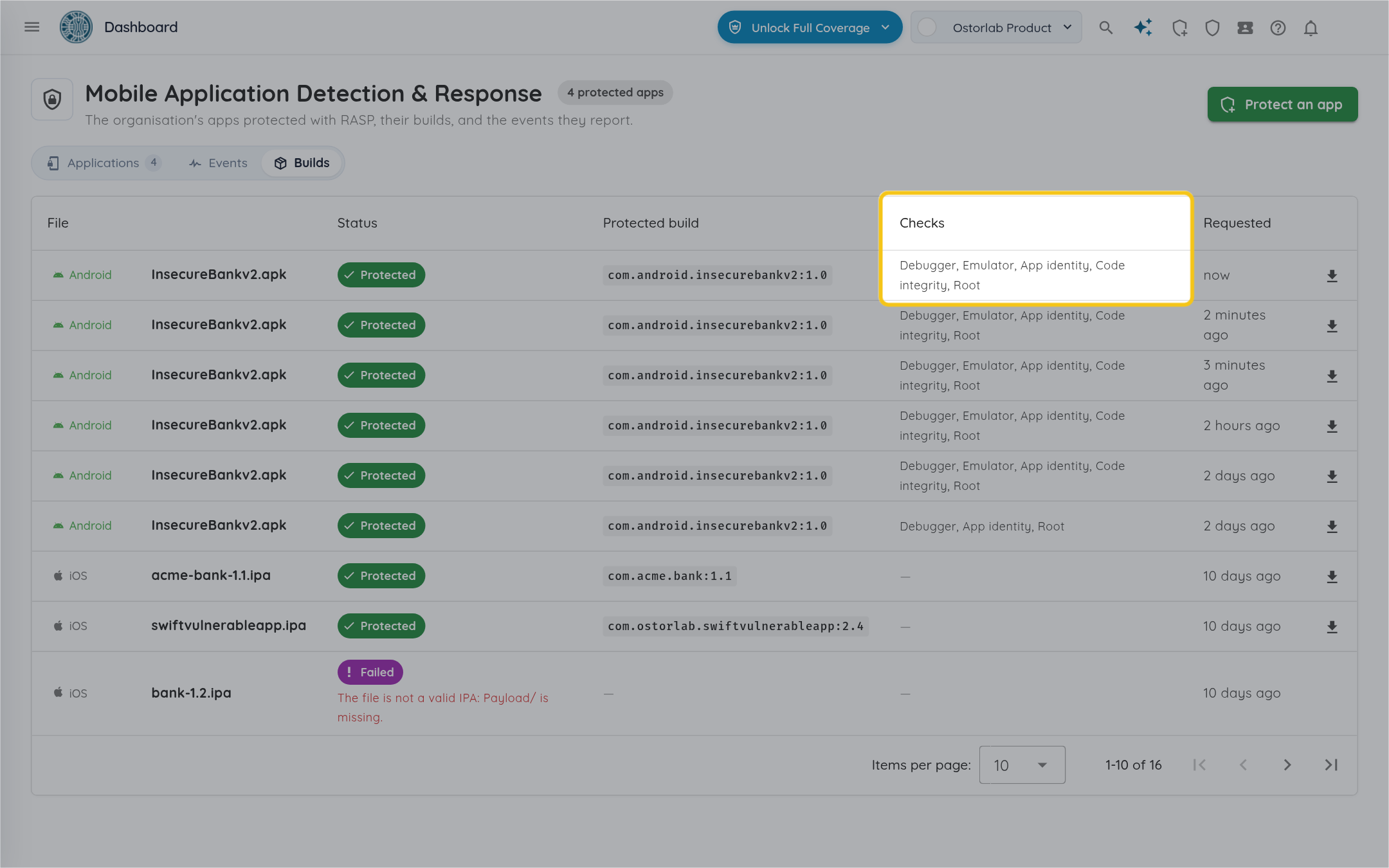
The status of a build:
| Status | Meaning |
|---|---|
| Queued | The app is uploaded and waits to be protected. |
| In progress | The app is being protected. This takes about a minute. |
| Protected | The protected app is ready to download. |
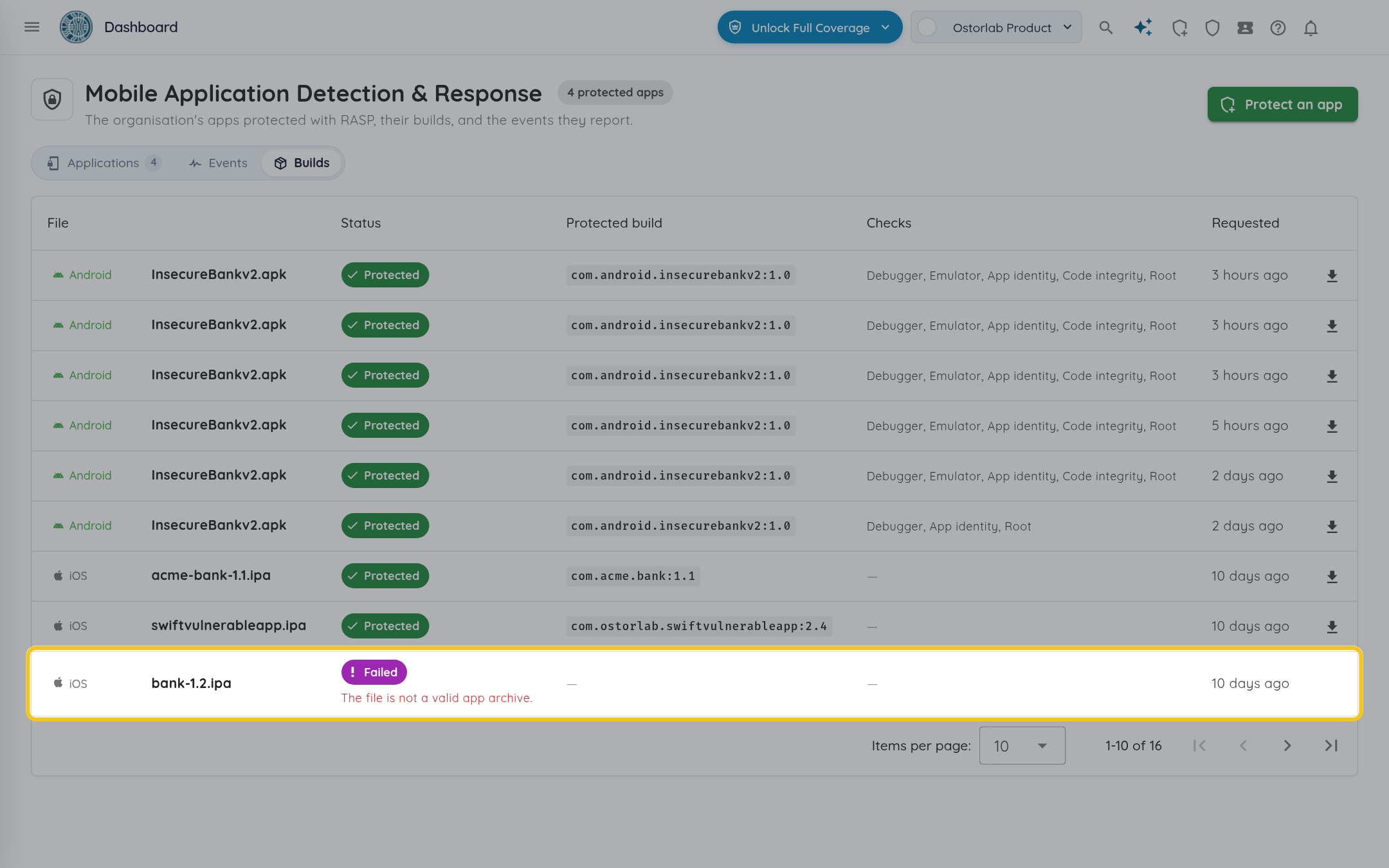
| Failed | The app could not be protected. The reason shows under the status. |
-
A failed build shows its reason under the status. See If the app can't be protected for what to do.
Change the checks of an app
The checks are chosen for each build. To change them, protect the app again with other checks: you get a new build, and the previous one stays in the list. Protecting the same file again with the same checks gives the same build.