Protect an app
Protect an Android APK or an iOS IPA in a few steps: upload it, choose the checks it runs, protect it, then download the protected copy.
Mobile ADR (Mobile Application Detection & Response) adds RASP, runtime application self-protection, to a copy of your Android or iOS app. The protected app runs security checks on the device, such as root or jailbreak, a debugger, or hooking with Frida, and reports what it sees as events. You choose which checks it runs.
Before you start
- The app: an Android APK or an iOS IPA, built as you would publish it, of at most 2 GB.
- iOS: upload the IPA you export from Xcode or your build pipeline. An IPA downloaded from the App Store is encrypted and can't be protected. The app's executable must be built for arm64. The protected app supports iOS 12 and later.
- Android: the protected app needs Android 12 (API 31) or later. Its minimum version is raised to 31 when it is lower, so it no longer installs on older devices.
- One file per version: each version of an app, its
android:versionNameorCFBundleShortVersionString, can be protected from one file only. When you change the app, give the new build a new version. - The original app: upload the app as you built it, not a copy that is already protected.
Open Mobile ADR
Go to report.ostorlab.co, then:
-
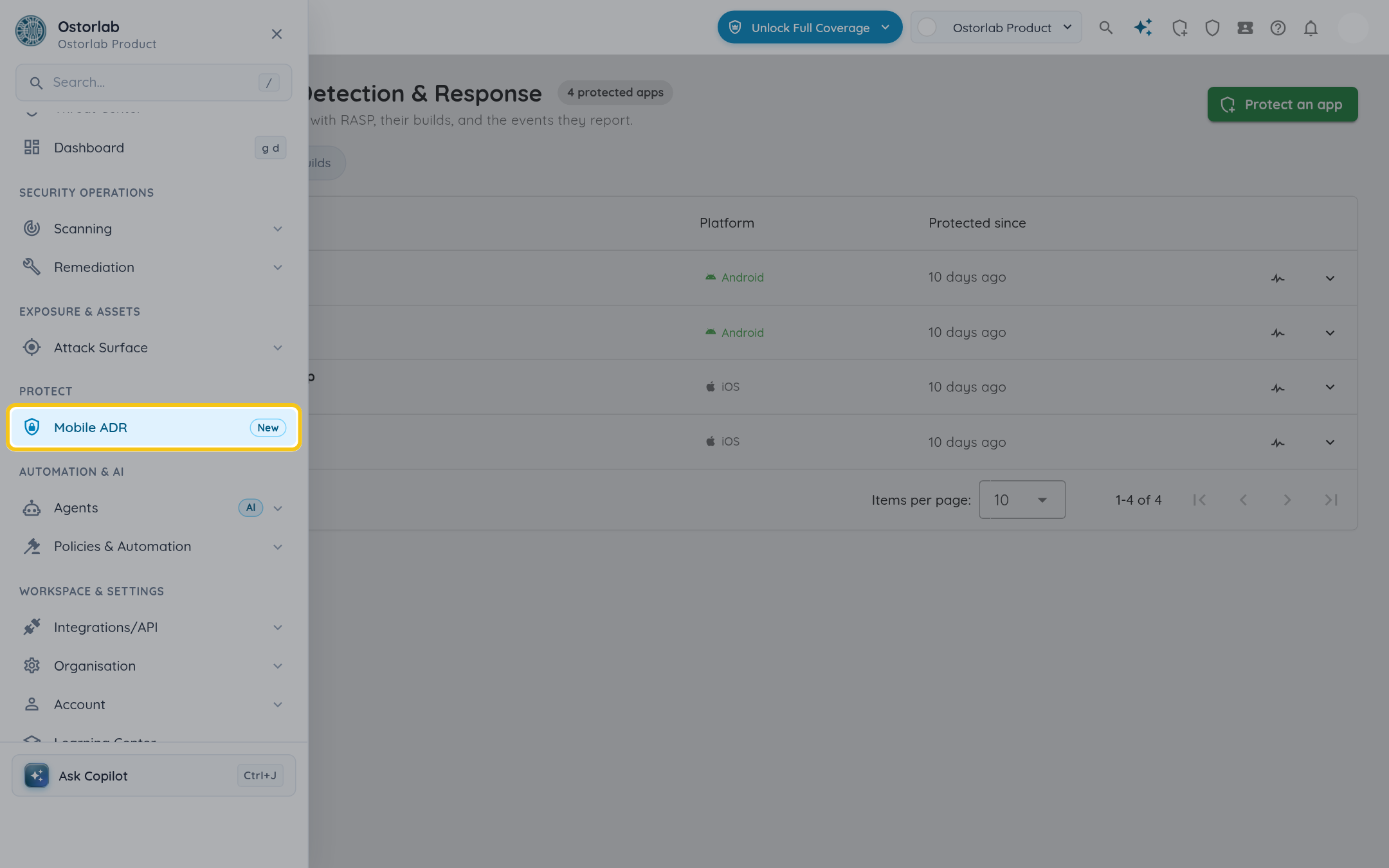
Open the menu and click "Mobile ADR", under "Protect".
-
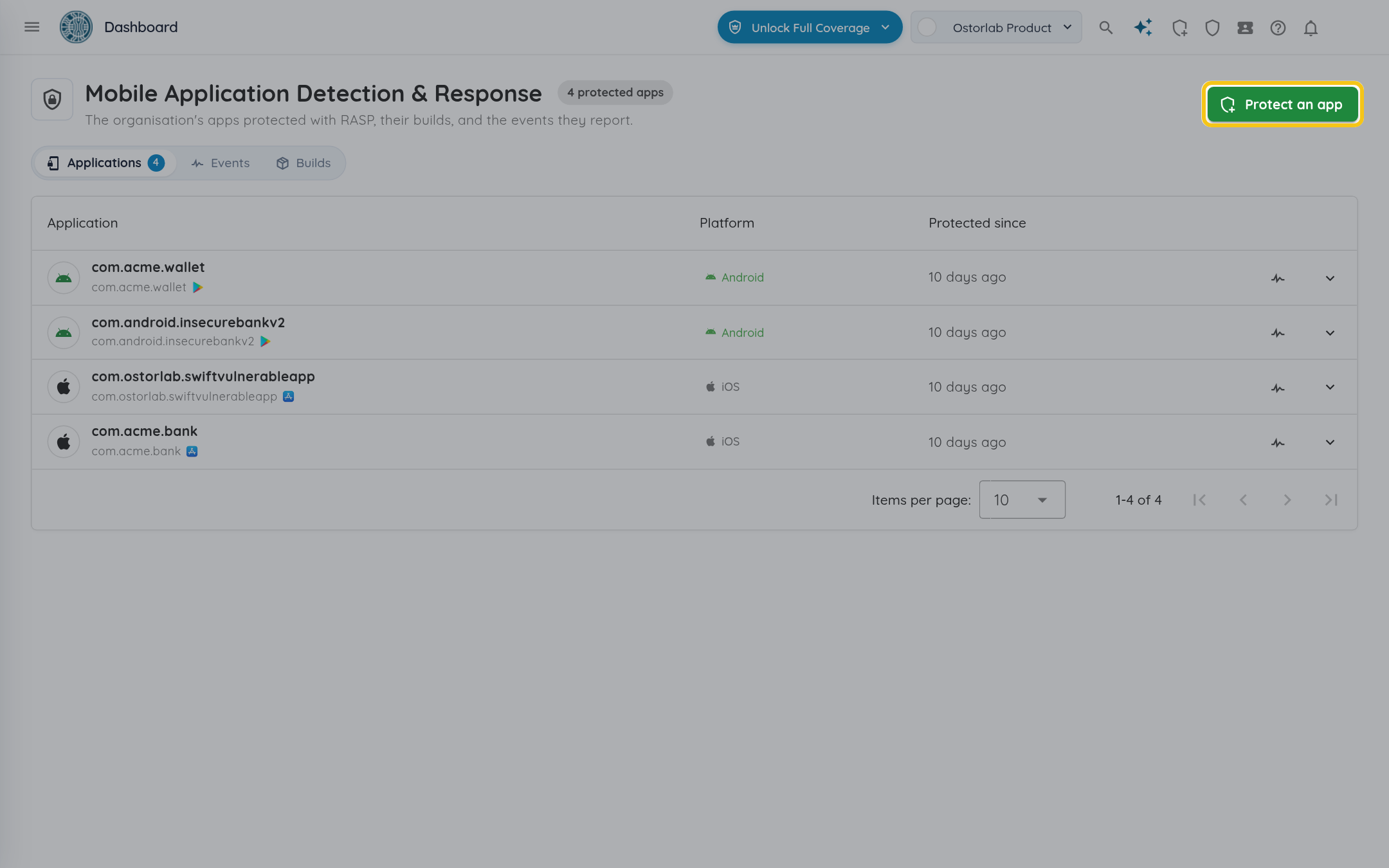
Click "Protect an app".
Choose the app
-
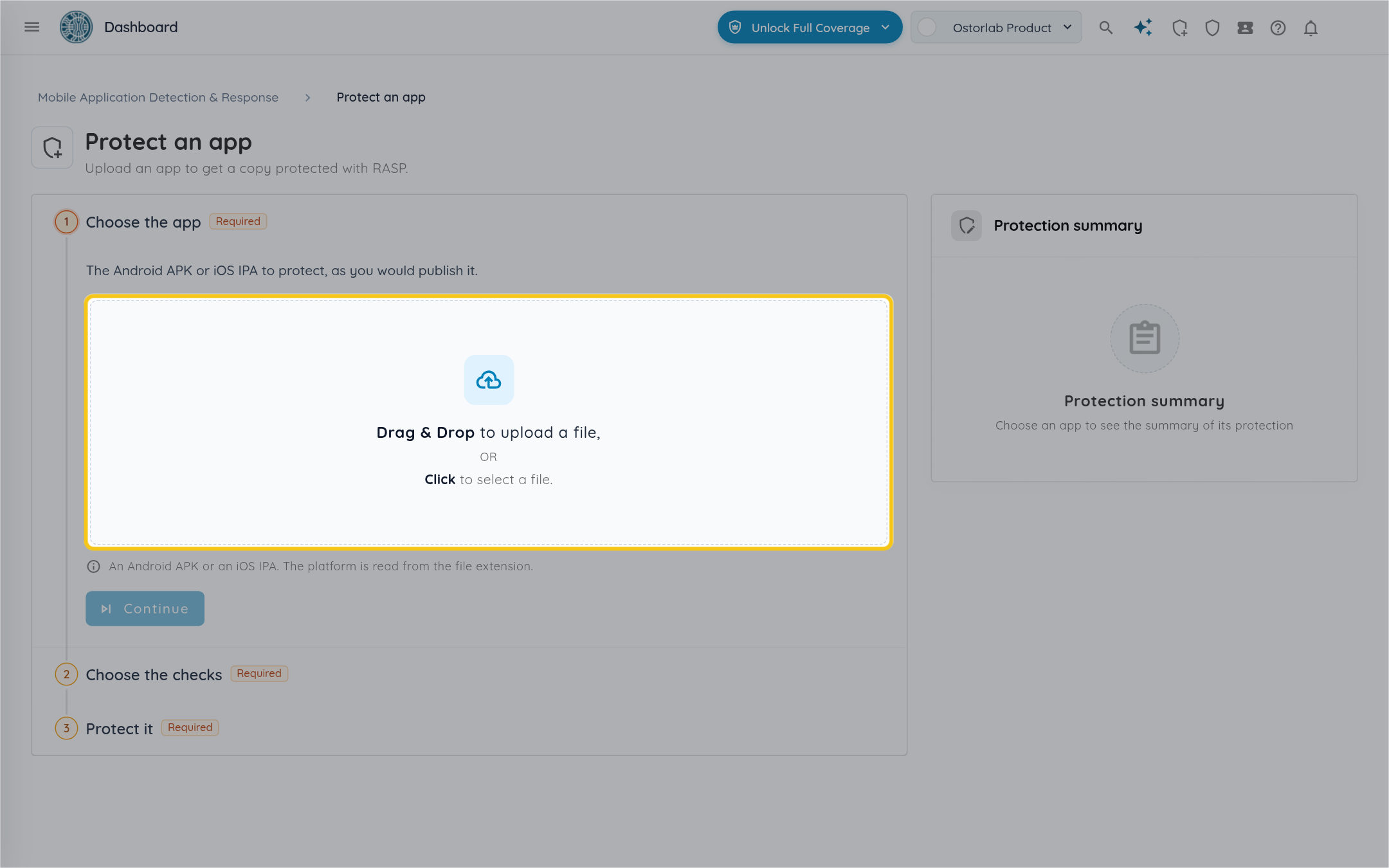
Drop the APK or IPA on the upload area, or click it to select the file. The platform is read from the file extension.
-
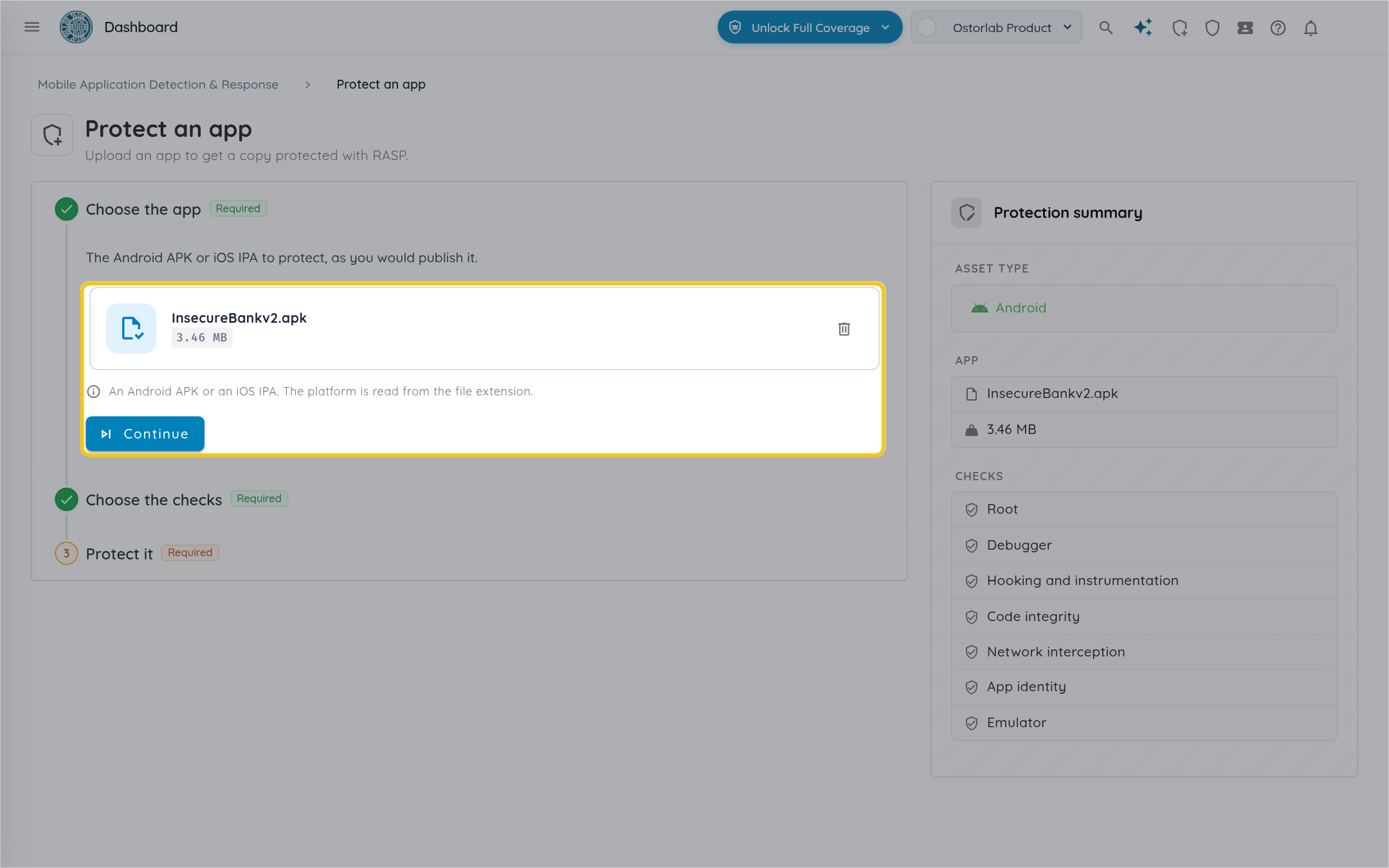
Check the file, then click "Continue". The "Protection summary" on the right shows the platform, the app and the checks it will run.
Choose the checks
-
The step lists the checks of the app's platform. They are all on by default.
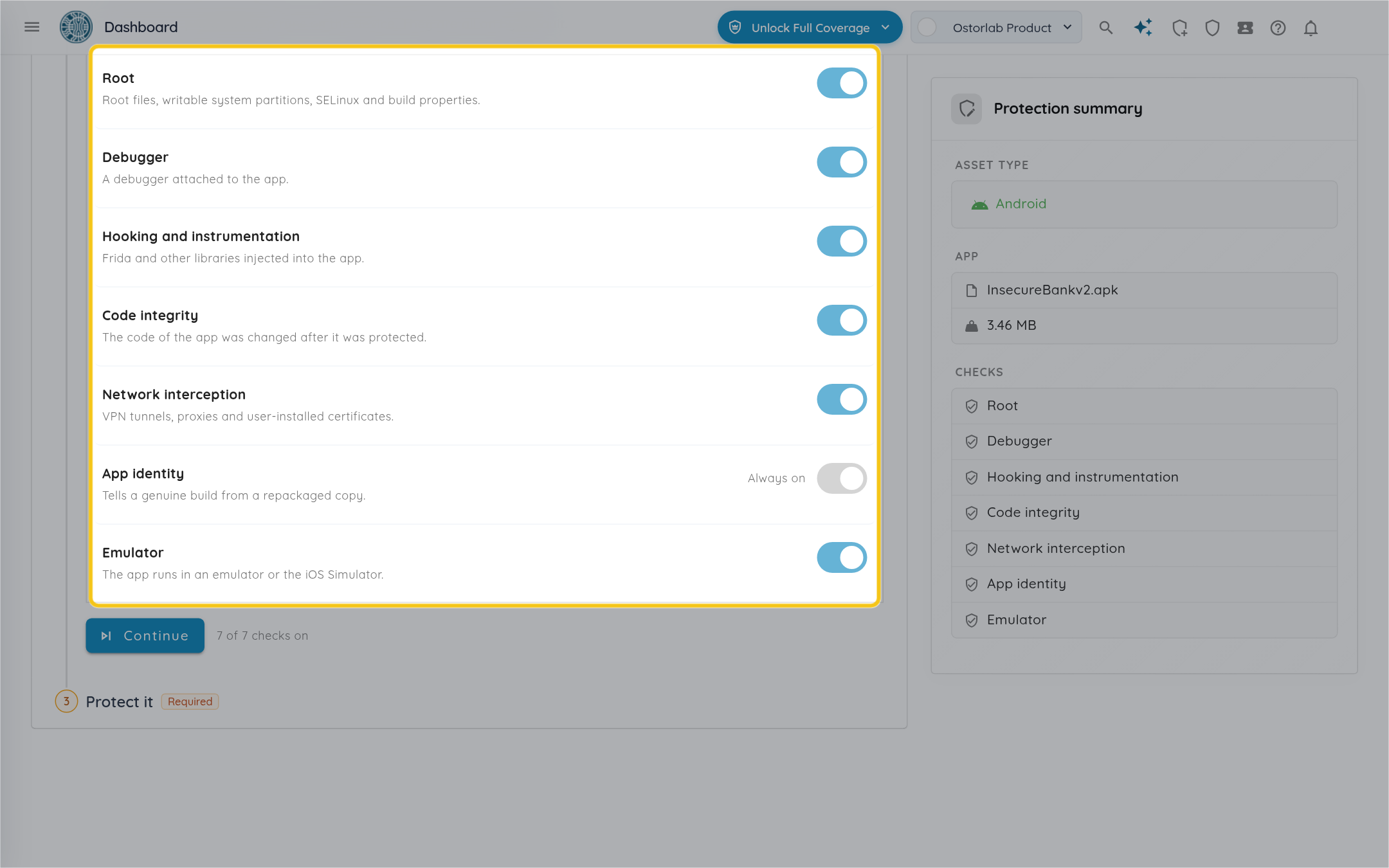
-
"App identity" is always on: it tells a genuine build from a repackaged copy, so its switch can't be turned off.
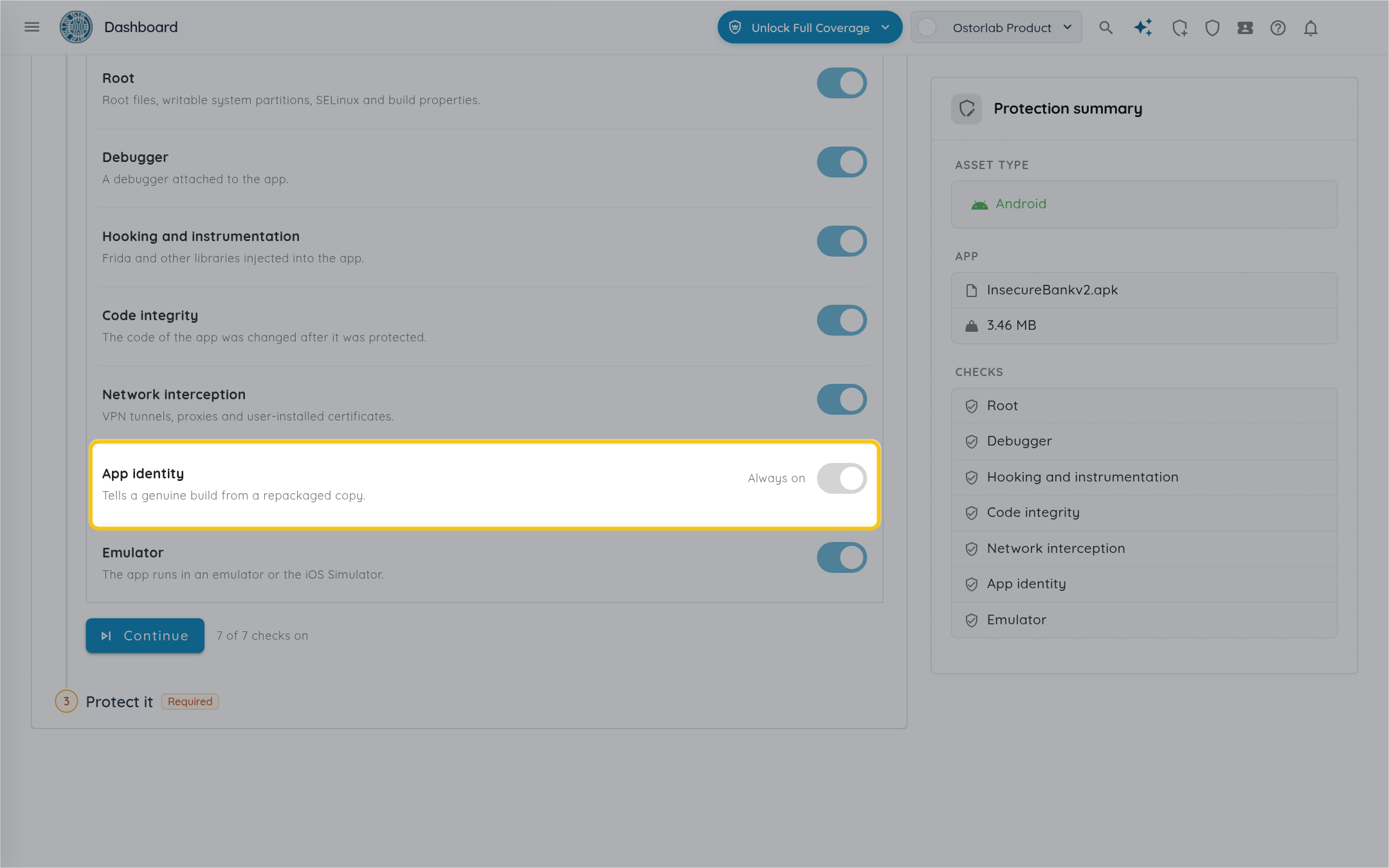
-
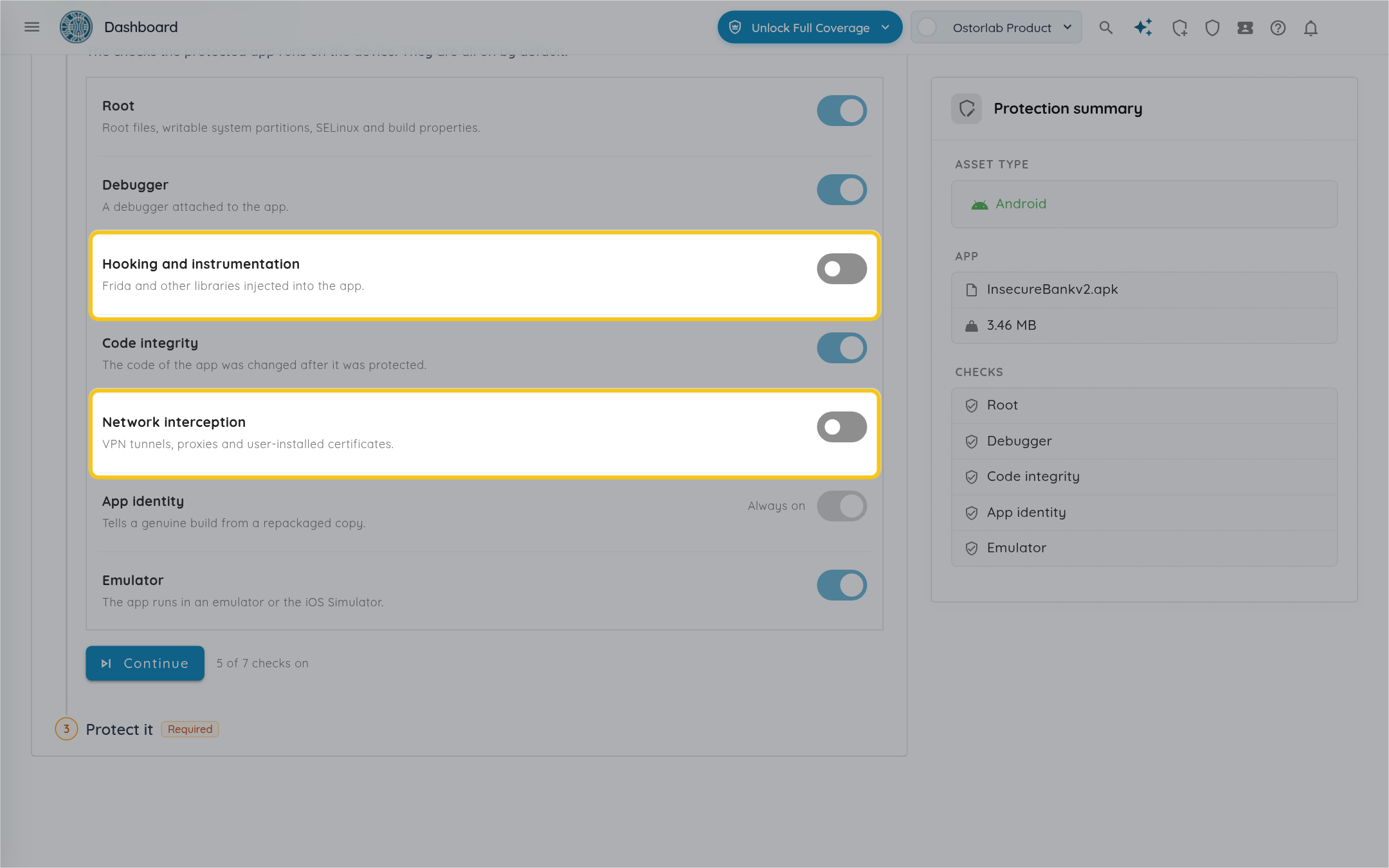
Turn off the checks that don't fit your users. Here "Hooking and instrumentation" and "Network interception" are turned off, and the "Protection summary" drops them. For example:
- A company VPN trips "Network interception", and so does a proxy on iOS: turn it off if your users work behind one.
- Your QA team tests on emulators: protect a separate build for them with "Emulator" off.
-
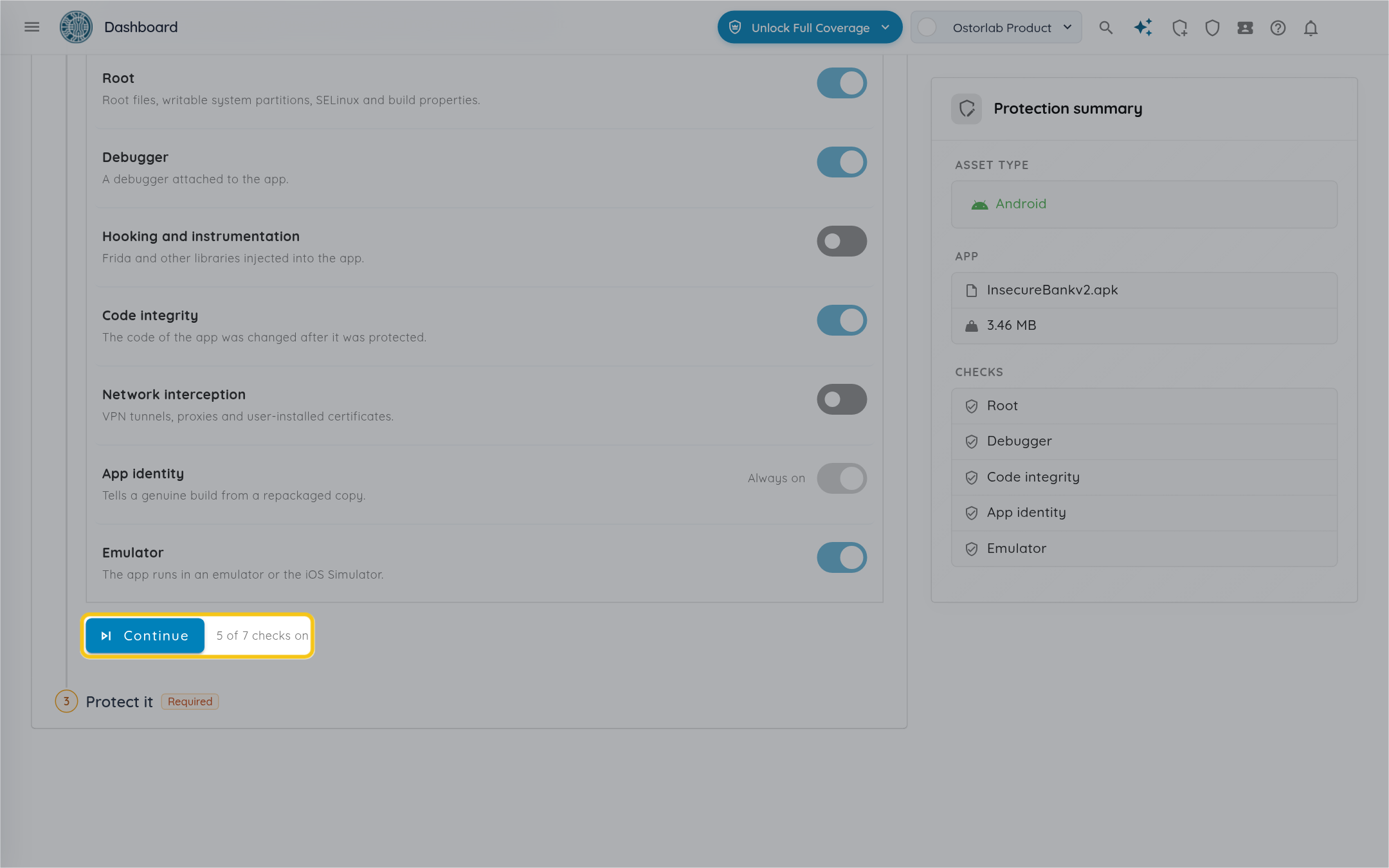
The count next to "Continue" shows how many checks are on. Click "Continue".
Mobile ADR has nine checks, and an app gets the ones of its platform:
| Check | Android | iOS | What it detects |
|---|---|---|---|
| Root | ✓ | Root files, writable system partitions, SELinux and build properties. | |
| Jailbreak | ✓ | Jailbreak files, sandbox escape and process spawning. | |
| Debugger | ✓ | ✓ | A debugger attached to the app. |
| Hooking and instrumentation | ✓ | ✓ | Frida and other libraries injected into the app. |
| Code integrity | ✓ | The code of the app was changed after it was protected. | |
| Network interception | ✓ | ✓ | VPN tunnels, and on iOS proxies. |
| App identity | ✓ | ✓ | Tells a genuine build from a repackaged copy. |
| Emulator | ✓ | ✓ | The app runs in an emulator or the iOS Simulator. |
| Virtualization and app cloning | ✓ | The app runs inside another app's container. |
The protected app runs the checks that are on when it starts, then every minute while it is open. The events page lists what each check reports.
Protect it
-
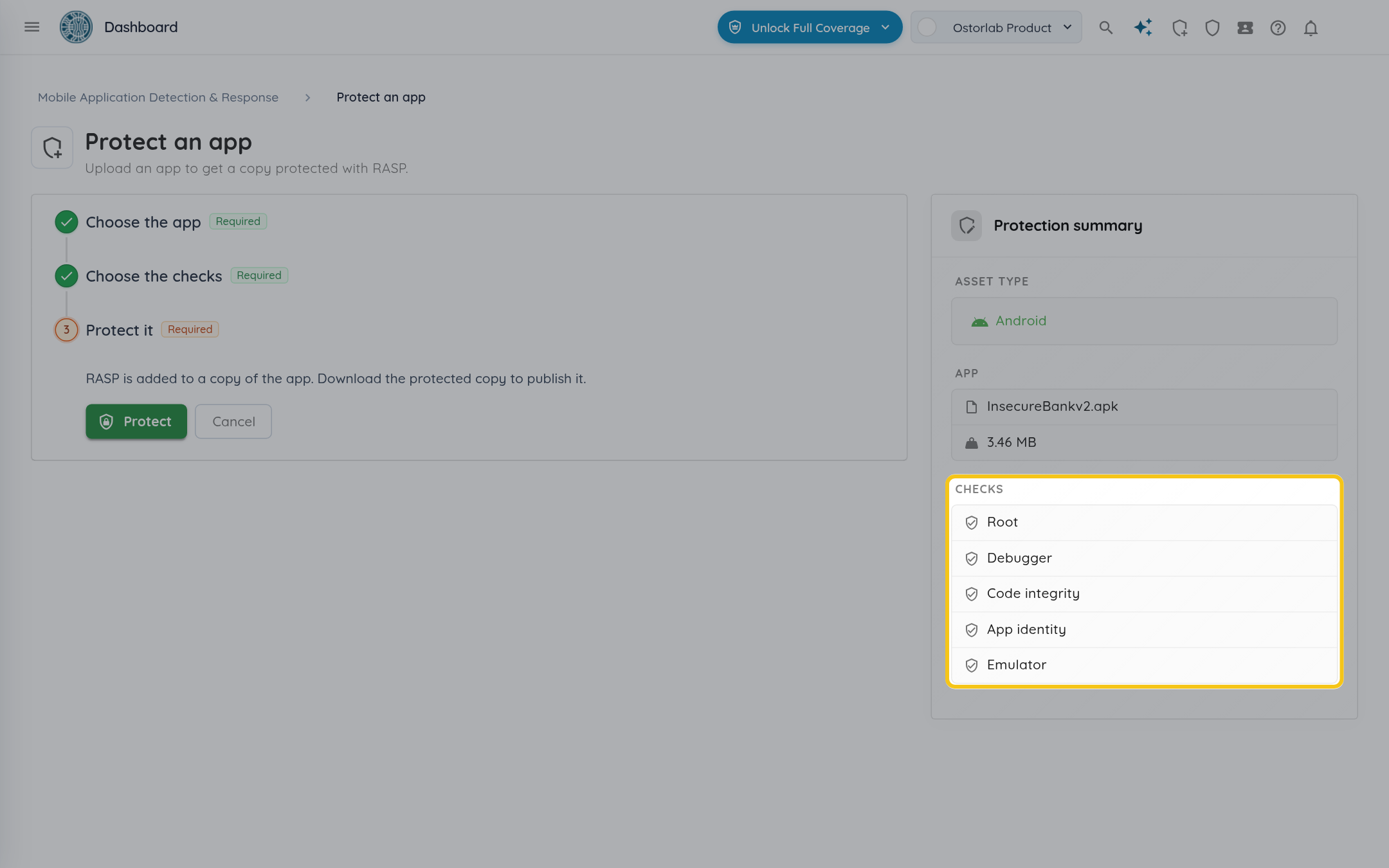
Check the "Checks" in the "Protection summary": only the checks that are on are listed.
-
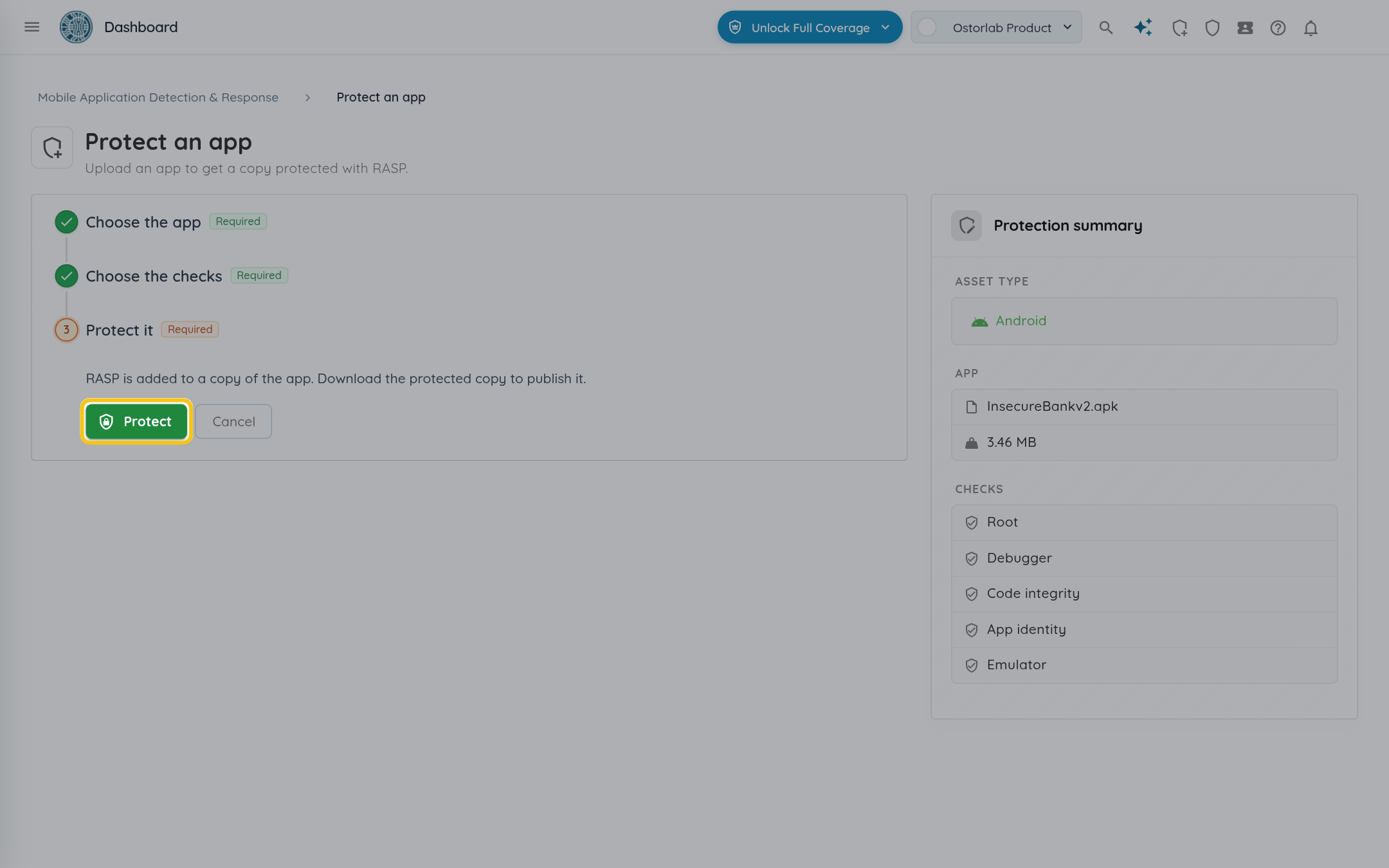
Click "Protect". The app is uploaded first: stay on the page until the upload ends, or click "Cancel upload" to stop it. Then the app is protected. This takes about a minute, and you can leave the page: the build goes on and stays in the "Builds" tab.
-
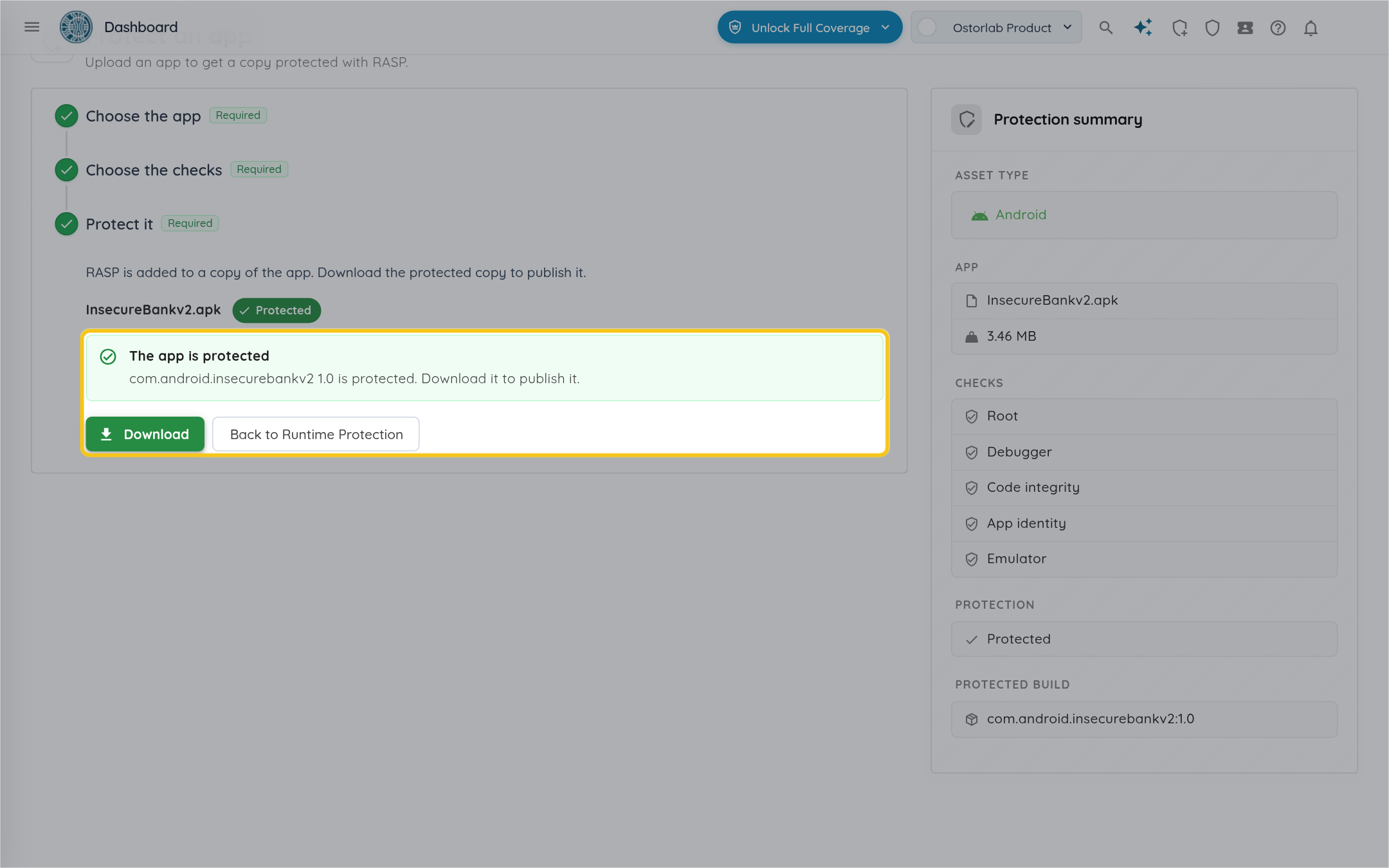
When "The app is protected" shows, click "Download" to get the protected copy.
Once the protected app runs on devices, its events show in the "Events" tab. Every build of the app stays in "Applications" and "Builds", where you can download it again.
If the app can't be protected
The reason shows on the page and under the build's status in the "Builds" tab. Click "Protect another app" to start again.
| Message | What to do |
|---|---|
| Choose an APK or an IPA file. | Upload a file whose name ends in .apk or .ipa. |
| The file is too large: the limit is 2 GB. | Upload a smaller build of the app. |
| The file is not a valid APK. / The file is not a valid app archive. | Upload the APK or IPA as your build produced it, not renamed or repacked. |
| The app's AndroidManifest.xml cannot be read. | Build the APK again and upload it. |
| The app's executable cannot be protected: it must be an unencrypted arm64 binary. | Upload the IPA exported from Xcode or your build pipeline, built for arm64, not one downloaded from the App Store. |
| The app's executable has no room for the runtime. | Build the app again with the linker flag -headerpad_max_install_names, then upload it. |
| The app is already protected. | Upload the original app, not a protected copy. |
| Version … of … is already protected from another file. | Give the new build a new version, then upload it. |
| The build could not be asked for. | The app is uploaded: click "Ask again". |
| The app could not be protected. Try again, or contact support if it fails again. | Protect the app again. If it fails again, contact support. |