Validate bug bounty reports
The Bug Bounty Validator imports the reports that researchers submit to your HackerOne, Bugcrowd and YesWeHack programs. For each report, you can run a scan that tries to reproduce the vulnerability on the target you choose. The results stay in Ostorlab: nothing is written back to the bug bounty platform.
What do I need before I start?
- An Ostorlab plan that includes integrations. Otherwise the Configuration tab of the bug bounty integrations is disabled and the Bug Bounty Validator shows no reports.
- The Admin role to connect a program. Listing and validating reports needs the User or Admin role. See User Roles.
- Cybermodels tokens or an AI provider key (BYOK) to run the validation scans. See Cybermodels and Generate a BYOK Scan Key.
Connect a program
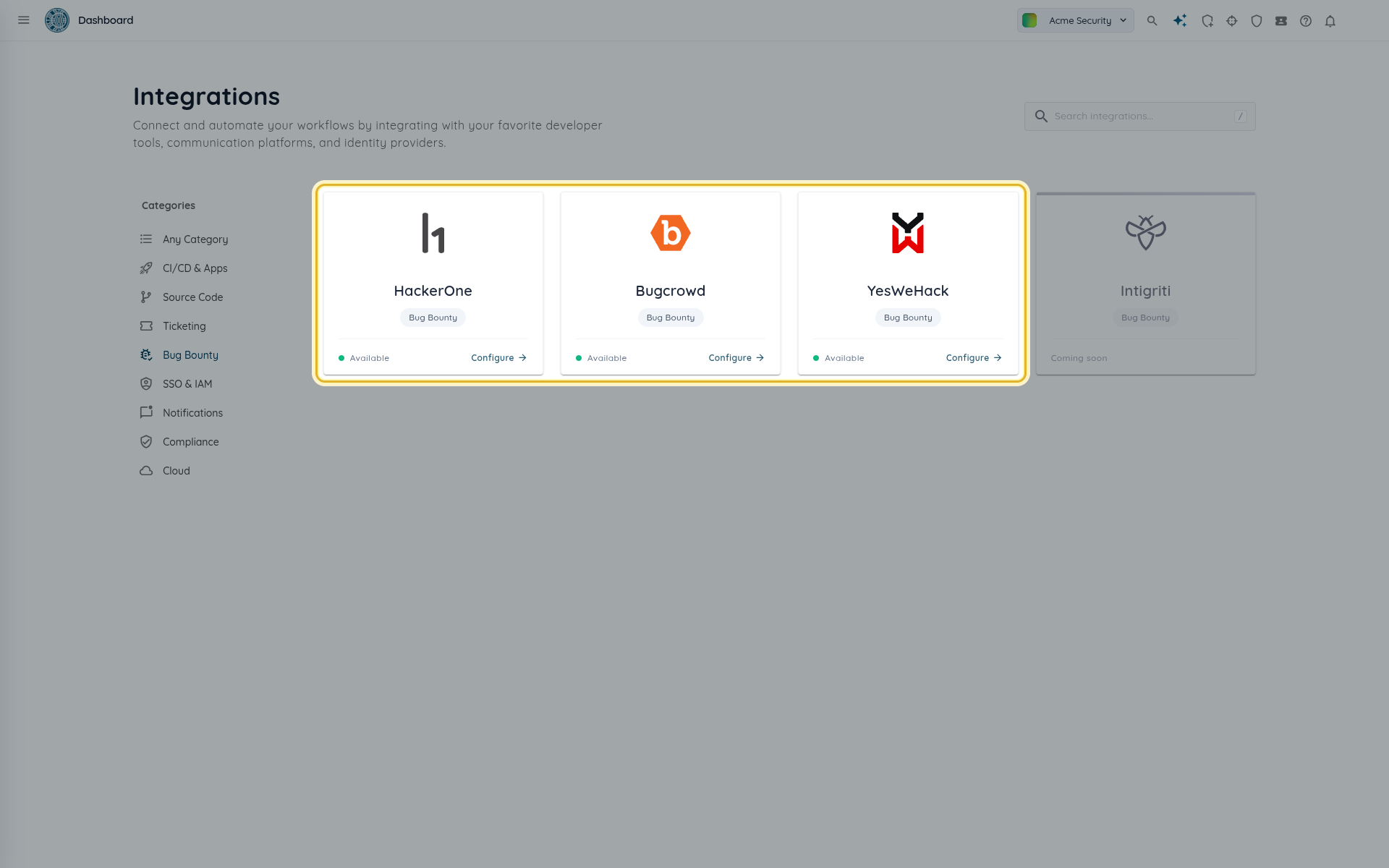
Open Integrations/API > Integrations and select the Bug Bounty category. Each configuration connects one program: to import several programs, add one configuration per program.
| Platform | What Ostorlab asks for | Page |
|---|---|---|
| HackerOne | The program handle, an API identifier and an API token | HackerOne |
| Bugcrowd | The program code, and the username and password of an API token | Bugcrowd |
| YesWeHack | The program slug and a personal access token | YesWeHack |
Intigriti is listed as Coming soon and cannot be connected yet.
How reports are imported
- Ostorlab imports the reports of every enabled configuration every hour. To import right away, click Sync now on the configuration.
- The first sync imports every report of the program. The next syncs import the reports that changed since the last successful sync, and update the reports already imported.
- A failed sync does not move the starting point: the next sync fetches the same reports again. The Last sync column of the configuration shows Failed, the error in a tooltip, and the date of the last successful sync.
- Ostorlab only reads from the platform. It does not change reports or post comments there.
Ostorlab keeps the title, description, severity, reporter and submission date of each report, and the program it came from. The severity of the platform is mapped to an Ostorlab rating:
| Ostorlab | HackerOne severity rating | Bugcrowd priority | YesWeHack CVSS criticality |
|---|---|---|---|
| Critical | Critical | P1 | Critical |
| High | High | P2 | High |
| Medium | Medium | P3 | Medium |
| Low | Low | P4 | Low |
| Info | None | P5 | None |
A report without one of these values has no severity. It shows -.
Find the reports
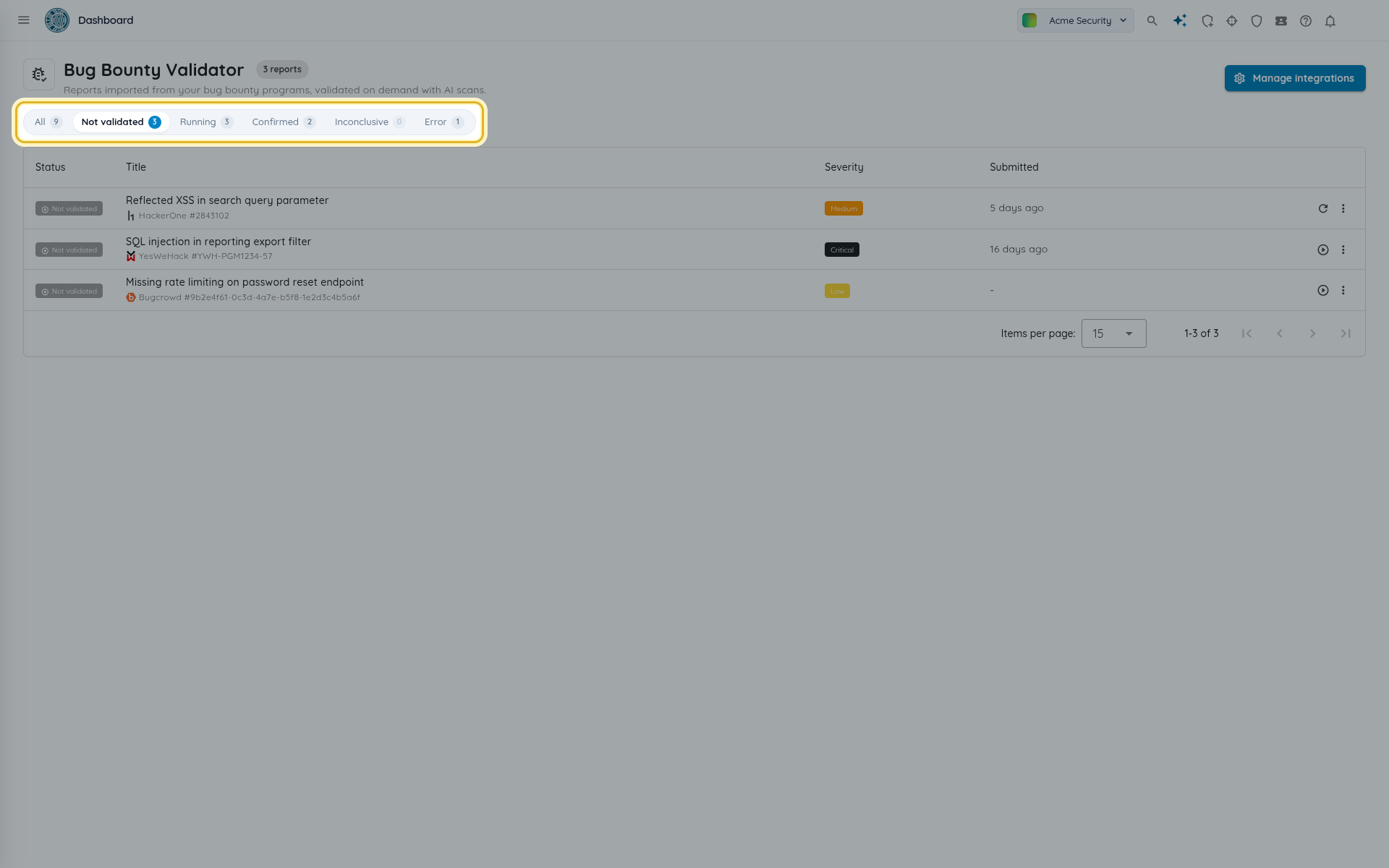
Open Bug Bounty Validator in the menu. The reports of all your programs are listed, the newest submitted first, with their Status, Title, platform and report number, Severity and Submitted date.
The tabs filter the reports by status and show how many reports have each status: All, Not validated, Running, Confirmed, Inconclusive and Error. The page opens on Not validated.
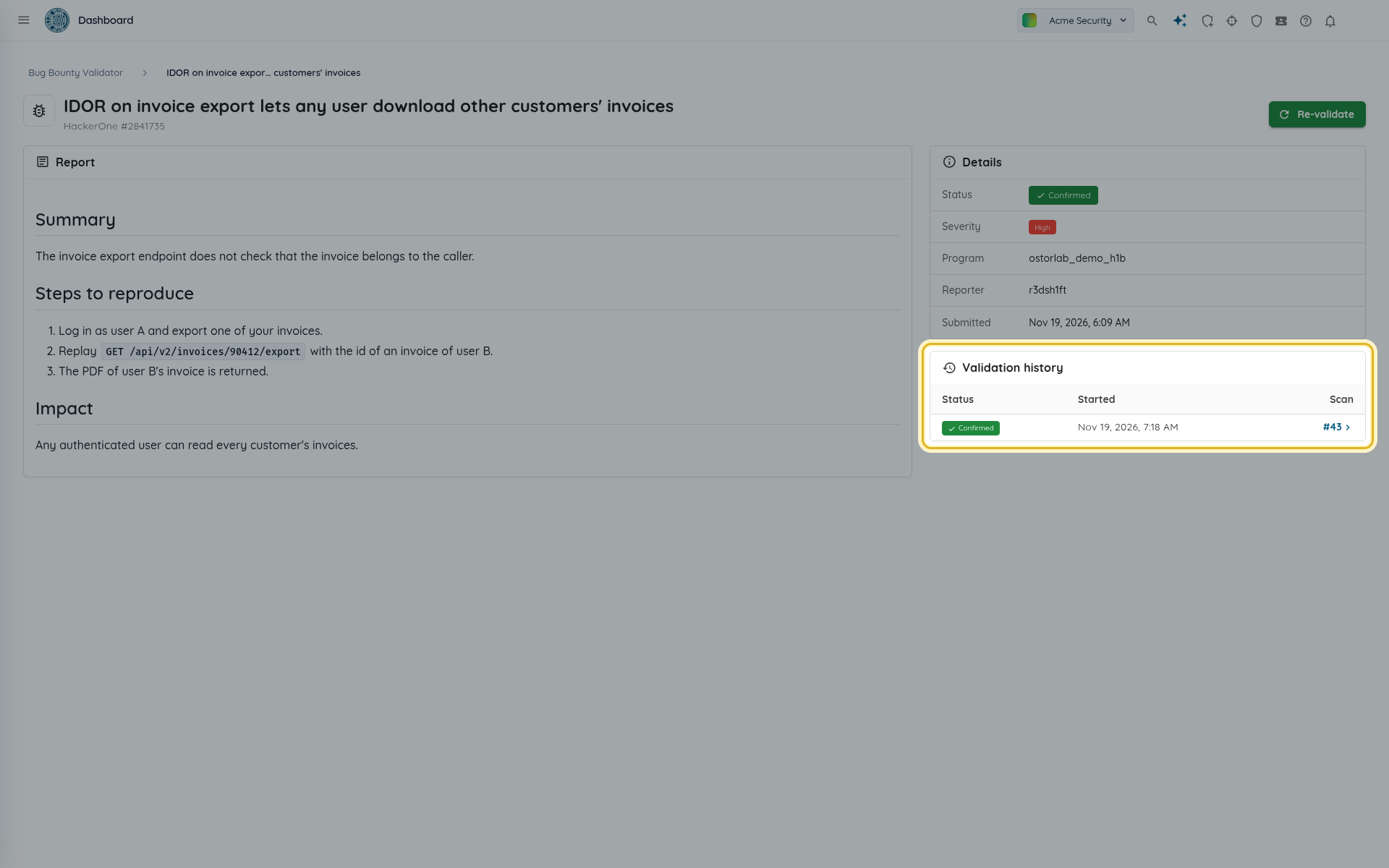
Click a report to open its page. It shows the report text, the Details (status, severity, program, reporter, submission date) and the Validation history.
Validate a report
-
Start the validation in one of these ways:
- In the list, click the validate button of the report. It is shown for the reports that are Not validated or in Error.
- In the list, open the action menu of the report and click Validate (or Re-validate).
- On the report page, click Validate (or Re-validate).
A report cannot be validated again while its validation is Running.
-
In Asset, select the kind of asset the report was found on, then enter the target:
Asset Target PlayStore, AppStore The application, searched in the store. Android App, iOS App The APK or IPA file. iOS TestFlight The public TestFlight link, or a private TestFlight app. Web App The URL, starting with http://orhttps://.Web API The API endpoint URL. In API Schema File, you can add the OpenAPI or GraphQL schema of the API. Network An IP address or a CIDR range. Code Repository The repository, and a branch, tag or commit. Repository Archive An archive of the source code. 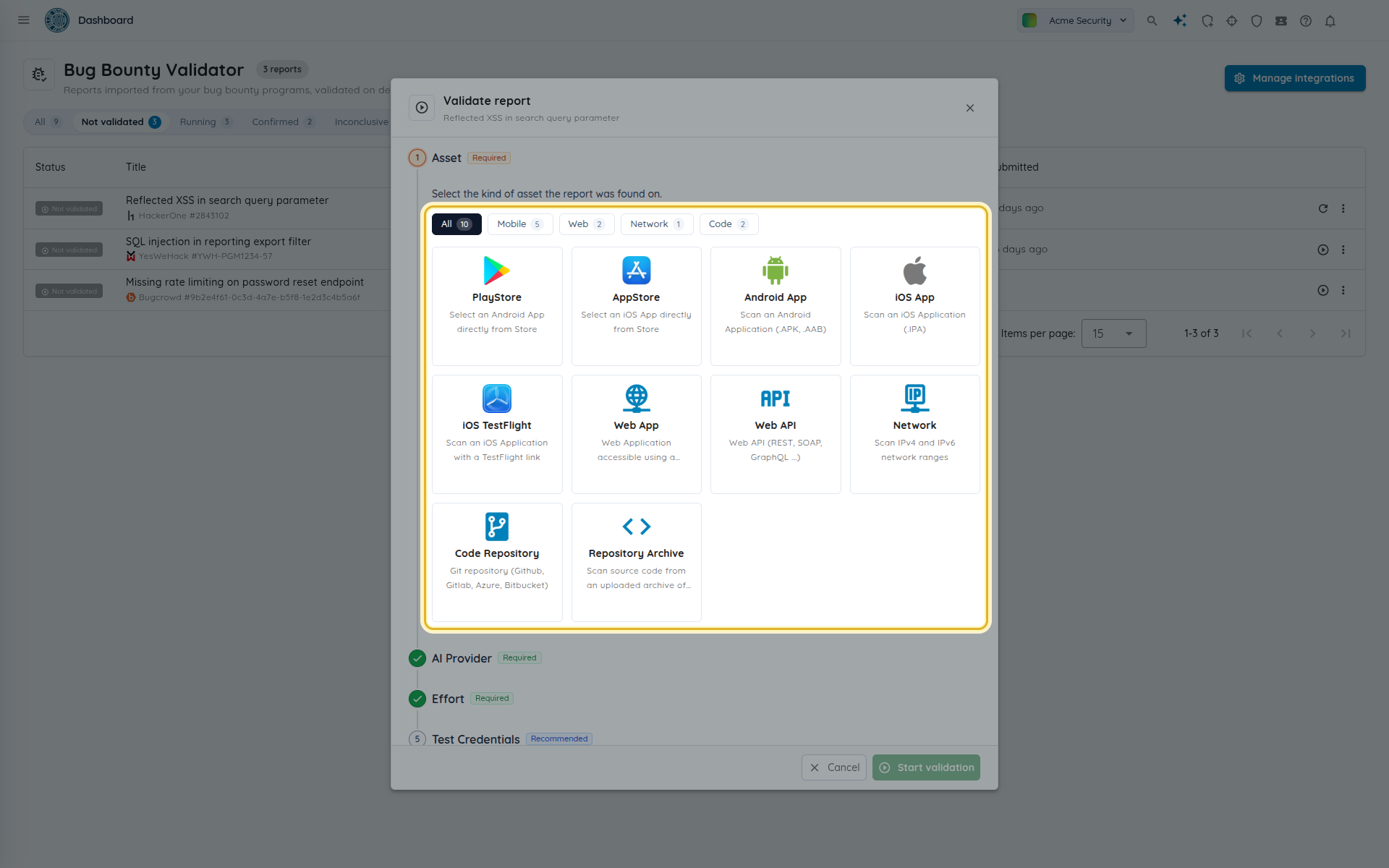
-
In AI Provider, choose Cybermodels to pay with tokens, or BYOK Simple or BYOK Advanced to use your own AI provider keys.
- In Effort, choose how deep the scan explores: Core, Advanced or Elite.
- For web and mobile assets, you can select or add Test Credentials so that the scan can sign in. See Manage test credentials.
-
Click Start validation.
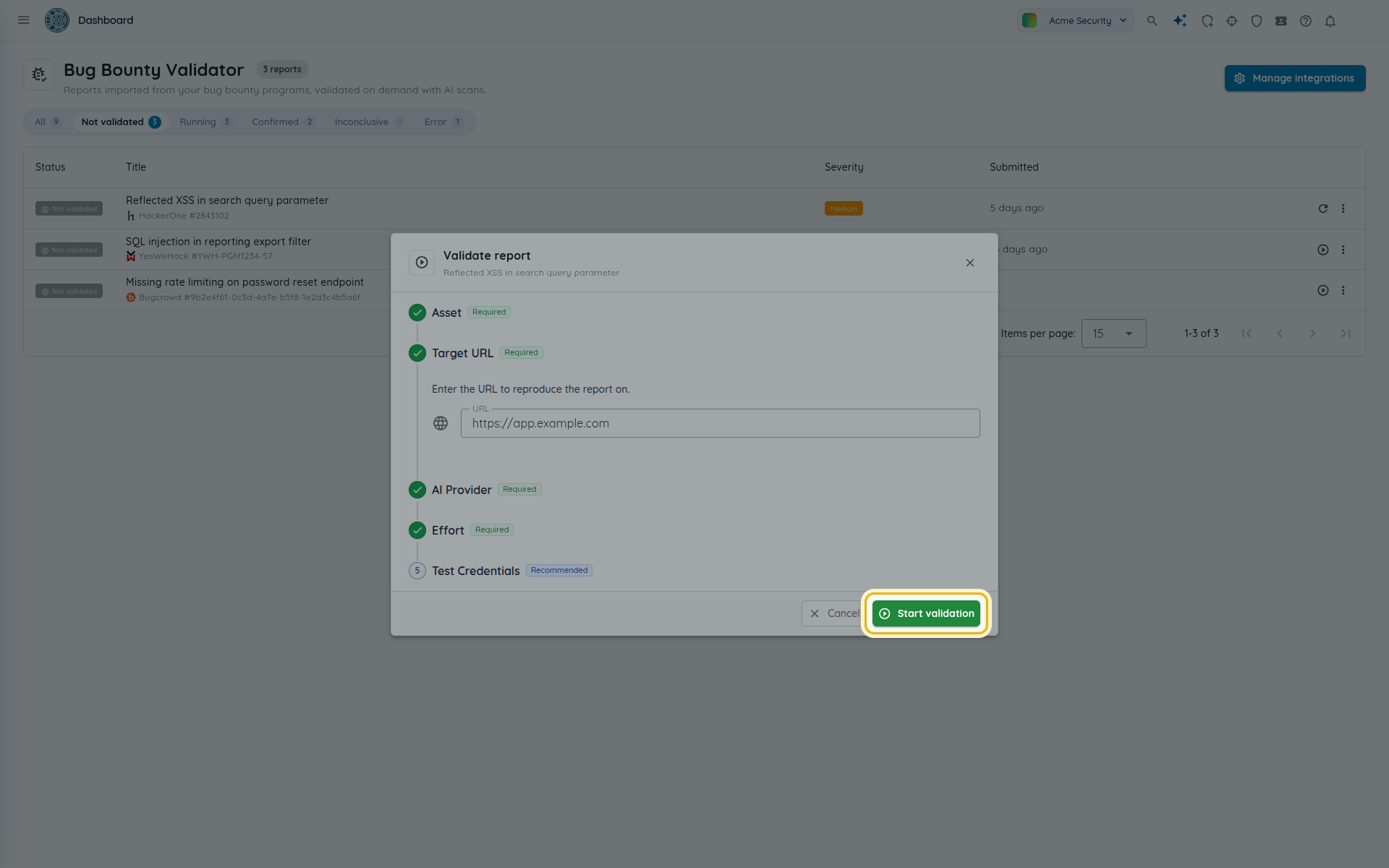
Ostorlab starts a Single Vulnerability Assessment scan (web, network, mobile or repository, depending on the asset) named [Bug Bounty Validation] <report title>. The scan gets the title, severity and description of the report as the vulnerability to reproduce, with these instructions:
- report the vulnerability with its real severity (critical, high, medium or low) if the scan reproduces it;
- report it as Potentially if the scan finds signs of it but cannot confirm it;
- report nothing if the scan cannot reproduce it or it is not a valid vulnerability.
This text is saved as a UI prompt for your organisation. Web and network validations only test the host or network you entered.
Read the result
The status of a report is the status of its latest validation, derived from the validation scan:
| Status | Meaning |
|---|---|
| Not validated | The report was never validated, or the scan finished without reporting a vulnerability, or only reported Hardening or Secure findings. |
| Running | The scan has not finished yet. |
| Confirmed | The scan finished and reported at least one vulnerability rated Critical, High, Medium or Low. |
| Inconclusive | The scan finished and its most severe findings are rated Potentially, Important or Info. |
| Error | The scan failed, was stopped or was disabled. |
While validations are running, the list refreshes on its own and shows a message when they finish. In the list, hover over the status to see when the report was last validated and, if it was validated more than once, how many times.
To read the findings of a validation:
- In the list, open the action menu of the report and click View latest scan.
- On the report page, the Validation history lists every validation of the report, the latest first, with its status, its start time and a link to its scan.
Example: validate a reflected XSS report
The HackerOne report Reflected XSS in search query parameter describes a script injected through the search parameter of a web application.
- In Bug Bounty Validator, on the Not validated tab, click the validate button of the report.
- In Asset, select Web App, then enter the URL of the application, for example
https://app.example.com. - Keep or change the AI Provider and the Effort, then click Start validation.
The report moves to Running and the scan [Bug Bounty Validation] Reflected XSS in search query parameter starts. When the scan finishes:
- if it reproduced the XSS and rated it Critical, High, Medium or Low, the report is Confirmed. On the report page, the Validation history shows a Confirmed row with the start time of the validation and a link to its scan: open the scan to read the vulnerability it reported;
- if it only reported the XSS as Potentially, the report is Inconclusive;
- if it reported nothing, the report stays Not validated.
Use the MCP server
The MCP server offers the same features to AI assistants: list_bug_bounty_reports, get_bug_bounty_report and validate_bug_bounty_report.