Connect Bugcrowd
The Bugcrowd integration imports the submissions of a Bugcrowd program into the Bug Bounty Validator, where you can validate them with a scan. Ostorlab only reads the submissions: it changes nothing in Bugcrowd.
What do I need before I start?
- An Ostorlab plan that includes integrations, and the Admin role in your Ostorlab organisation.
- A Bugcrowd user who has access to the program. API tokens are created per user and give access according to the role of that user.
- The code of the program: the unique code of the Bugcrowd program, used in the program URL.
Create an API token in Bugcrowd
These steps follow the Bugcrowd documentation: Getting started with the API and API usage.
- Log in to Bugcrowd, click your profile picture in the top right, then select API Credentials.
- Enter a descriptive name for the credentials, for example
Ostorlab. - Click Create credentials.
- Copy the token right away: it cannot be viewed again after you refresh or leave the page.
Bugcrowd API requests send the token as Authorization: Token TOKEN_USERNAME:TOKEN_PASSWORD. The part before the colon is the API token username, the part after it is the API token password.
You can restrict the token to an IP allowlist. Bugcrowd then rejects the requests that come from other IP addresses.
Add the configuration in Ostorlab
- Open Integrations/API > Integrations, select the Bug Bounty category, then Bugcrowd.
-
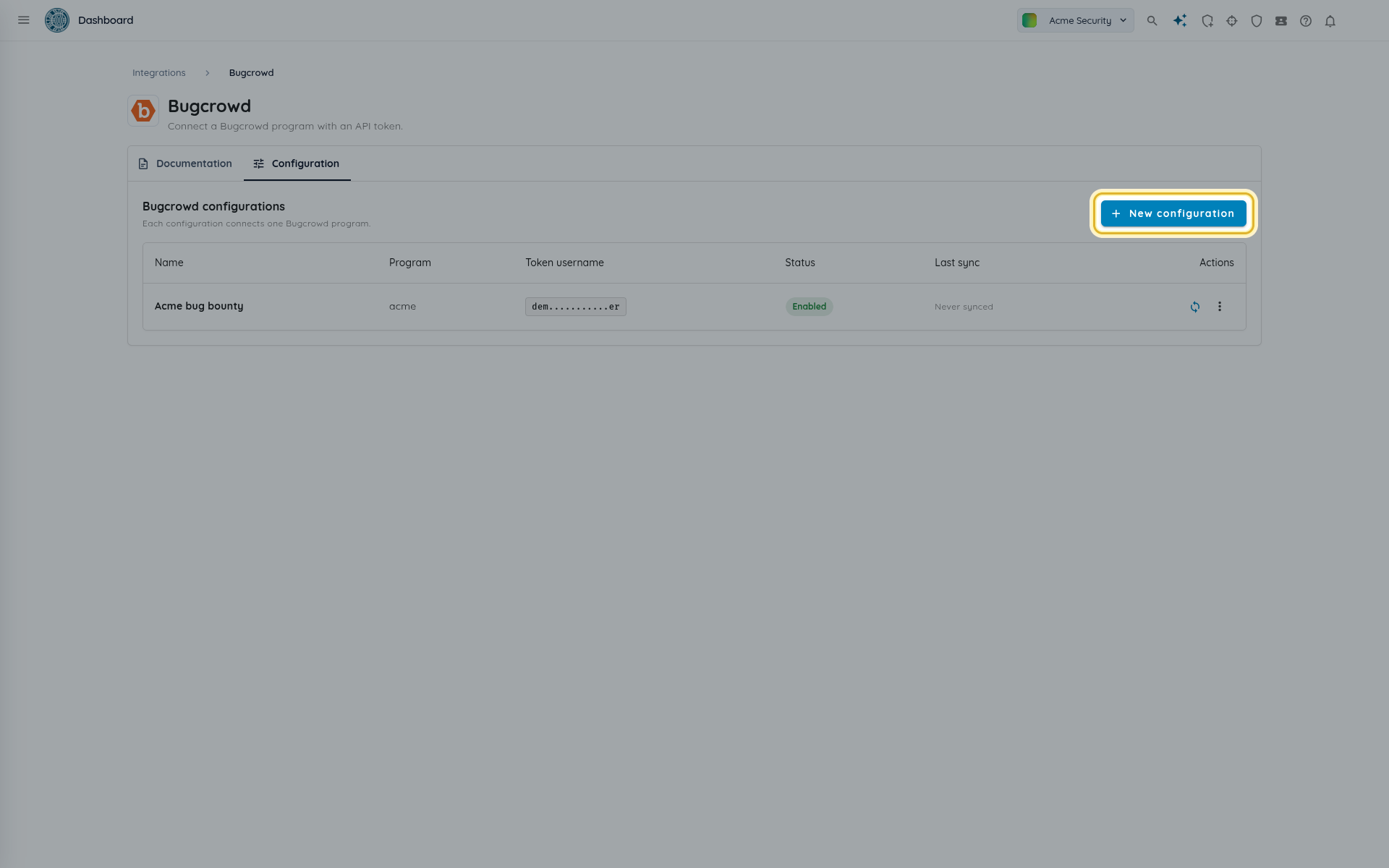
Open the Configuration tab and click New configuration.
-
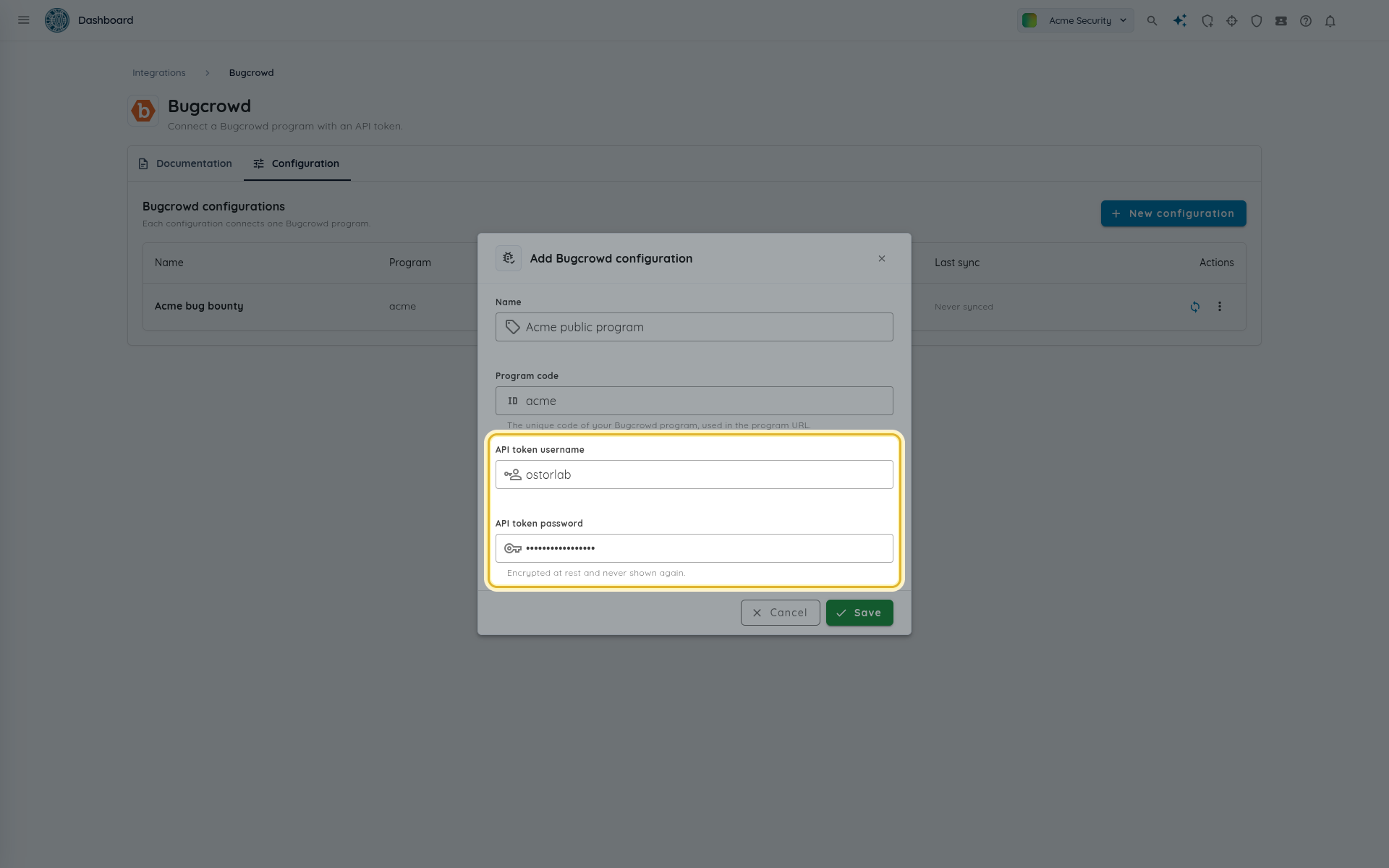
Fill in the form, then click Save.
| Field | What to enter |
|---|---|
| Name | A name for the configuration, for example Acme public program. |
| Program code | The code of the program. |
| API token username | The part of the token before the colon. |
| API token password | The part of the token after the colon. It is encrypted at rest and never shown again. |
A program can be connected only once in an organisation.
Test the connection
Open the action menu of the configuration and click Test connection.
| Check | What it verifies | If it fails |
|---|---|---|
| Credentials | Bugcrowd accepts the token. | Check the token username and password, that the token was not deleted, and that its IP allowlist, if any, accepts the requests of Ostorlab. |
| Program access | The program is among the programs the token can see. | Check the program code, and that the user who created the token has access to the program. |
When Credentials fails, Program access is not run.
Import the submissions
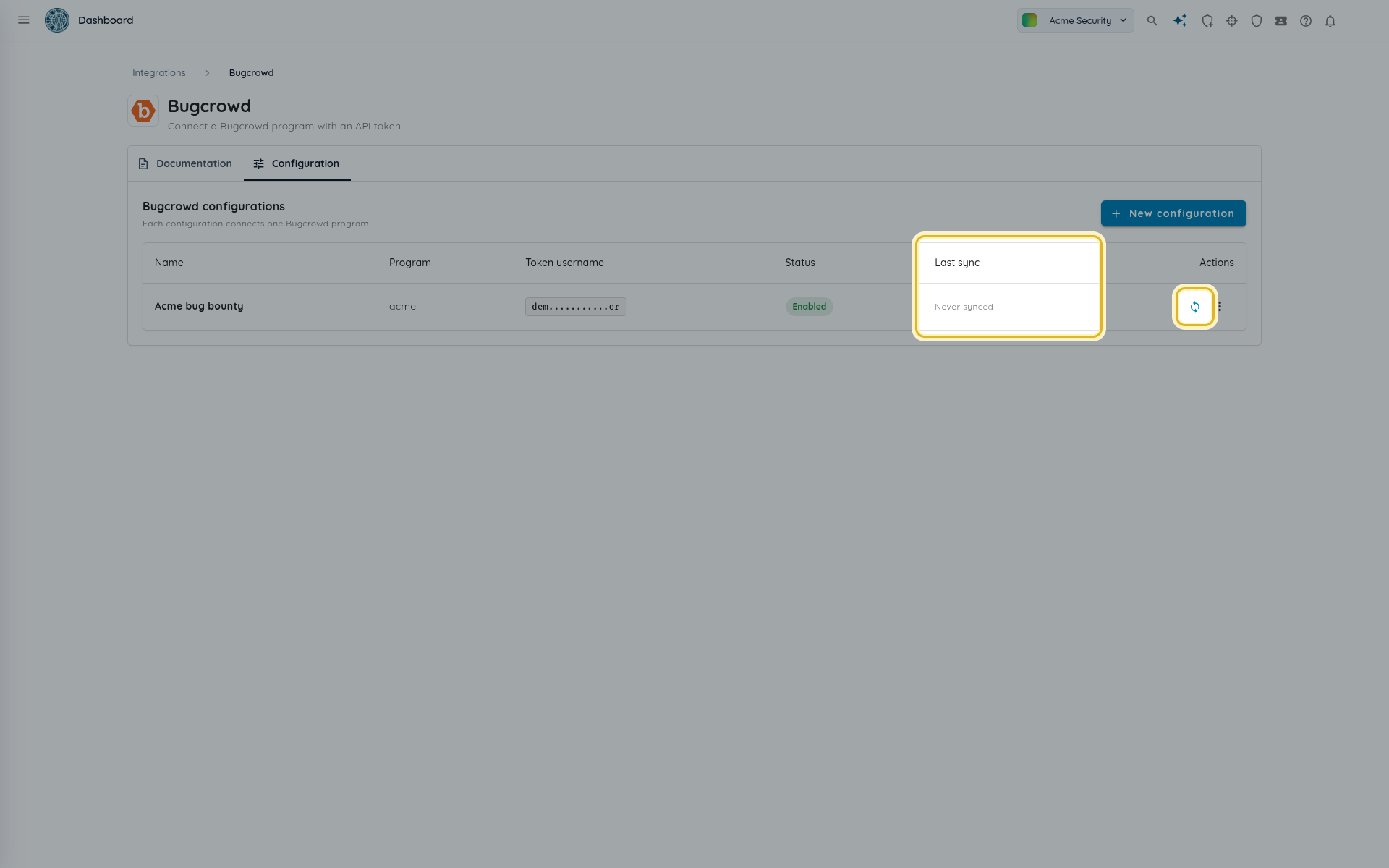
Ostorlab imports the submissions of every enabled configuration every hour. To import right away, click Sync now (the sync icon) on the configuration. The first sync imports every submission of the program. The next ones import the submissions updated since the last successful sync.
The Last sync column shows:
- Never synced before the first sync;
- Synced and the date of the last successful sync;
- Failed when the last sync failed. Hover over it to read the error. The date of the last successful sync is shown below it.
The imported submissions appear in Bug Bounty Validator. See Validate bug bounty reports.
Edit, disable or delete the configuration
Use the action menu of the configuration:
- Edit changes the name, the program code, the token and the Enabled switch. To replace the token, enter both its username and its password. Leave both empty to keep the saved token. After a change of program code, the next sync imports every submission of the new program.
- Disable stops the hourly sync of the configuration, and Sync now is no longer available. The submissions already imported stay. Enable turns it back on.
- Delete removes the configuration and its token from Ostorlab. The submissions it imported and their validation history are deleted too. The validation scans stay in your scans.