Exclure des domaines des scans mobiles
Ce guide explique comment exclure des domaines des scans mobiles en configurant le périmètre (scope) du scan.
Les scans mobiles utilisent les Scope URLs regexes pour définir quels domaines ou URL sont considérés comme faisant partie du périmètre. Pour bloquer (blacklist) ou exclure un domaine, fournissez une expression régulière qui correspond aux URL que vous souhaitez conserver dans le périmètre et qui ne correspond pas au domaine que vous souhaitez exclure.
Accédez à report.ostorlab.co
1. Introduction
En excluant des domaines, vous pouvez éviter de tester des cibles hors périmètre lors d'un scan mobile.
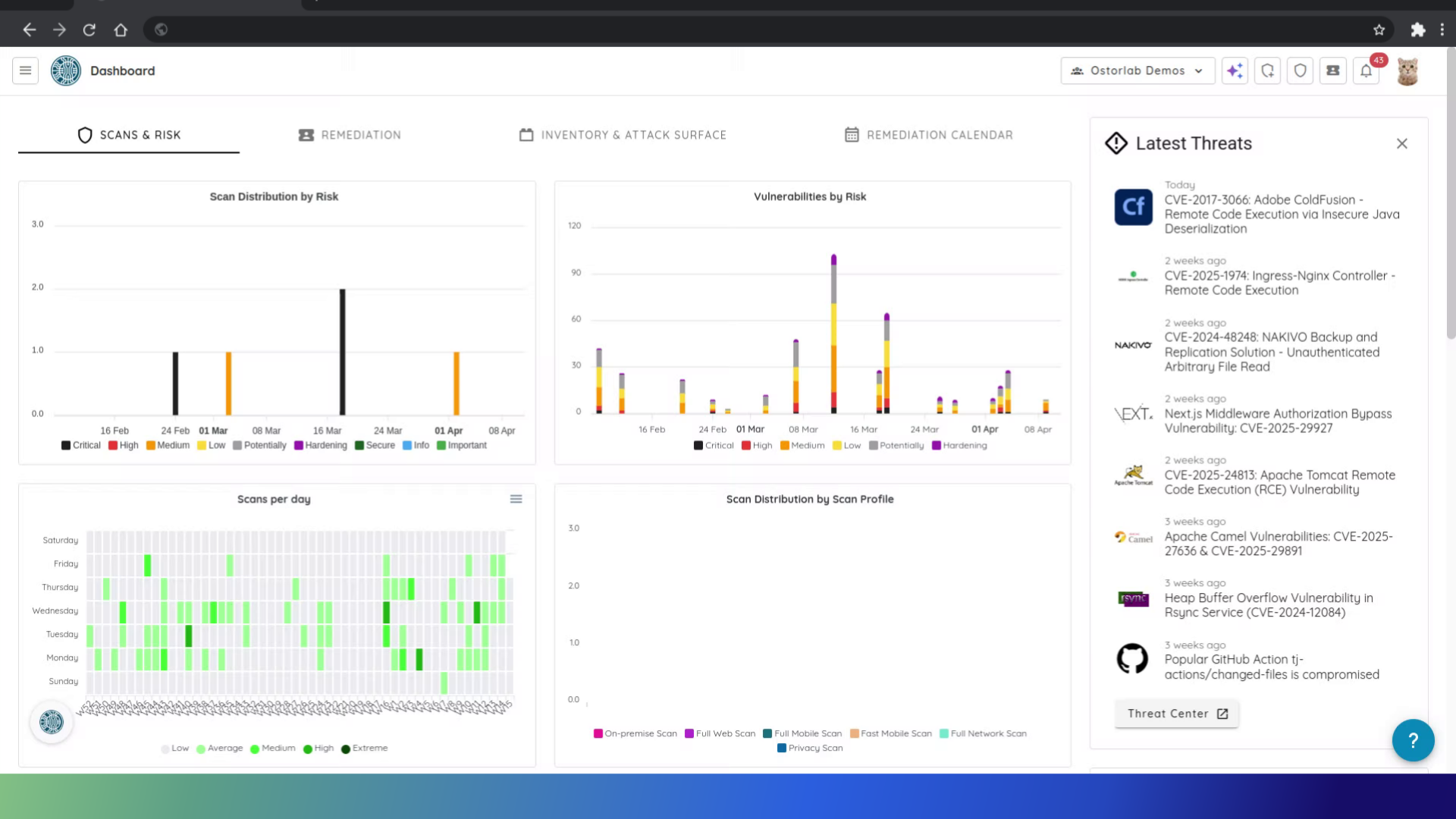
2. Cliquez ici
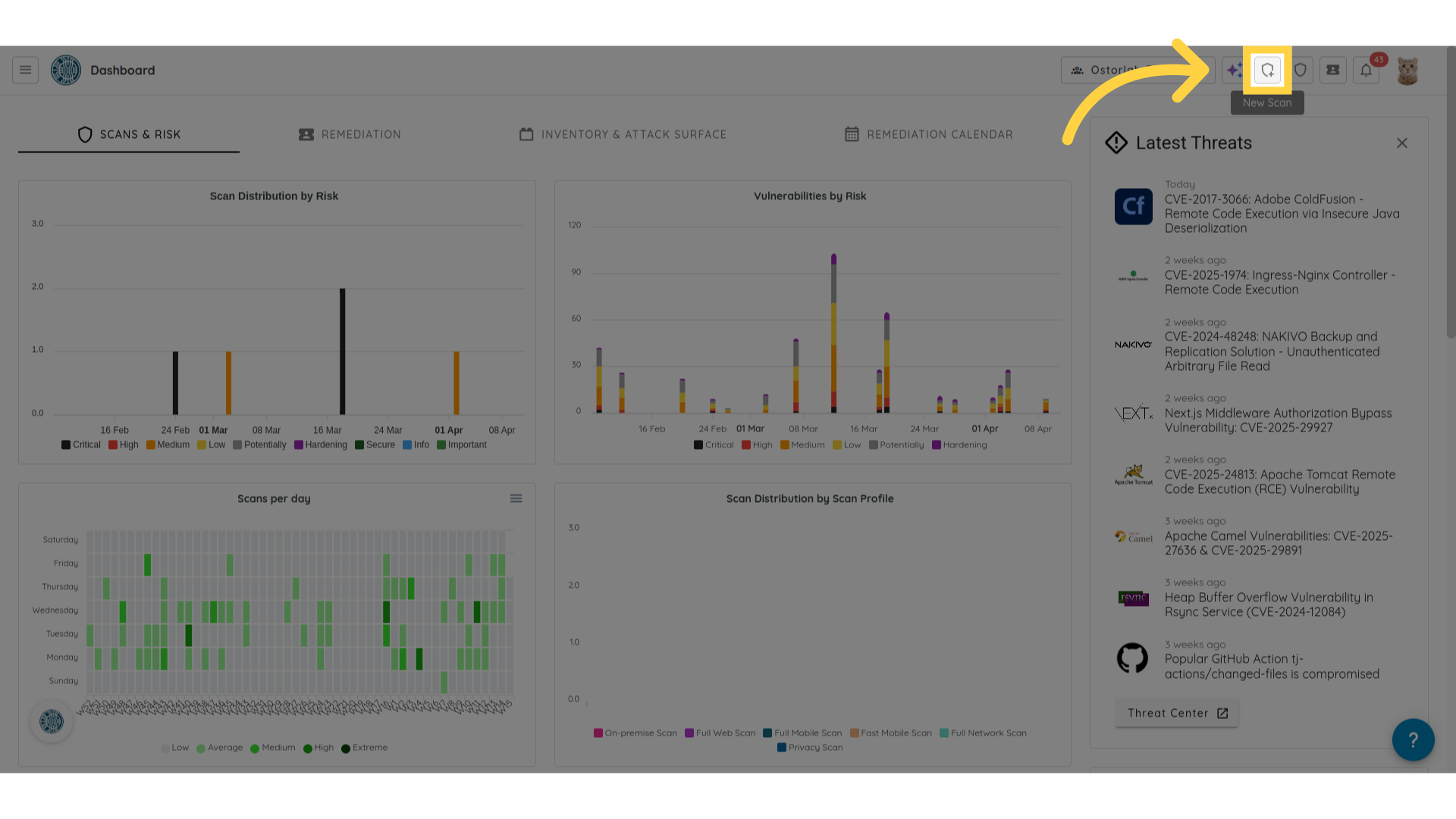
Lancez le processus en cliquant sur l'icône « New Scan ».
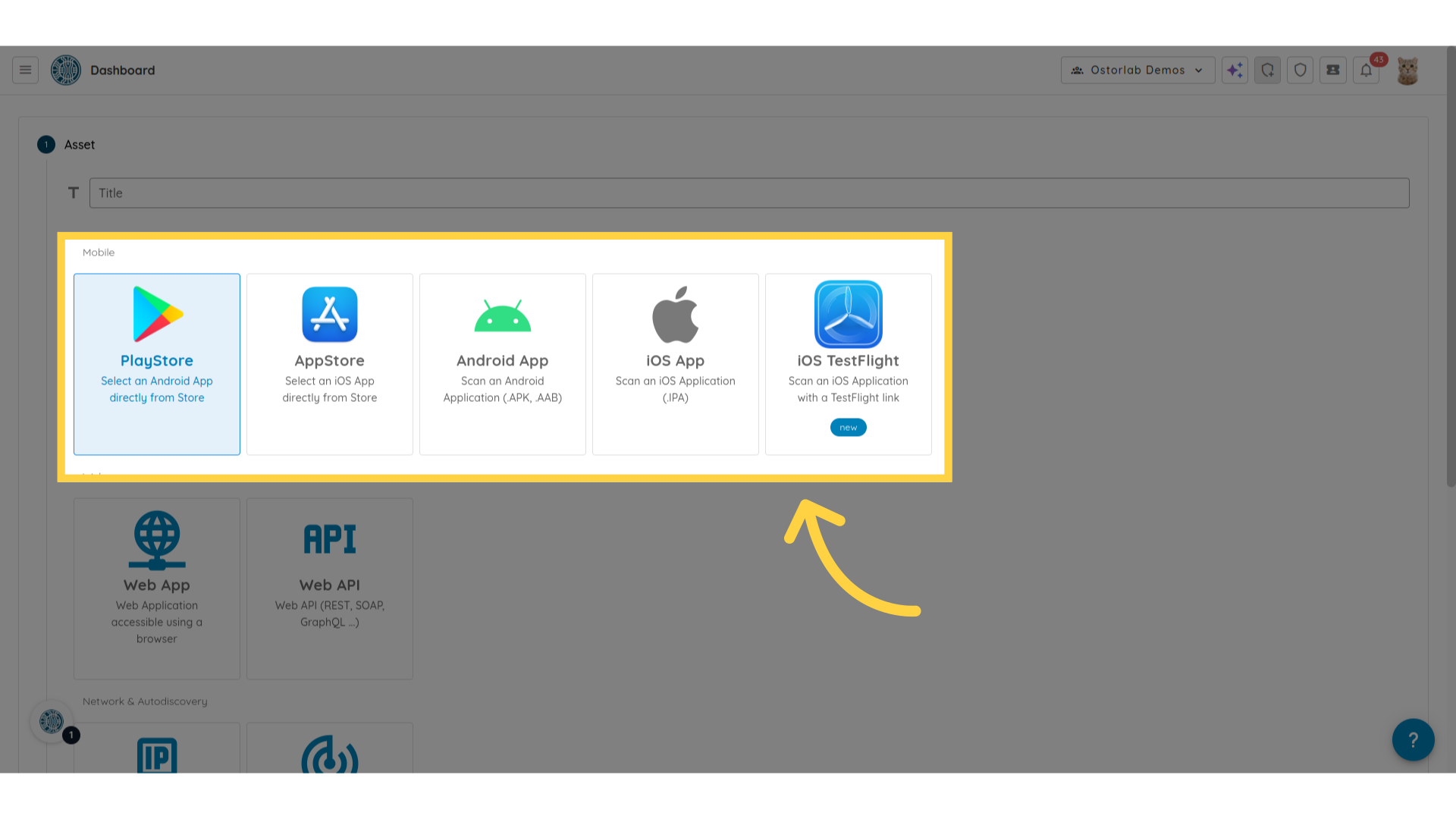
3. Sélectionnez le type d'actif
Choisissez le type d'actif mobile. Il peut s'agir de Play Store, App Store, Android APK, Android AAB, iOS IPA ou iOS TestFlight.
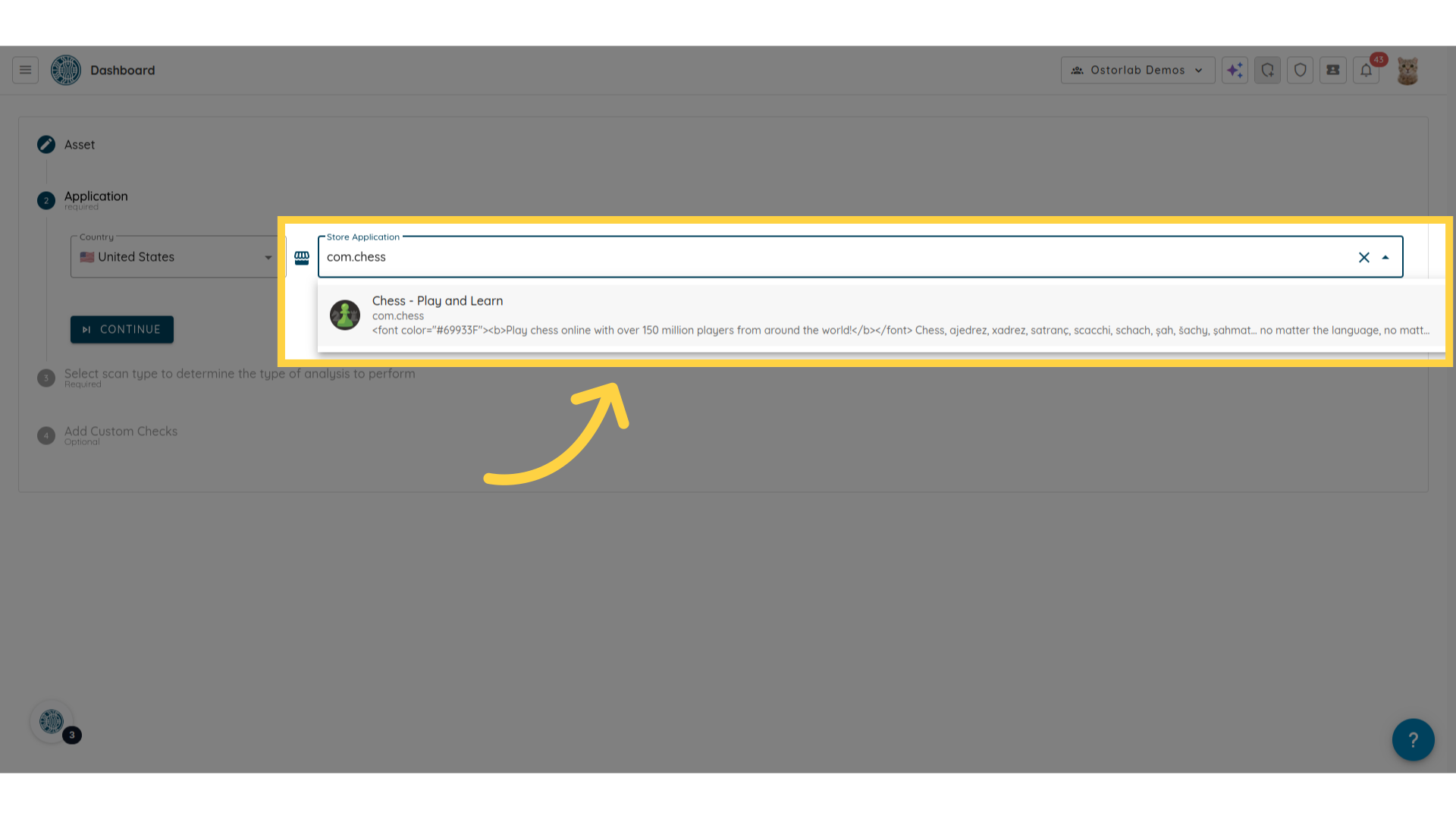
4. Indiquez la cible
Indiquez la cible du scan.
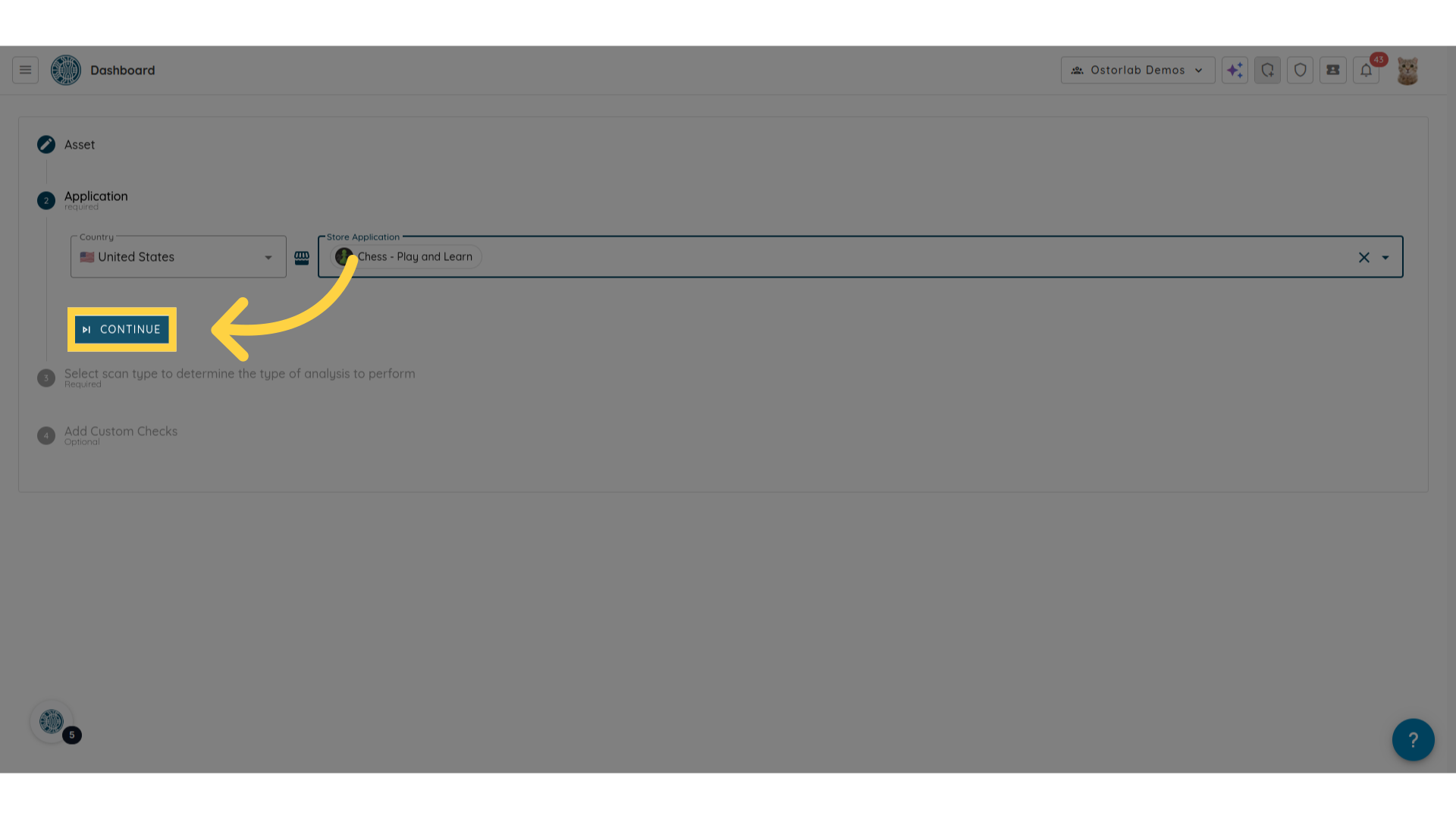
5. Cliquez sur « Continue »
Passez à l'étape suivante en cliquant sur « Continue ».
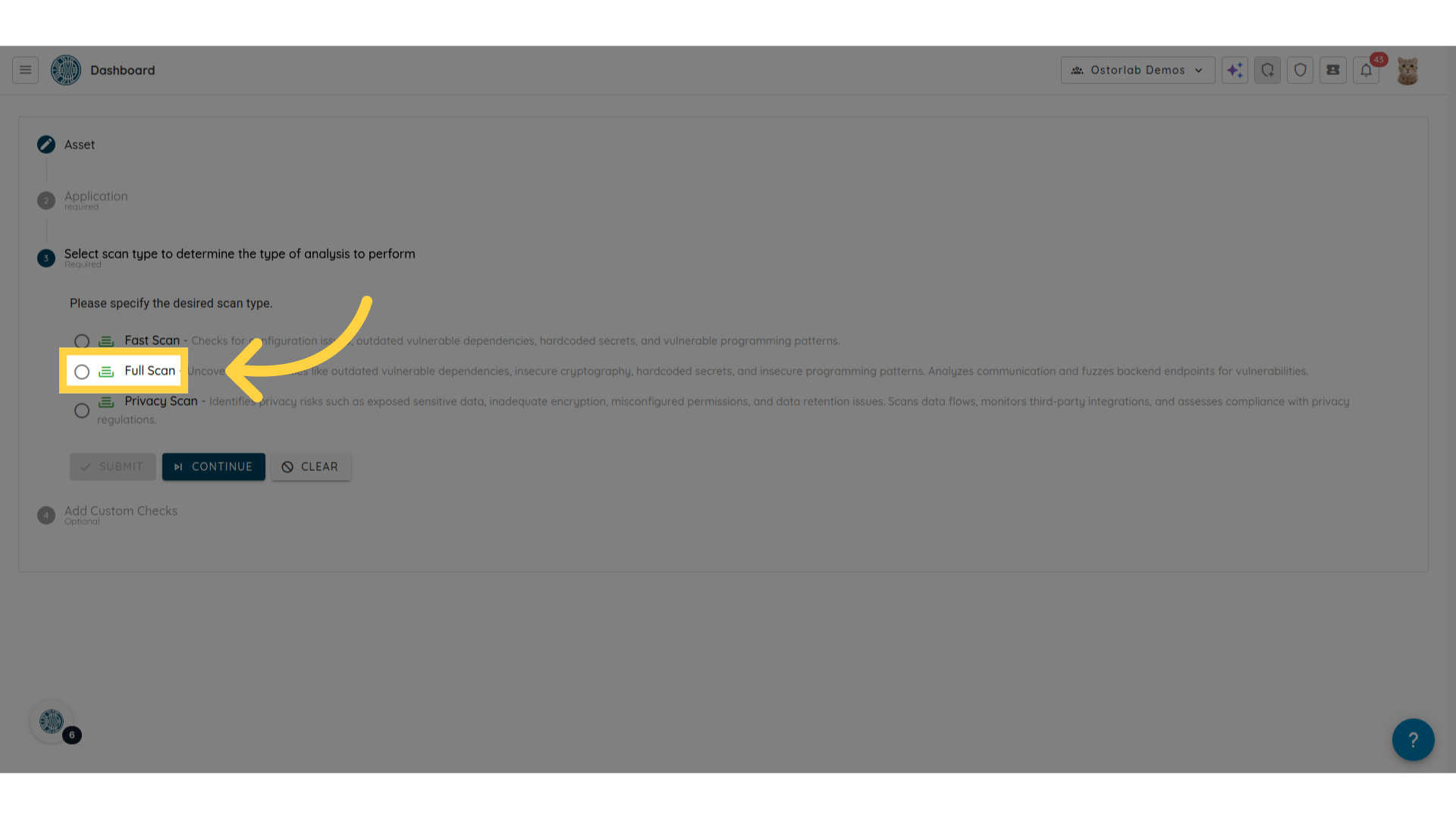
6. Cliquez sur « Full Scan »
Sélectionnez l'option Full Scan.
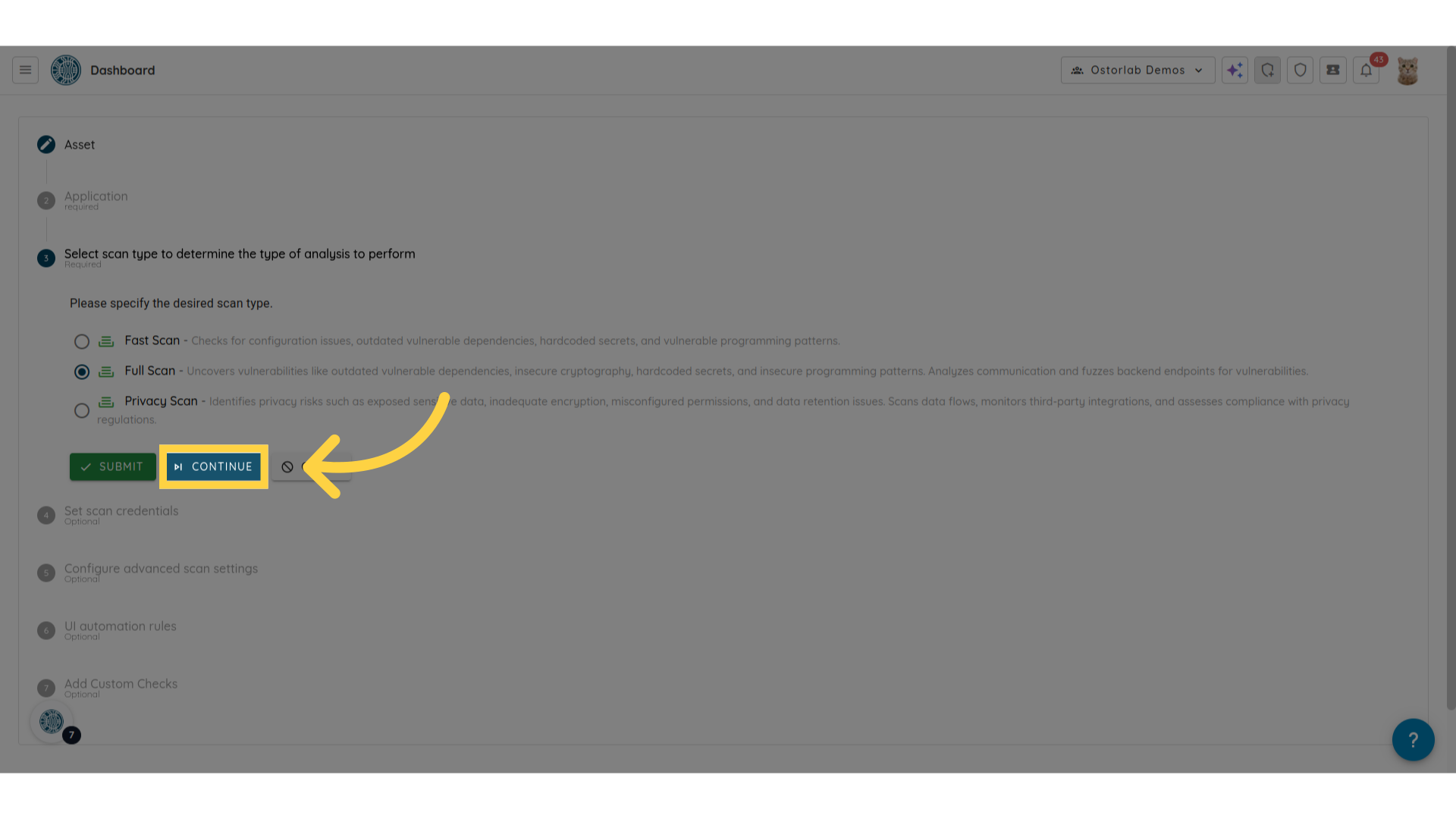
7. Cliquez sur « Continue »
Confirmez votre choix pour continuer en cliquant sur « Continue ».
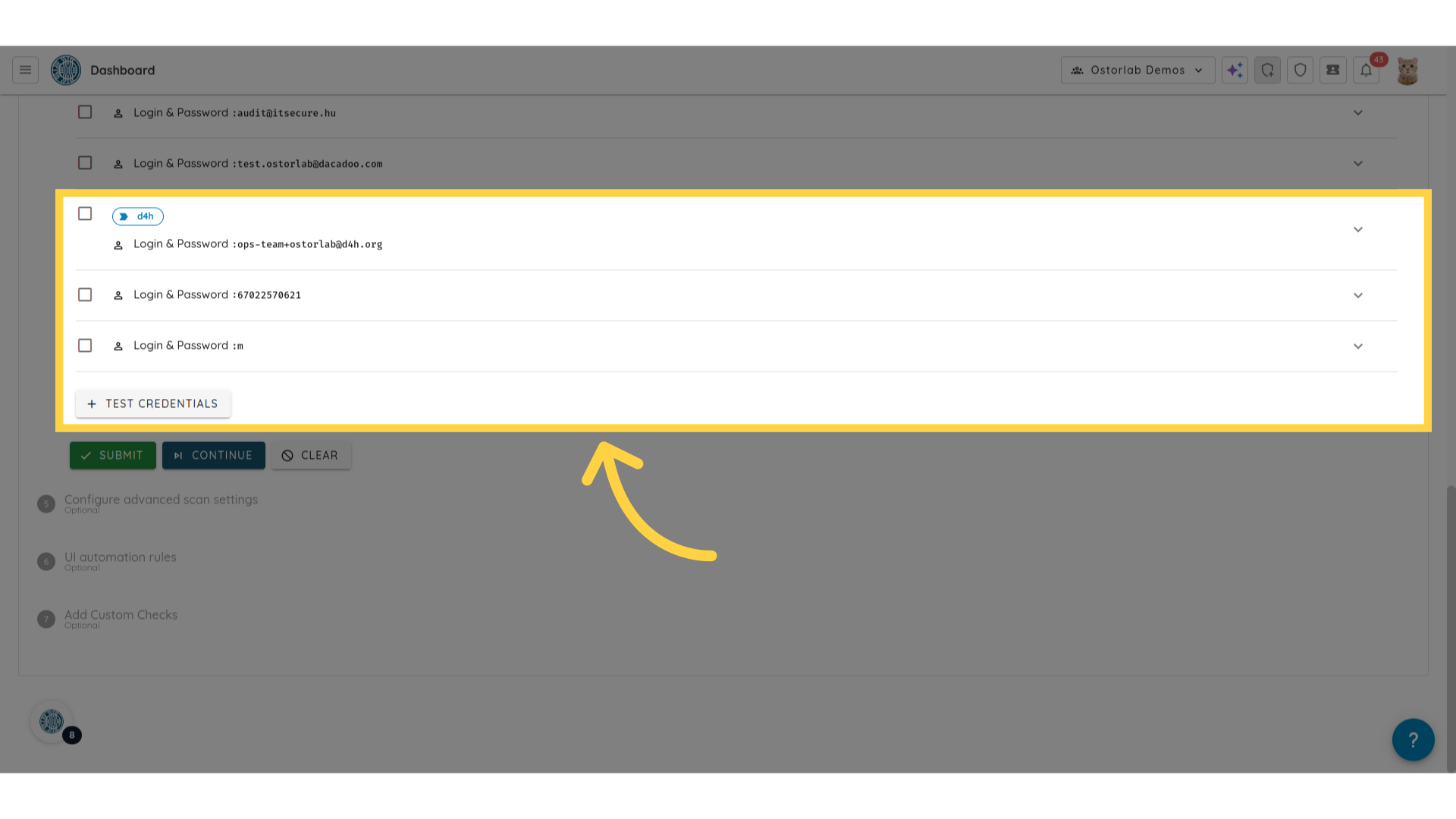
8. Sélectionnez les identifiants de test
Sélectionnez les identifiants de test à utiliser. Cette étape est facultative.
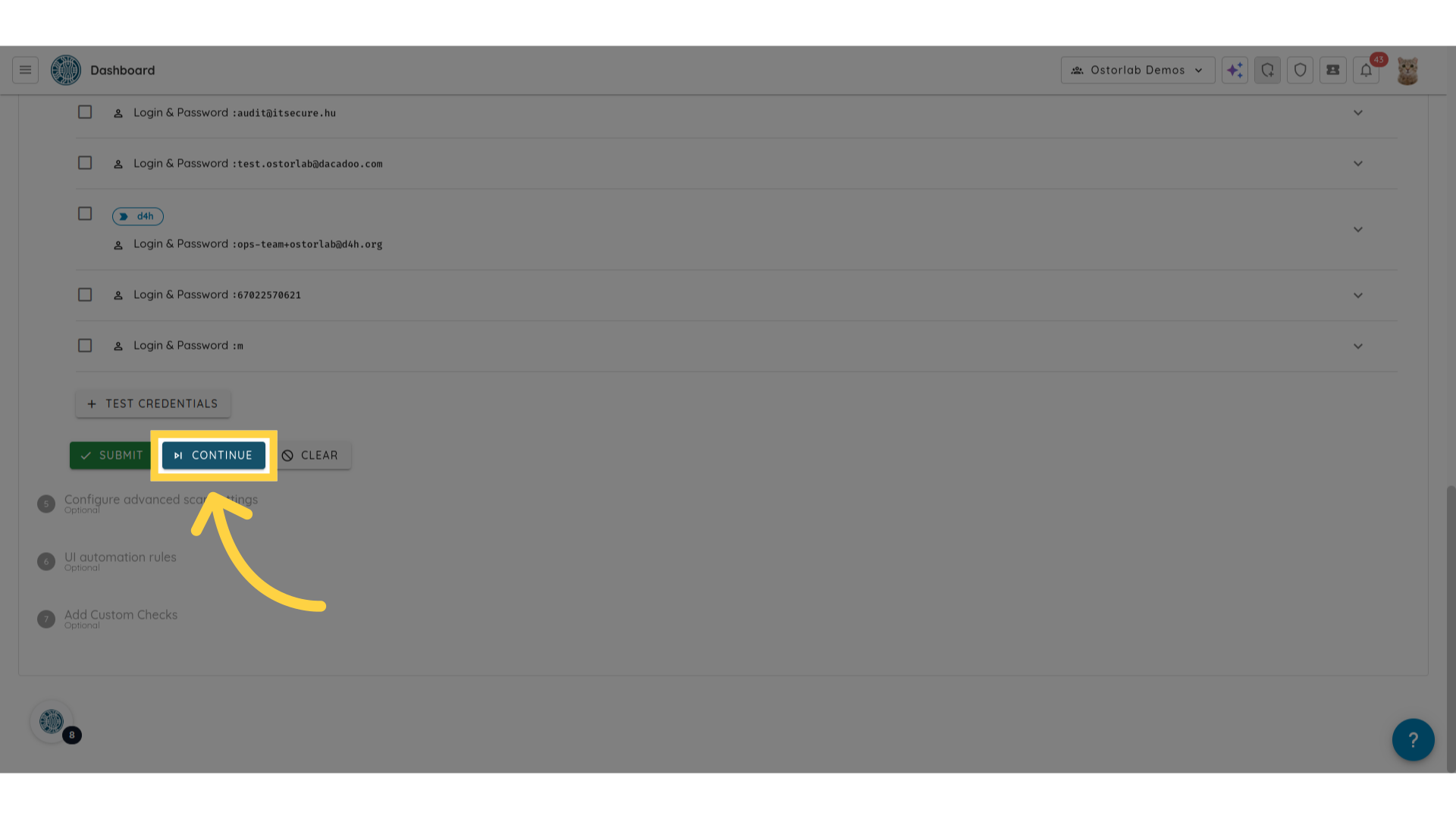
9. Cliquez sur « Continue »
Cliquez sur « Continue » pour passer à l'étape des paramètres avancés (Advanced Settings).
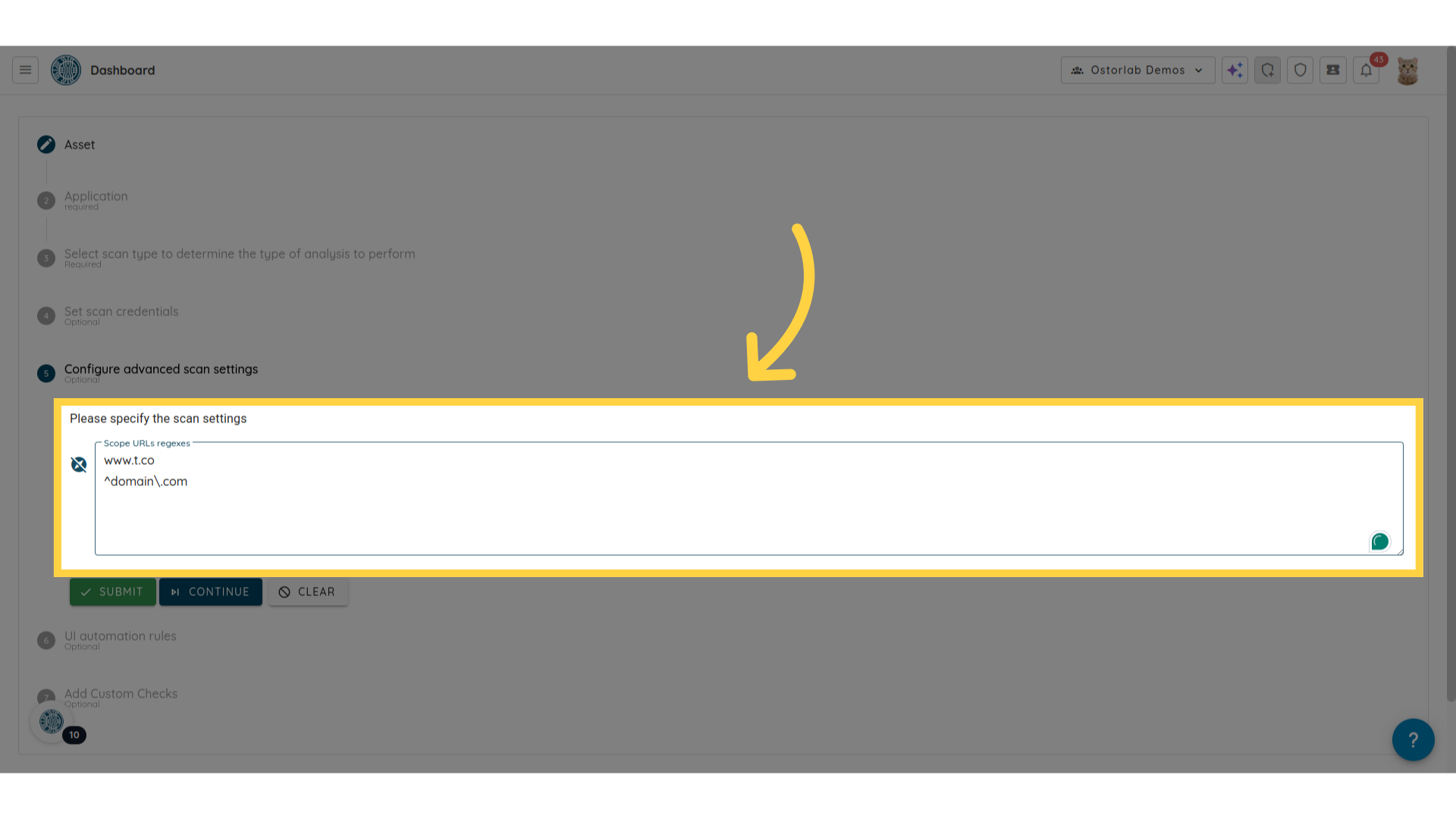
10. Fournissez la regex d'exclusion de domaine
Dans Scope URLs regexes, saisissez une expression régulière qui exclut le domaine du périmètre du scan.
Par exemple, pour exclure example.com et ses sous-domaines, ajoutez la regex suivante :
^https?://(?!(?:[^/?#:]+\.)?example\.com(?::\d+)?(?:[/?#]|$)).*
Cela exclut example.com, www.example.com, api.example.com et les autres sous-domaines de example.com du périmètre du scan.
Exemples de regex
Exclure example.com et tous ses sous-domaines :
^https?://(?!(?:[^/?#:]+\.)?example\.com(?::\d+)?(?:[/?#]|$)).*
Exclure uniquement le domaine racine example.com, tout en autorisant les sous-domaines :
^https?://(?!example\.com(?::\d+)?(?:[/?#]|$)).*
Exclure uniquement un sous-domaine, tel que staging.example.com :
^https?://(?!staging\.example\.com(?::\d+)?(?:[/?#]|$)).*
Exclure plusieurs domaines, tels que example.com et test.example.org :
^https?://(?!(?:(?:[^/?#:]+\.)?example\.com|(?:[^/?#:]+\.)?test\.example\.org)(?::\d+)?(?:[/?#]|$)).*
Autoriser uniquement les domaines de production de confiance, ce qui est souvent plus simple que d'utiliser des regex d'exclusion :
^https?://api\.example\.com(?::\d+)?(?:[/?#]|$).*
^https?://auth\.example\.com(?::\d+)?(?:[/?#]|$).*
Lorsque vous ajoutez plusieurs lignes, chaque ligne est traitée comme une regex de périmètre. Les exemples directs de liste d'autorisation (allowlist) peuvent être saisis à raison d'un par ligne. Les exclusions de type liste de blocage (blacklist) doivent être écrites sous la forme d'une regex unique qui exclut le domaine du périmètre correspondant.
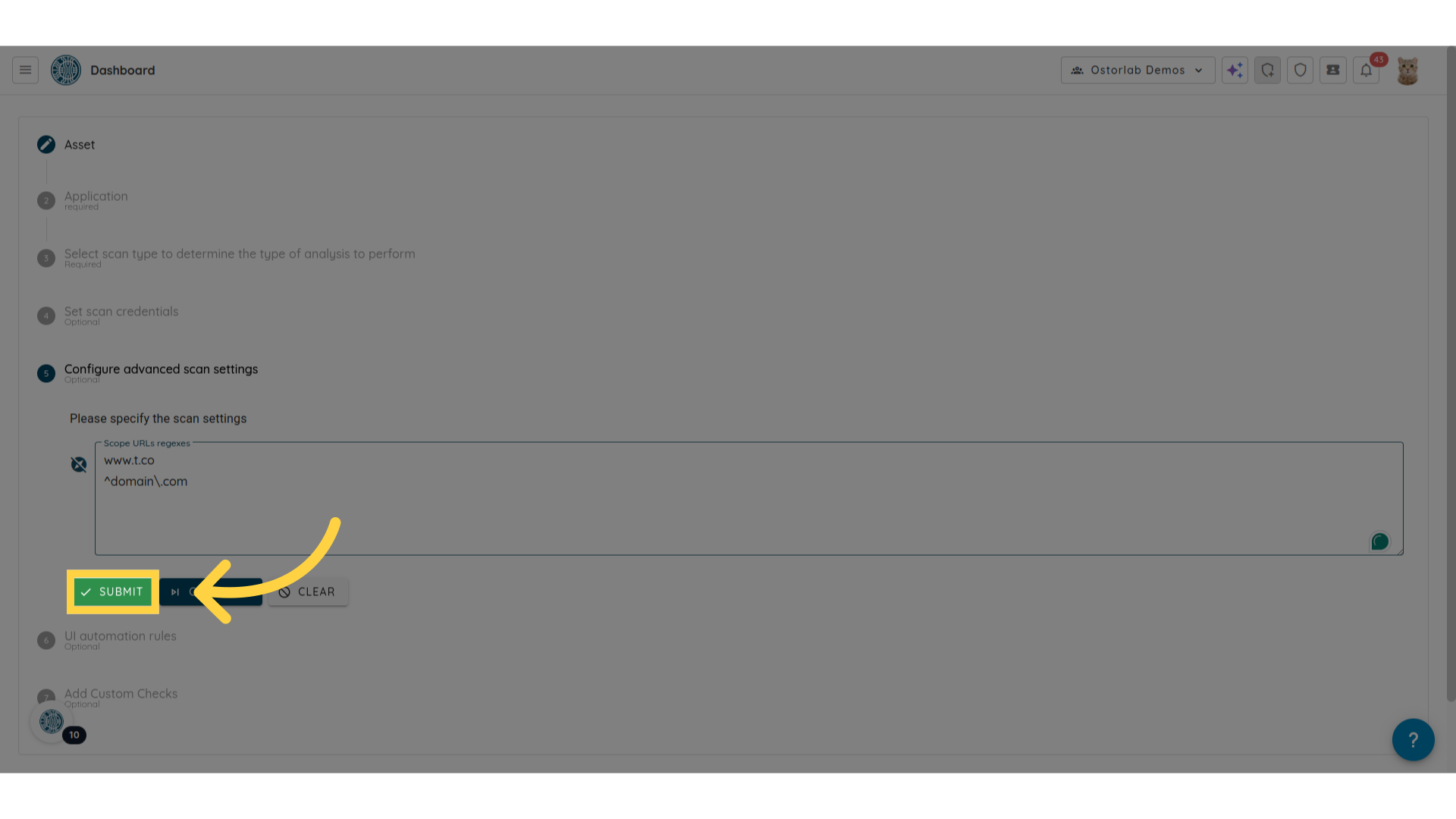
11. Cliquez sur « Submit »
Finalisez la création de votre scan mobile en cliquant sur « Submit ».
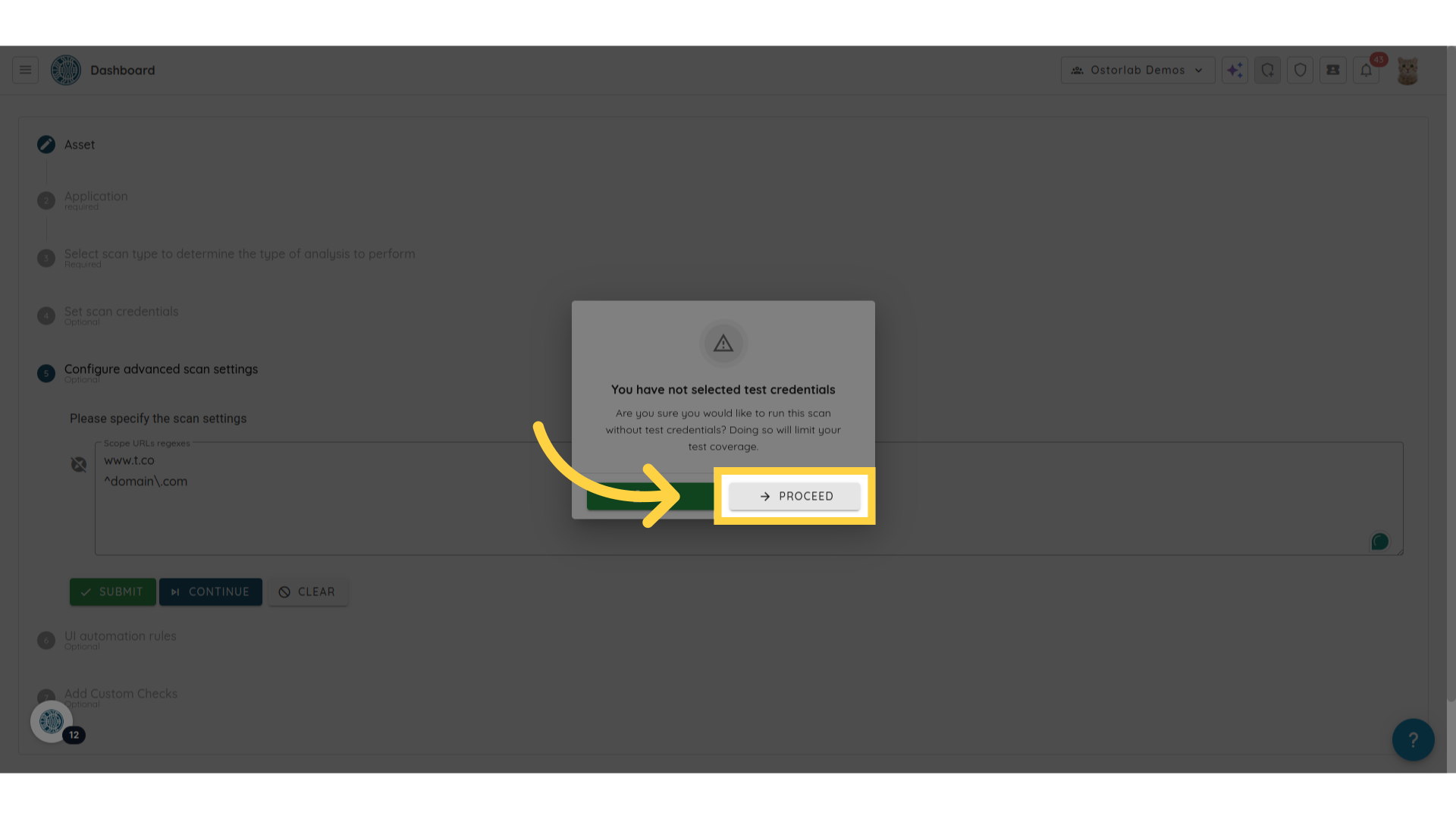
12. Cliquez sur « Proceed »
Cliquez sur « Proceed » pour créer le scan.
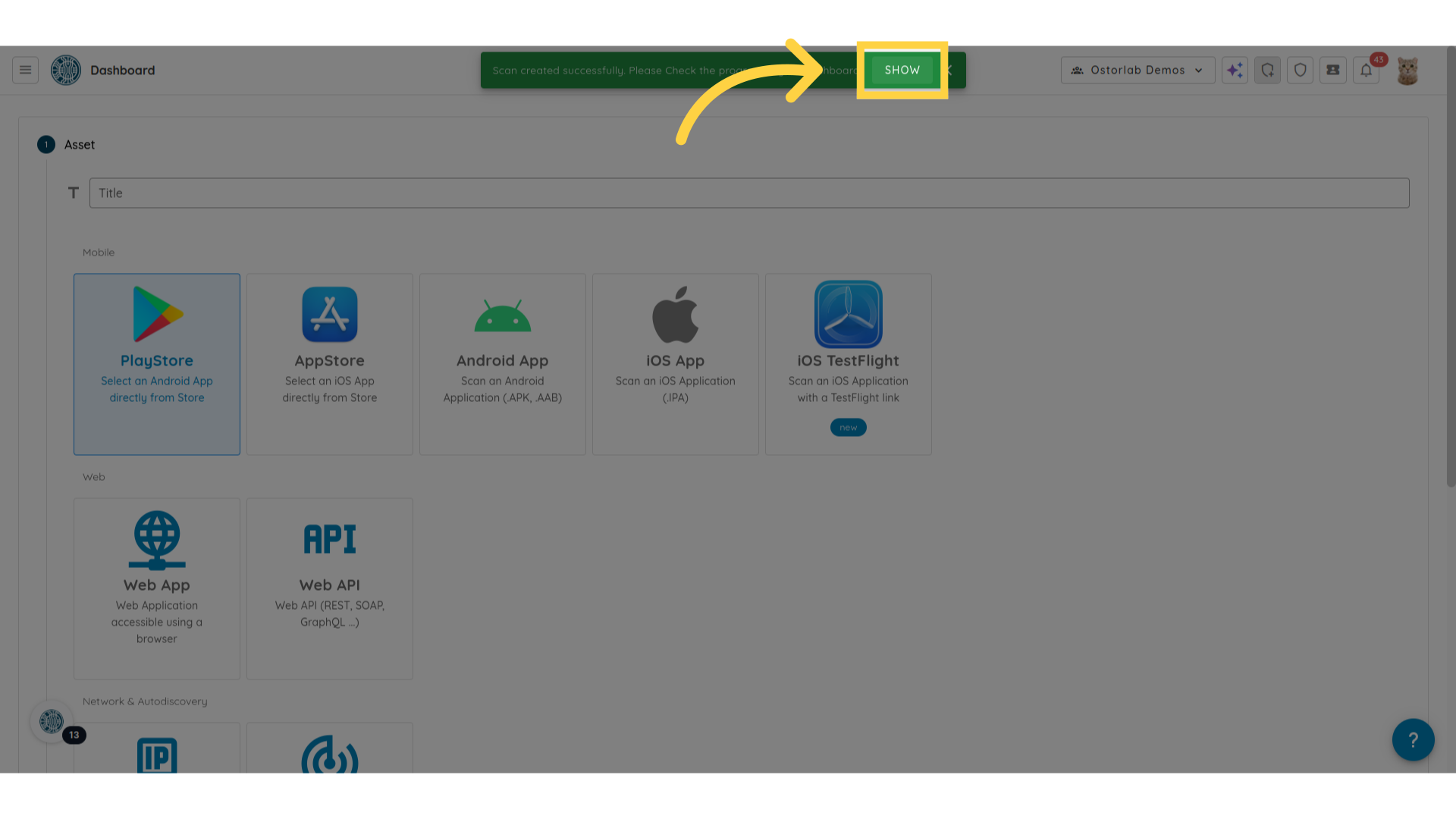
13. Cliquez sur « Show »
Cliquez sur « Show » pour accéder à la liste des scans.
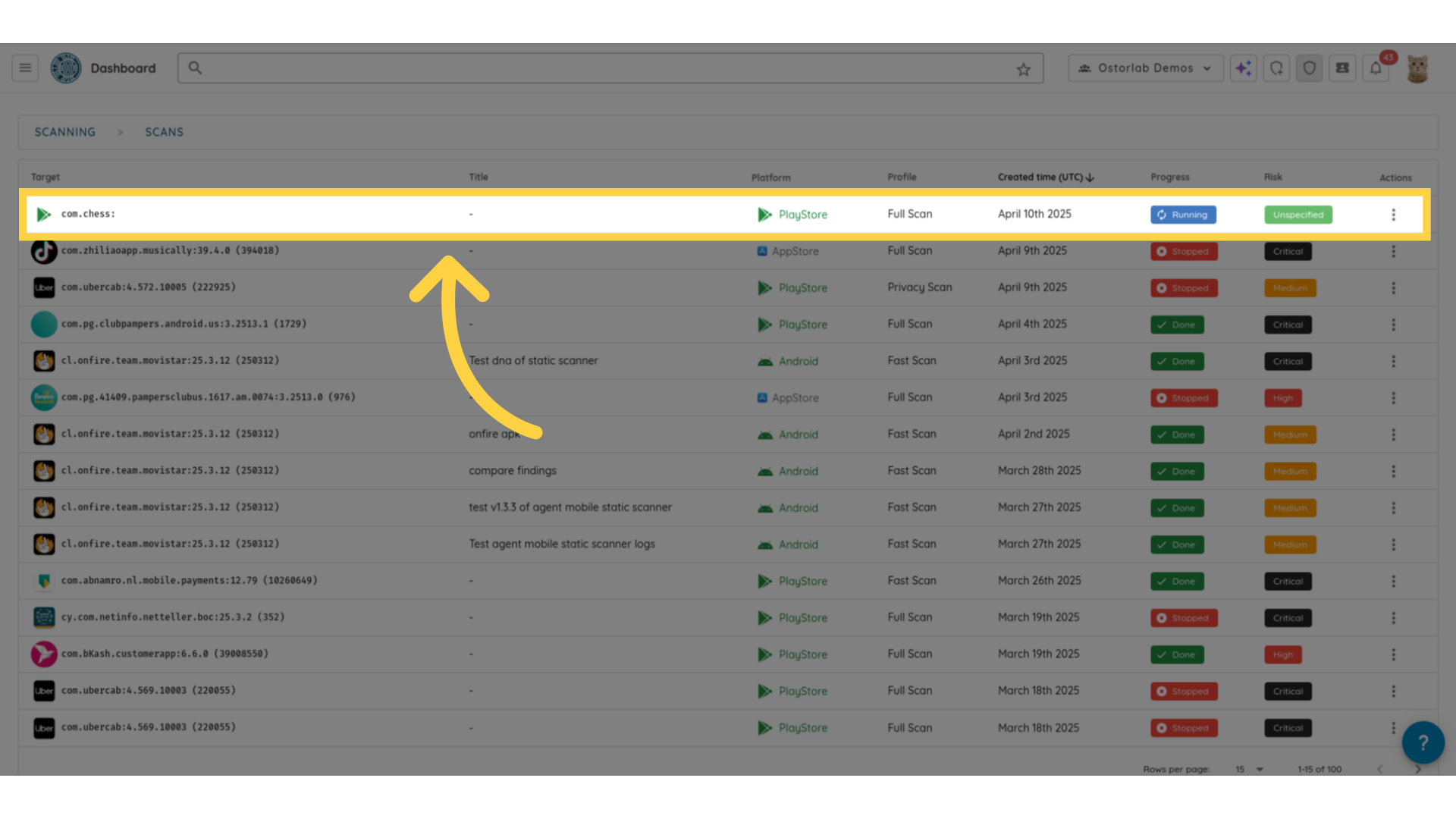
14. Liste des scans
Le scan sera répertorié dans le tableau des scans.
Ce guide a expliqué comment exclure des domaines des scans mobiles à l'aide des Scope URLs regexes.